Make an API key for your own tools
Create key walks you through Name, Access, Expiry and Copy. Rename a key any time; Delete turns it off for good.
Steps
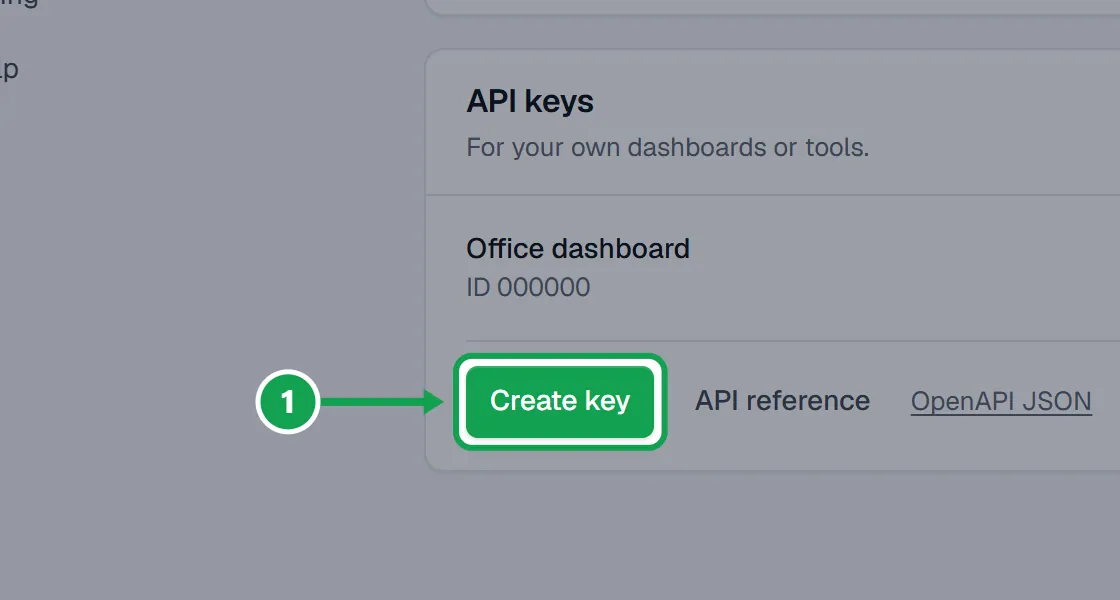
Step 1. Open Settings, choose AI & API, and on the API keys card press Create key.
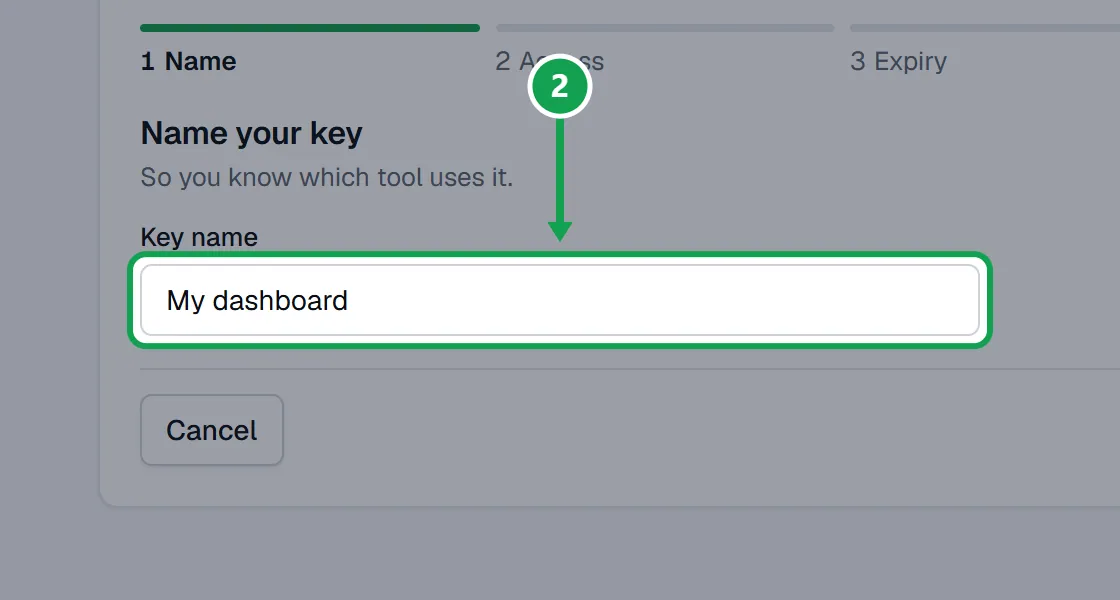
Step 2. Name your key: type a Key name, like the tool it is for, and press Next.
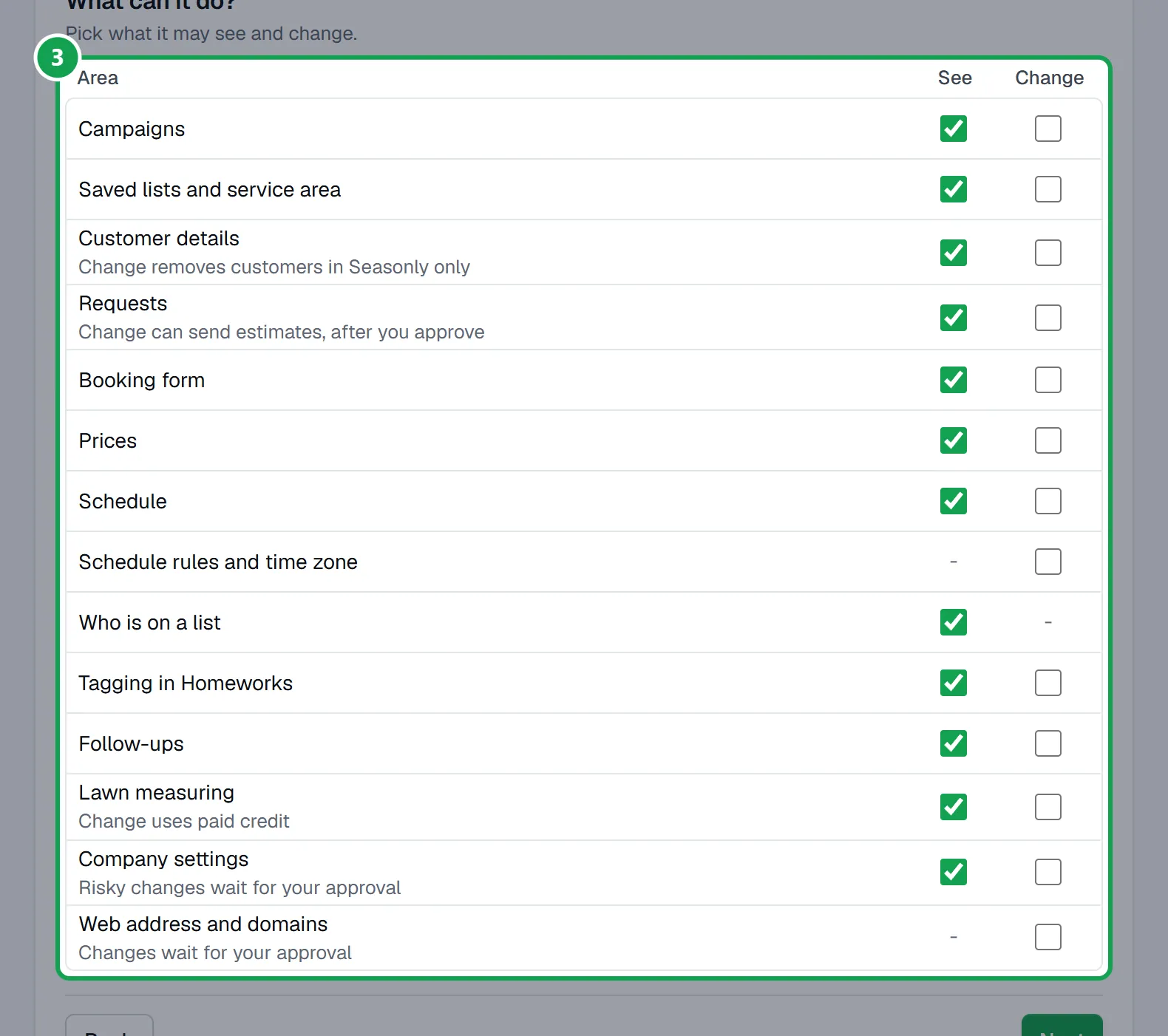
Step 3. What can it do?: tick See or Change for each area. Give it only what it needs, then press Next.
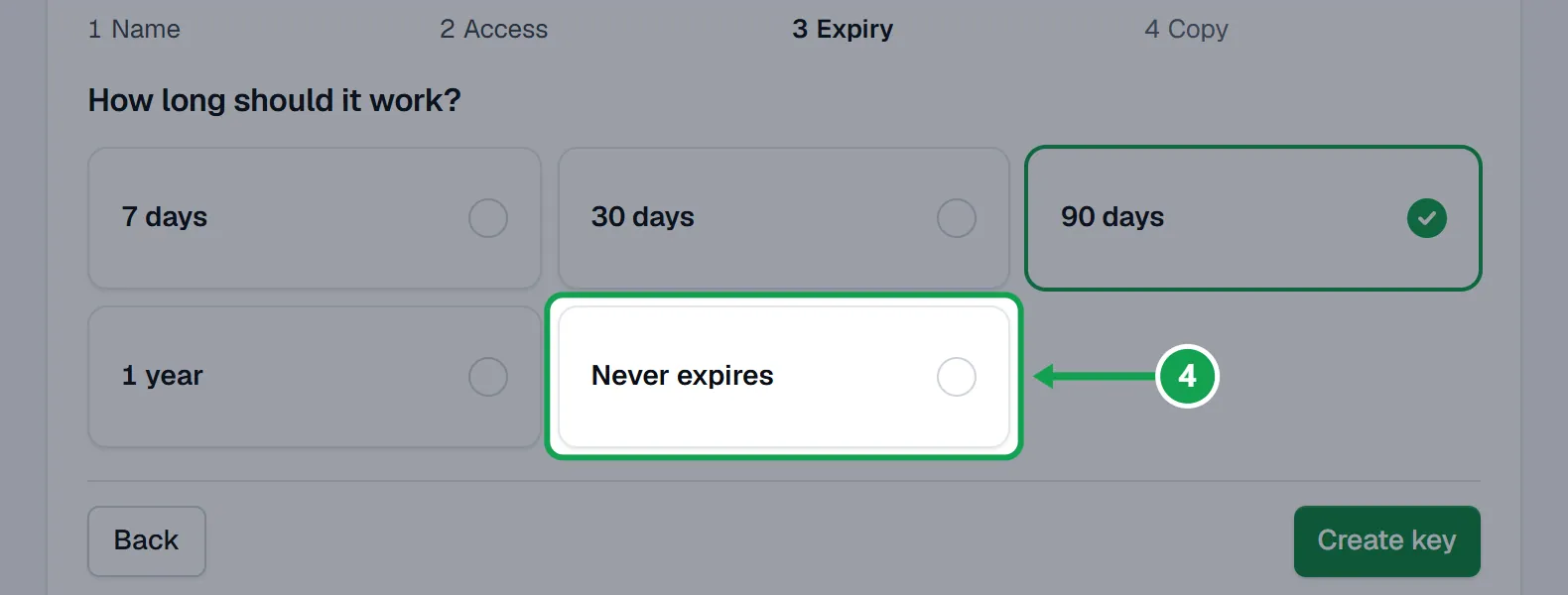
Step 4. How long should it work?: pick 7 days, 30 days, 90 days, 1 year or Never expires, then press Create key.
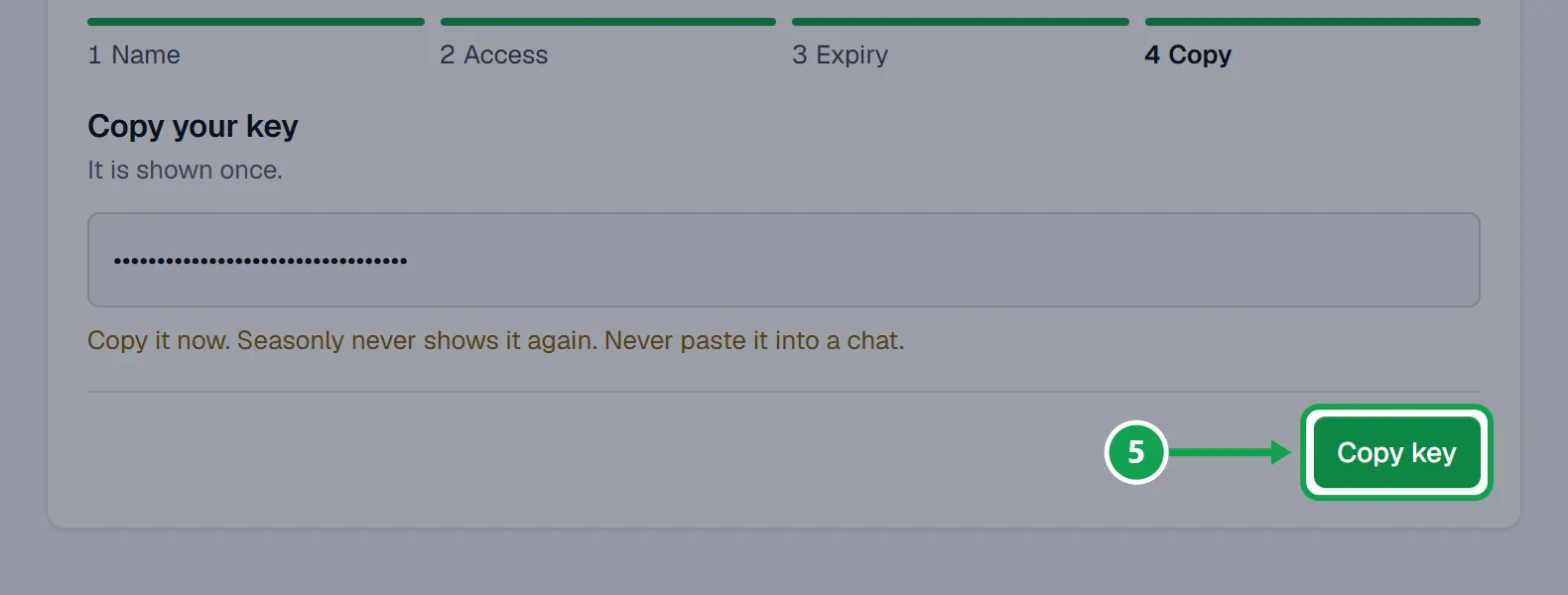
Step 5. Copy your key: press Copy key and keep it somewhere safe. It is shown once. Then press Done.
Rename a key
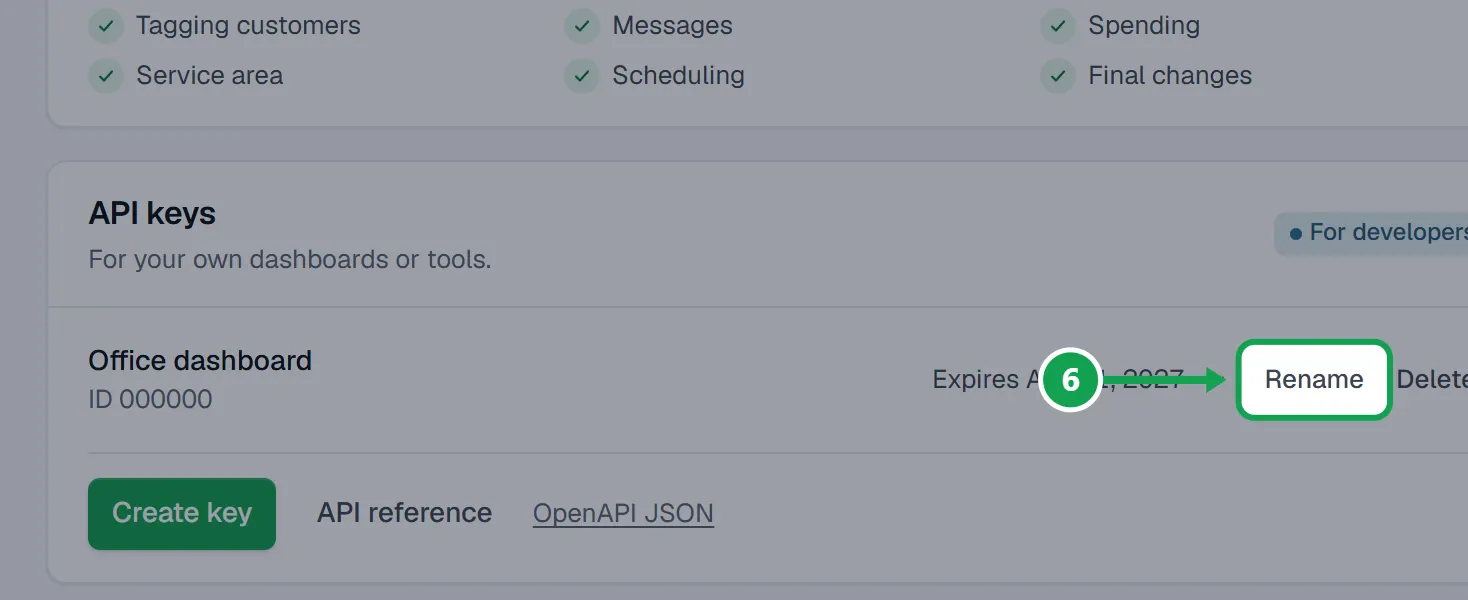
Step 1. Under API keys, press Rename beside the key.
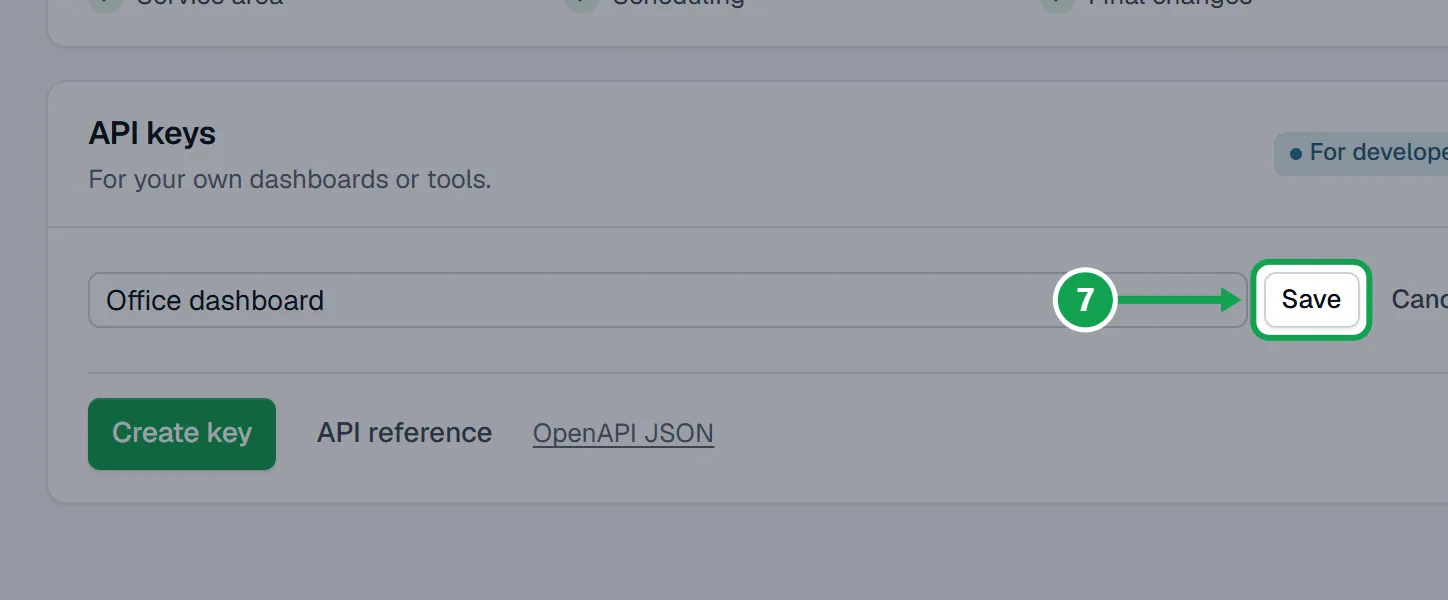
Step 2. Type the new name and press Save.
Delete (revoke) a key
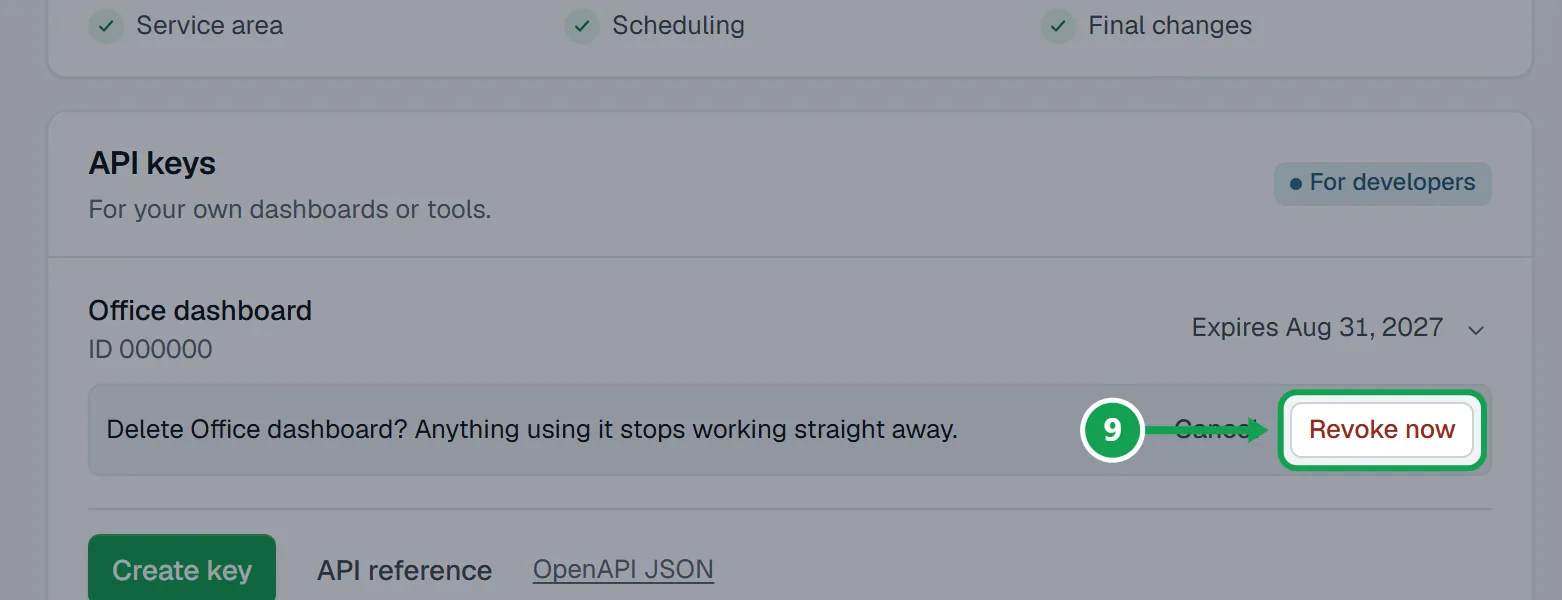
Deleting a key is how you revoke it.
Step 1. Press Delete beside the key.
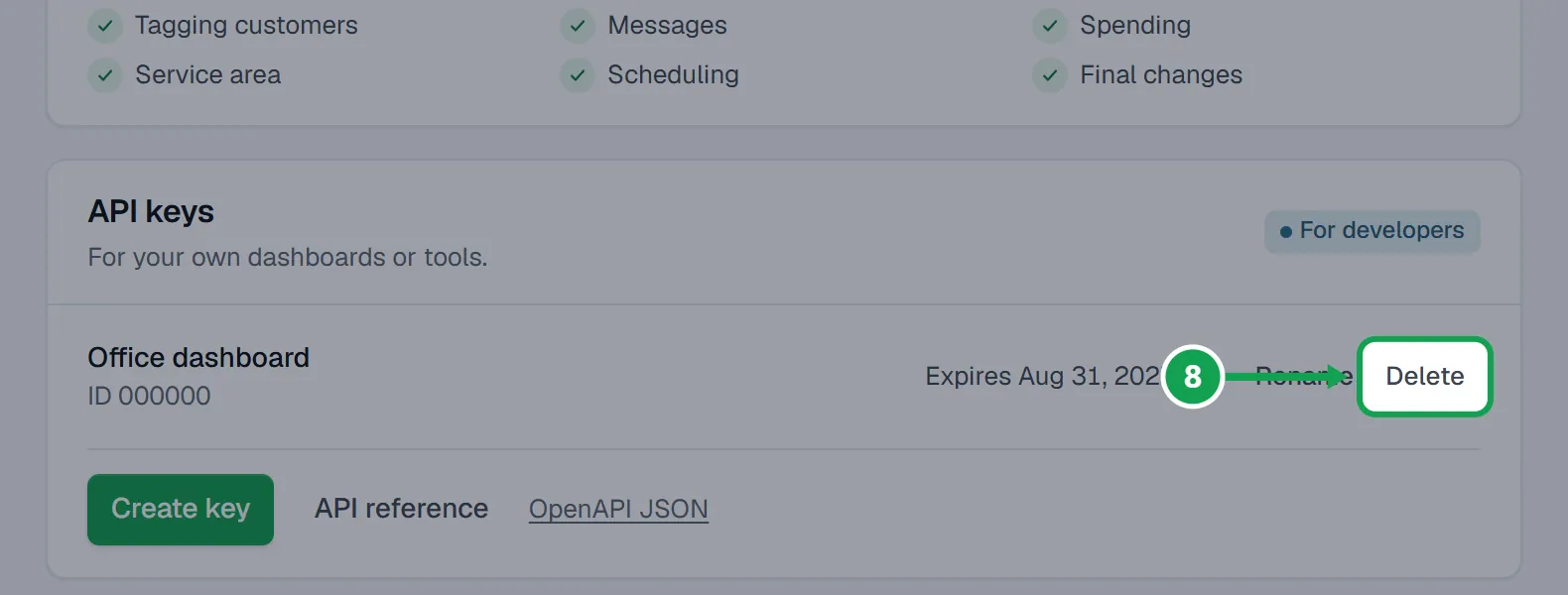
Step 2. Press Revoke now. Anything using it stops working straight away, and the row says Deleted.
If this, then that
- If Claude, ChatGPT or your tool says MCP and API access is part of Premium. Upgrade on the Billing page in Seasonly to turn it on.
- Your company is on Free. The owner presses Upgrade on Billing, then tries again.
- If you do not see the API keys card
- You are signed in as staff. Only the owner can make, rename or delete keys.
- If Create key is greyed out
- AI & API is not switched on for your account yet. The page says AI & API is not switched on for Seasonly yet.
- If a key says Expired
- It no longer works. Press Create key, make a new one, and give the new key to your tool.
- If you lost the key
- It cannot be shown again. Delete it and make a new one.
- If Copy key did not work
- The key shows as text instead. Select it, copy it by hand, then press Done.
- If Next is greyed out on What can it do?
- Tick at least one box.
Good to know
- MCP and API access is part of Premium. On Free, keys stay listed but calls are refused.
- A new key starts on 90 days. Never expires keeps working until you delete it.
- Tap a key's row to see what it Can do, when it was Created and when it was Last used.
- Changes made with a key follow the same rules as Claude: some wait on your Approvals page unless you trust that key.
- Never paste a key into a chat. Claude and ChatGPT connect with Allow instead.
- API reference on the card opens the developer guide.