Approve or decline a change Claude asks to make
Some changes from Claude, ChatGPT or an API key wait on your Approvals page. Press Approve or Decline; each waits 30 minutes.
Steps
Step 1. In your chat, Claude first shows a dry run: exactly what would change. Say yes if it is right.
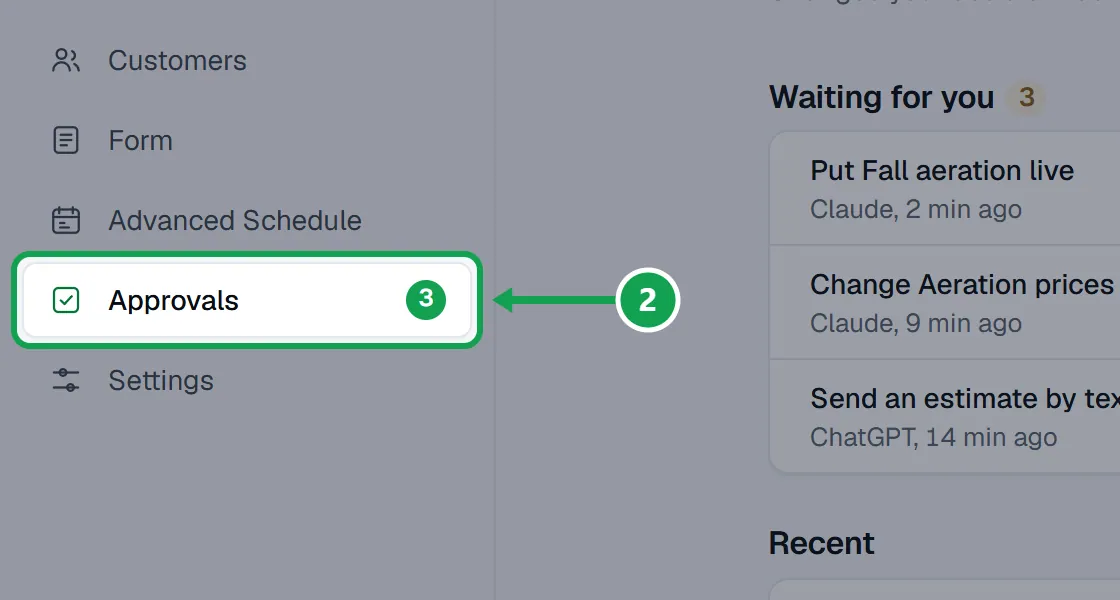
Step 2. If it needs your approval, open Approvals in the menu, or the link Claude gives you. The number beside it is how many wait.
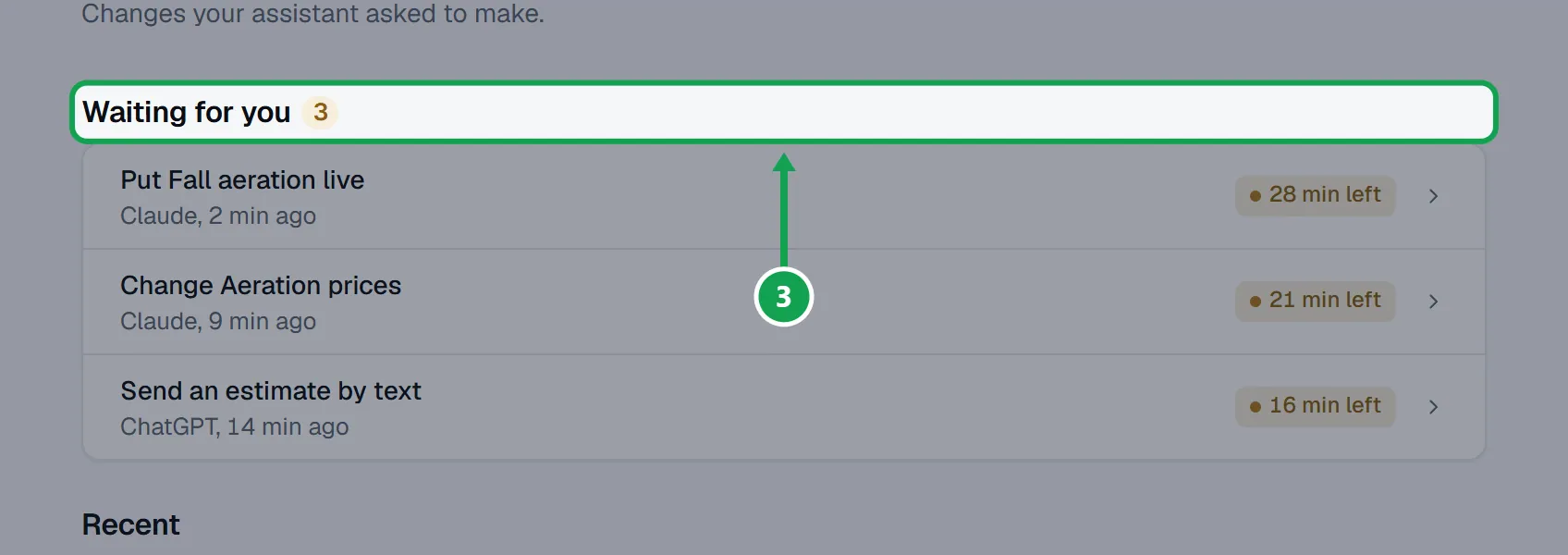
Step 3. Under Waiting for you, tap the change. The soonest to expire is on top.
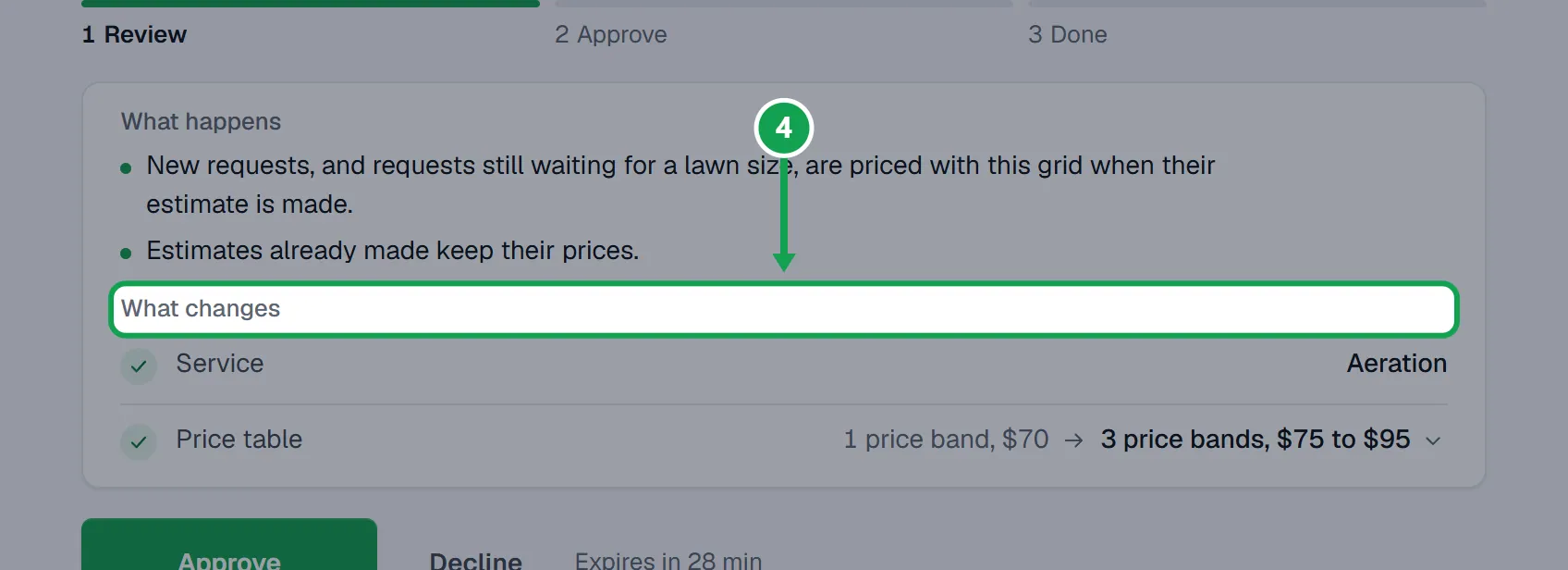
Step 4. Read What happens and What changes. Tap a row with an arrow to see the whole list.
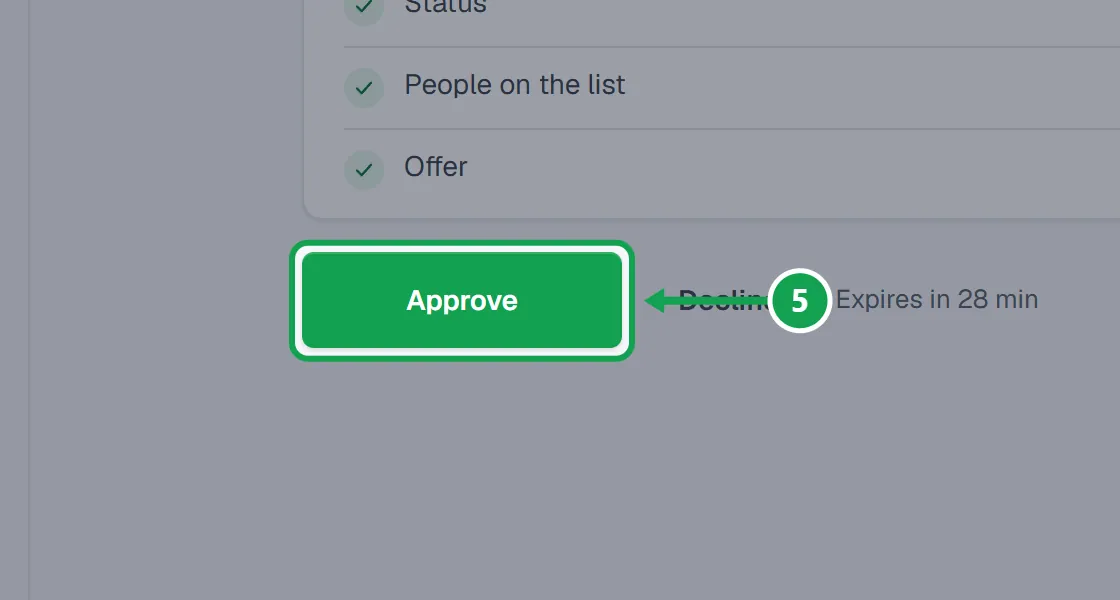
Step 5. Press Approve to let it go ahead, or Decline to stop it. Nothing changes until you approve.
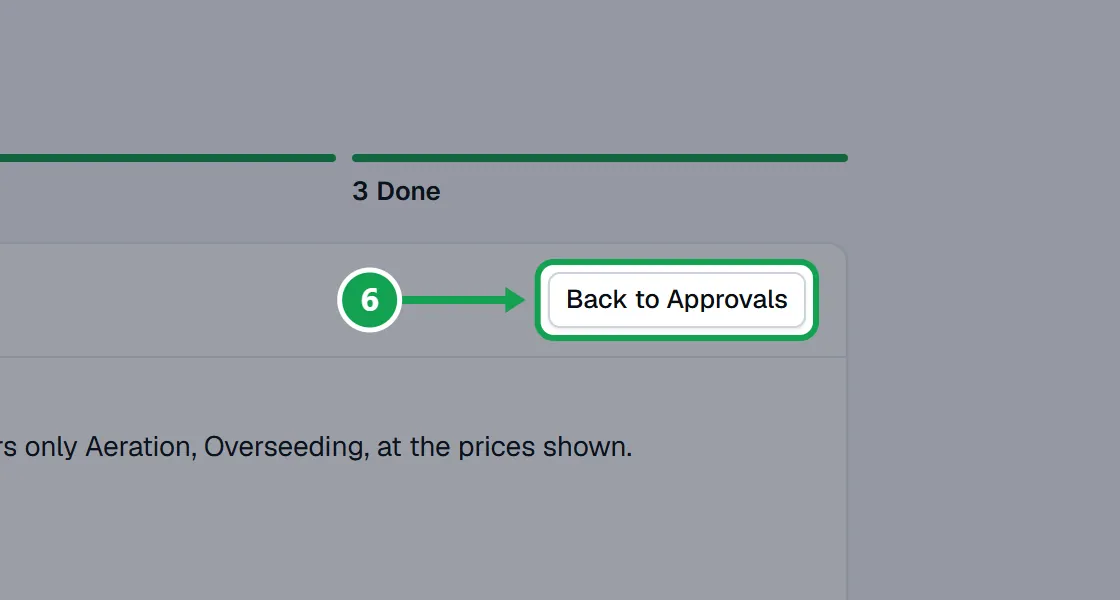
Step 6. Go back to the chat and tell Claude. Once it makes the change, the approval shows Done. Press Back to Approvals.
Draw an area for Claude
When a change needs a shape on the map, like a service area, Claude sends a drawing link instead of guessing.
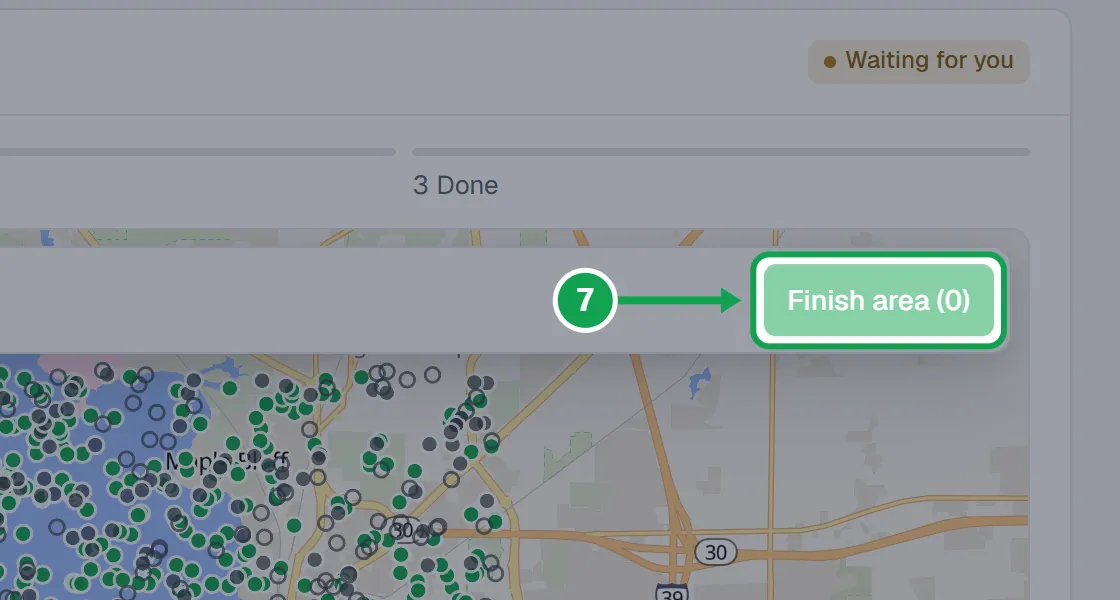
Step 1. Open the link while signed in as the owner. Tap the map to add corners, then press Finish area.
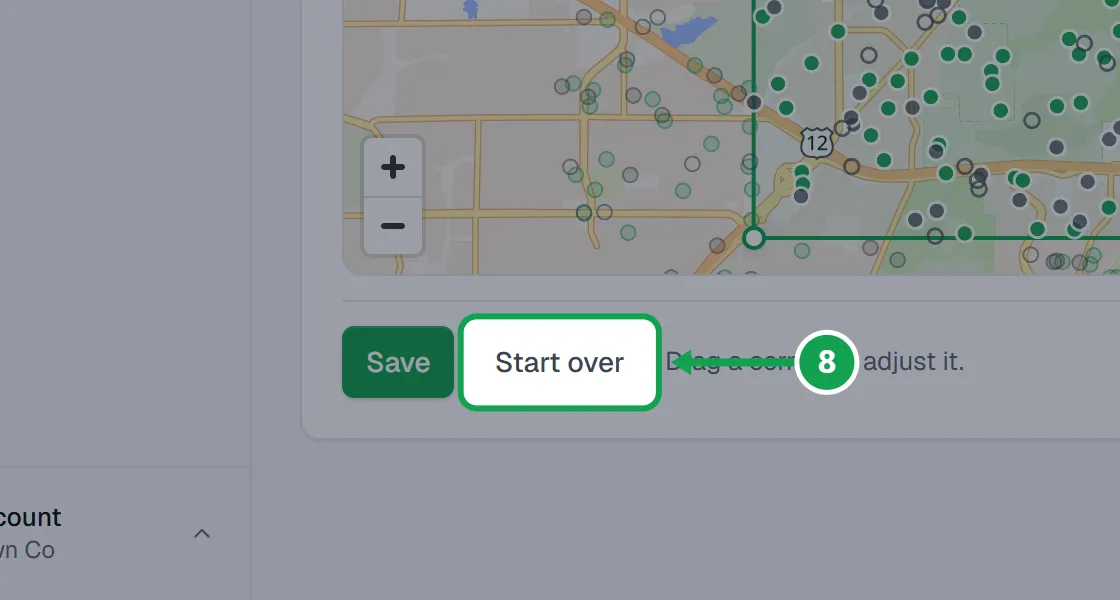
Step 2. Drag a corner to adjust it, or press Start over.
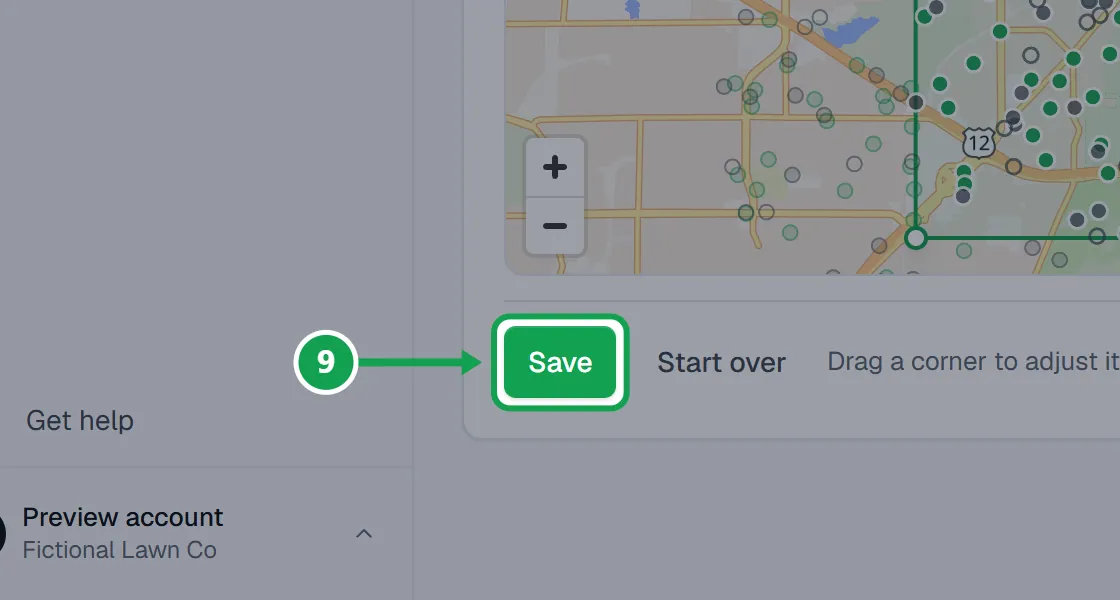
Step 3. Press Save, then go back to your chat.
If this, then that
- If you do not see Approvals in the menu
- It shows only for the owner, and only while AI & API is switched on for your account. Staff never see it. If you are the owner, open Settings, then AI & API: if it says AI & API is not switched on for Seasonly yet, approvals are not open for you yet.
- If an approval says Expired
- Nothing was changed. Each one waits 30 minutes. Ask Claude to try again and approve the new one.
- If an approval link takes you to Settings
- You are signed in as staff. Only the owner can approve. Sign in as the owner and open the link again.
- If an approval link takes you to Billing
- MCP and API access is part of Premium. Press Upgrade, or fix a failed payment with Manage billing, then open the link again.
- If a row says Done under trust
- You trust that connection for that kind of change, so it did not ask. See Trust a connection so it asks less.
- If you declined by mistake
- A declined change cannot be reopened. Ask Claude to ask again.
Good to know
- Changes that write to Homeworks, spend money on Clarity Measure, change your live booking form or cannot be undone wait for Approve. Campaign and list changes only need your yes in the chat.
- Each approval works once, for that exact change, and waits 30 minutes. A drawing link also lasts 30 minutes.
- Recent lists what was approved, declined, expired, done, or done under trust.
- Nothing said in a chat can approve for you. Claude's own "Always allow" does not skip Seasonly's approval.
- Only the owner can open approvals and drawing links.