Draw your service area
Draw where you work on the Customers map, so the form can mark or turn away addresses outside it and lawns are only measured inside it.
Steps
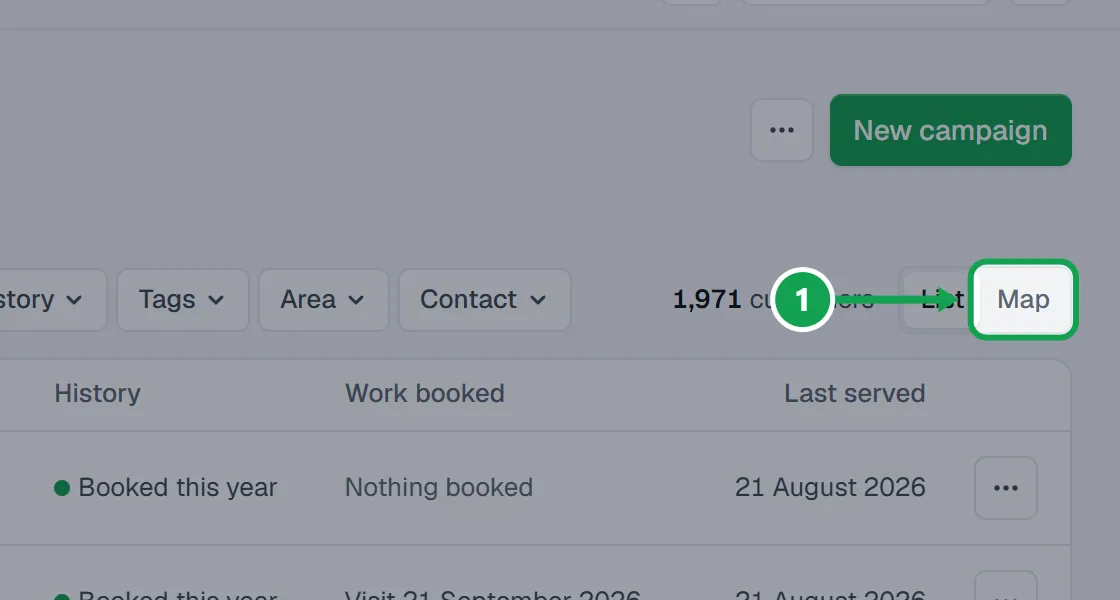
Step 1. Open Customers and switch to Map.
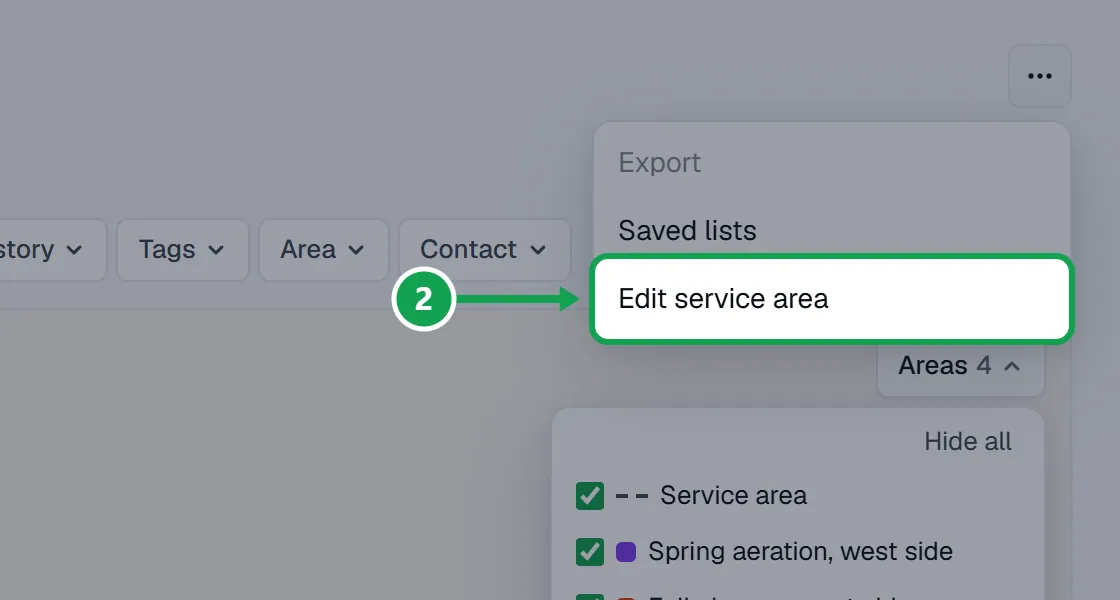
Step 2. Open the ... menu at the top of Customers and choose Draw your service area, or Edit service area if you have one. With no area yet, the map card also offers Draw your service area.
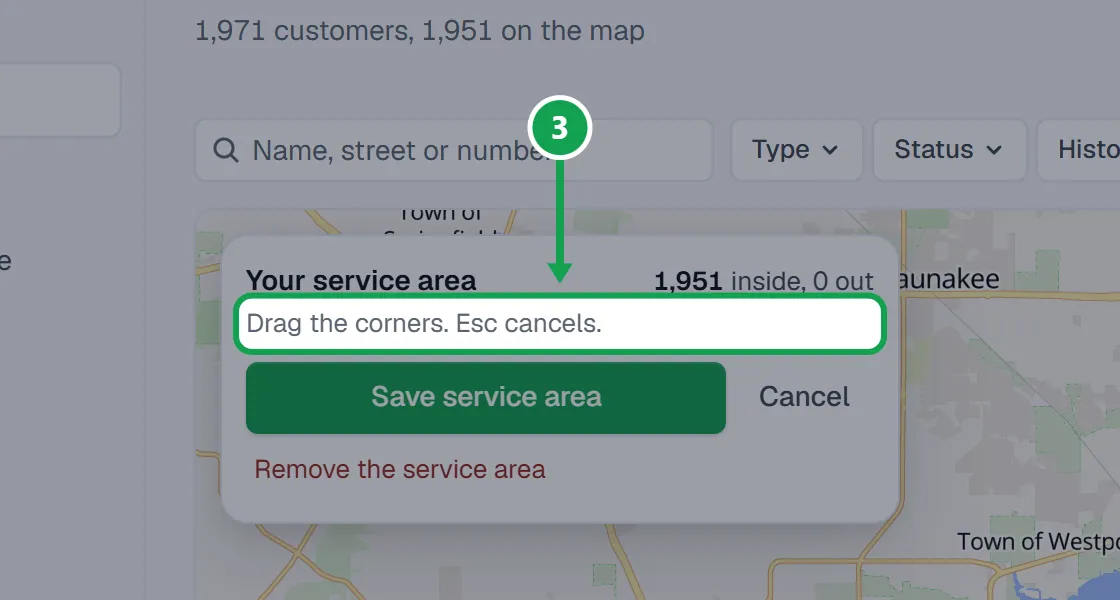
Step 3. Click the map to add corners round where you work, and click the first corner to close the shape. Esc cancels.
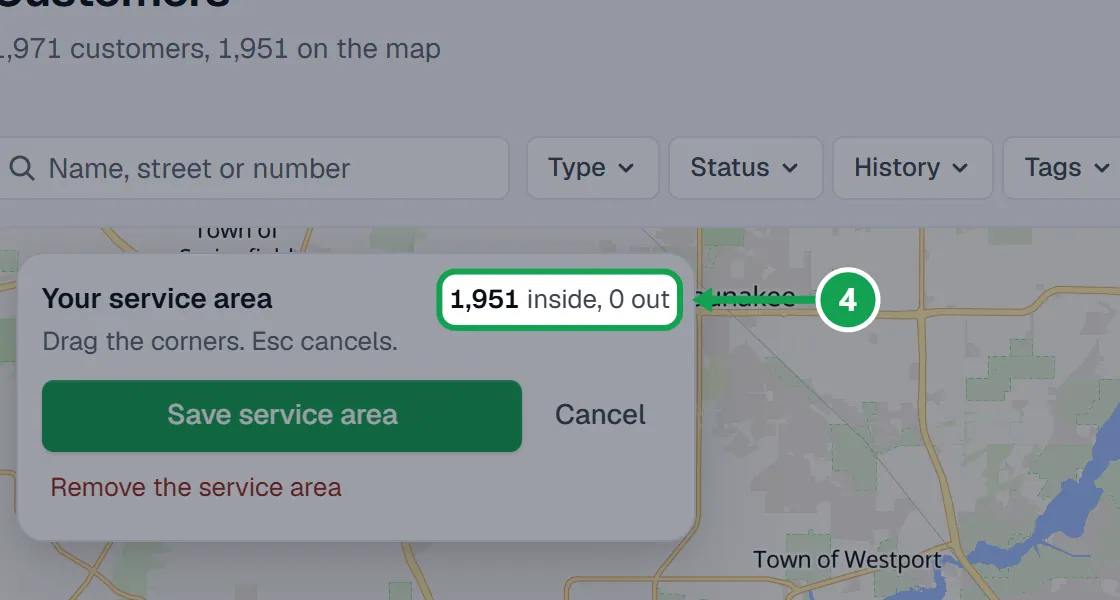
Step 4. Drag any corner to move it. The card counts how many of your customers are inside and out.
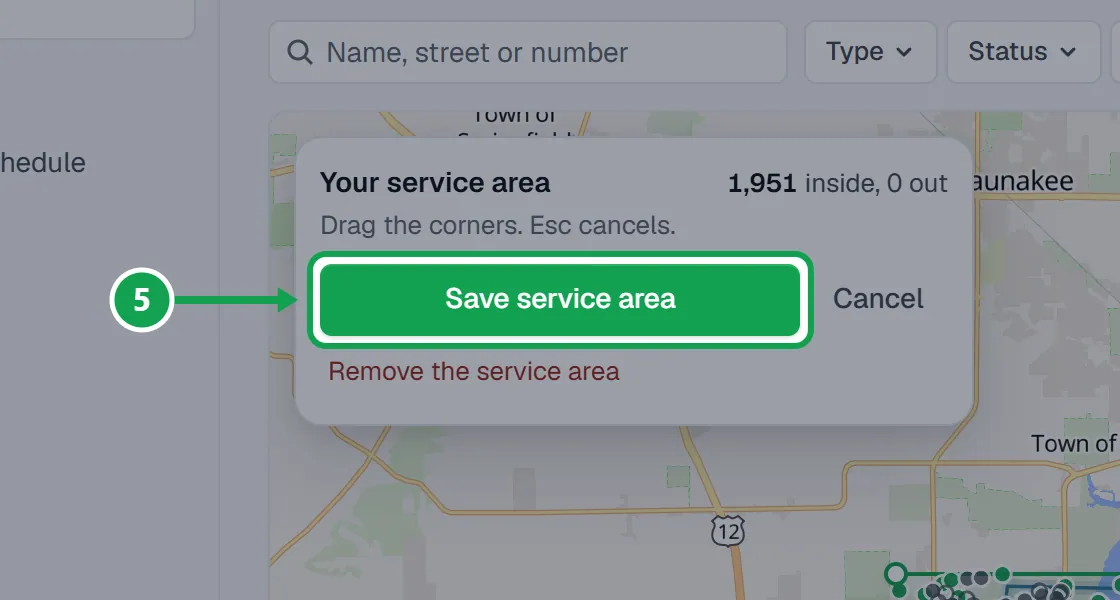
Step 5. Press Save service area.
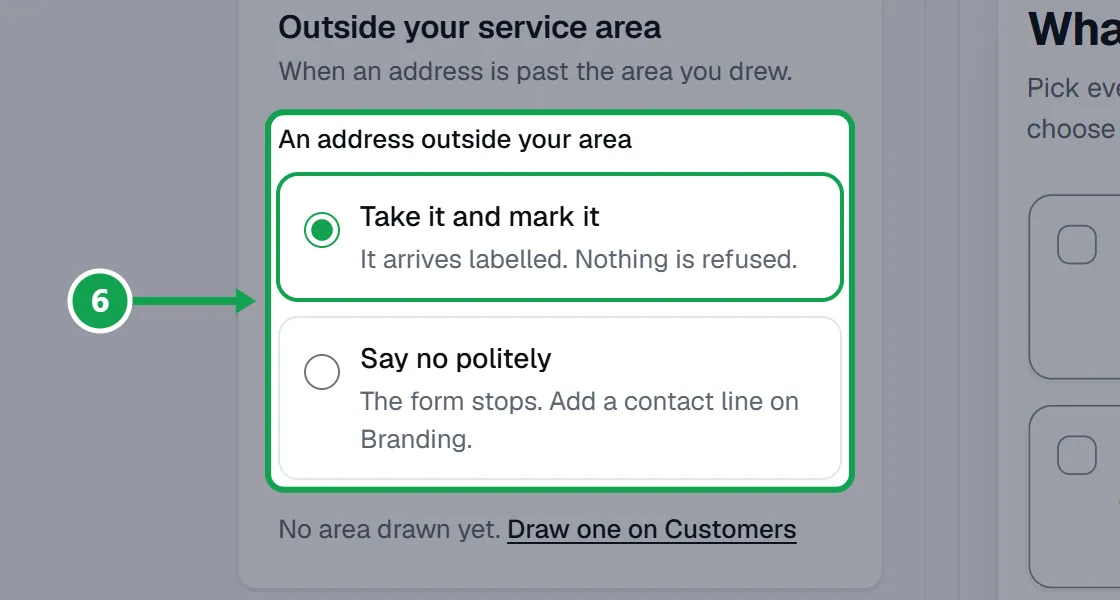
Step 6. On Form, open Contact details and choose what happens to an address outside it: Take it and mark it or Say no politely.
Let Claude send you a drawing link
Ask Claude to set your service area and it sends you a link to a map.
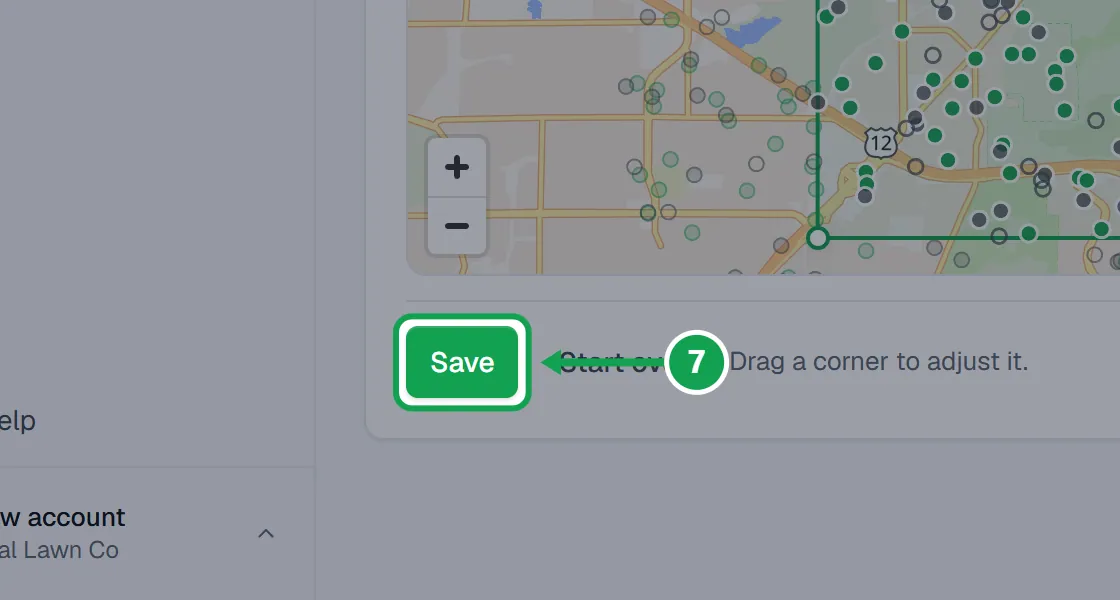
Step 1. Open the link. Tap the map to add corners, drag a corner to adjust it, and press Save. Start over clears it.
Step 2. Go back to your chat. Claude sets it as your service area after you approve it on the Approvals page. This change always asks, even on a trusted connection.
Step 3. The link works for 30 minutes. Ask for a new one if it expired.
Remove the service area
Step 1. Open the ... menu on Customers, choose Edit service area, then press Remove the service area.
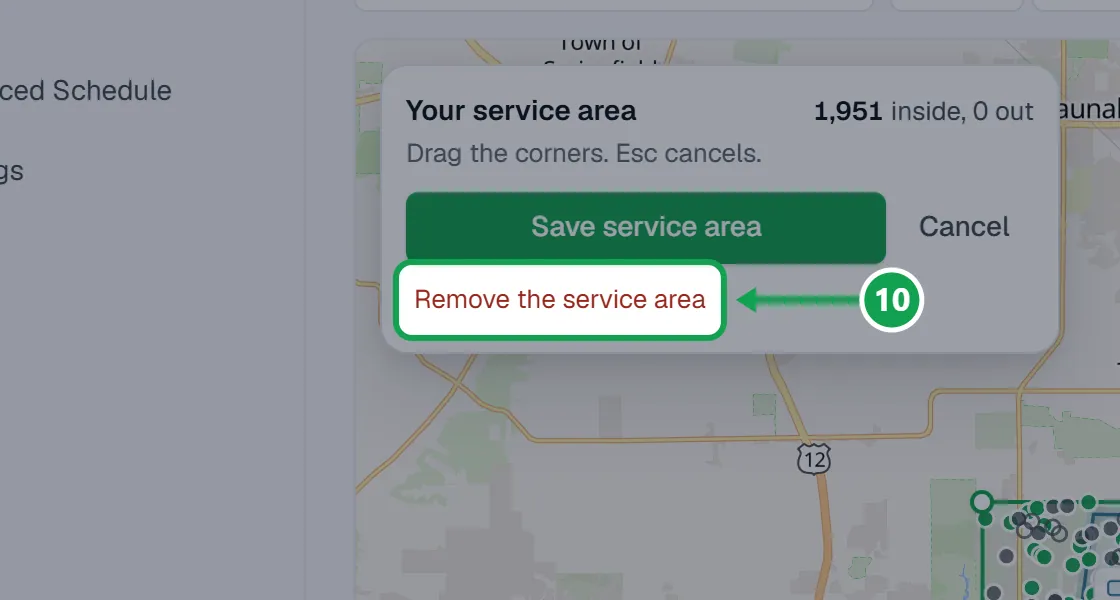
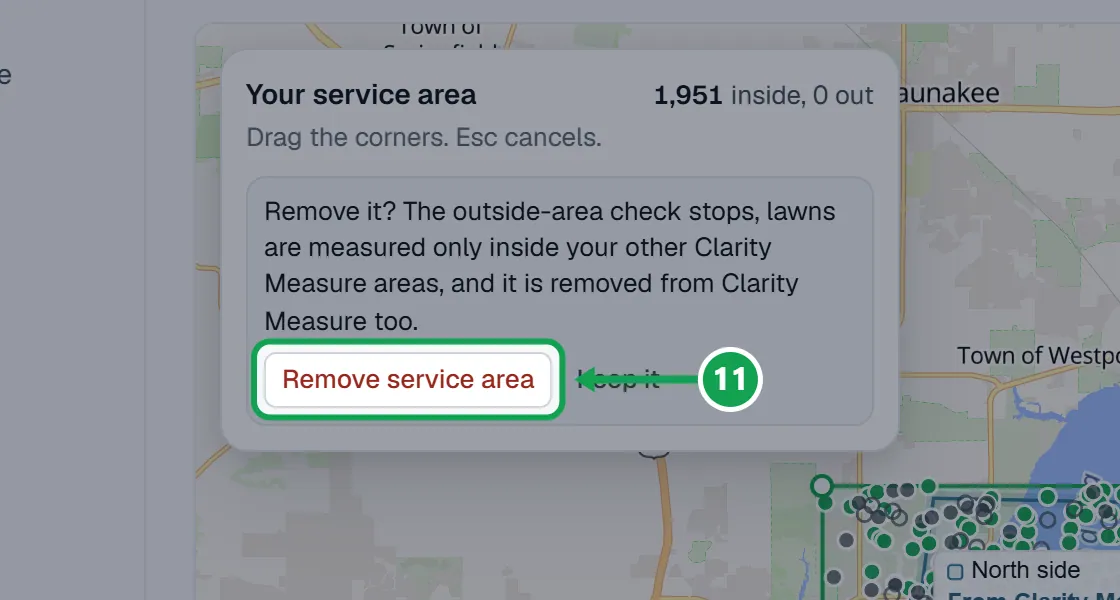
Step 2. Read the warning: the outside-area check stops, lawns anywhere get measured, and the area is removed from Clarity Measure too. Press Remove service area to confirm, or Keep it.
If this, then that
- If you do not see Edit service area or Draw your service area in the menu
- You are signed in as staff. Only the owner can change the service area.
- If Save service area is greyed out
- The shape needs at least three corners. Keep clicking the map.
- If saving says Saved in Seasonly, but Clarity Measure could not be updated
- Seasonly kept your area. Try again later, or connect Clarity Measure again in Settings with service area access.
- If the drawing link says This link expired
- Links last 30 minutes. Ask Claude for a new one.
- If a request came in marked outside your area
- The address is outside the shape. Redraw the area if you do work there, or choose Say no politely on Contact details to turn those away.
- If lawns outside your area are still measured
- Check the Areas list on the map for areas from Clarity Measure. Lawns inside any of those are measured too.
Good to know
- With no service area, every address counts as covered and Clarity Measure measures any address the map can find. With one, it only measures inside it.
- While your Clarity Measure plan is active, saving or removing the area changes it in Clarity Measure too. Your other Clarity Measure areas are kept, and lawns inside any of them are measured.
- Outside addresses come in marked by default. Nothing is refused unless you choose Say no politely.
- Draw an area picks customers for a list or a campaign. It does not change your service area.
- Only the owner can draw, change or remove it.