Find customers and save lists
Your Homeworks customers as a list or a map. Filter them, open one, save a filter as a list for a campaign, or export a file.
Steps
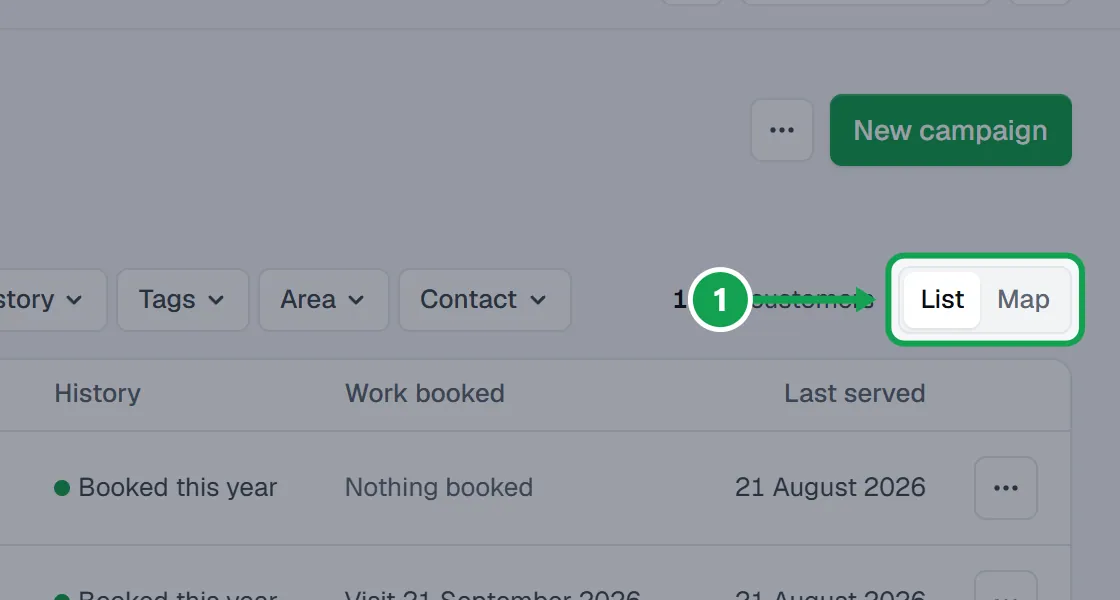
Step 1. Open Customers in the menu. Pick List or Map above the list.
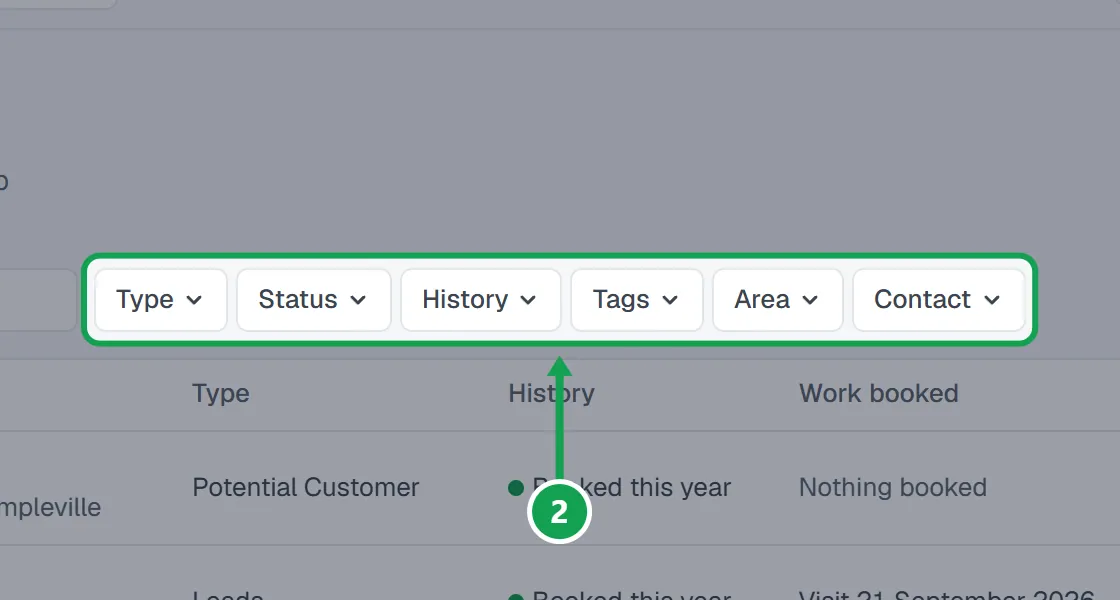
Step 2. Search by name, street or number, or narrow the list with the filters: Type, Status, History, Tags, Area and Contact.
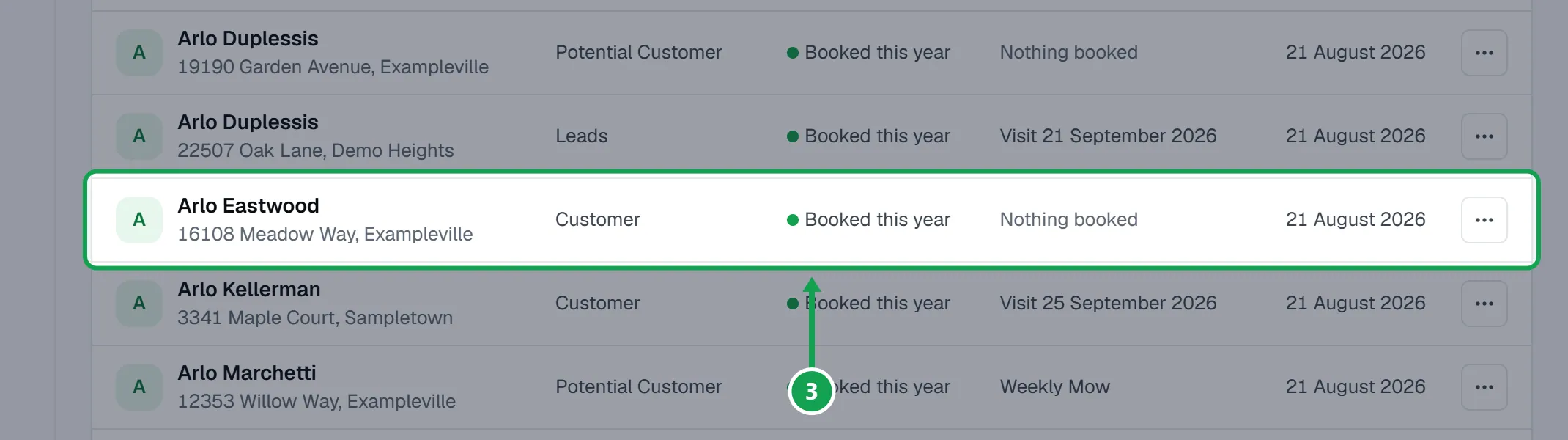
Step 3. Press a customer to see their Contact information, Schedule & recurring services and Service history.
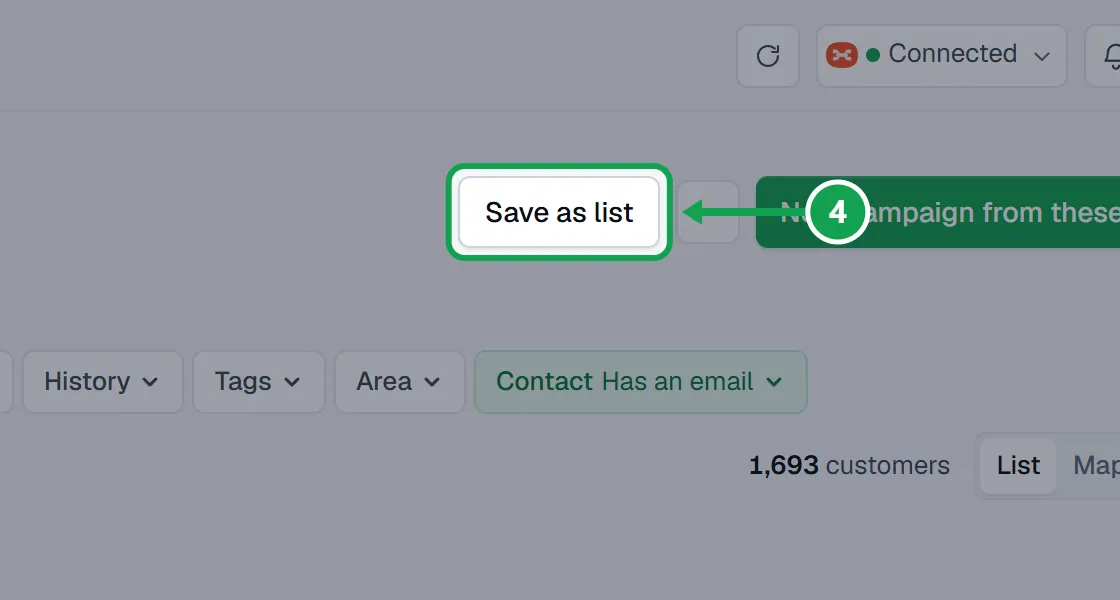
Step 4. To keep a filter, stay on List and press Save as list.
Step 5. Name it in List name and press Save customer list.
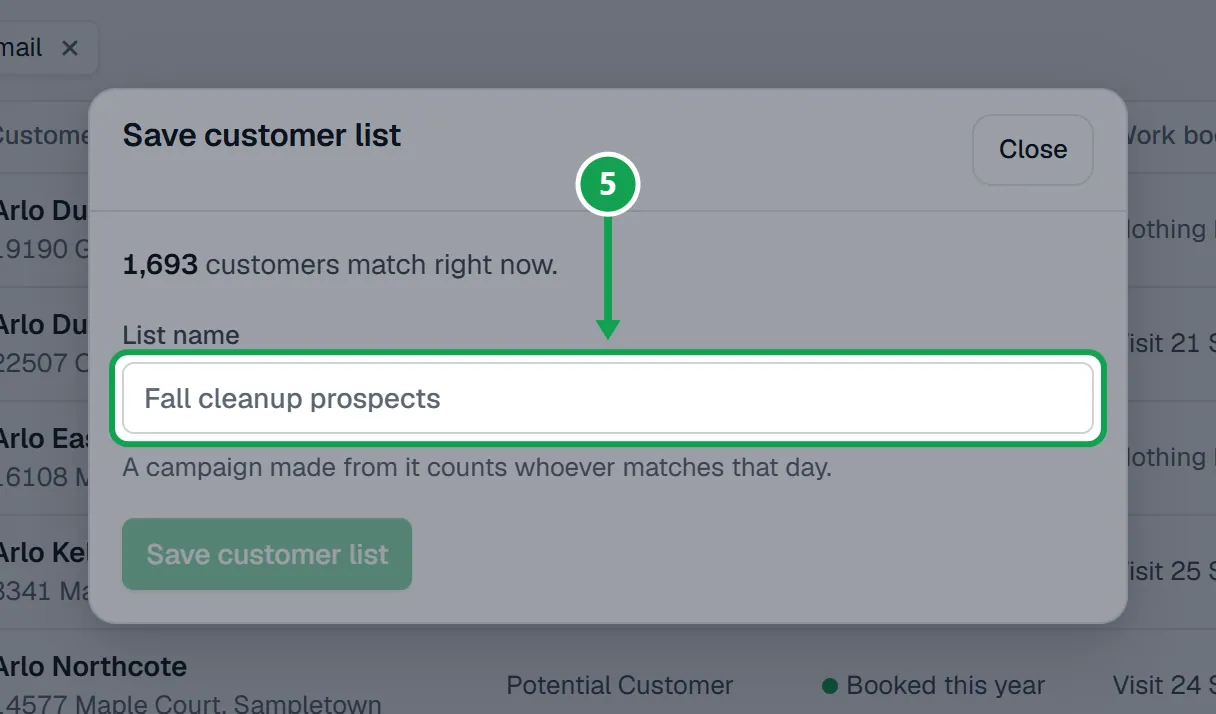
Step 6. Press Start a campaign to use it now, or Keep browsing customers.
Step 7. To use a saved list later, press the List filter and pick it. New campaign from these starts a campaign from whatever is on screen.
Pick customers on the map
Step 1. Press Area, then Draw an area on the map.
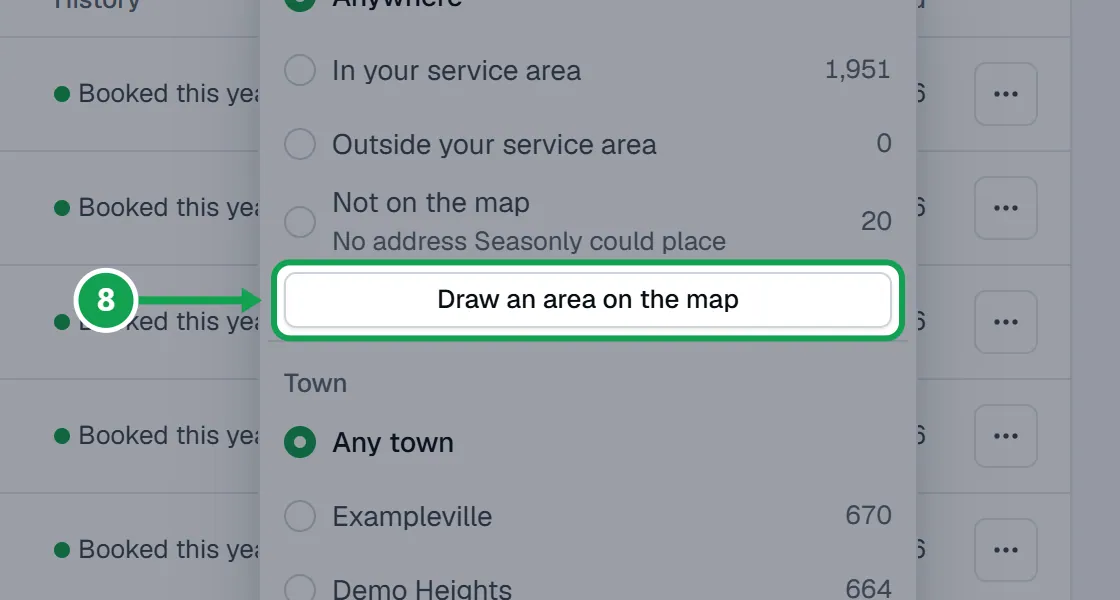
Step 2. Click the map to add corners, then press Use this area.
Step 3. Press Save as list, or Start a campaign with these.
Export a file
The file holds exactly the customers on screen, minus anyone you untick.
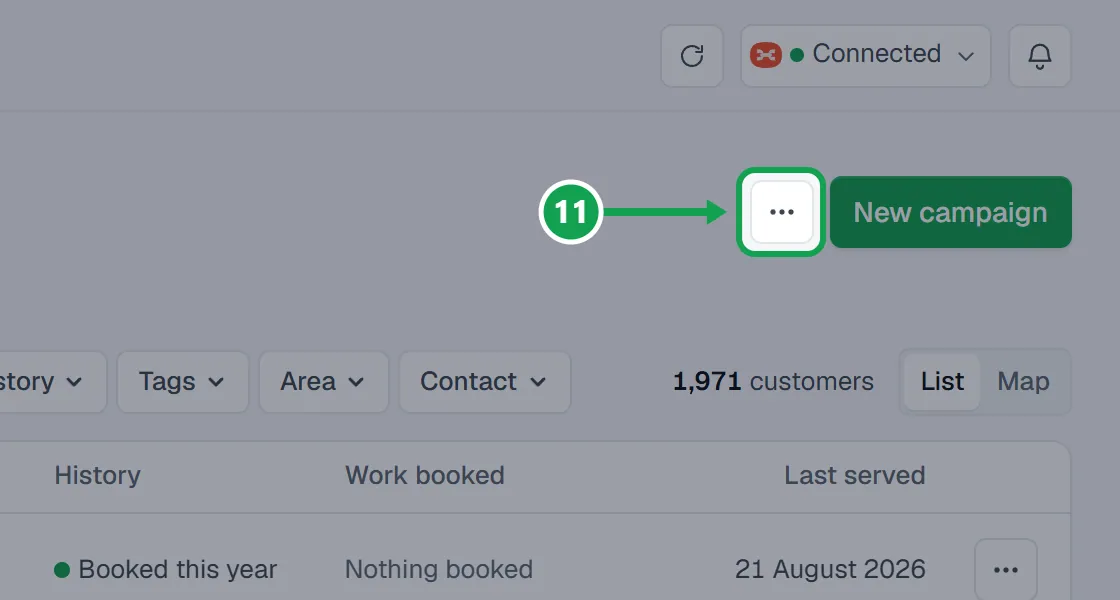
Step 1. Press the three-dot button at the top of Customers and choose Export.
Step 2. Untick anyone who should not be in the file. The search box at the top finds someone fast.
Step 3. Press the download button. It says how many customers go in the file.
Bring in new Homeworks customers
Your customers come from Homeworks, and Seasonly reads them again every night.
Step 1. On a new account, press Import my customers, or finish the set-up wizard.
Step 2. To read again now, open the three-dot menu on Customers and choose Read Homeworks again.
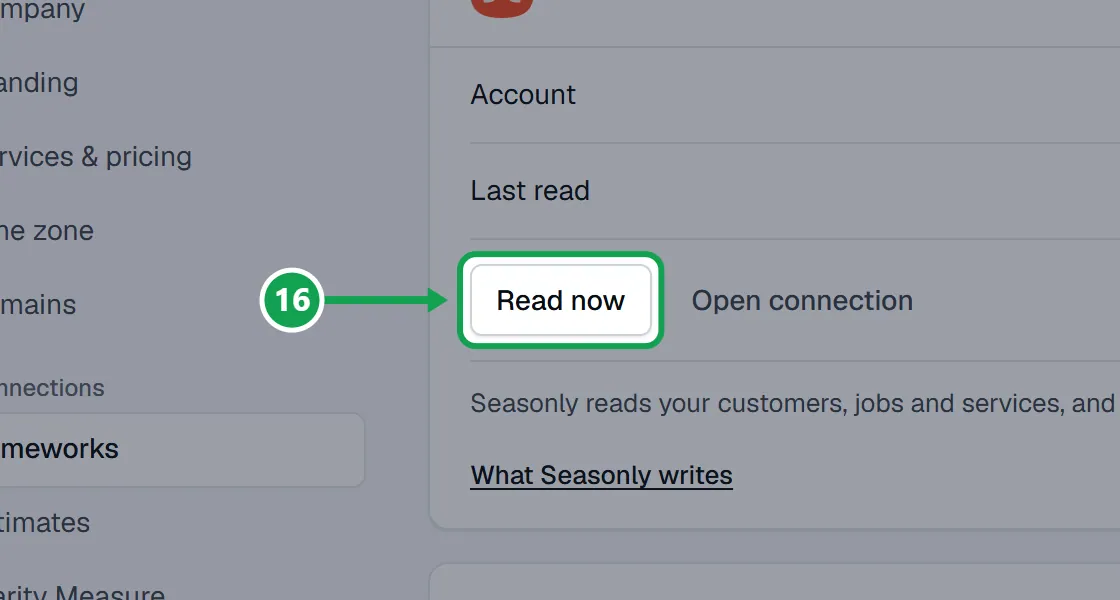
Step 3. Or open Settings, choose Homeworks and press Read now.
If this, then that
- If you do not see Save as list
- Pick List, not Map, and set at least one filter or search. The button shows only when something is filtered.
- If new Homeworks customers are missing
- Seasonly reads Homeworks every night. To read now, choose Read Homeworks again in the three-dot menu, or Read now in Settings under Homeworks.
- If Export is greyed out
- Too many customers are picked at once. Narrow the filters and try again.
- If a customer is missing from the list but is in Homeworks
- They may have been removed from Seasonly. Open Removed customers in the three-dot menu and restore them.
- If it says Homeworks is not connected
- Connect Homeworks first. See Connect Homeworks.
Good to know
- A saved list is a set of filters, not a frozen set of people. A campaign made from it counts whoever matches that day.
- Saved lists in the three-dot menu renames or removes lists. Campaigns made from a removed list keep their customers.
- Filtering, saving and exporting never change anything in Homeworks.
- The tag file in Export is for tagging people by hand. To have Seasonly tag a campaign's customers, turn on Tag customers in Homeworks in Settings.
- Only the owner can save, rename or remove lists. Staff can open them.