Leave a customer out of Seasonly or put them back
Keep someone out of Customers, saved lists and new campaigns without touching Homeworks, and restore them any time.
Steps
Step 1. Open Customers and pick List.
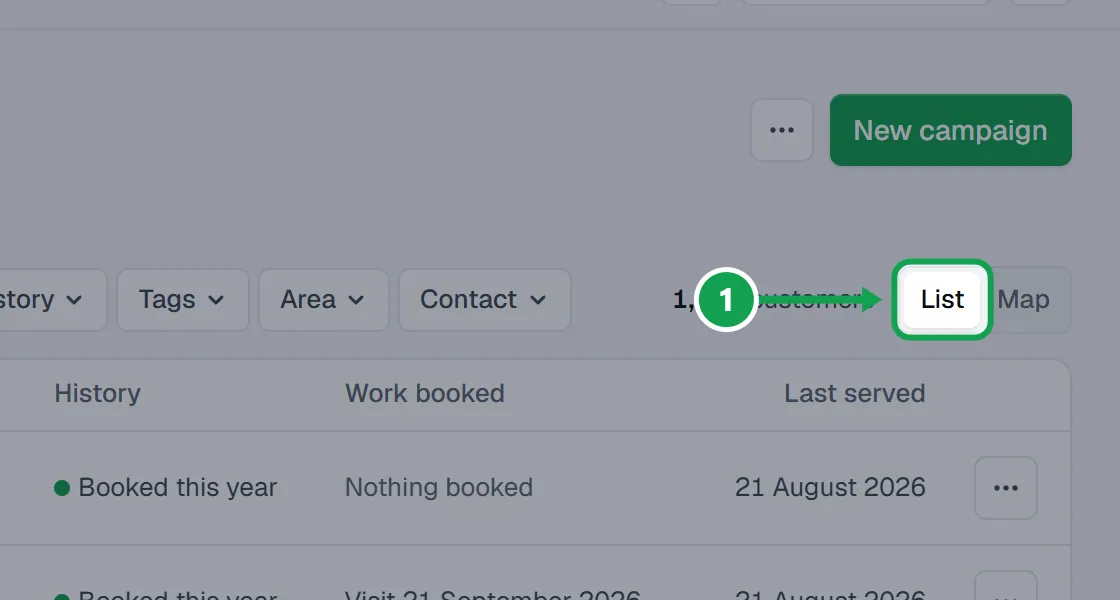
Step 2. Press the three-dot button at the end of the customer's row.
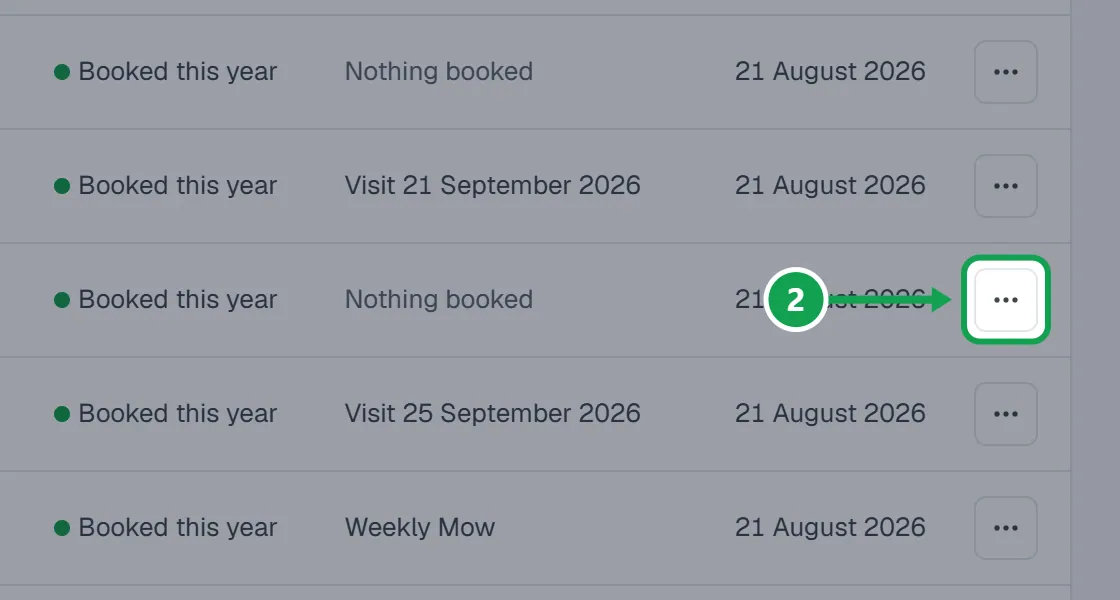
Step 3. Choose Leave out of lists. It says Homeworks is not changed.
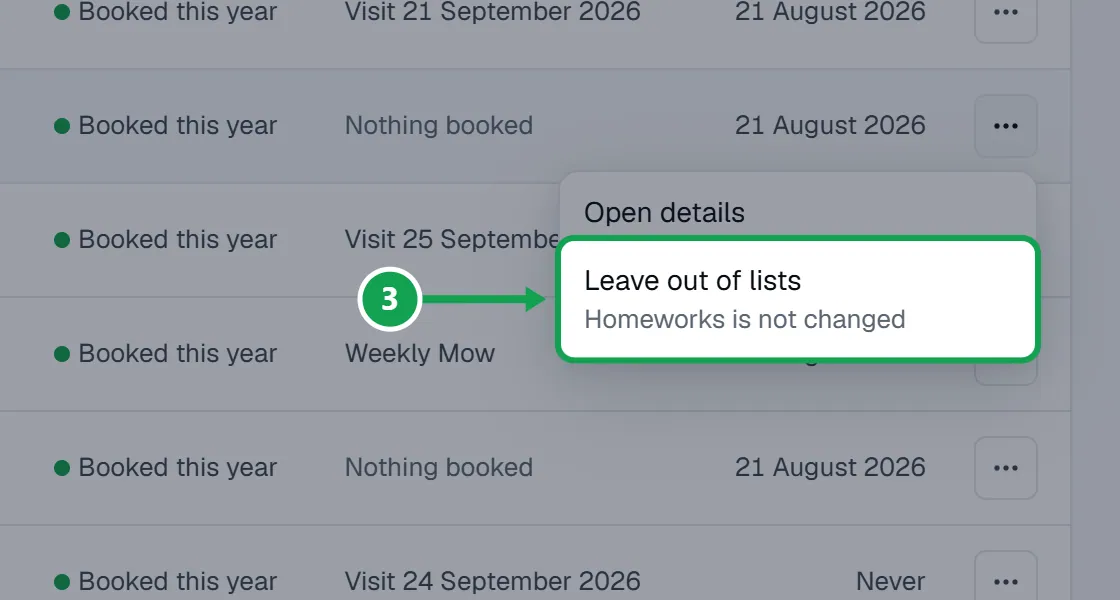
Step 4. Seasonly says they are left out of your lists and that Homeworks records are unchanged. Press Undo there if it was a mistake.
Put removed customers back
Everyone you removed stays in one place, newest first.
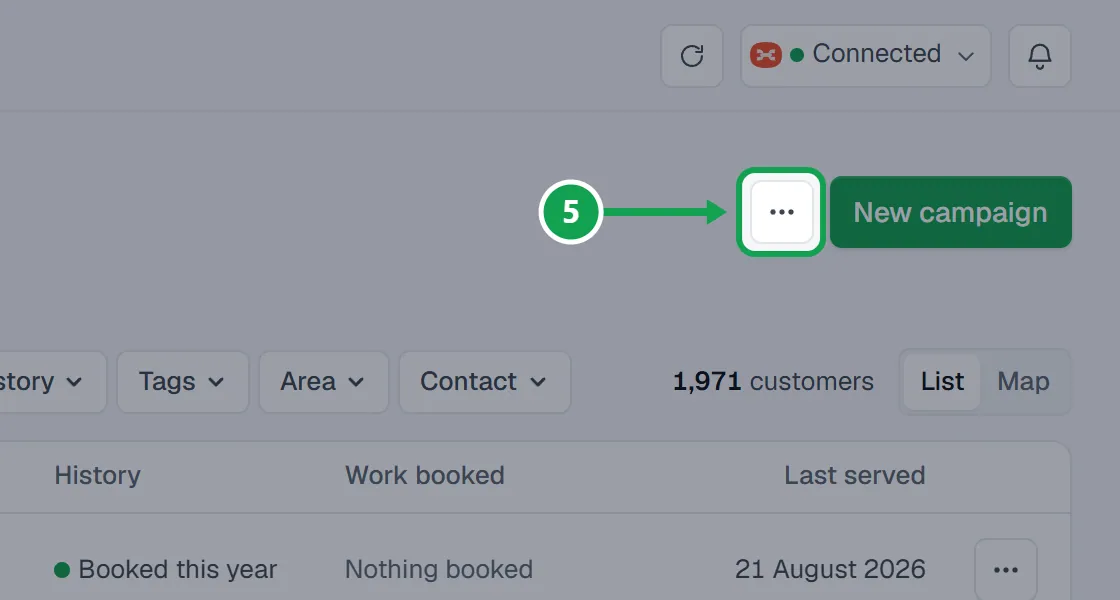
Step 1. On Customers, press the three-dot button at the top and choose Removed customers.
Step 2. Tick the people to bring back, or tick the box at the top to pick everyone.
Step 3. Press the Restore button. It shows how many you picked.
If this, then that
- If you do not see Leave out of lists
- You are signed in as staff. Only the owner can leave customers out.
- If you do not see Removed customers in the three-dot menu
- You are signed in as staff, or nobody has been removed yet.
- If the customer also needs to stop getting texts from Homeworks
- Leaving out only affects Seasonly. Change their text settings in Homeworks too. Anyone who texts STOP to a campaign is kept out of campaigns automatically.
- If you removed the wrong person
- Press Undo right away, or open Removed customers later and restore them.
- If they must be forgotten completely
- Open the customer and press Delete their data. That erases their details from Seasonly and cannot be undone.
Good to know
- Leaving someone out only hides them in Seasonly: Customers, saved lists and new campaigns. Their Homeworks record is not changed.
- They stay left out when Seasonly reads Homeworks again.
- Restoring puts them back on Customers, lists and campaigns. Nothing is written to Homeworks either way.
- Only the owner can leave out or restore customers.
- To erase someone's details from Seasonly for good, open them and press Delete their data. That cannot be undone.