Choose who a campaign goes to
Pick a saved list, a customer group, your service area or customers you filtered. The list is frozen the moment you create the campaign.
Steps
Step 1. In the New campaign wizard, go to the Who step.
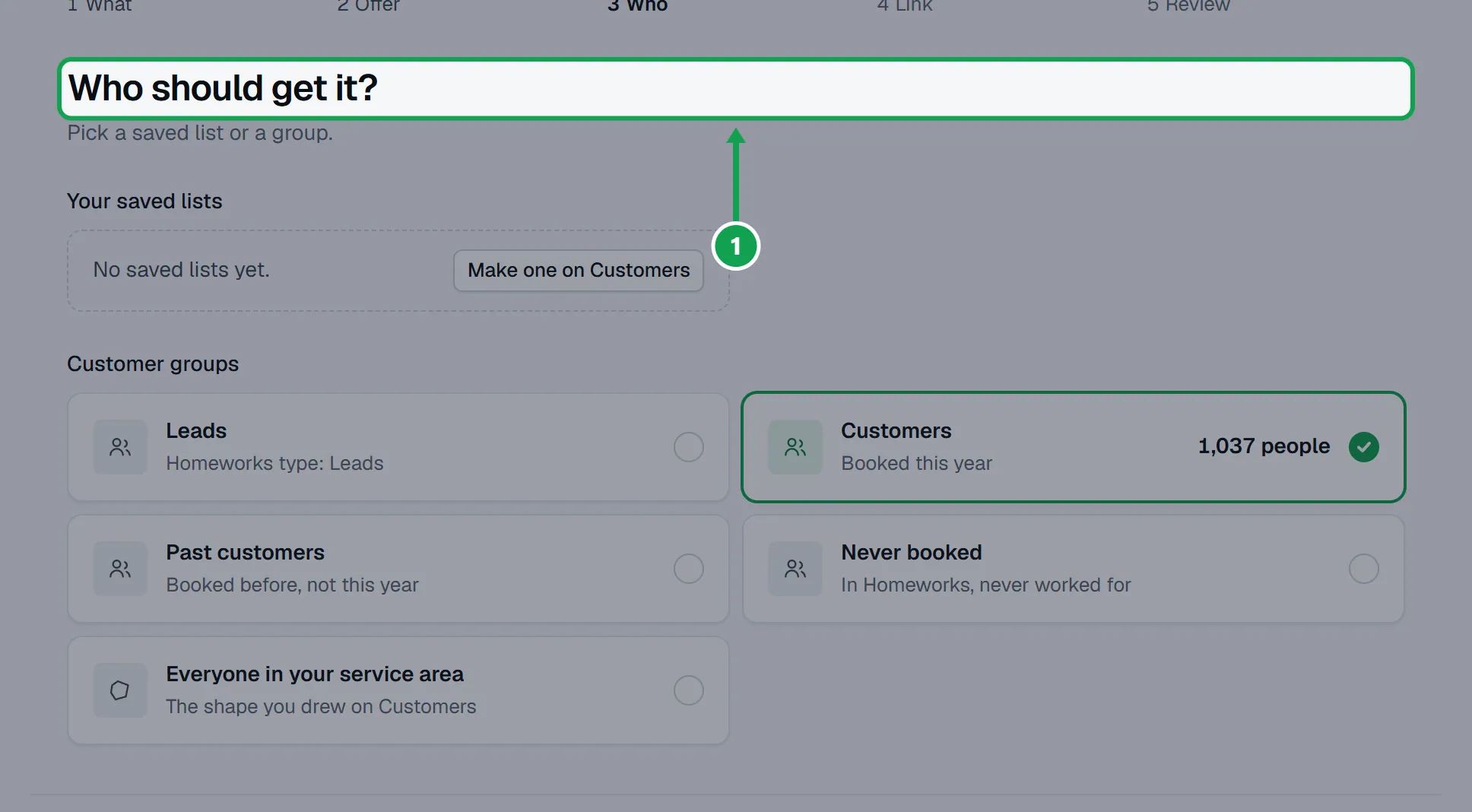
Step 2. Pick one of Your saved lists, or a group under Customer groups: Leads, Customers (booked this year), Past customers (booked before, not this year) or Never booked.
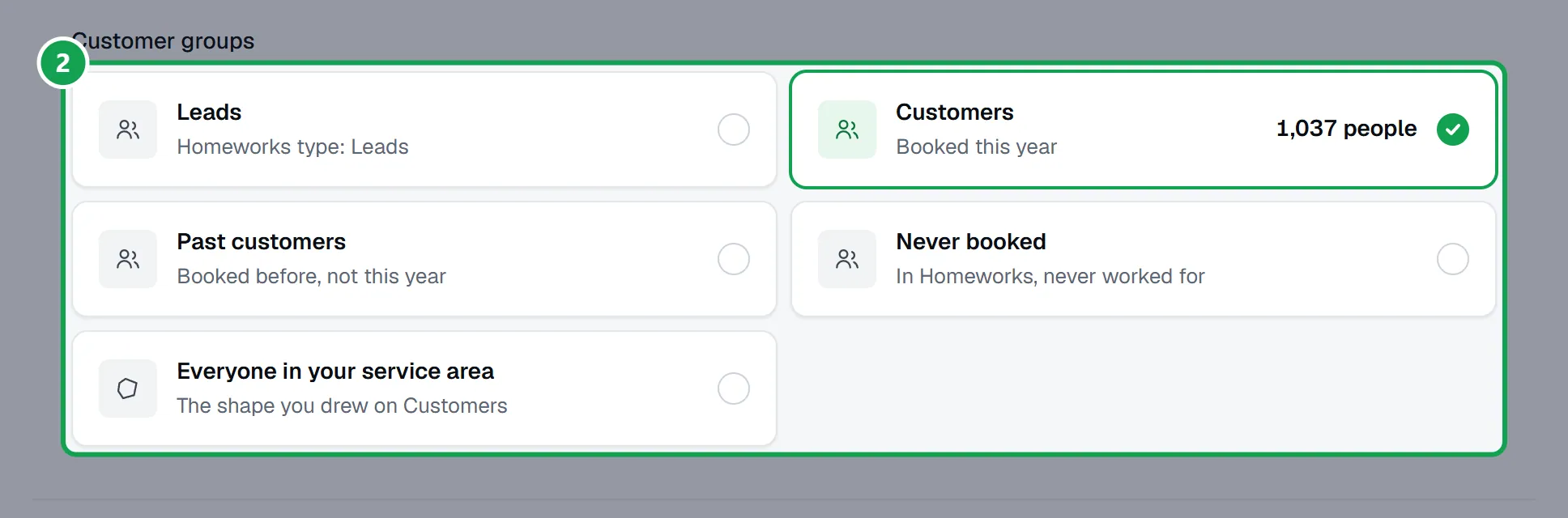
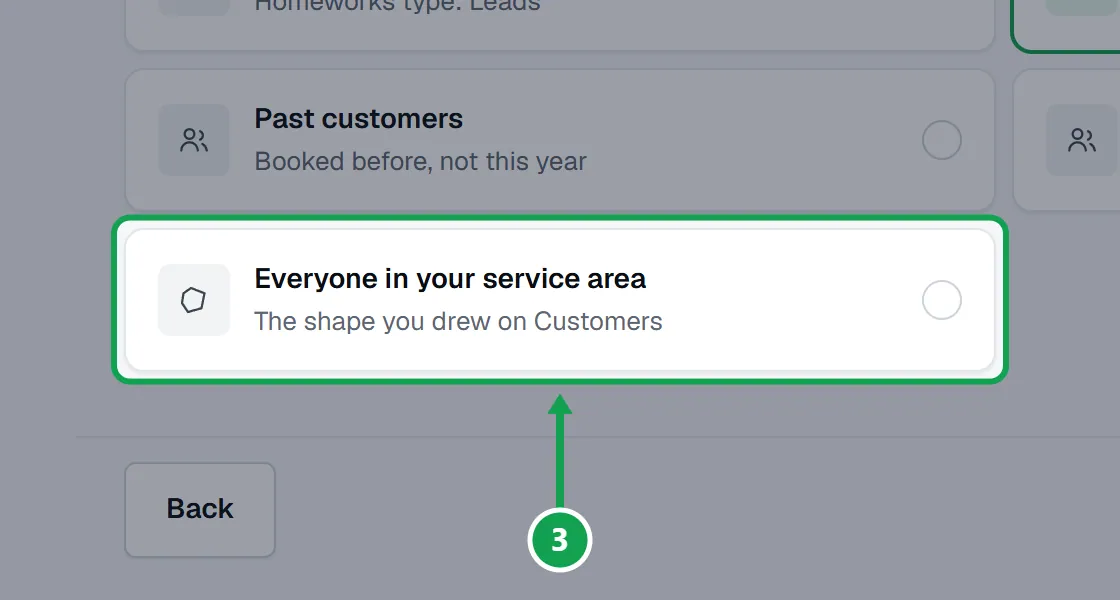
Step 3. To reach the area you work in, pick Everyone in your service area. It shows once you have drawn your service area on Customers.
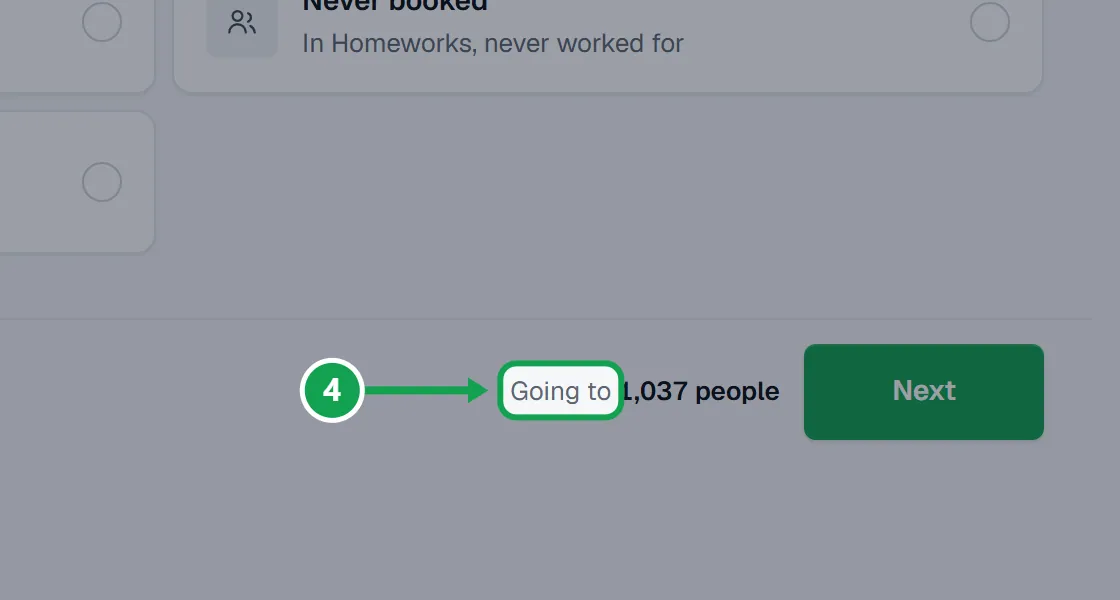
Step 4. Check the number next to Going to at the bottom. If it could not count, press Retry count.
Step 5. Press Next. On Review, Seasonly says how many have no Homeworks record, so they cannot be tagged.
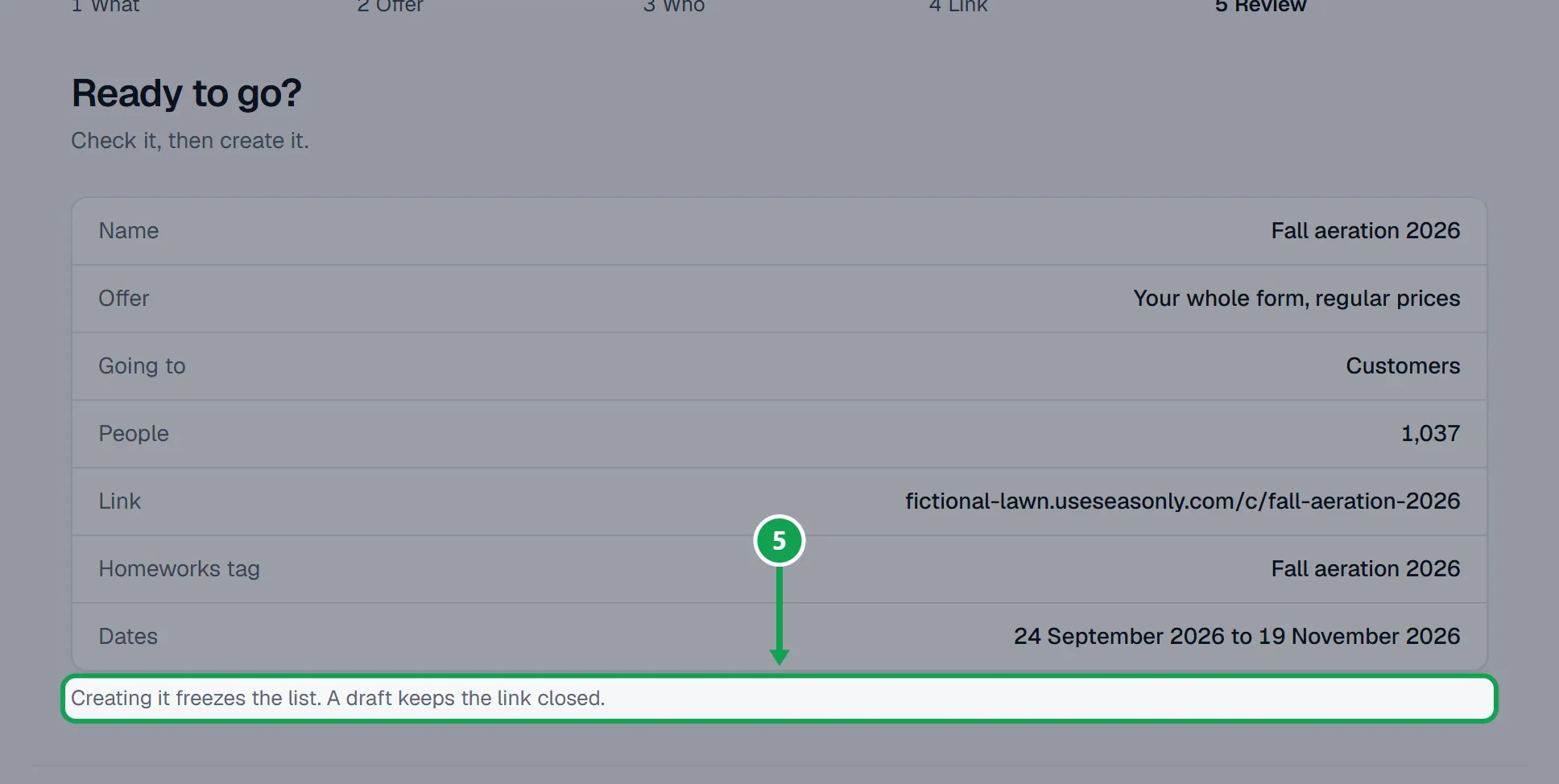
Step 6. Press Create campaign or Save as draft. That freezes the list.
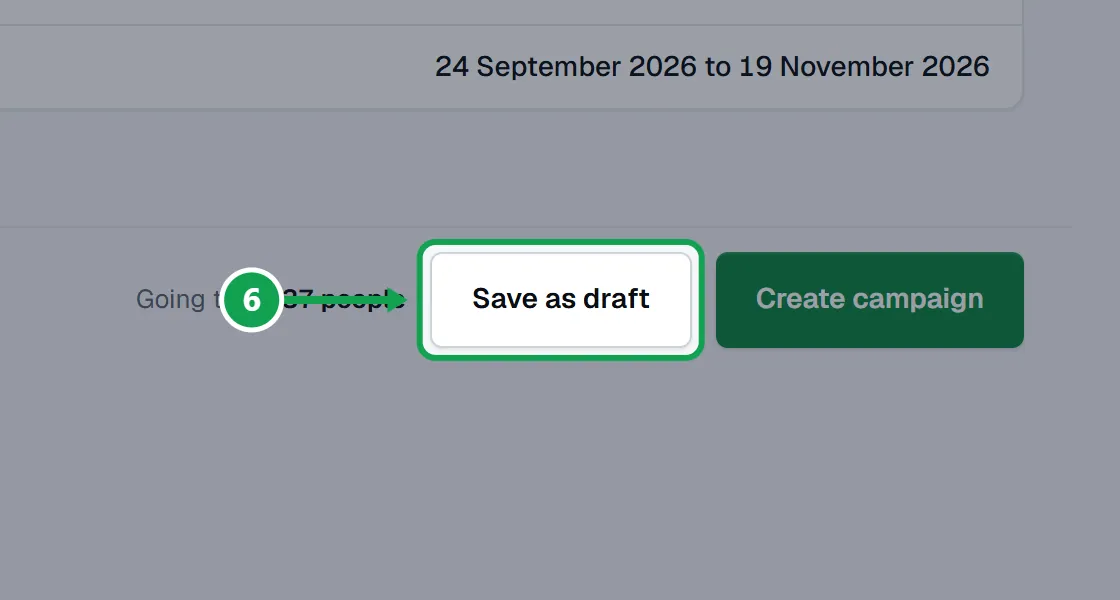
Make a saved list on Customers
Saved lists are made on Customers, from filters or an area you draw.
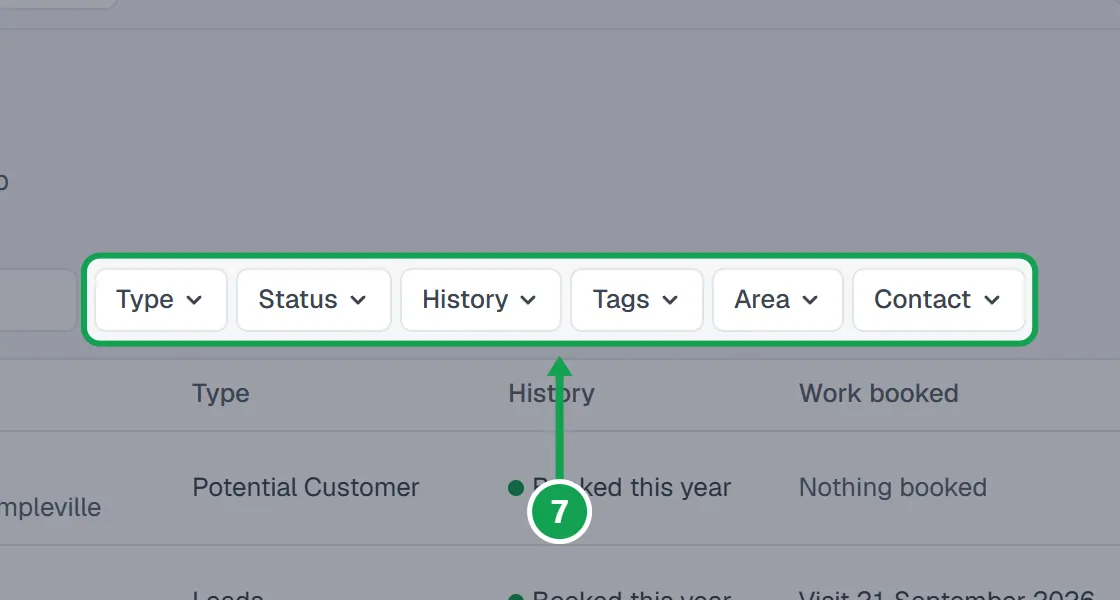
Step 1. Open Customers and narrow it with the filters: Type, Status, History, Tags, Area or Contact.
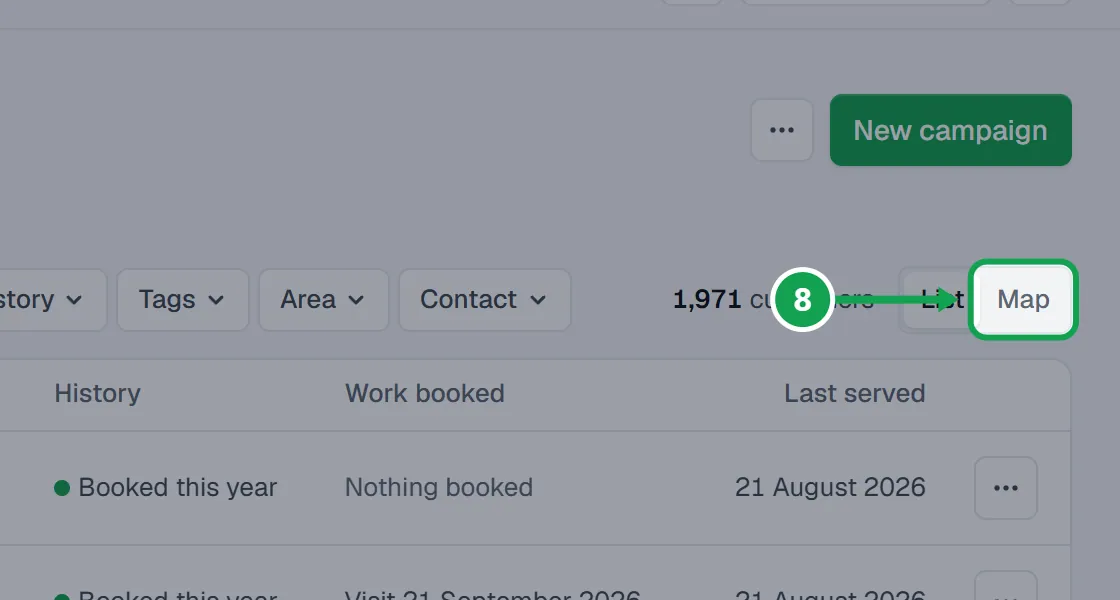
Step 2. Or switch to Map, press Draw an area, click the corners, then press Use this area.
Step 3. Press Save as list, type a List name and press Save customer list.
Step 4. Press Start a campaign to open the wizard, or pick the list later on the Who step.
Use the customers you filtered
Step 1. On Customers, filter or draw an area, then press New campaign from these (on the map, Start a campaign with these).
Step 2. The wizard opens with The customers you filtered picked on the Who step.
Take someone off after it is made
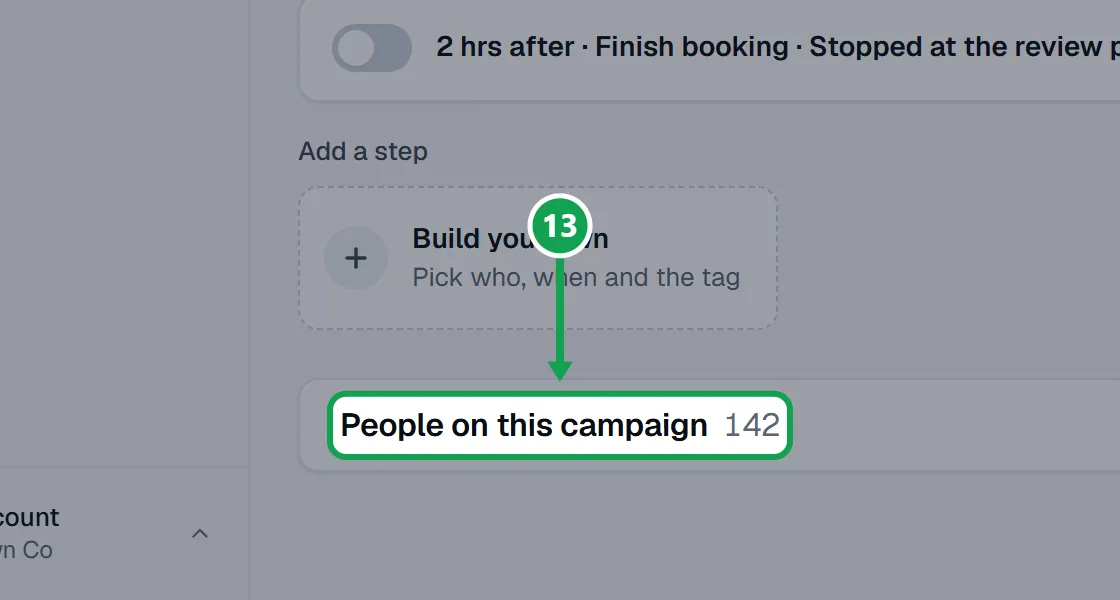
Step 1. On the campaign page, open People on this campaign.
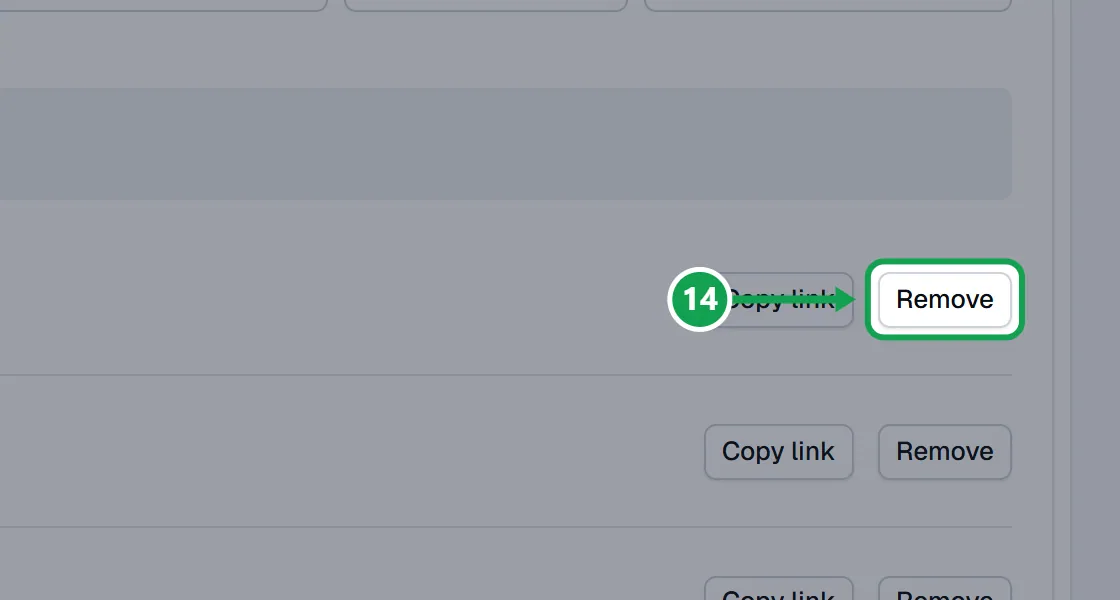
Step 2. Press Remove beside a person, or tick several and press Remove selected. Undo puts them back.
If this, then that
- If Leads is greyed out and says No lead type in Homeworks
- None of your Homeworks customer types has lead, prospect or potential in its name. Add or rename a customer type in Homeworks, then start the wizard again.
- If you do not see Everyone in your service area
- You have not drawn a service area yet. Draw it on Customers, then come back to the Who step.
- If Your saved lists says No saved lists yet.
- Press Make one on Customers, or pick a group under Customer groups instead.
- If the Who step shows Could not count that list. Check your connection and try again.
- Press Retry count. Next stays grey until the count comes back.
- If you need more people on a campaign you already made
- You cannot add people after it is created. Make another campaign for them.
Good to know
- A saved list keeps its rules, not its people. A campaign takes whoever matches on the day you create it, and keeps them.
- You can take people off a campaign but not add them. For more people, make another campaign.
- People with no Homeworks record stay on the list but cannot be tagged.
- People who texted STOP to a campaign are left out whenever Seasonly tags.
- Removing someone from a campaign never changes their customer record in Seasonly or Homeworks.