Create a campaign
The New campaign wizard: name it, pick what the link offers and who it goes to, set its link and dates, then create it live or as a draft.
Steps
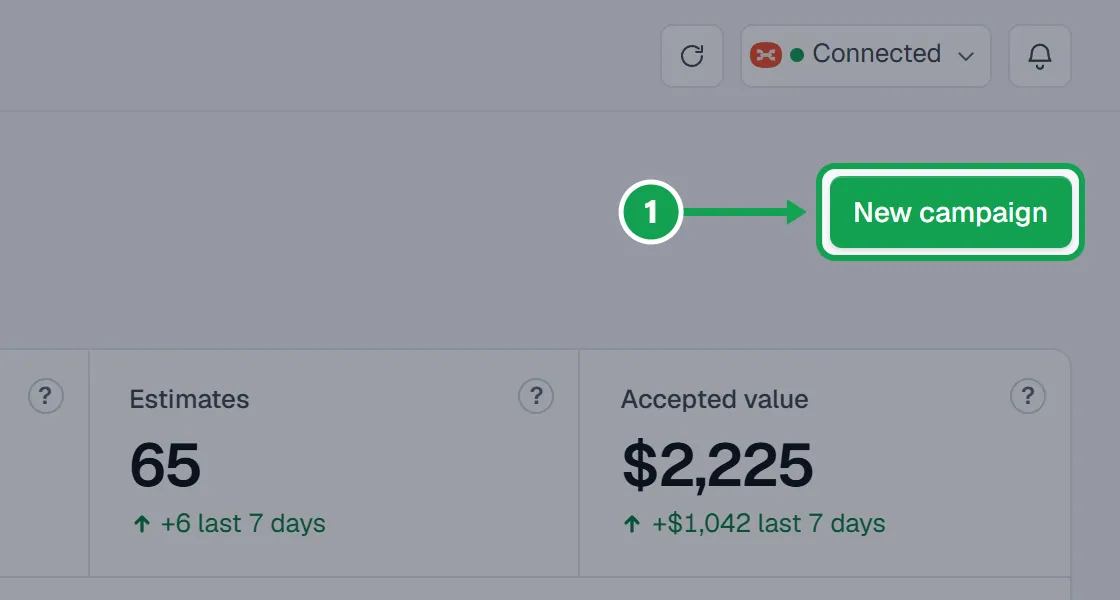
Step 1. On Campaigns, press New campaign.
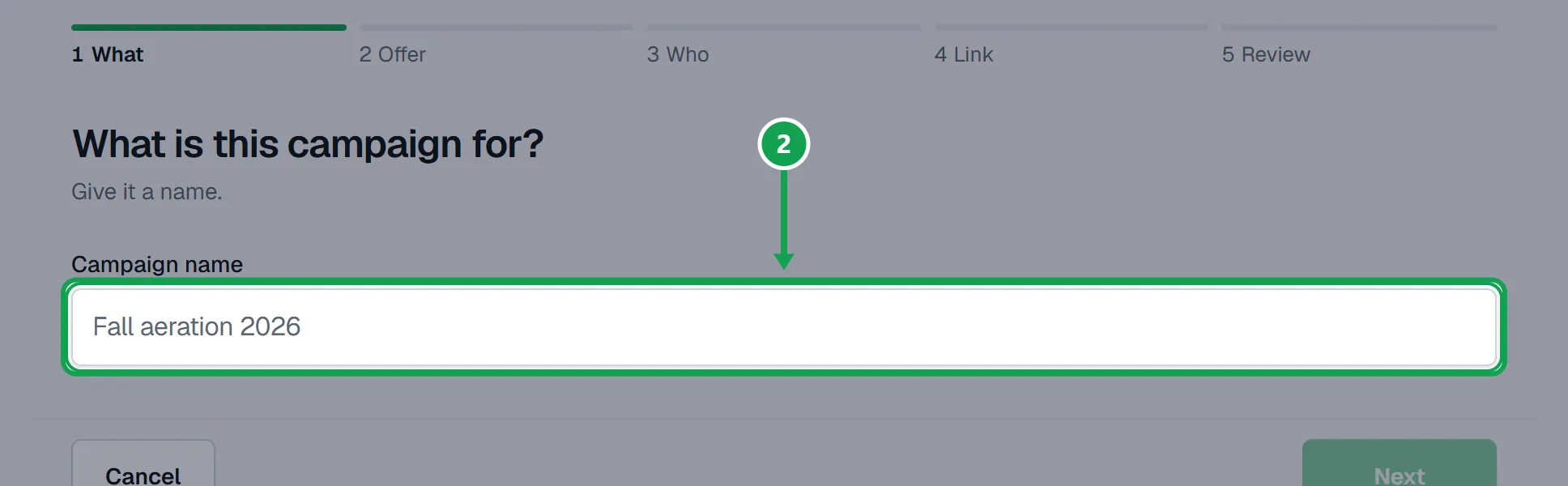
Step 2. What: type the Campaign name, like Fall aeration 2026, and press Next.
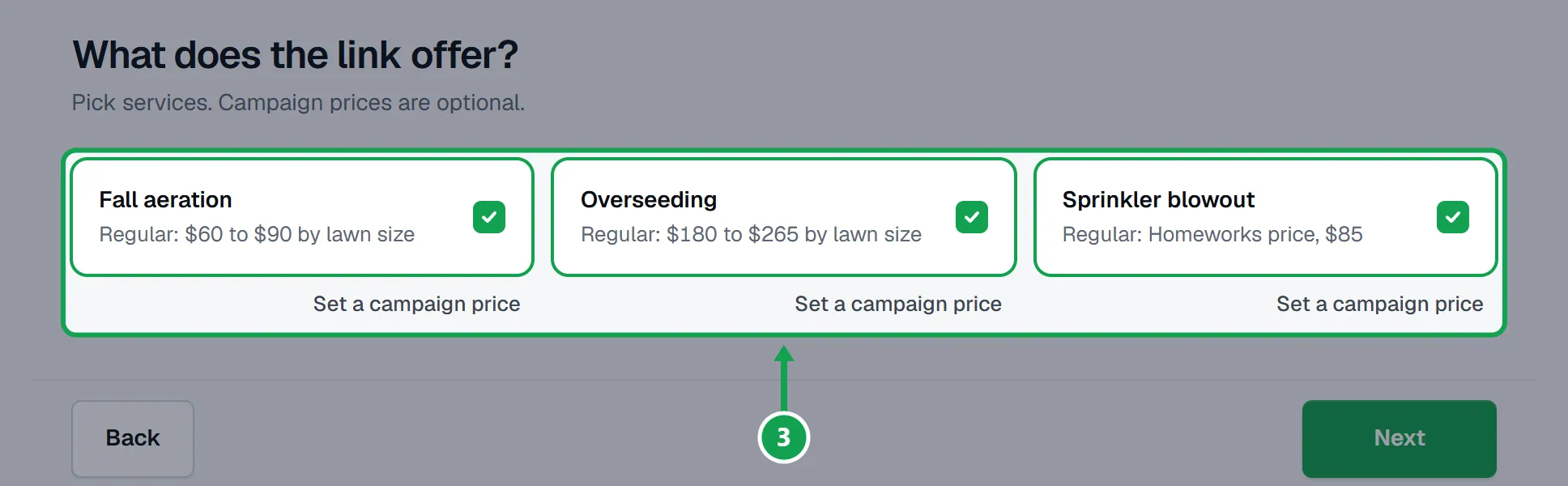
Step 3. Offer: every service on your form starts ticked. Untick any this link should not offer, or press Set a campaign price on one. Press Next.
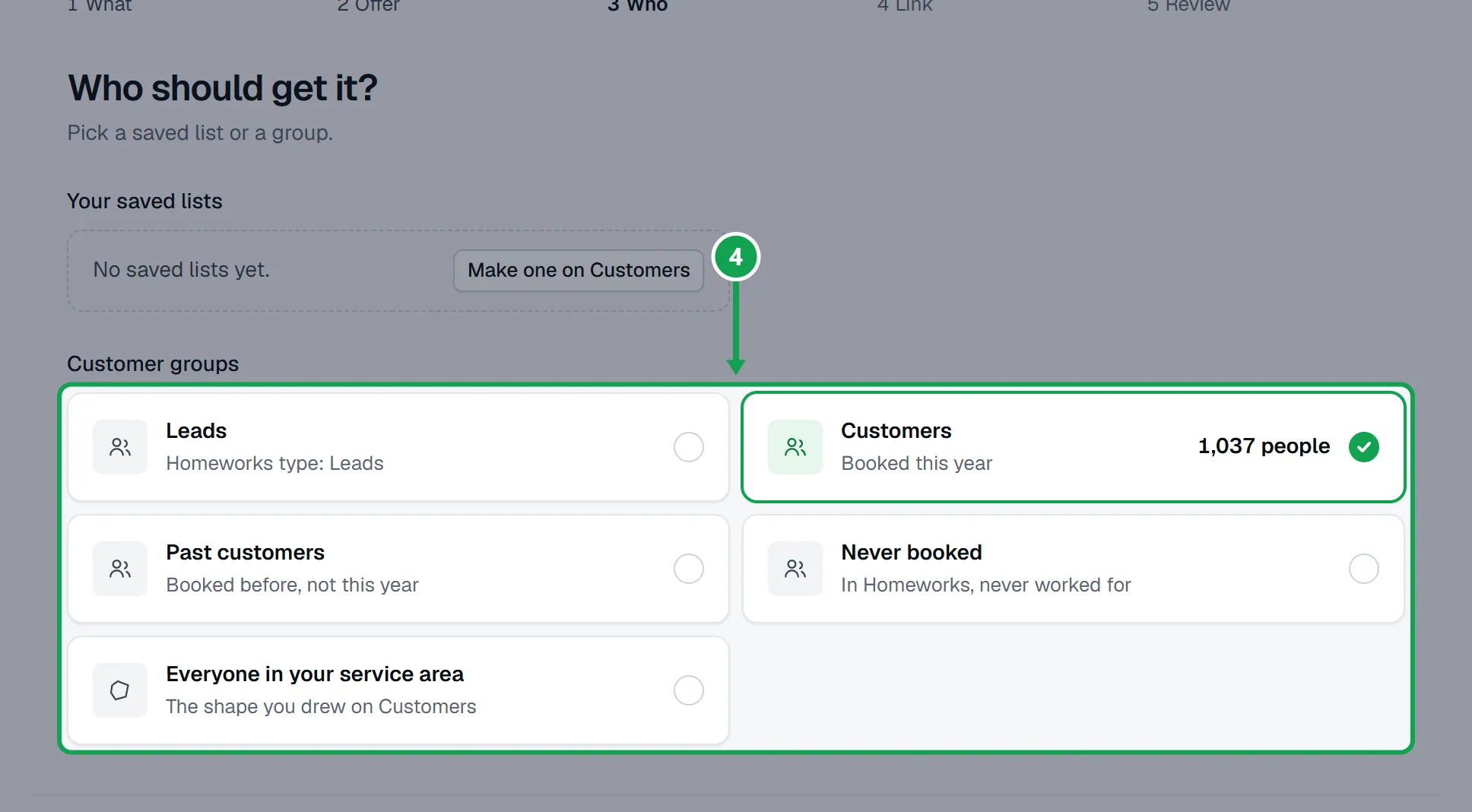
Step 4. Who: pick one of Your saved lists or a group under Customer groups. The bottom shows how many people it is Going to. Press Next.
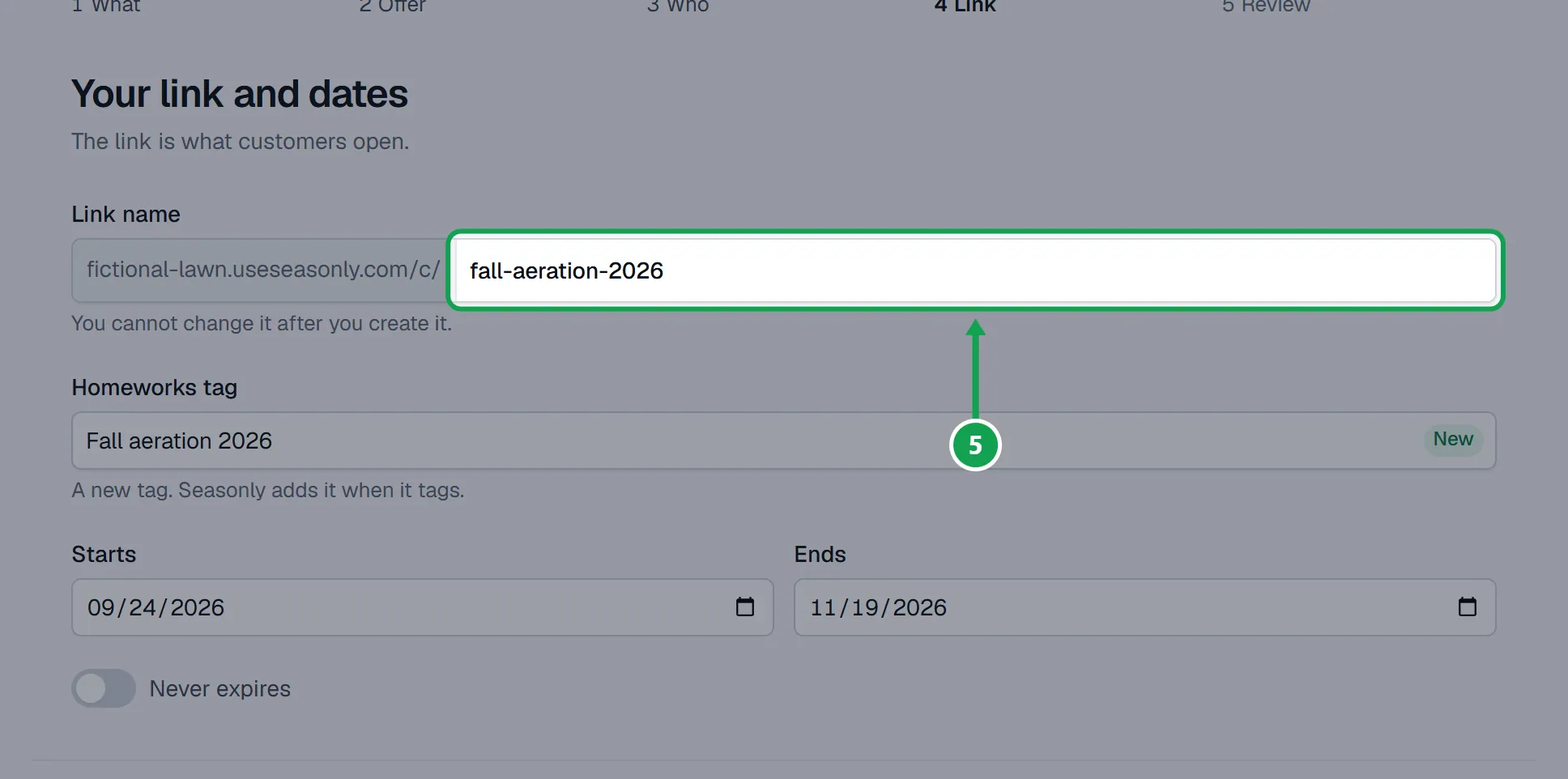
Step 5. Link: check the Link name and the Homeworks tag, set Starts and Ends (or turn on Never expires), and press Next.
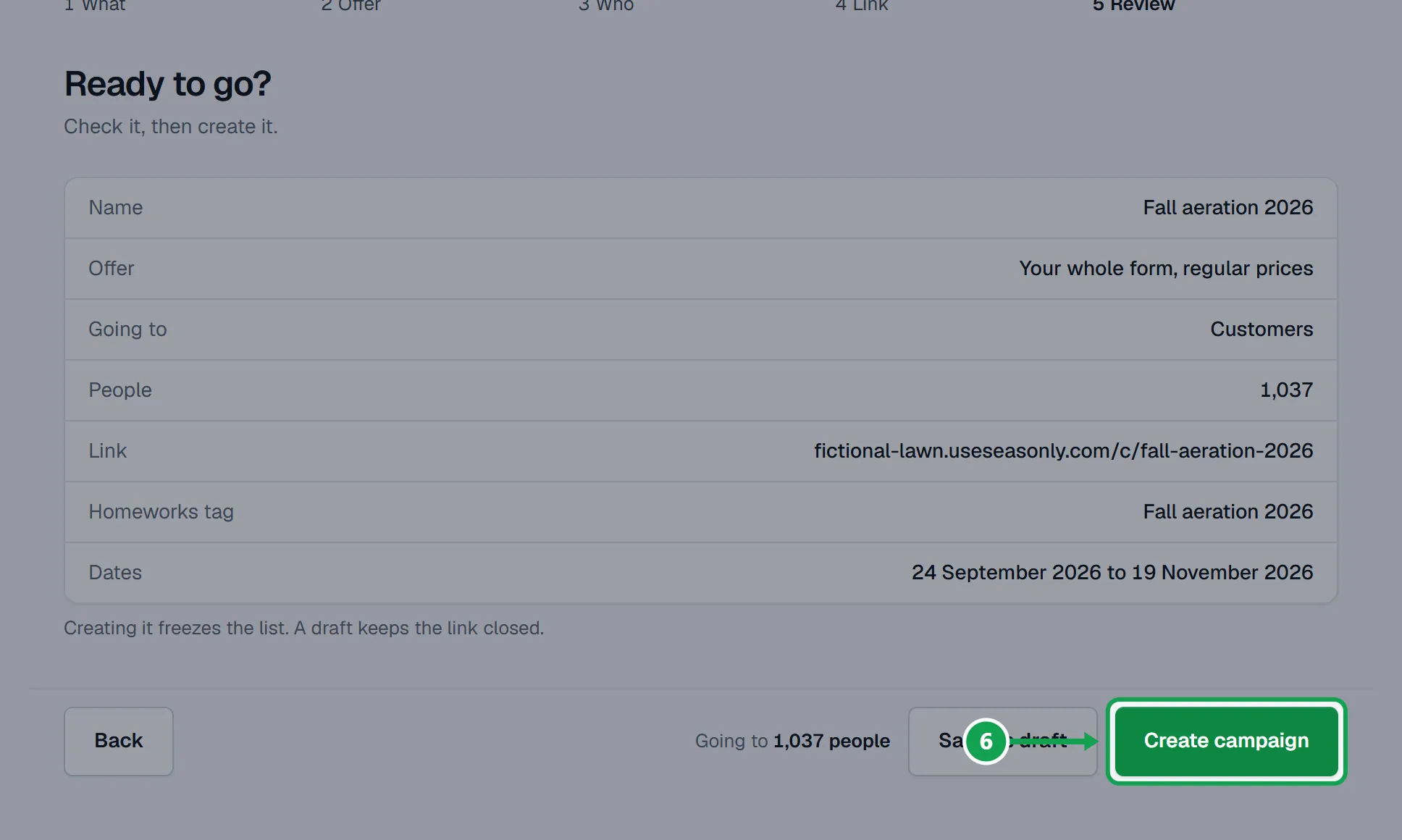
Step 6. Review: check every line, then press Create campaign to go live now, or Save as draft to keep the link closed.
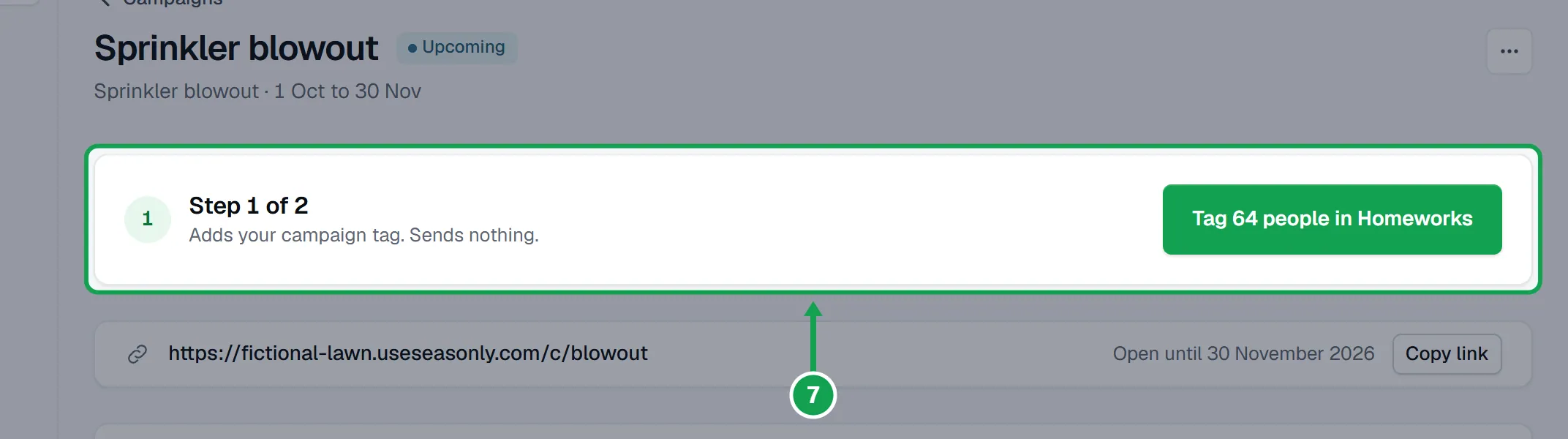
Step 7. The campaign opens. The box at the top shows what to do now, starting with Step 1 of 2: tagging your people in Homeworks.
Start from Customers instead
Handy when you already filtered customers or drew an area on the map.
Step 1. On Customers, narrow the list with the filters, or switch to Map and draw an area.
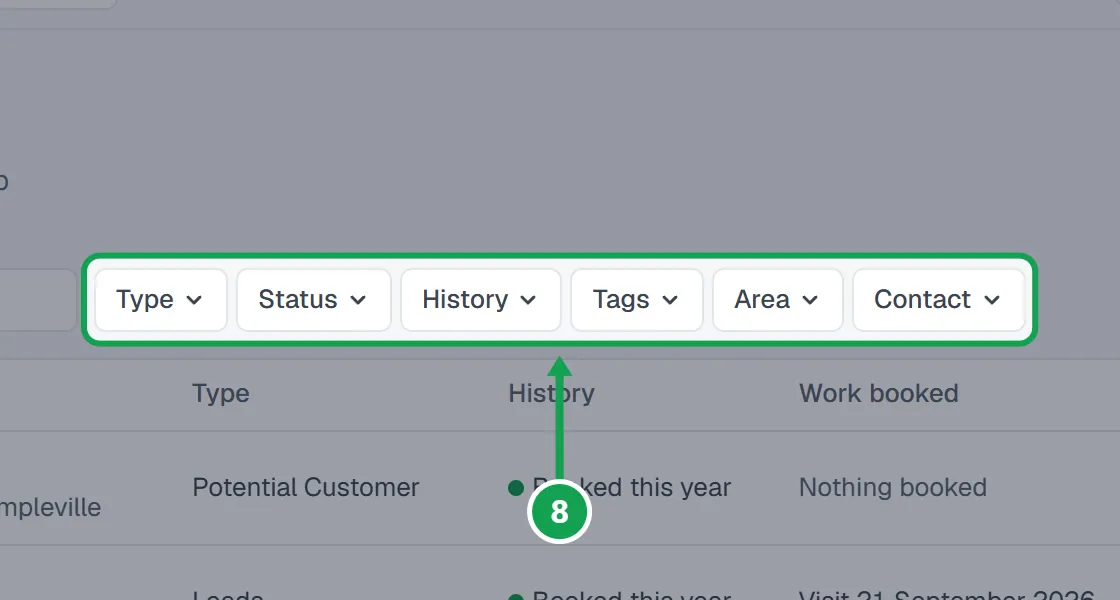
Step 2. Press New campaign from these (on the map, Start a campaign with these).
Step 3. The wizard opens with The customers you filtered already picked on the Who step.
If this, then that
- If you see Free runs 2 campaigns at once. End one, or upgrade to Premium for unlimited campaigns.
- Save it as a draft, end a campaign you are done with, or press Upgrade.
- If Next stays grey on the Offer step
- No service is ticked. Tick at least one; the page says Pick at least one service.
- If Next stays grey on the Who step
- The list is still counting, or nobody is on it. Wait for the number next to Going to, press Retry count if counting failed, or pick another list.
- If the Link step says Another campaign already uses that link name. Try another.
- Change the Link name to something new, like fall-aeration-2.
- If you are not ready to share the link yet
- Press Save as draft on Review. The link stays closed until you press Go live on the campaign.
- If you see Only the owner can do this.
- You are signed in as staff. Staff can read campaigns; only the owner creates and changes them.
Good to know
- Free runs 2 campaigns at once, live or upcoming. Drafts and ended campaigns do not count. Premium has no limit.
- Creating a campaign freezes its list of people. Changing a saved list later does not change the campaign.
- Creating a campaign tags nobody and sends nothing. Seasonly never sends campaign texts or emails; your Homeworks does.
- Dates start as today and 8 weeks from today, on your company time zone.
- The link name cannot change after you create it.
- Only the owner can create a campaign.