Share a campaign link and set its dates
Every campaign has its own short link. Copy it from the campaign page. After the end date, or once you end it, the link shows a closed page.
Steps
Step 1. Open the campaign from Campaigns. Its link sits near the top, with when it closes beside it.
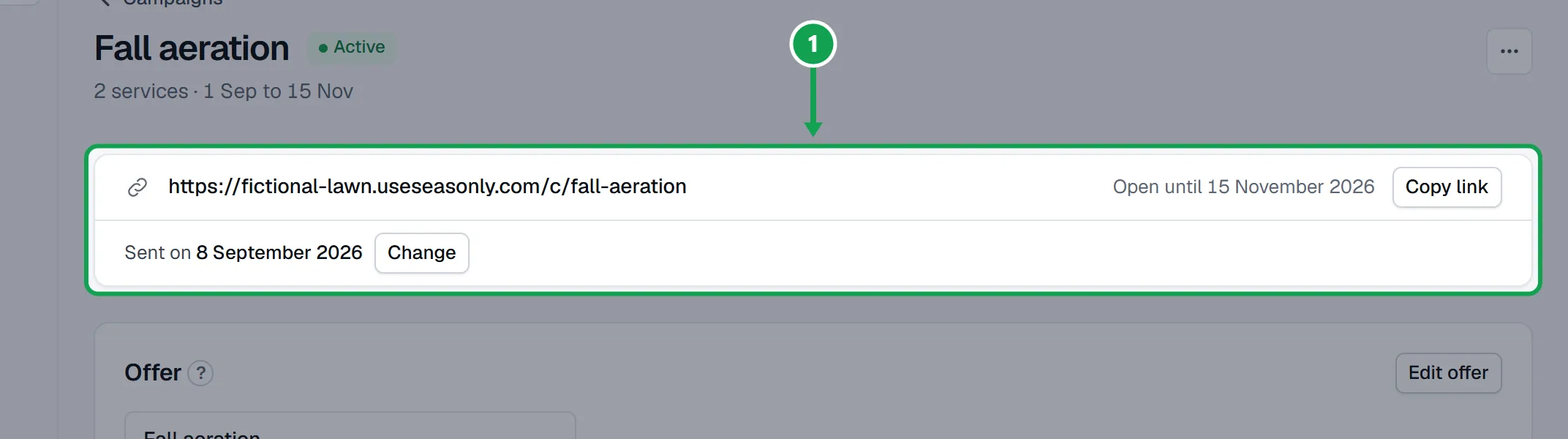
Step 2. Press Copy link and paste it into your text, email, flyer or door hanger.
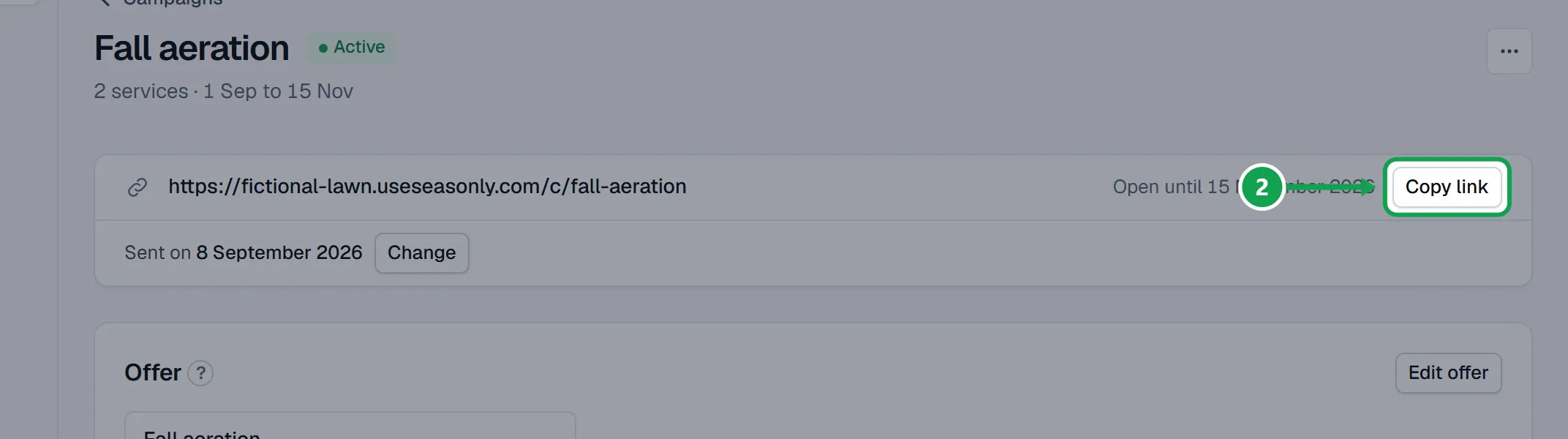
Step 3. To try it yourself, press Try it as a customer (or Copy test link). Test bookings show on Requests but do not count in your numbers.
Step 4. To change the end day, open the three-dot menu beside the campaign name and choose Edit name and end date.
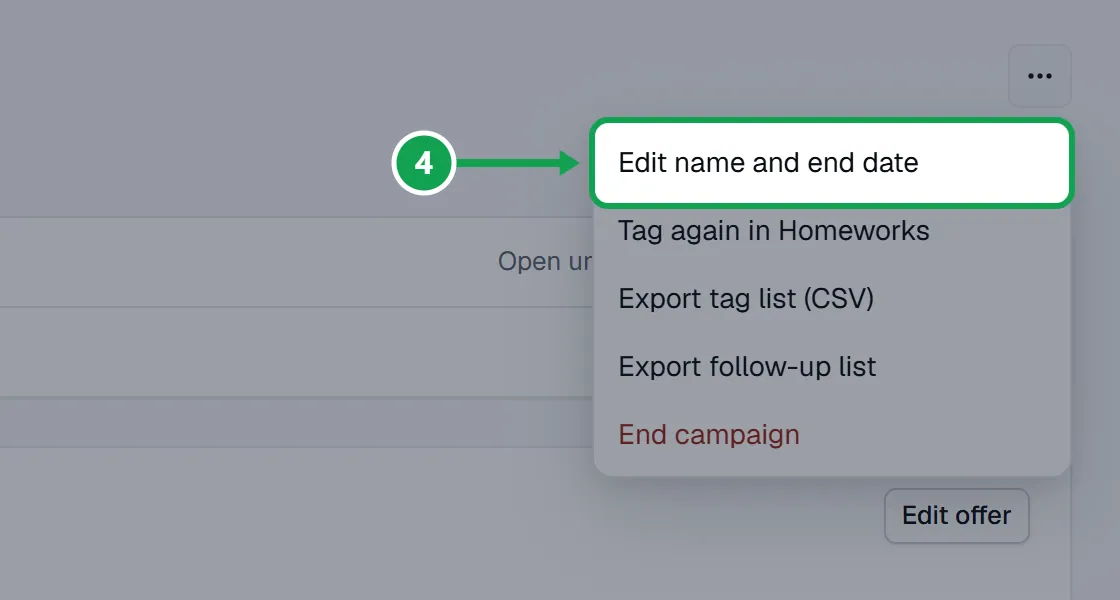
Step 5. Set Ends, or turn on Never expires, and press Save end date.
Pick the link name and dates when you create it
On the New campaign wizard's Link step.
Step 1. Link name is the end of the link, like fall-aeration. Use 3 to 24 lowercase letters, numbers or hyphens.
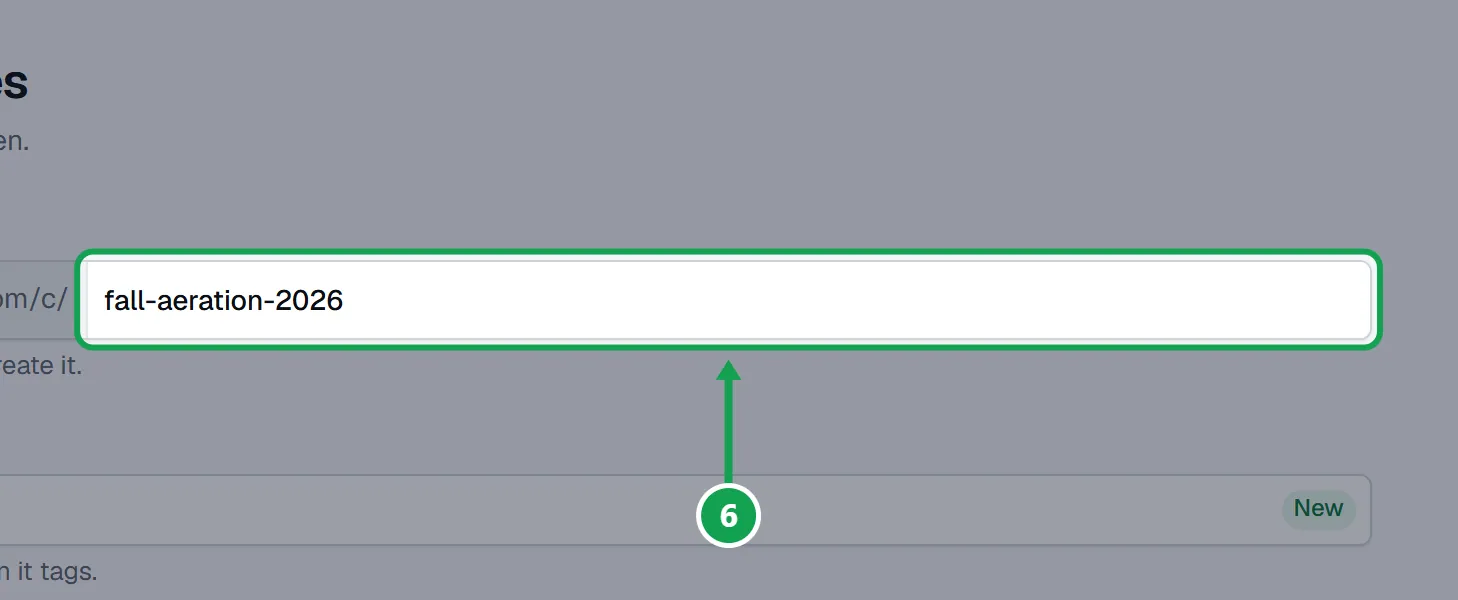
Step 2. Set Starts and Ends. They start as today and 8 weeks from today.
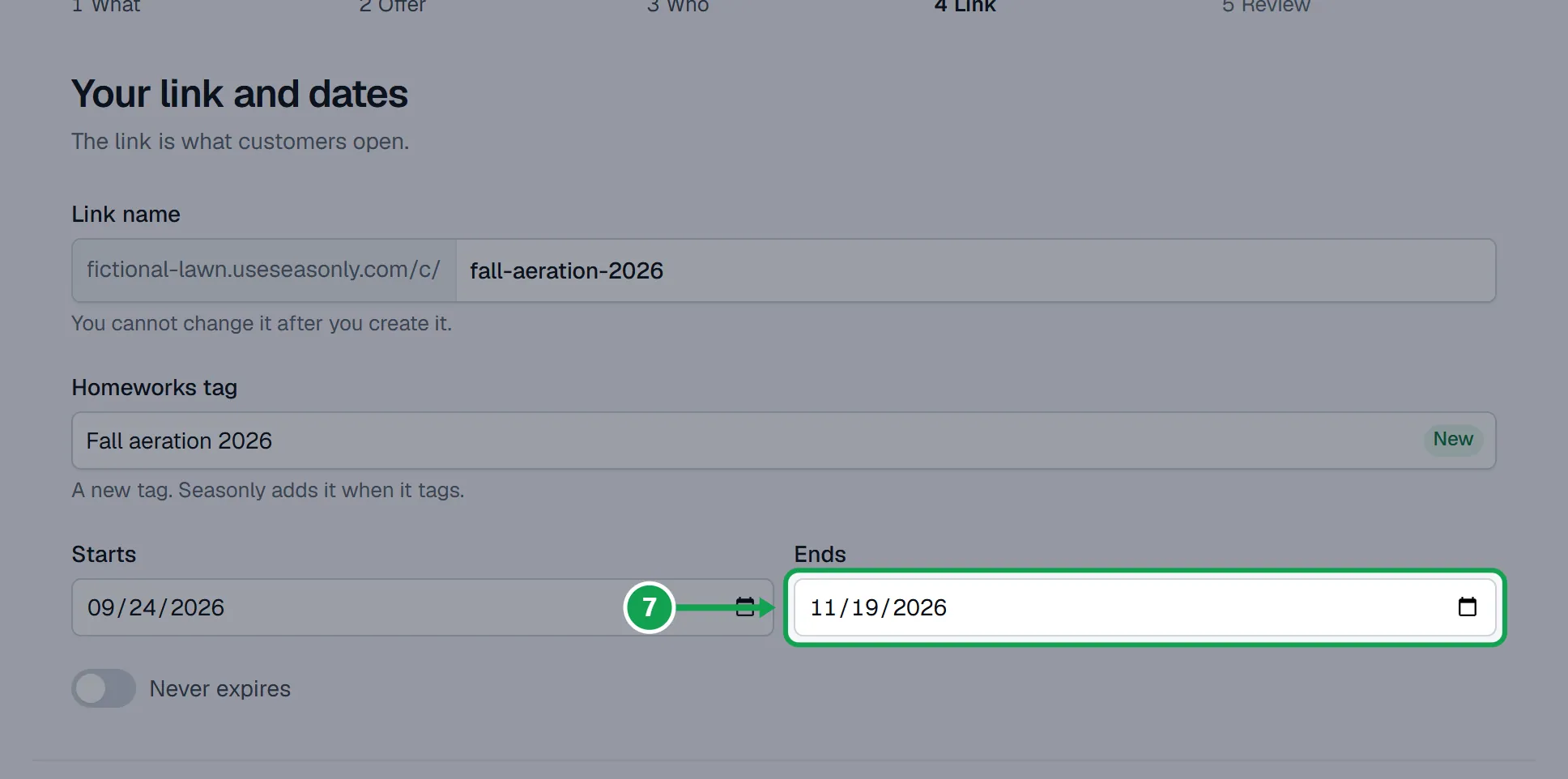
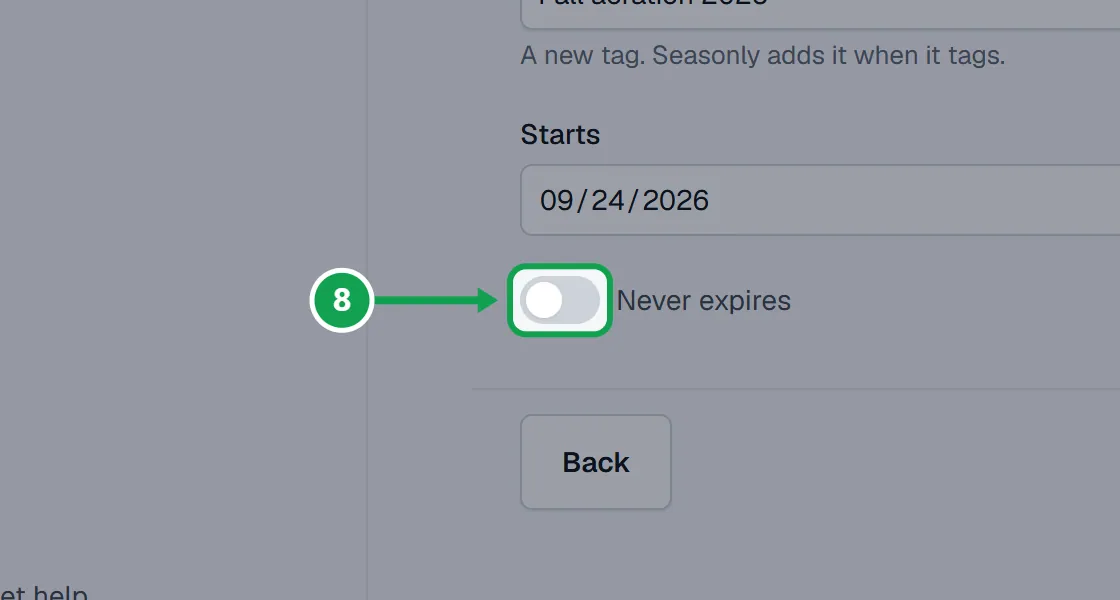
Step 3. Turn on Never expires for a link that stays open until you end the campaign.
A link for one person
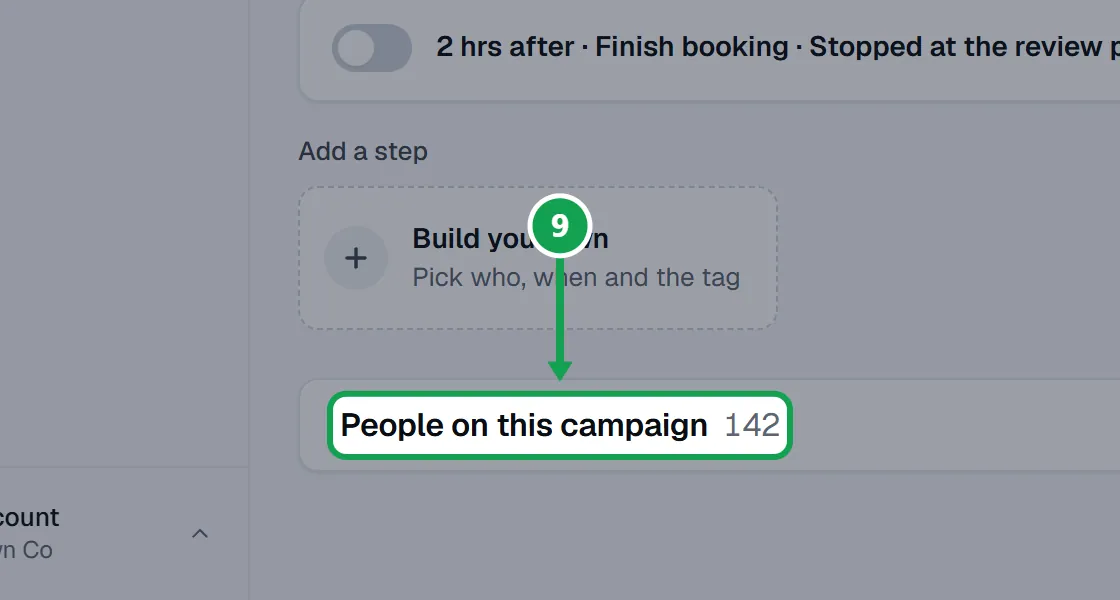
Step 1. On the campaign page, open People on this campaign.
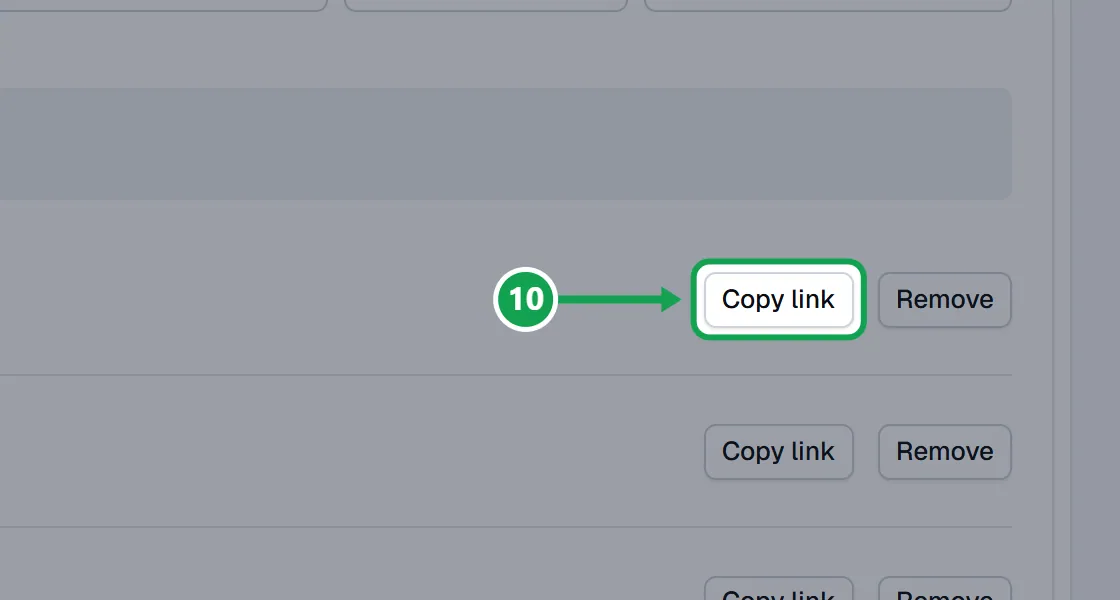
Step 2. Press Copy link beside someone. Their own link lets Seasonly see when they open it, which follow-ups use.
Use your own address for one campaign
Step 1. Open the three-dot menu beside the campaign name and choose Use your own web address.
Step 2. Type the address, like fall.example-lawn.com, and press Use this address.
Step 3. Pick your DNS provider, add the records it shows there with their short names, and press I added them. Seasonly checks by itself until it says Your address is live.
If this, then that
- If the link shows This offer has closed
- The end day passed or the campaign was ended. Homeowners still get an Ask for a quote button. To reopen it, set a later Ends in Edit name and end date (an ended campaign cannot reopen; make a new one).
- If the link opens your regular form instead of the offer
- The campaign is still a draft. Press Go live at the top of the campaign.
- If the link name is red with Use 3 to 24 lowercase letters, numbers or hyphens.
- Take out spaces and capitals, and keep it between 3 and 24 characters.
- If the Link step says Another campaign already uses that link name. Try another.
- Pick a different Link name. Each campaign needs its own.
- If you want to change the start day
- Only a draft's start day can change. A live campaign keeps its start day; change its end day instead.
Good to know
- A live link opens your booking form with the campaign's offer. A draft's link lands on your regular form until you go live.
- After the end day, or once you end it, the link shows your closed page with an Ask for a quote button, never an error.
- The link name cannot change after you create it. Dates run on your company time zone.
- A live campaign whose start day has not come yet shows Upcoming, and its link already works.
- Seasonly does not make QR codes. Any QR code maker can turn the copied link into one.