Make a QR code for a truck, sign or flyer
Make a QR code that opens your booking form, design it, download it for print, and change where it points later without reprinting.
Steps
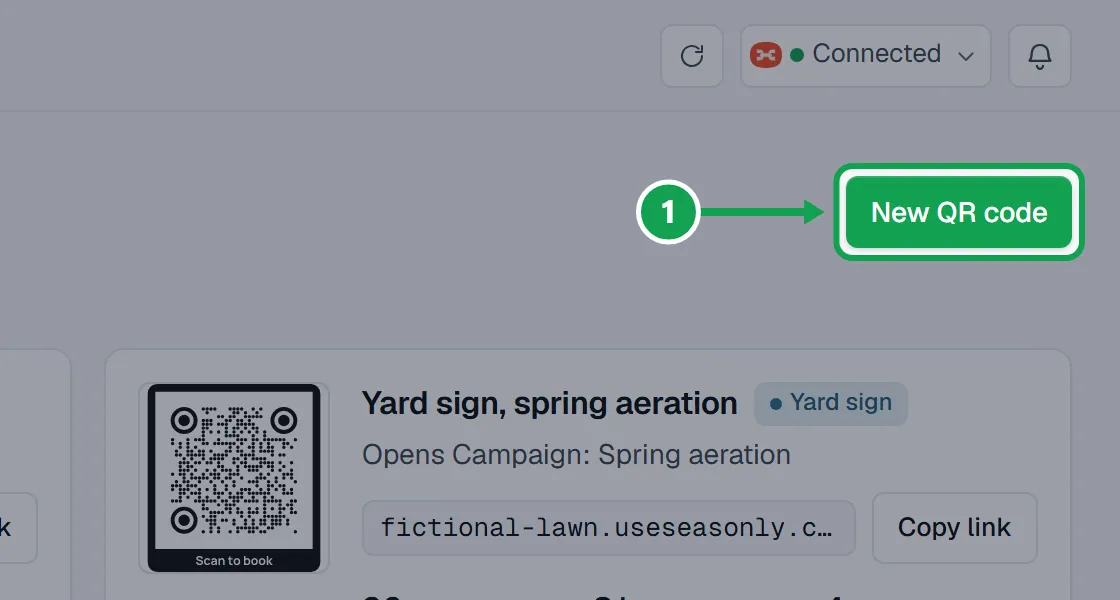
Step 1. Open QR codes and press New QR code.
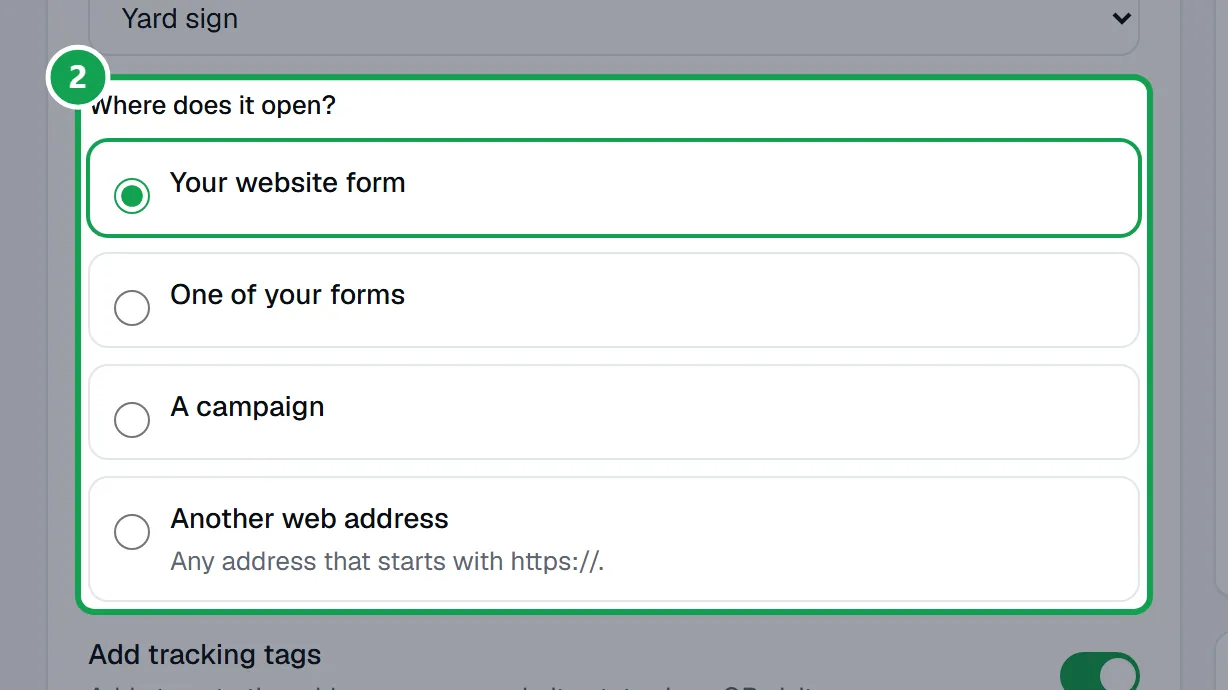
Step 2. Type a Name only you will see, pick Where will you print it?, and choose Where does it open?: your website form, one of your forms, a campaign, or another web address.
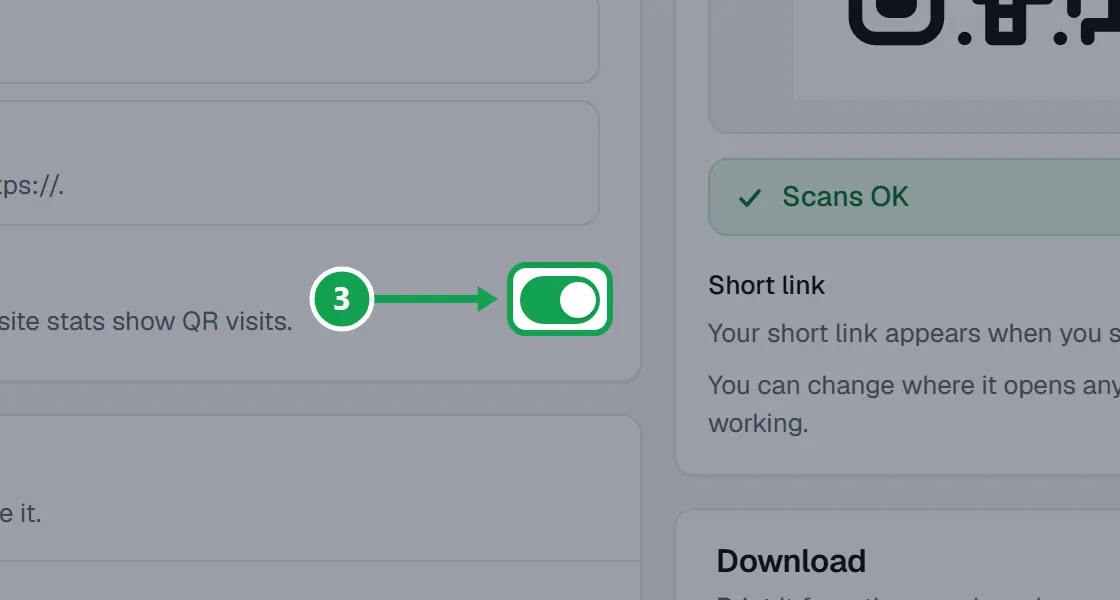
Step 3. Leave Add tracking tags on so your website stats show visits from this code.
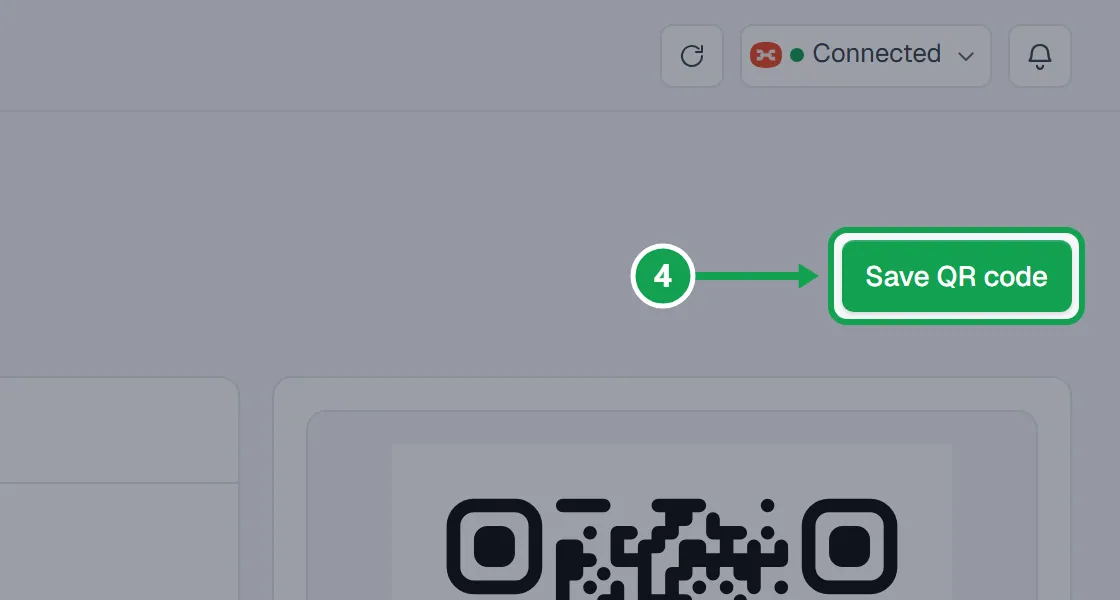
Step 4. Press Save QR code. The code gets its own short link, and every scan is counted.
Design it
The preview changes as you go and says Scans OK when phones can read it.
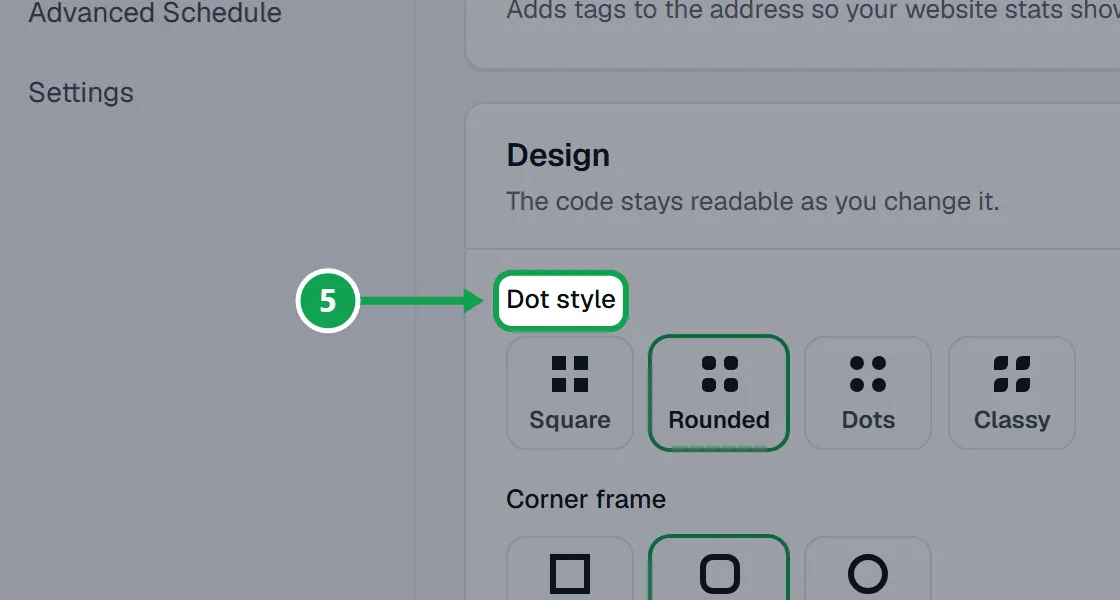
Step 1. Under Design, pick a Dot style, Corner frame and Corner centre, then set the Dot colour. Dark dots on a light background scan best.
Step 2. Add your Company logo or Upload a logo in the middle, and use a Frame with words like Scan to book.
Step 3. If the preview shows Fix this first, change the colours or logo size. You cannot save or download until it is fixed.
Download it for print
Step 1. Pick PNG, SVG or PDF under Download, then a Size. The tip under it says how wide to print it and how far away it scans.
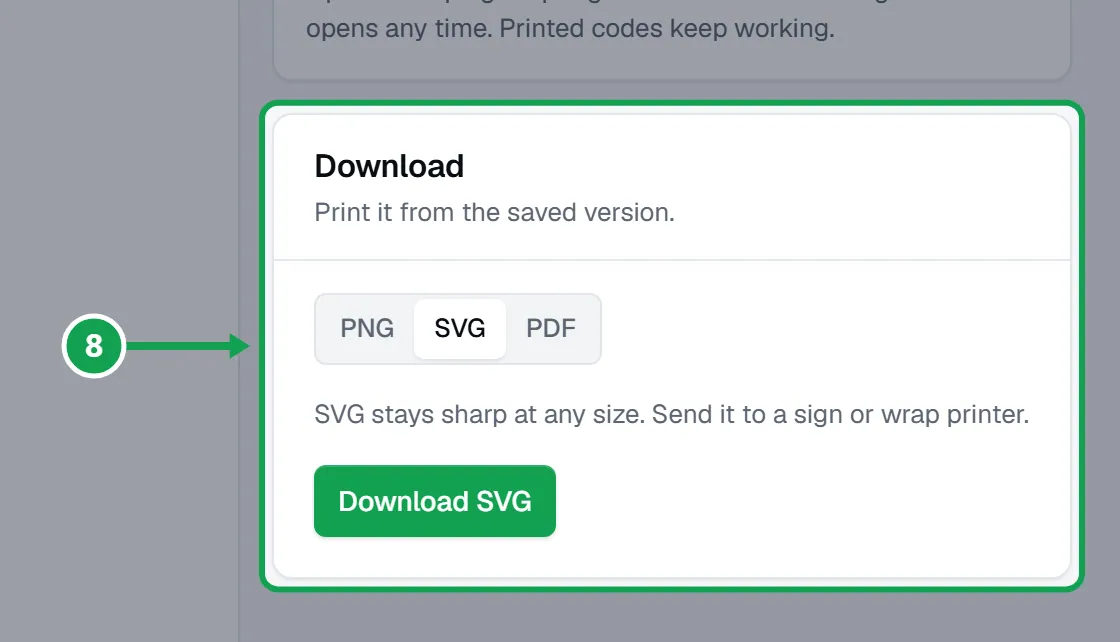
Step 2. Send the SVG or PDF to a sign or wrap printer so it stays sharp. Press Download to save the file.
Change where a printed code goes
Step 1. Open the code from QR codes, pick a new place under Where does it open? and press Save changes.
Step 2. Seasonly asks Change where this code opens? first. Every printed copy opens the new place from then on.
See your scans
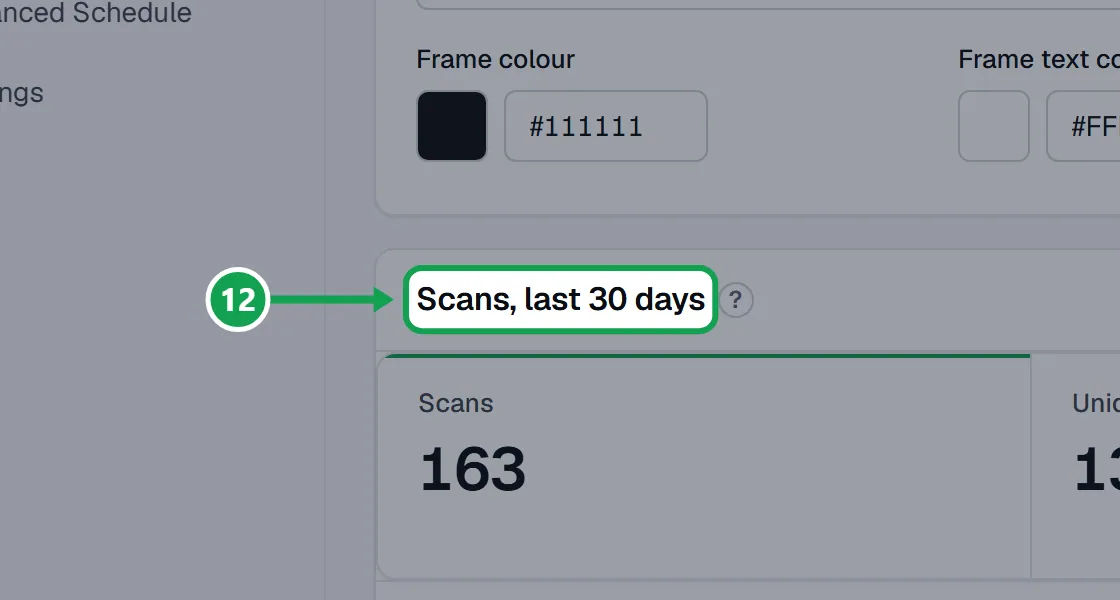
Step 1. Open a code and look at Scans, last 30 days: scans, unique scans, requests that came from the code, devices and nearby cities.
If this, then that
- If the preview says Fix this first
- The colours are too close or the logo is too big. Pick darker dots or a lighter background, then try again.
- If the page says Free has 2 QR codes
- Archive a code you no longer use, or press Upgrade.
Good to know
- A printed code never stops working. If a campaign ends, a form is archived or you archive the code, scans open your website form.
- Free has 2 QR codes. Premium has unlimited. Only the owner can make or change them; staff can look and download.
- In a very busy moment, with lots of scans from one place, a scan opens your website form instead of where the code points.
- Downloads use the saved version, so save your changes first.