Set up follow-ups for a campaign
Follow-up steps add a new Homeworks tag to people who have not booked, on a schedule. One Homeworks automation per step sends the message.
Steps
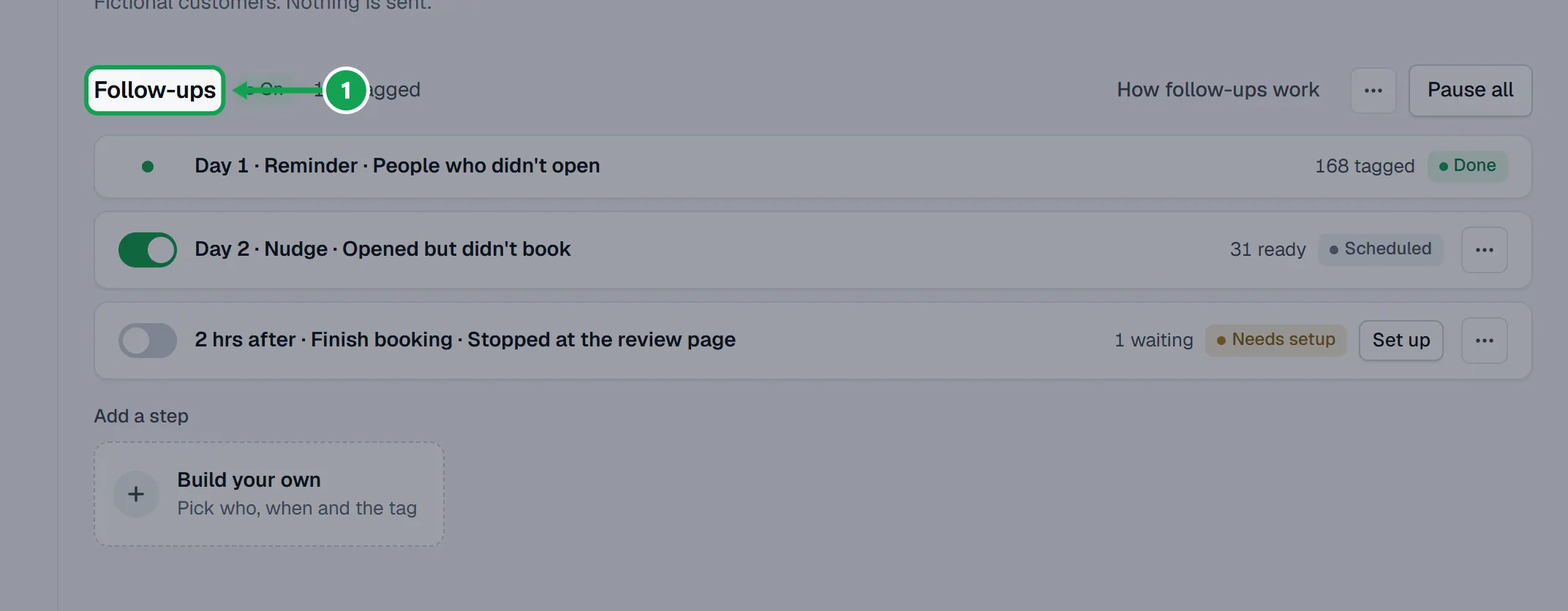
Step 1. Open the campaign and scroll to Follow-ups.
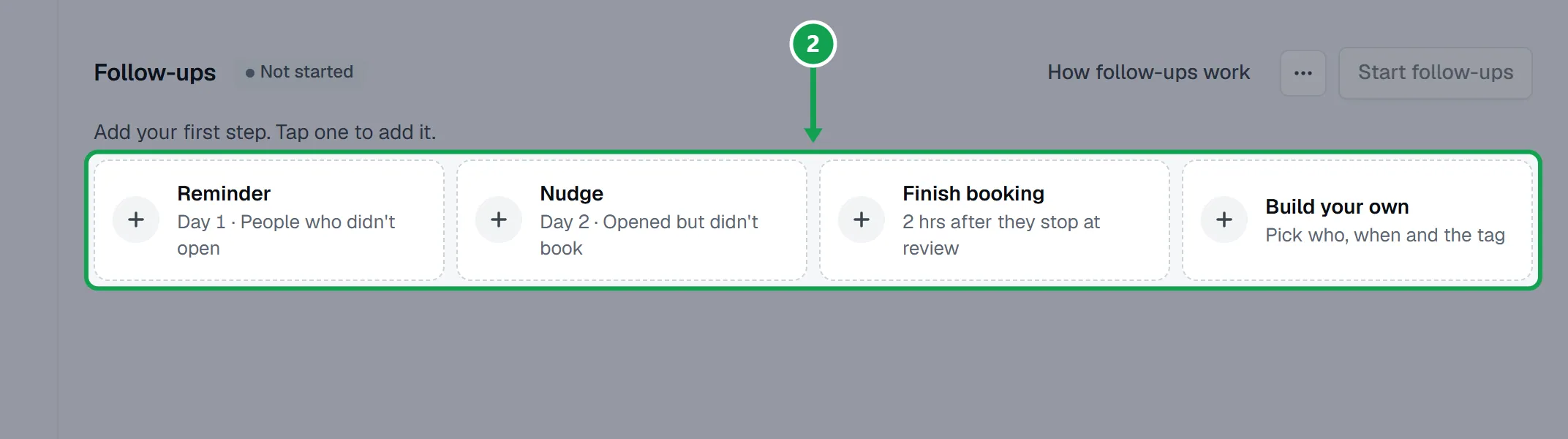
Step 2. Under Add a step, tap Reminder (day 1, people who didn't open), Nudge (day 2, opened but didn't book) or Finish booking (2 hours after they stop at review).
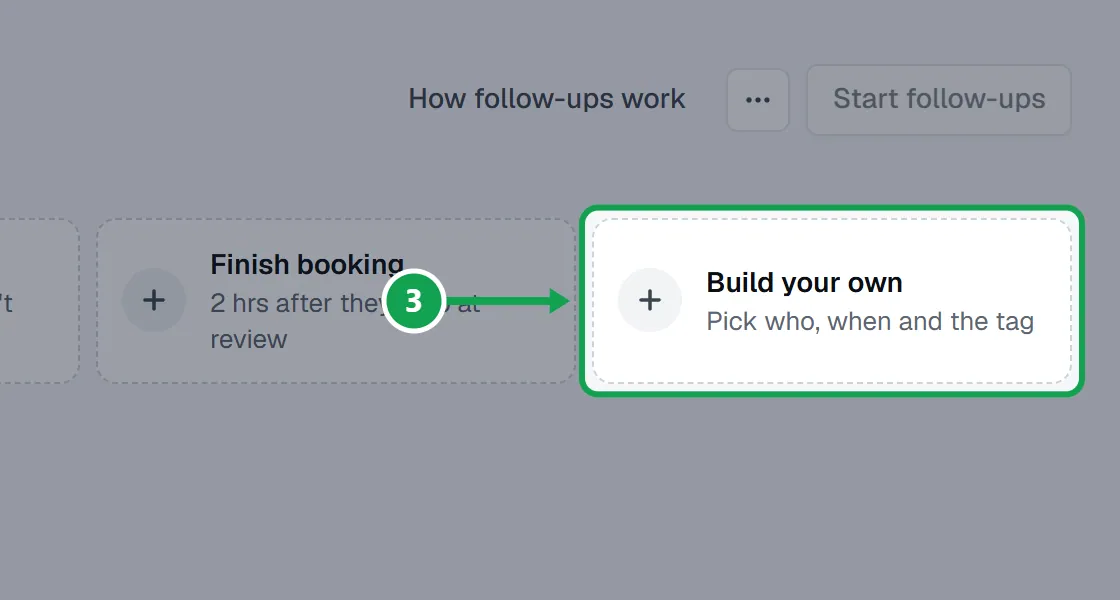
Step 3. Or tap Build your own: answer Who gets it?, When does it go? and Name it (with its own Homeworks tag), then press Save.
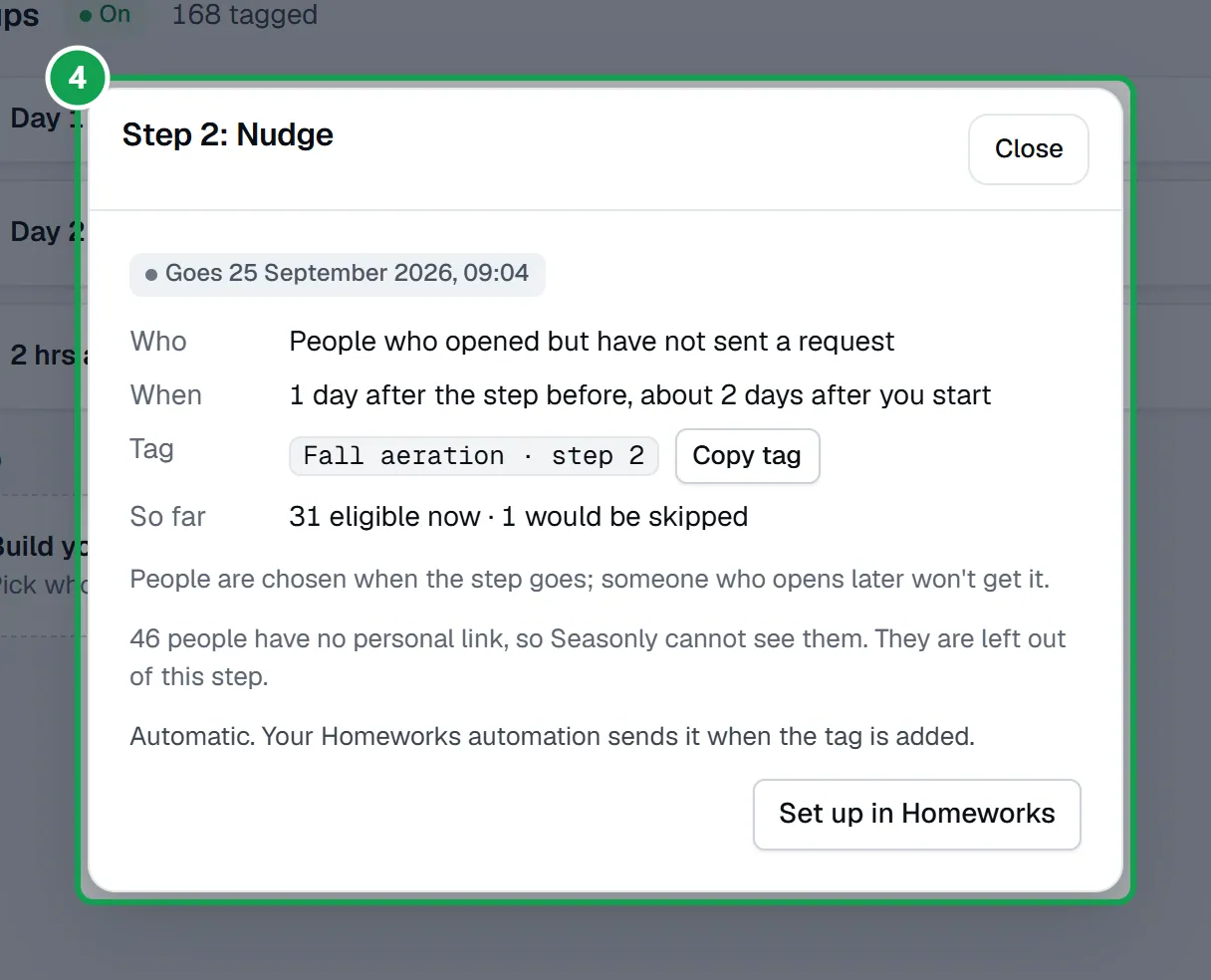
Step 4. Tap a step to see its Who, When and Tag. Each step adds its own new tag, named after your campaign tag plus its step number.
Step 5. Make each step's Homeworks automation (below), then press Start follow-ups. The campaign has to be live.
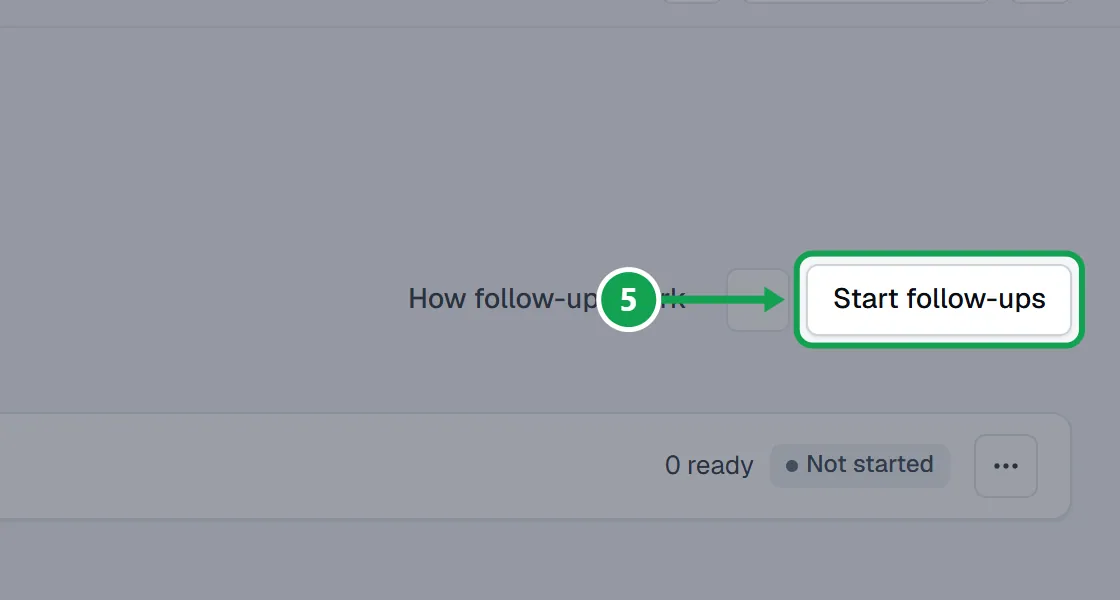
Step 6. Steps count from the day you pressed I sent it, or else from when you press Start follow-ups.
Make the Homeworks automation for a step
Homeworks does not let apps make automations, so you make one per step, once.
Step 1. On the step, press Set up (or Set up in Homeworks in its menu).
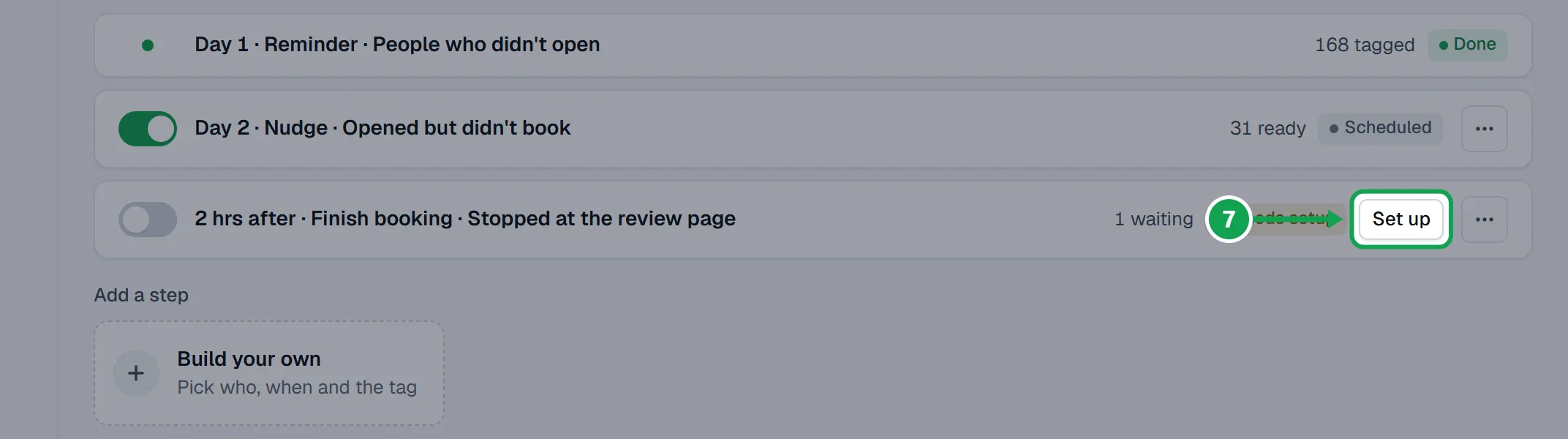
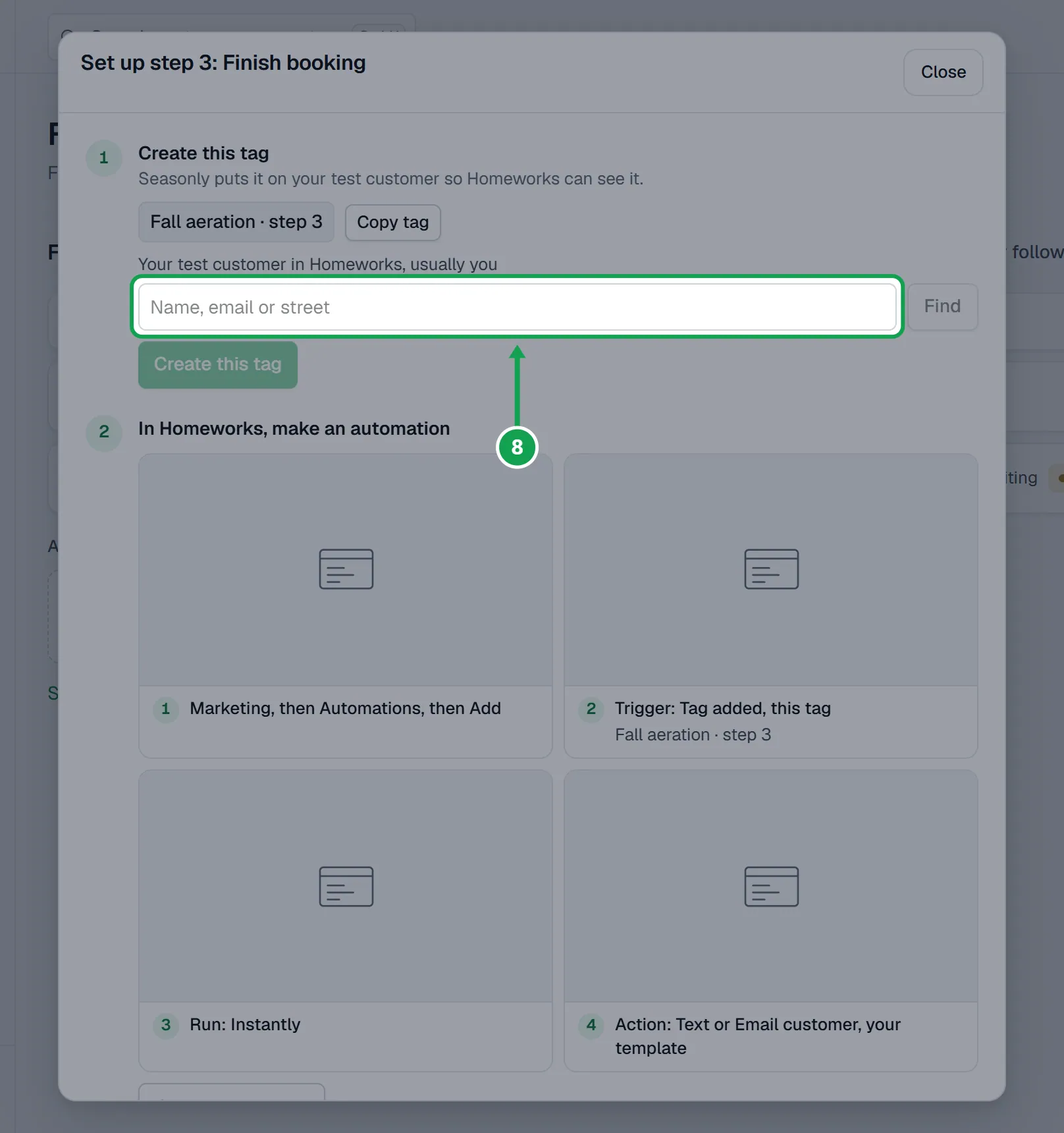
Step 2. Find your test customer in Homeworks (usually you), press Find, then Use.
Step 3. Press Create this tag. Seasonly puts the tag on your test customer so Homeworks can see it.
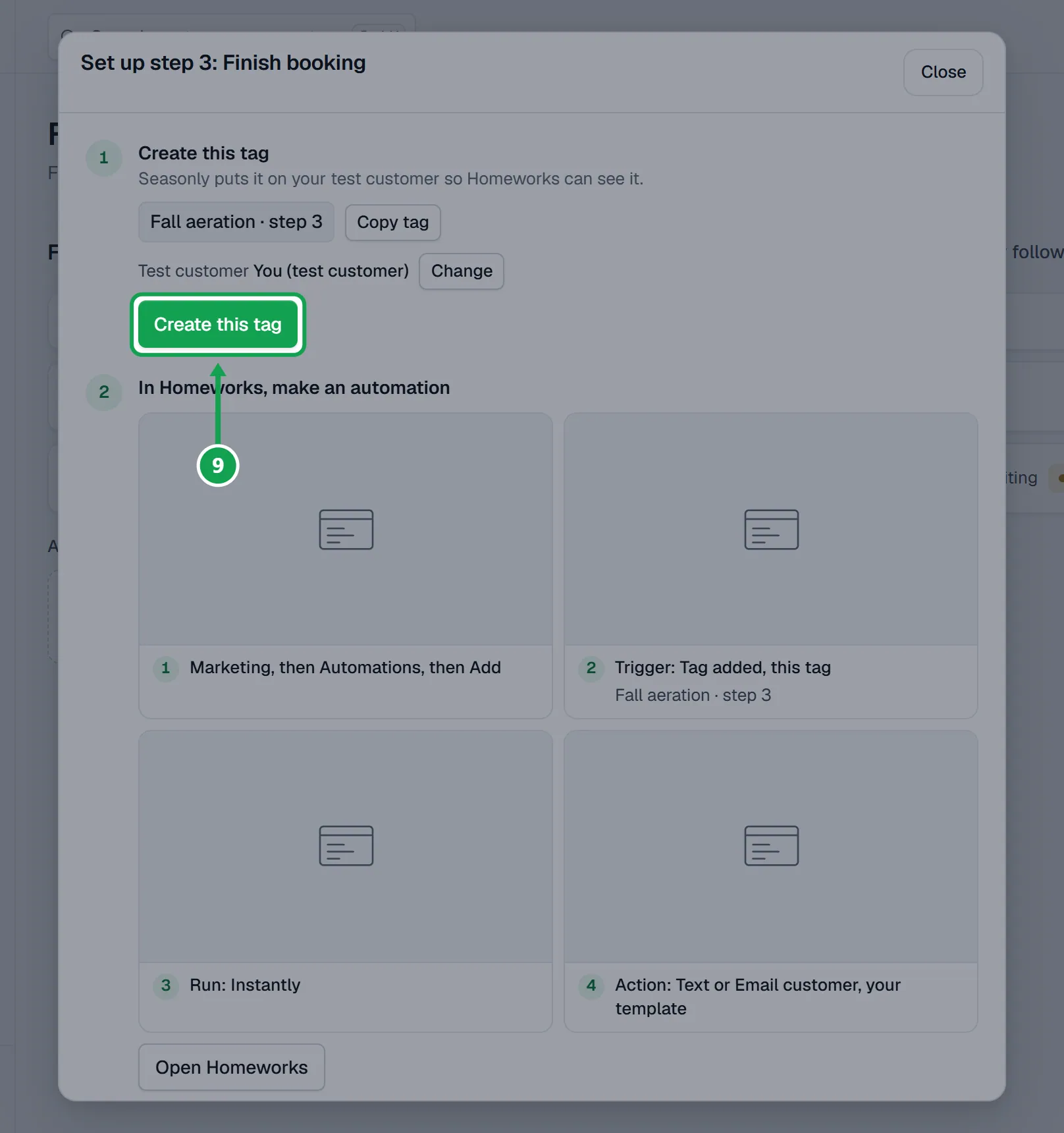
Step 4. Press Open Homeworks, then in Homeworks go to Marketing, Automations and add one.
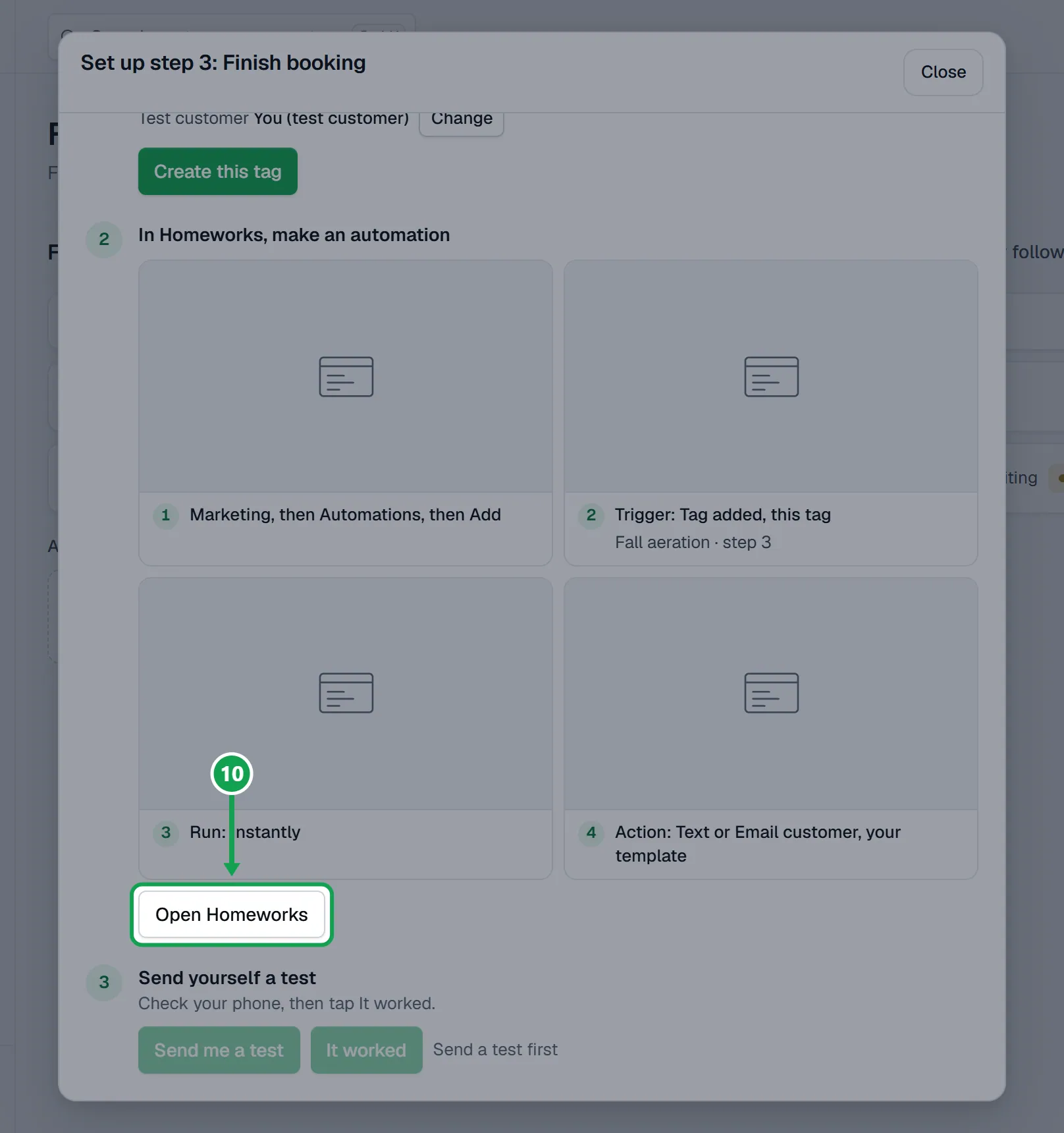
Step 5. In Homeworks, set the trigger to Tag added with this step's tag, run it instantly, and pick the text or email action with your message.
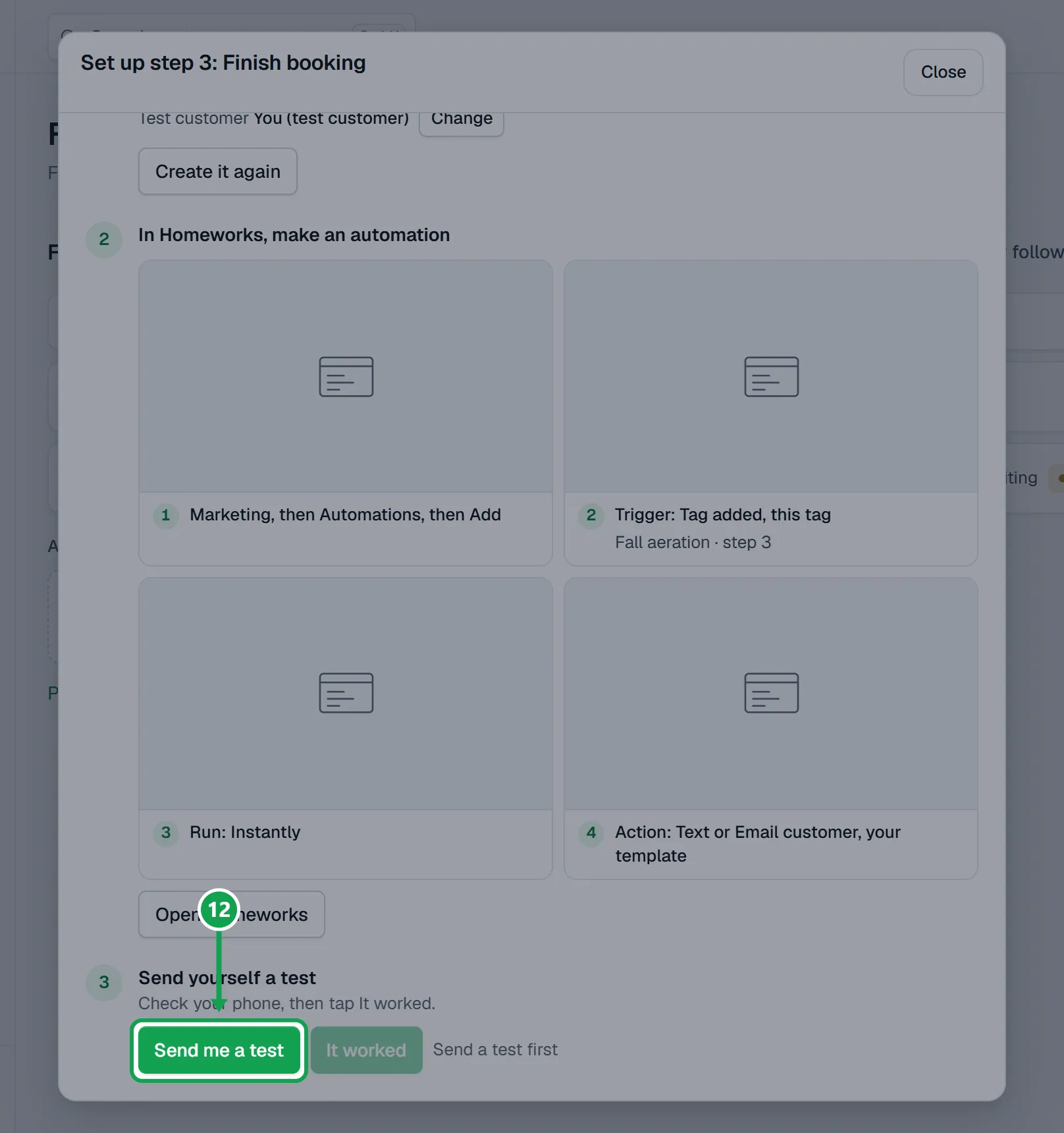
Step 6. Back in Seasonly, press Send me a test and check your phone.
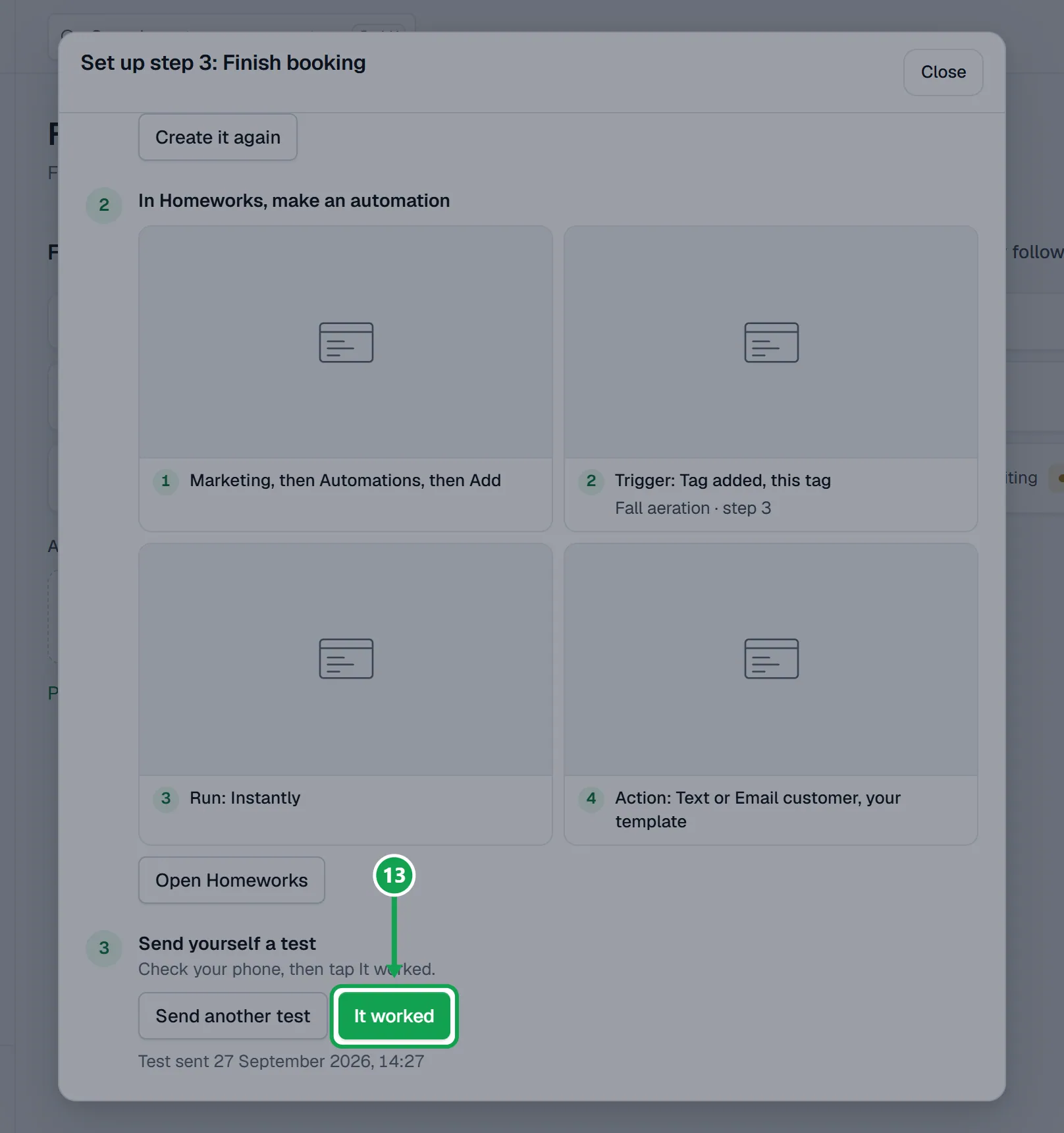
Step 7. If the message arrived, press It worked. The step can now go out.
Pause, stop or change the hours
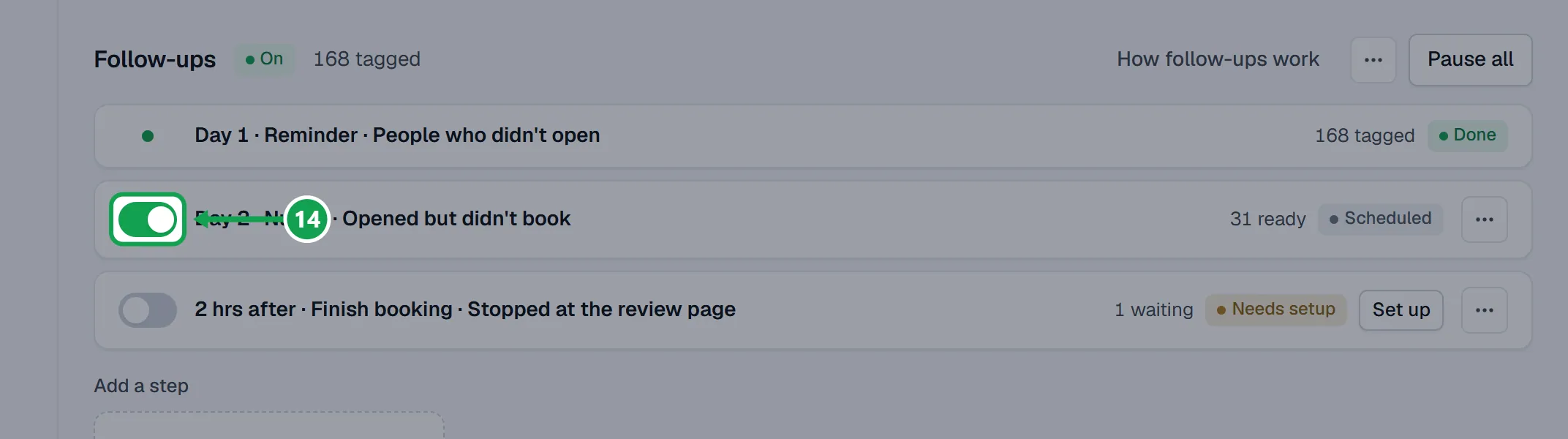
Step 1. Each step has a switch. Turn it off to pause that step. Pause all and Resume all do every step at once.
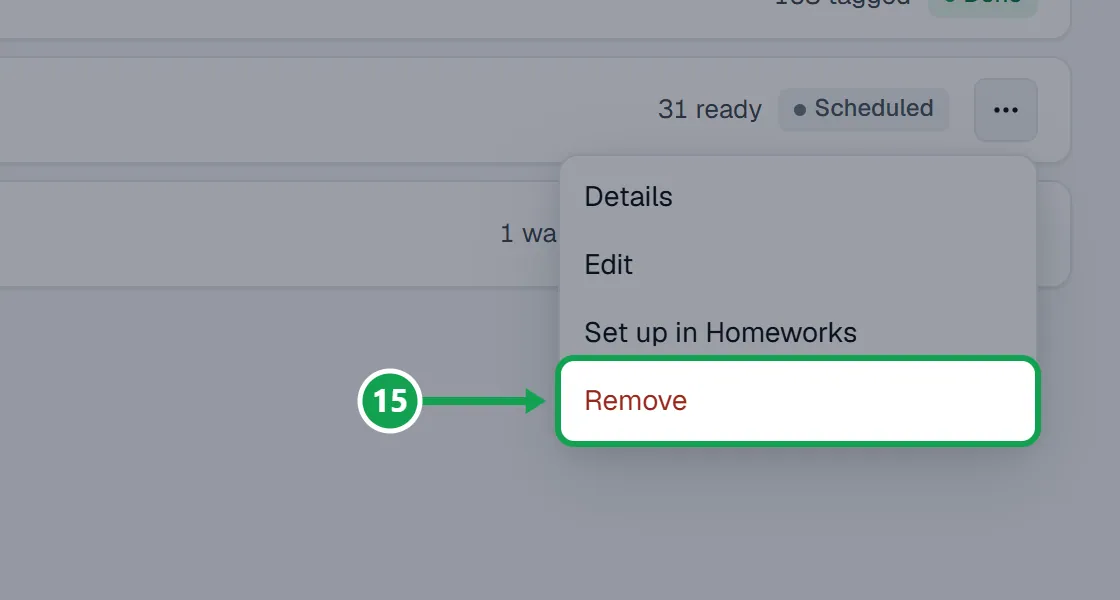
Step 2. A step that is tagging right now shows Stop. To take a step away, choose Remove in its menu; tags it already added stay.
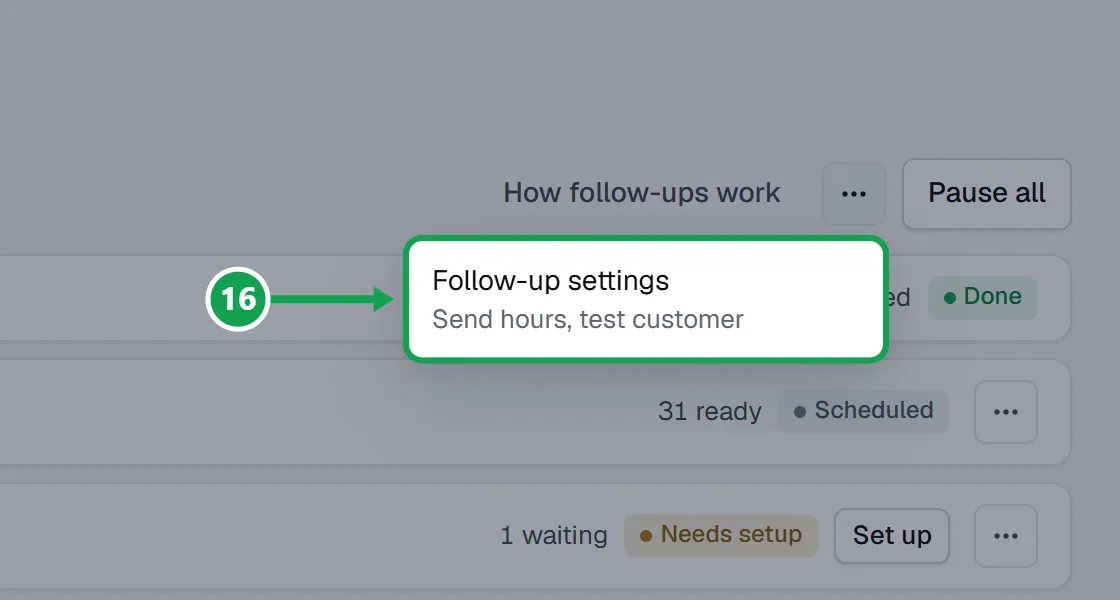
Step 3. For the hours, open the three-dot menu beside Follow-ups and choose Follow-up settings.
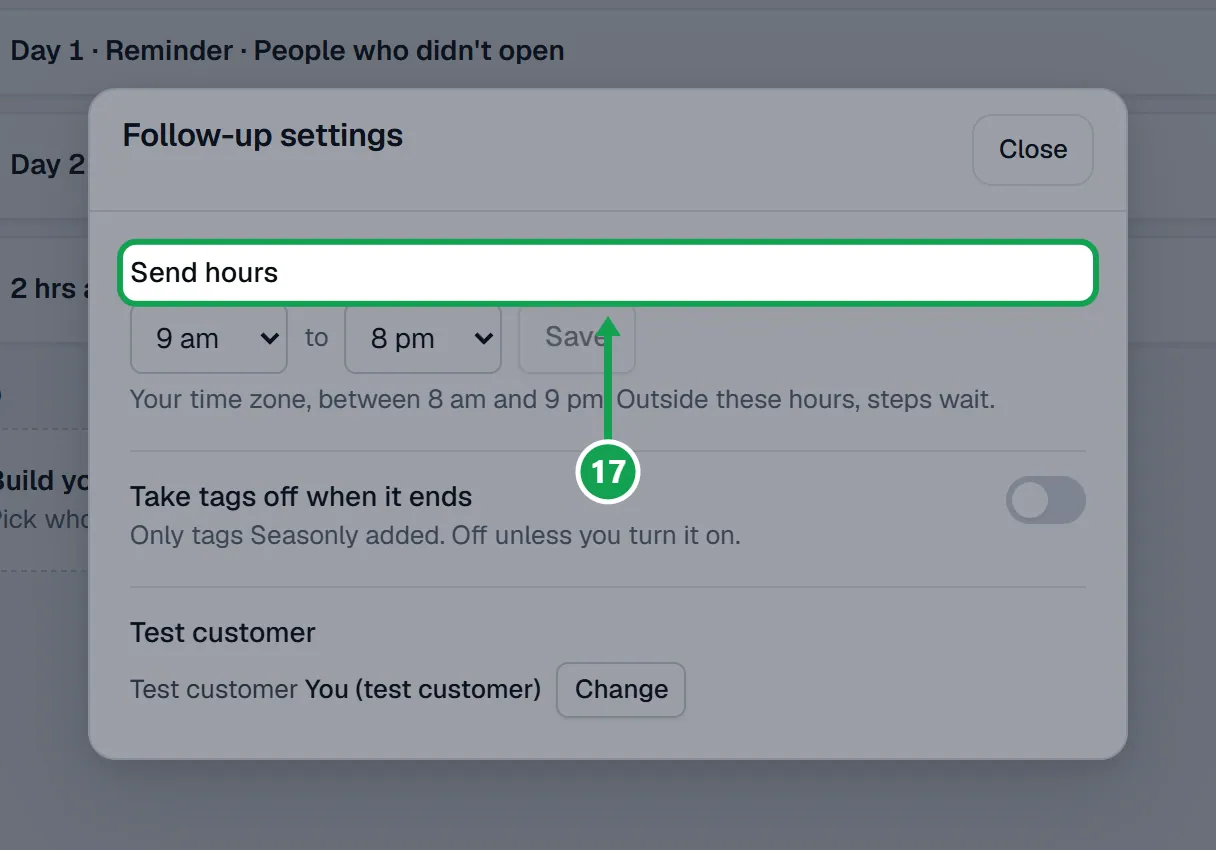
Step 4. Set Send hours and press Save. In the same box, Take tags off when it ends removes the follow-up tags Seasonly added once the campaign ends.
If this, then that
- If Follow-ups says Tagging is switched off, so follow-ups wait.
- Press Turn on tagging in Settings and turn on Tag customers in Homeworks.
- If Start follow-ups is grey
- Add a step first, and put the campaign live. A draft says Go live first.
- If a step shows Needs setup
- Press Set up, then Create this tag, make the Homeworks automation, Send me a test and press It worked.
- If It worked is grey and says Send a test first
- Press Send me a test, check your phone, then It worked.
- If steps say Steps wait until Seasonly checks who opted out of texts.
- Press Check now. With CRM insights off, press Open CRM insights in Settings and turn it on.
- If the test never arrives
- Check the automation in Homeworks: trigger Tag added with this step's exact tag, run instantly. Then press Send another test.
Good to know
- Seasonly never sends a follow-up. It adds each step's tag in Homeworks, and your Homeworks automation sends the text or email.
- Follow-ups need Tag customers in Homeworks on. Steps only tag inside your send hours, 8 am to 9 pm at most, on your time zone.
- People are chosen when a step goes. No Homeworks record, removed customers and people who texted STOP are skipped.
- Seasonly only sees opens through a person's own link. A didn't-open step leaves out people without one unless you turn on Also send to people Seasonly cannot see.
- Only the owner can change follow-ups. Staff see them.