Tag a campaign's customers in Homeworks
Seasonly adds the campaign's tag to its people in Homeworks. It sends nothing: you send from Homeworks, by hand or with an automation on the tag.
Steps
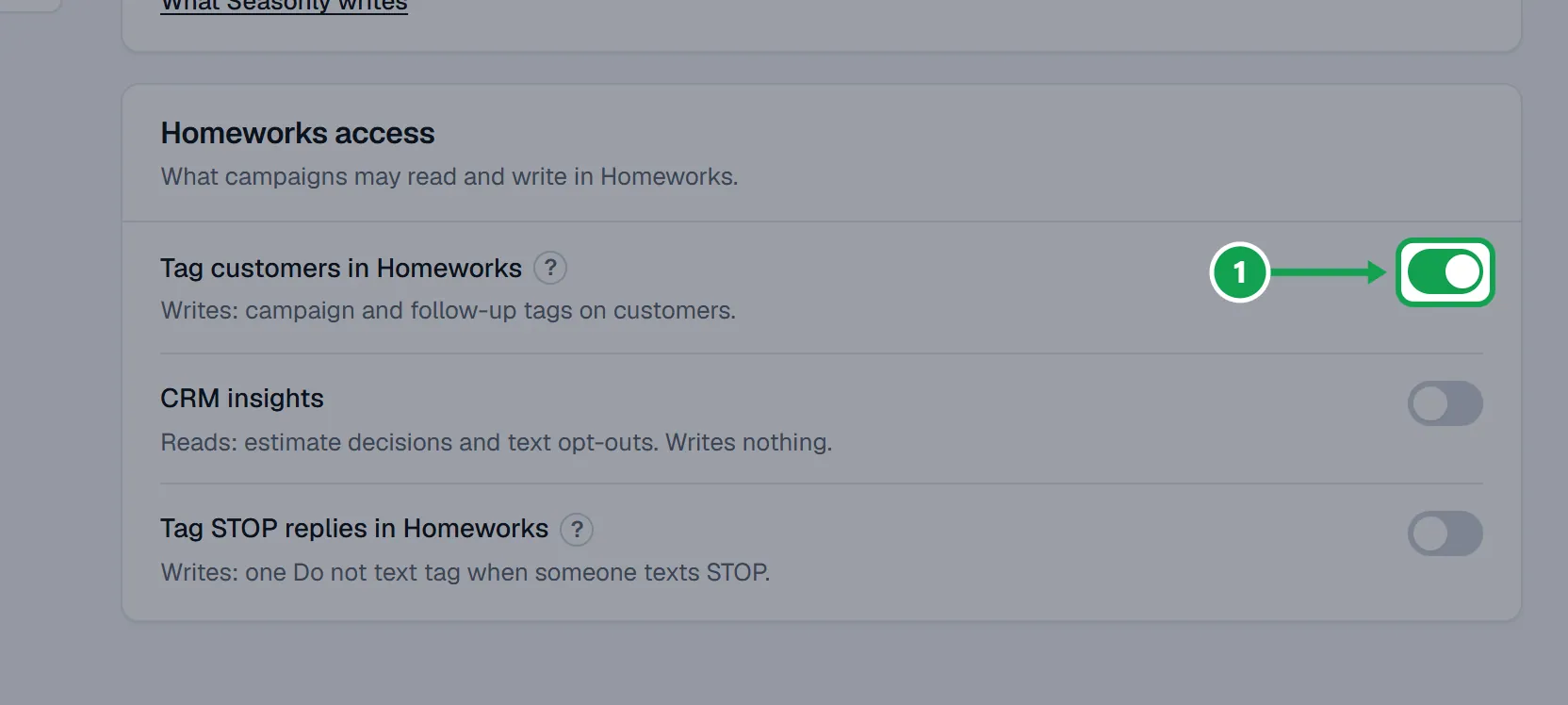
Step 1. Once: open Settings, then Homeworks, and turn on Tag customers in Homeworks. Homeworks has to be connected.
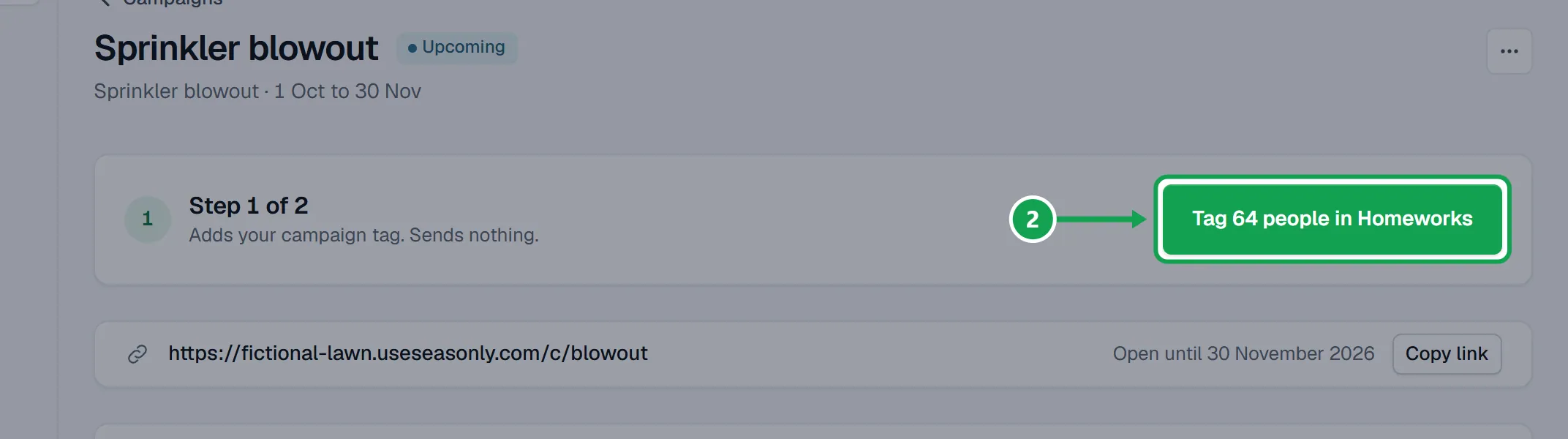
Step 2. Open the campaign. At the top, under Step 1 of 2, press the tag button. It says how many, like Tag 120 people in Homeworks.
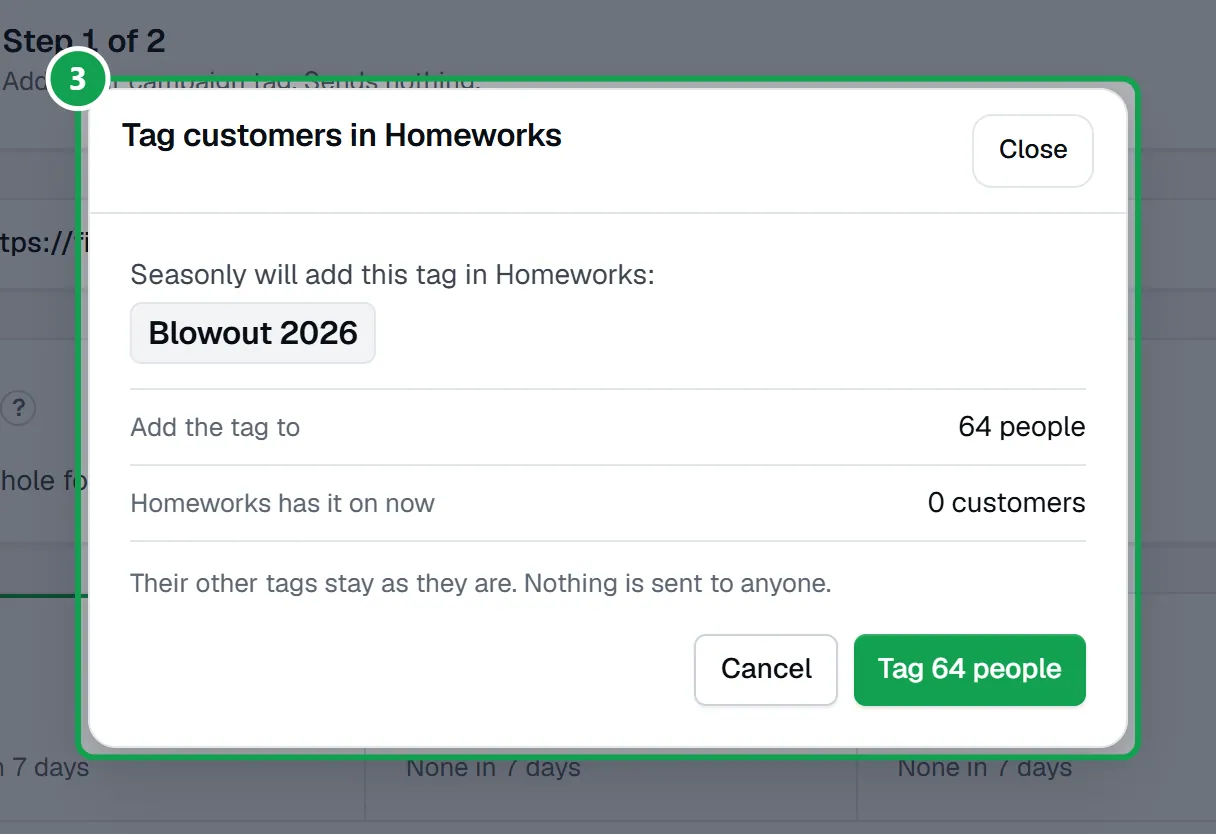
Step 3. The Tag customers in Homeworks box shows the tag, Add the tag to and who is skipped. Press the Tag button in it, or Cancel.
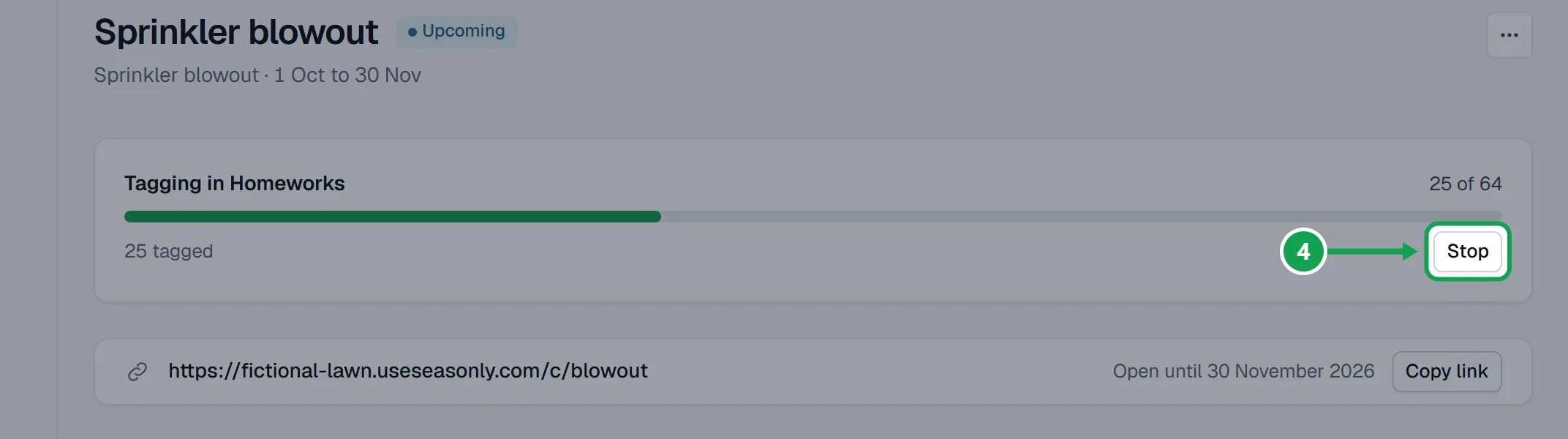
Step 4. Watch the Tagging in Homeworks bar. It keeps going if you leave the page. Press Stop to stop it.
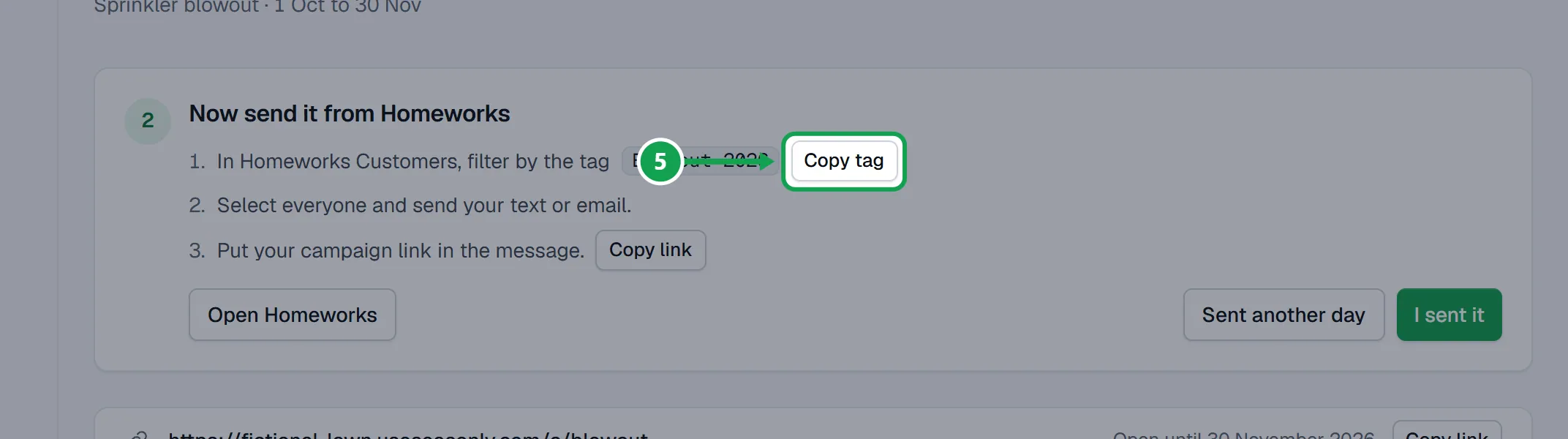
Step 5. Then Now send it from Homeworks: in Homeworks Customers, filter by the tag (Copy tag), select everyone and send your text or email with the link (Copy link).
Step 6. If a Homeworks automation starts on this tag, Homeworks sends it by itself instead.
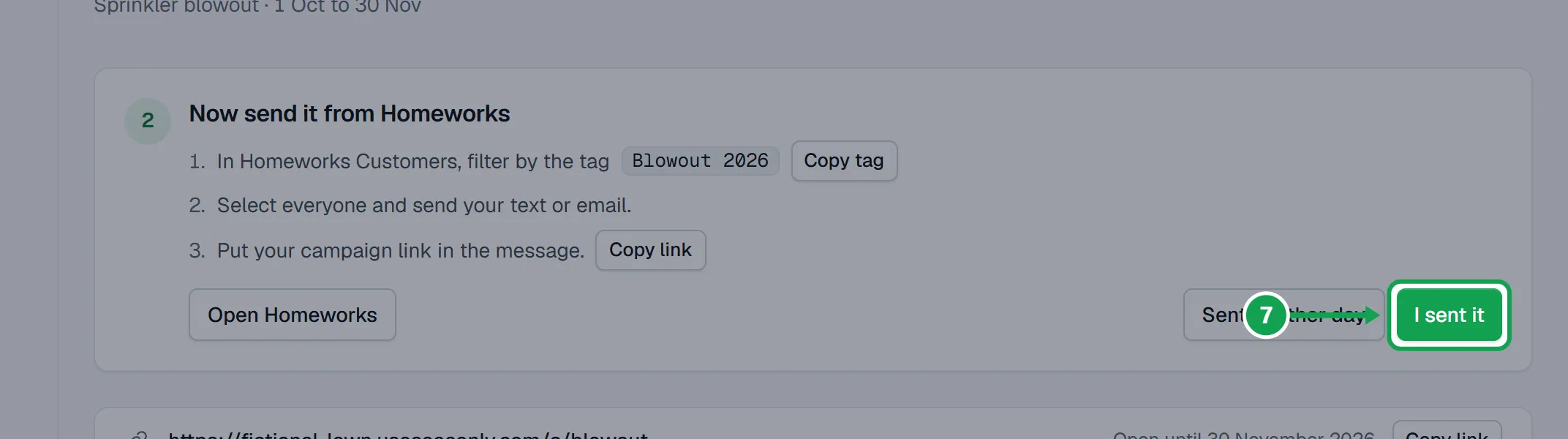
Step 7. Press I sent it, or Sent another day, so Seasonly knows the day. Follow-ups count from it.
Take the tag off
Step 1. Open the three-dot menu beside the campaign name and choose Take the tag off.
Step 2. Press the button that says how many people, then Take it off. Progress shows at the top of the campaign.
Tag again later
For example after a run that stopped, or to catch people whose Homeworks record changed.
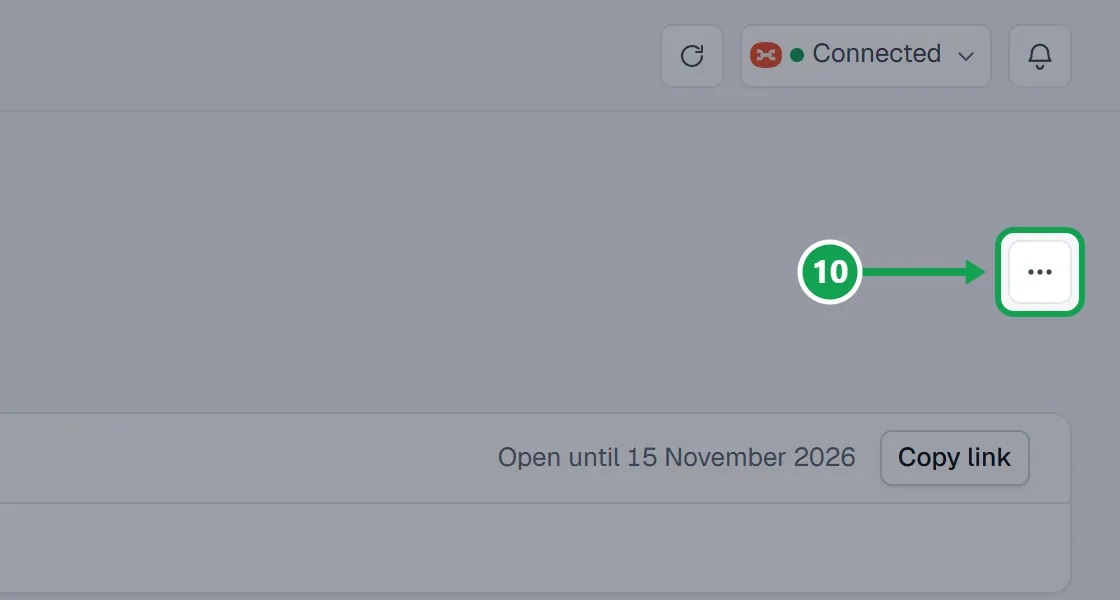
Step 1. Open the three-dot menu beside the campaign name.
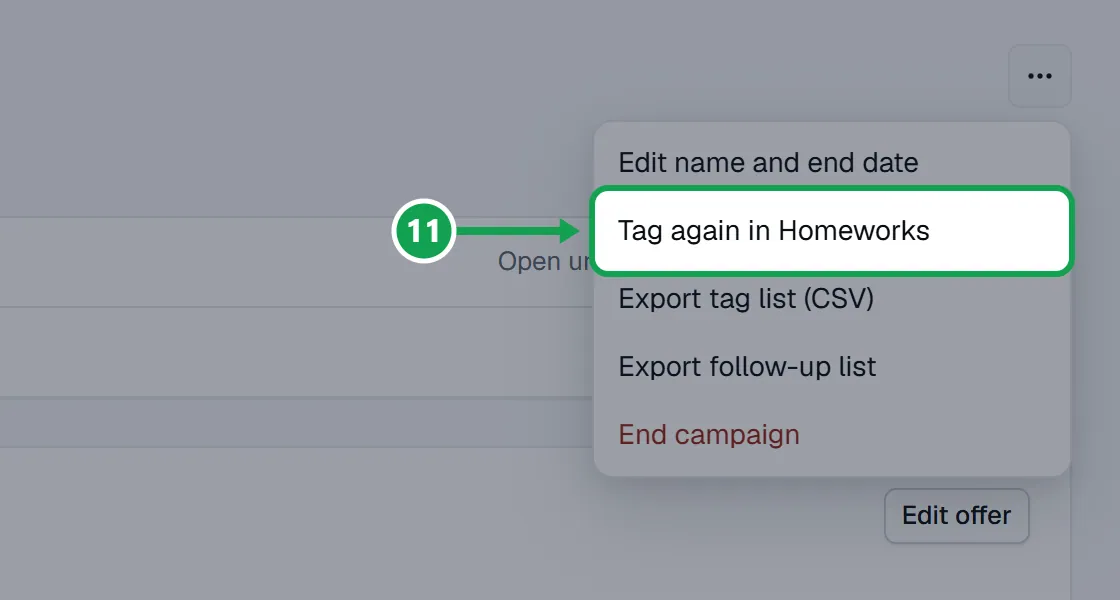
Step 2. Choose Tag again in Homeworks, then press the Tag button in the box.
If this, then that
- If the top of the campaign says Tagging is switched off
- Press Turn on tagging in Settings and turn on Tag customers in Homeworks. Nothing is sent by turning it on.
- If it says Connect Homeworks first
- Press Connect Homeworks and sign in to Homeworks, then come back and tag.
- If it says Tagging didn't finish or a number not tagged
- The line says why. Press Tag again. People already tagged are not tagged twice.
- If it says Tagging isn't available on this account yet
- Press Export tag list and tag those people in Homeworks yourself.
- If it says Nobody here can be tagged
- Nobody on this list has a Homeworks record. Make the campaign from a list of Homeworks customers.
- If you sent it on a different day
- Press Sent another day, pick the day, then I sent it. Later, Change beside Sent on under the link fixes it.
Good to know
- Seasonly never sends a campaign text or email. It only adds or takes off tags in Homeworks, and you or your Homeworks automation send.
- Skipped: people with no Homeworks record, removed customers, records that changed, and people who texted STOP.
- Their other tags stay as they are. Seasonly only takes off a tag it added.
- The campaign's tag cannot be renamed while Seasonly's tag is on customers. Take it off first.
- Only the owner can tag, stop or take a tag off. Staff see the progress.