Choose what campaigns may read and write in Homeworks
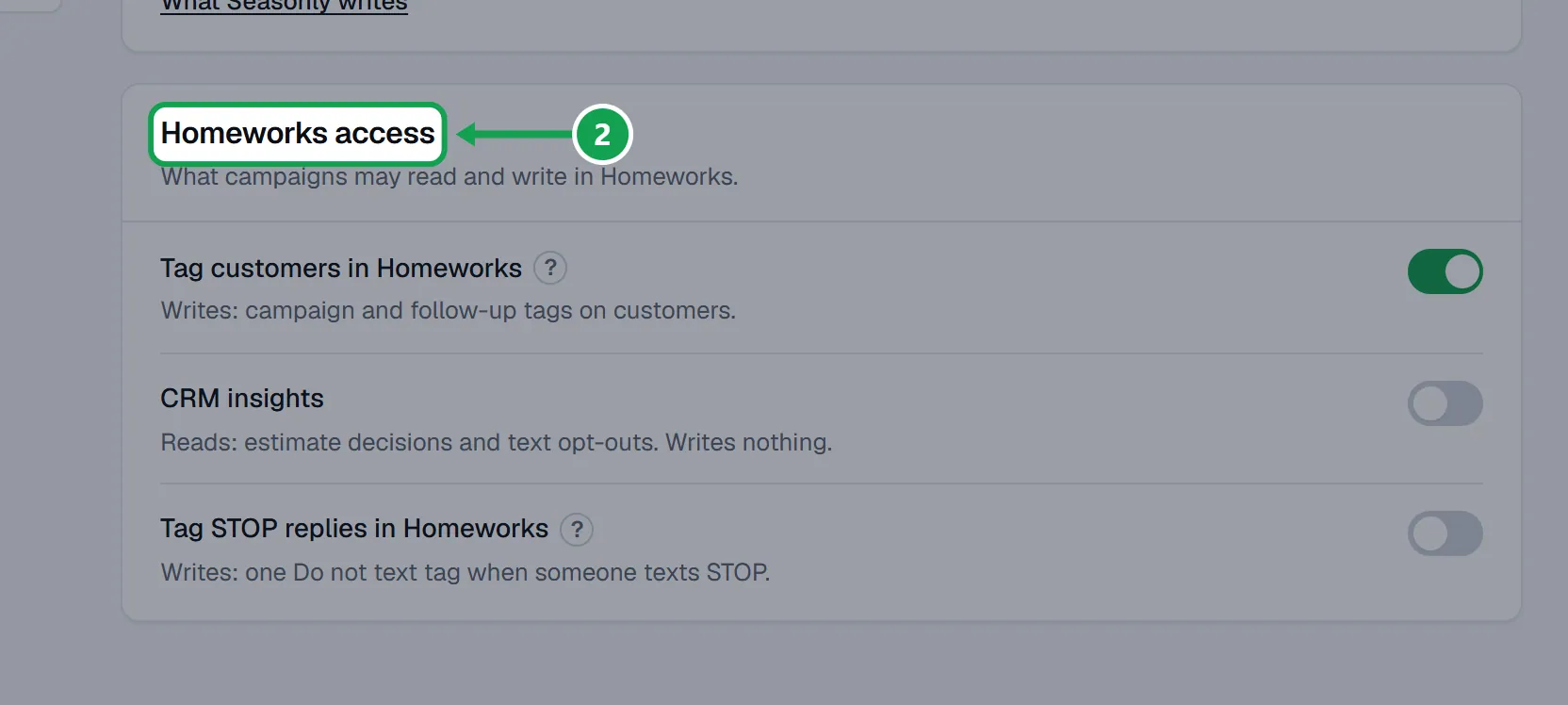
The three switches under Homeworks access: Tag customers in Homeworks, CRM insights and Tag STOP replies in Homeworks.
Steps
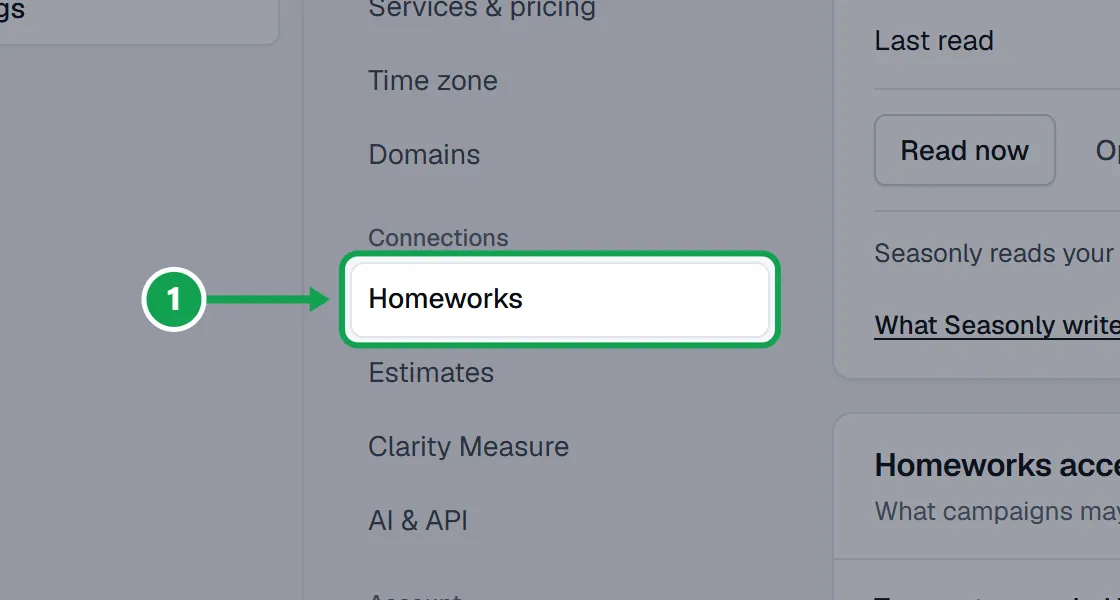
Step 1. Open Settings and choose Homeworks.
Step 2. Under the Homeworks card, find Homeworks access. Each row says in one line what it reads or writes.
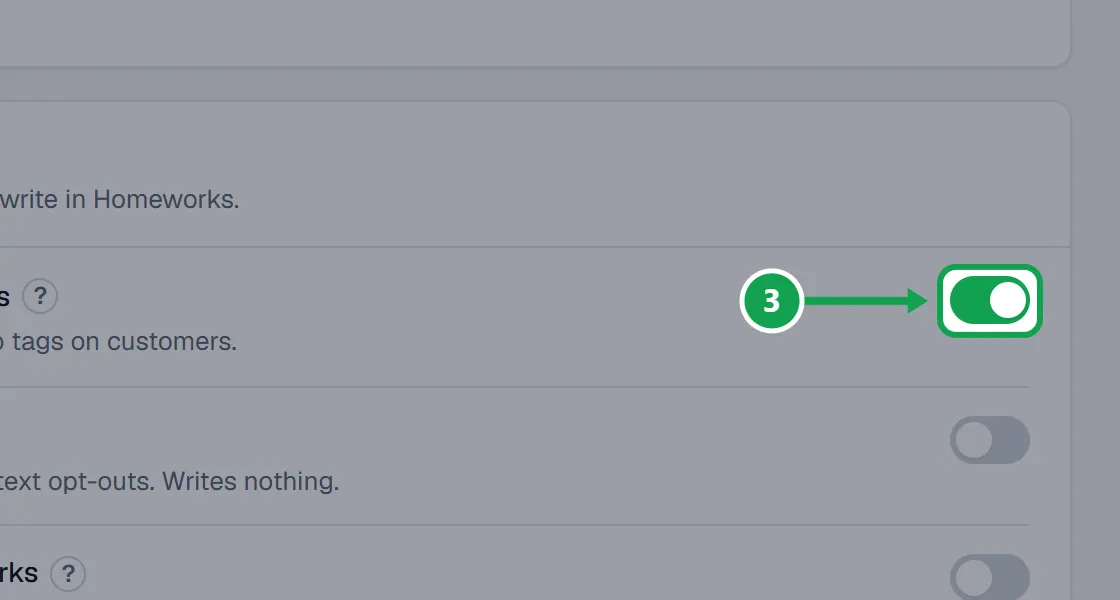
Step 3. Turn on Tag customers in Homeworks to let campaigns and follow-up steps add their tags to customers in Homeworks. Nothing is tagged until you press Tag on a campaign or a follow-up step runs.
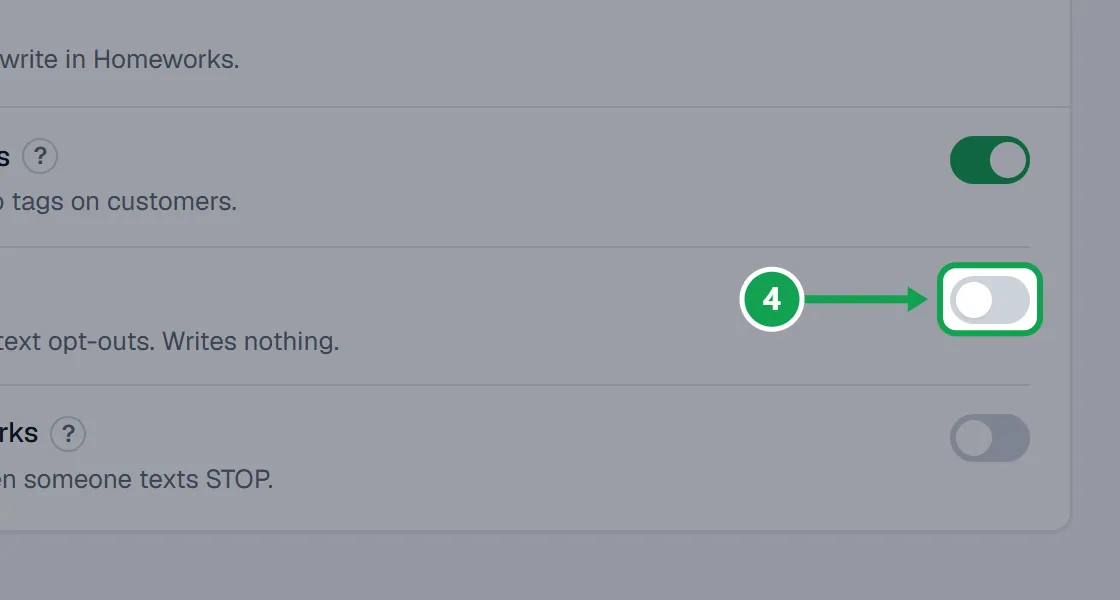
Step 4. Turn on CRM insights to let Seasonly read estimate decisions and text opt-outs from Homeworks. It writes nothing.
Step 5. Turn on Tag STOP replies in Homeworks to add one Do not text tag in Homeworks to anyone who texts STOP to a campaign.
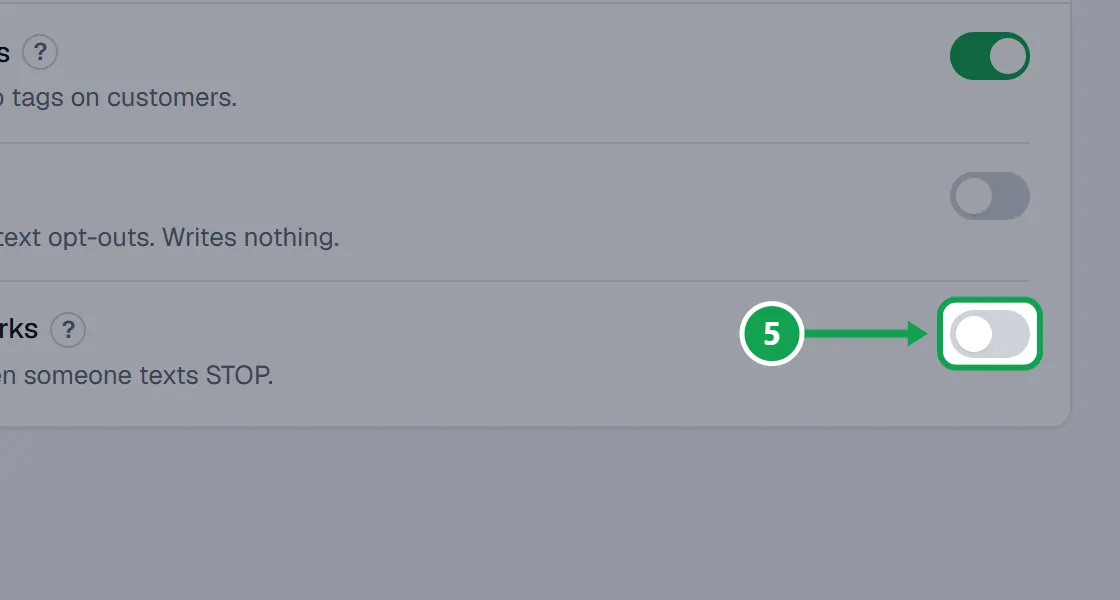
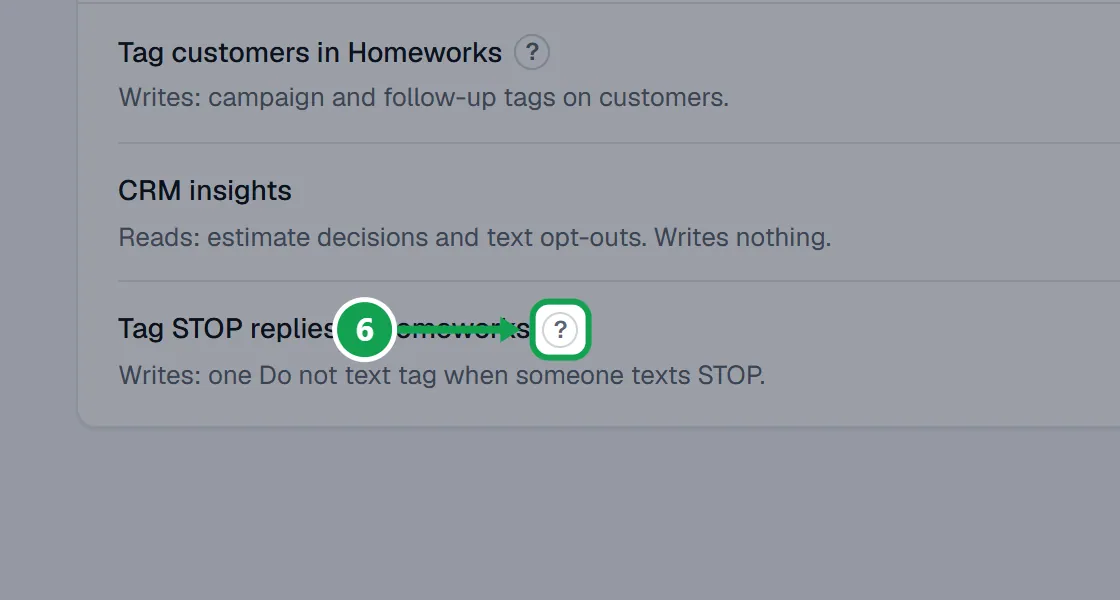
Step 6. Each switch saves as soon as you flip it, and a line under it says what changed. Press About STOP replies or About tagging in Homeworks for more.
What each switch allows
Step 1. Tag customers in Homeworks: writes campaign and follow-up tags on customers. Seasonly keeps every other tag and only ever takes off a tag it added.
Step 2. CRM insights: reads estimate decisions and text opt-outs, so campaign numbers and text audiences are right. Turning it off keeps the opt-outs already seen.
Step 3. Tag STOP replies in Homeworks: writes one Do not text tag when someone texts STOP. Seasonly never takes that tag off. It needs CRM insights on to see STOP replies.
If this, then that
- If you see On or Off but no switch
- You are signed in as staff. Only the owner can change Homeworks access.
- If a switch is greyed out and says Connect Homeworks first.
- Homeworks is not connected. Connect it, then come back and turn the switch on.
- If it says Not switched on for Seasonly yet.
- Tag writes are not open for Seasonly yet. Tag STOP replies can still be set to On; nothing is tagged until writes open. Press Get help to ask support.
- If Tag STOP replies says Turn on CRM insights so Seasonly can see STOP replies.
- Turn on CRM insights too. Without it Seasonly cannot see who texted STOP.
- If CRM insights says it can't run on Seasonly yet
- CRM insights is not switched on for Seasonly. Ask support to switch it on.
- If Tag STOP replies says Could not read this setting. Refresh to try again.
- Seasonly could not load it. Refresh the page; it is not off.
Good to know
- Only the owner can flip these switches. Staff see On or Off without a switch.
- An assistant can never turn on Tag customers in Homeworks or CRM insights. Tag STOP replies changes from Claude only after you approve it.
- Anyone who texts STOP is always left out of Seasonly campaigns and follow-ups until they text START, whether or not the tag switch is on.
- Seasonly never sends campaign texts or emails itself. Your Homeworks automations on the tags do the sending.
- All three are company-wide. Every campaign uses the same settings.