Turn form options on or off
Photos, addresses outside your area, referral codes, a booking limit and your terms: where each switch is and what it does.
Steps
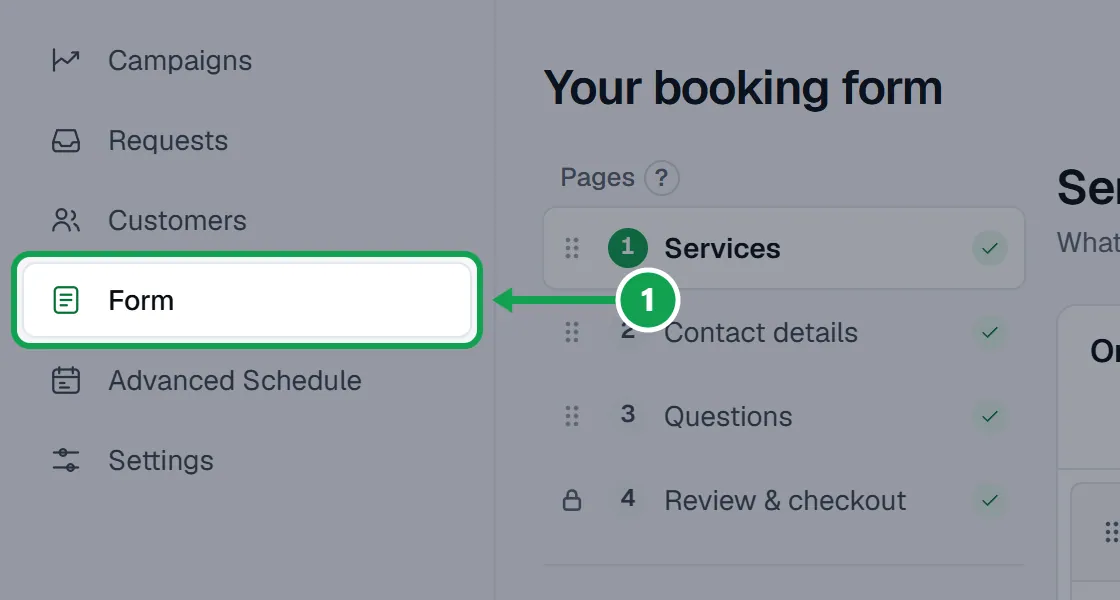
Step 1. Open Form. Each option sits on the page it changes.
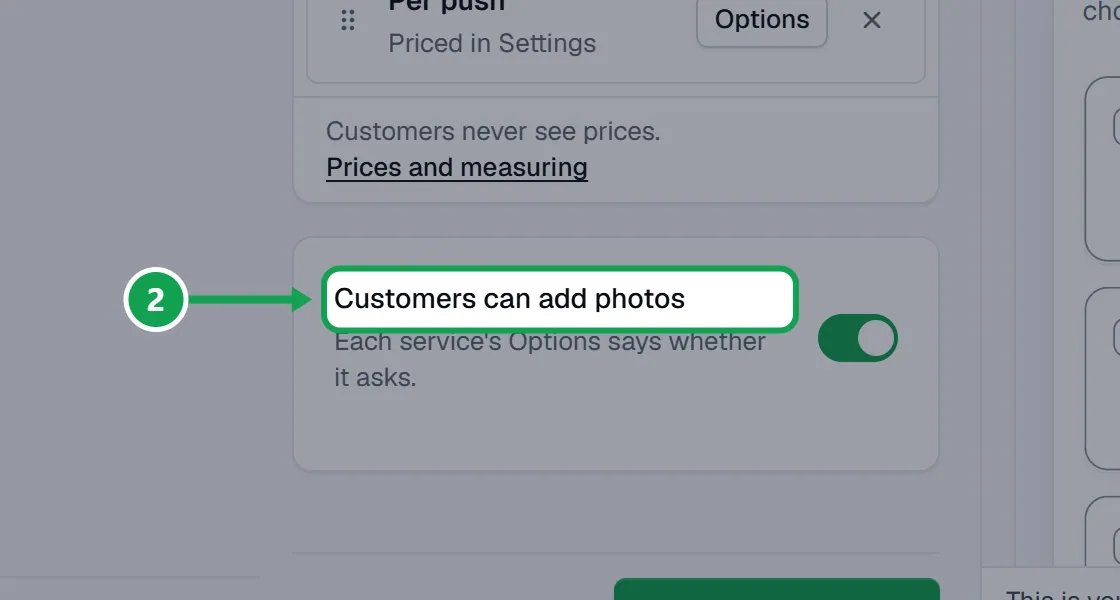
Step 2. Photos: on Services, turn on Customers can add photos. It saves at once.
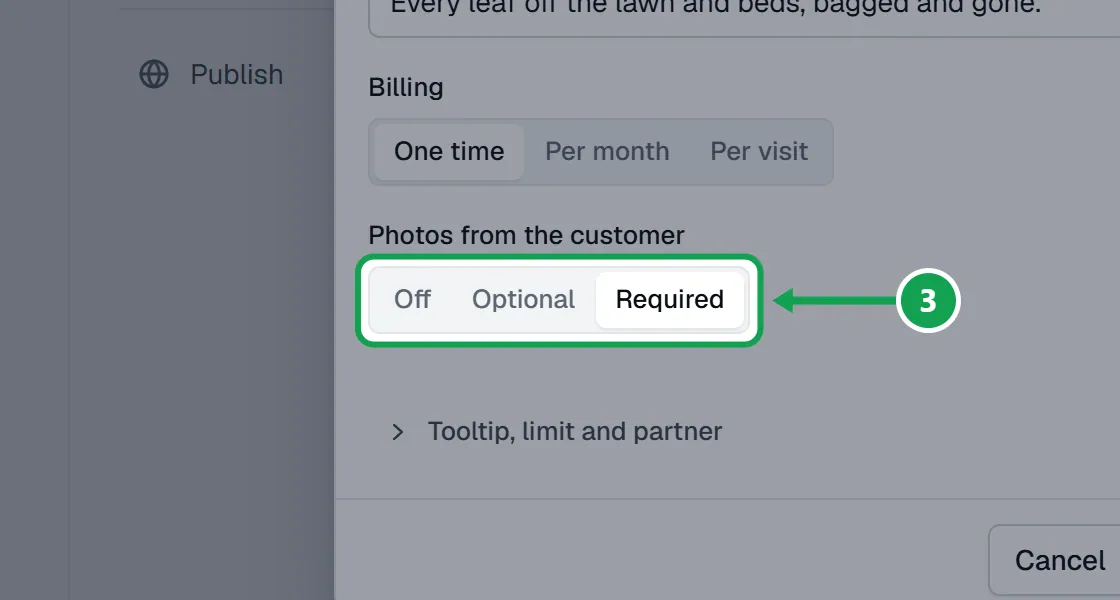
Step 3. Then press Options beside a service and set Photos from the customer to Off, Optional or Required, and press Save.
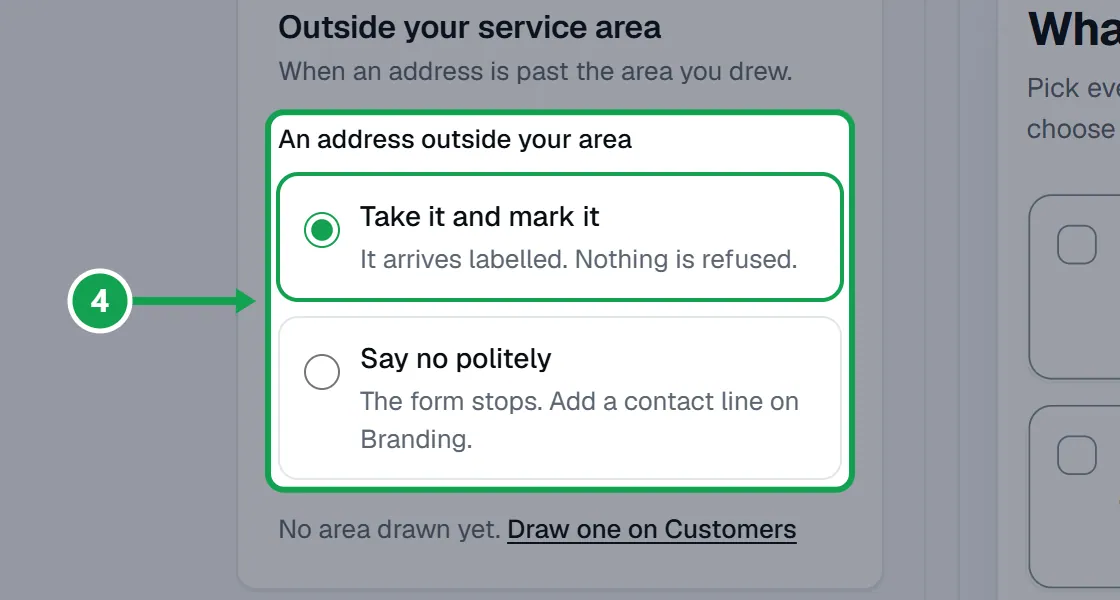
Step 4. Addresses outside your area: on Contact details, pick Take it and mark it or Say no politely, then press Save changes.
Step 5. Referral codes: on Review & checkout, turn on Take referral codes and type the Discount per referral in dollars.
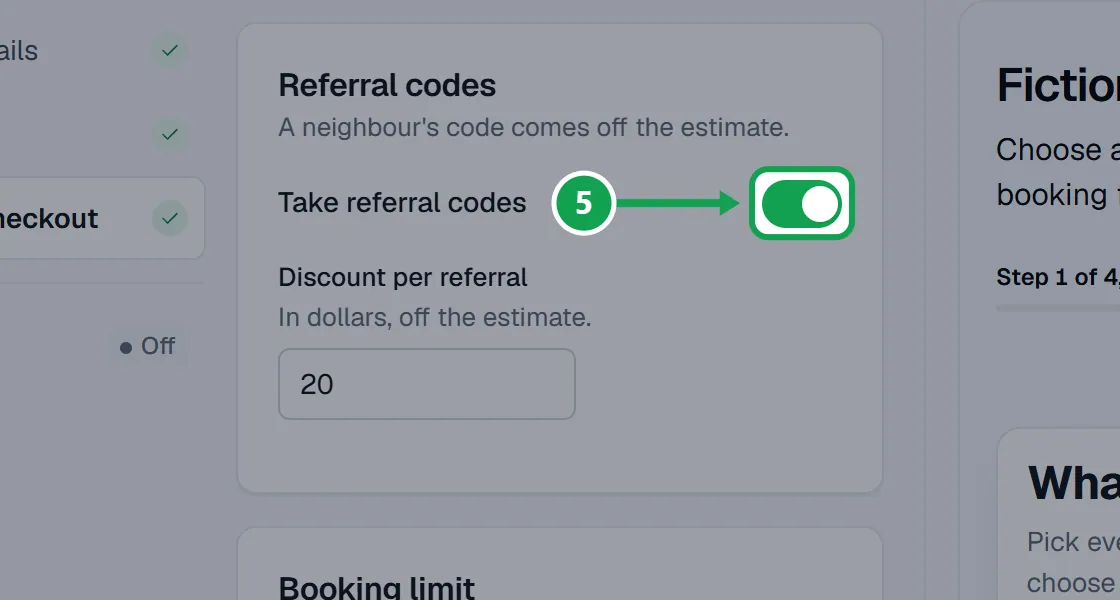
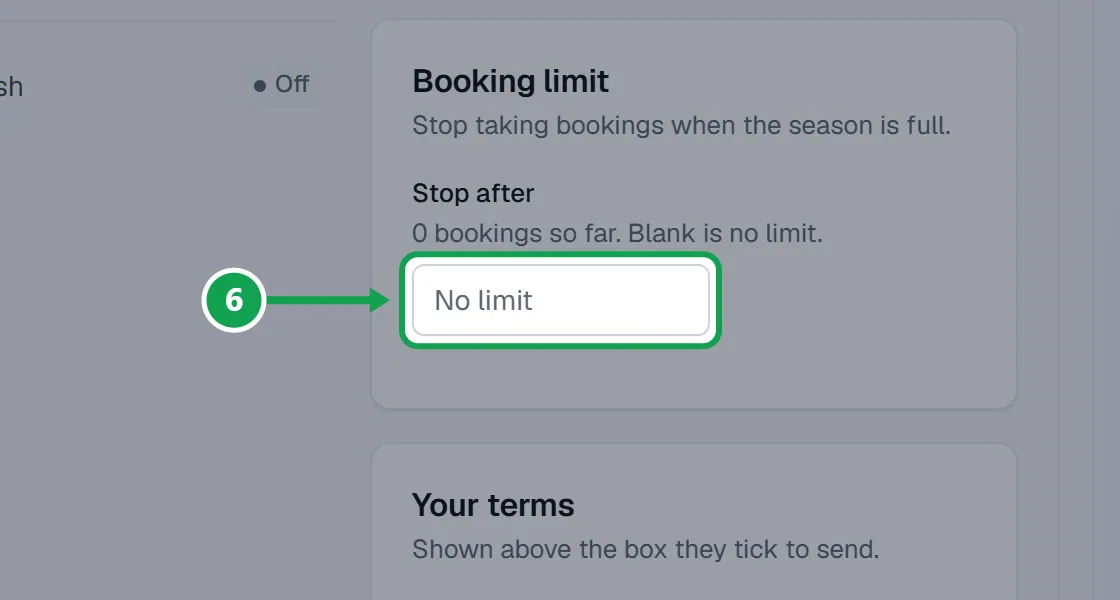
Step 6. Booking limit: on the same page, type a number in Stop after. Blank means no limit.
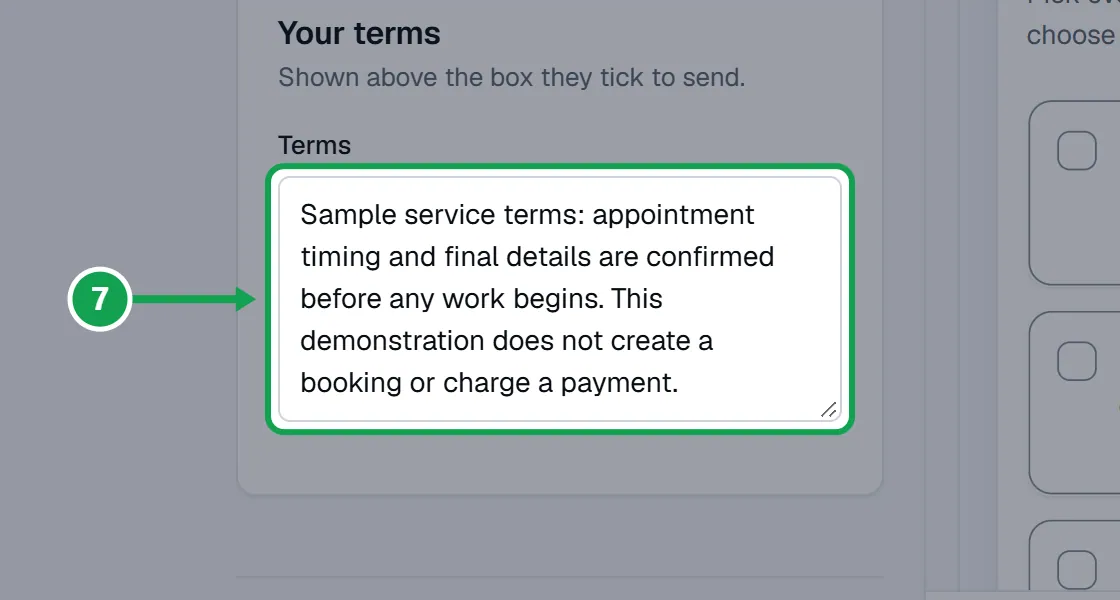
Step 7. Terms: type them in Terms. Customers read them above the box they tick to send. Press Save changes.
Limit one service
For example, only 30 snow removal spots.
Step 1. On Services, press Options beside the service.
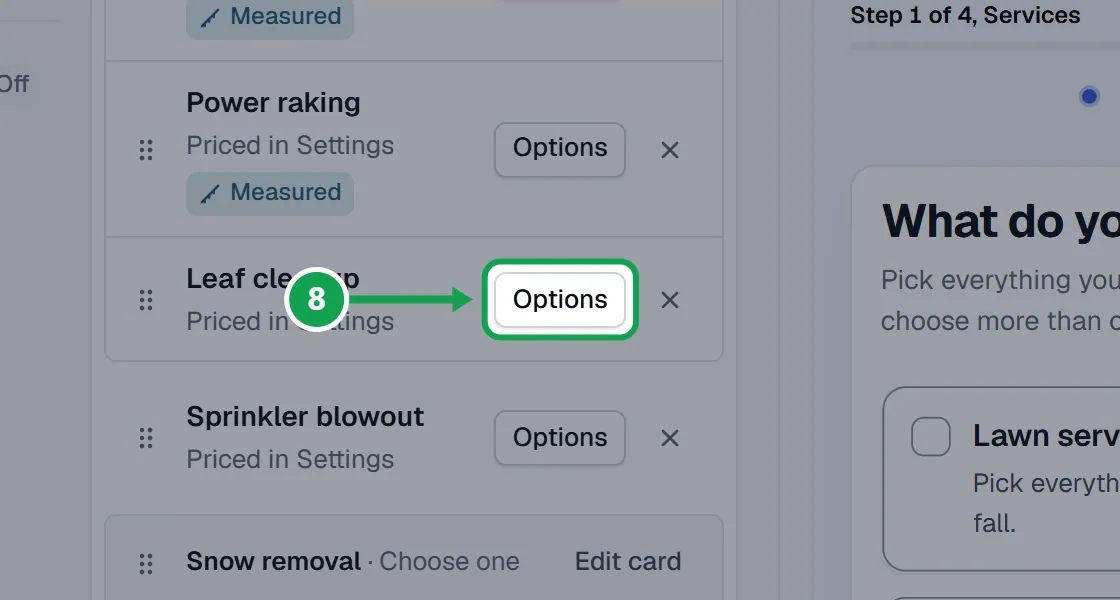
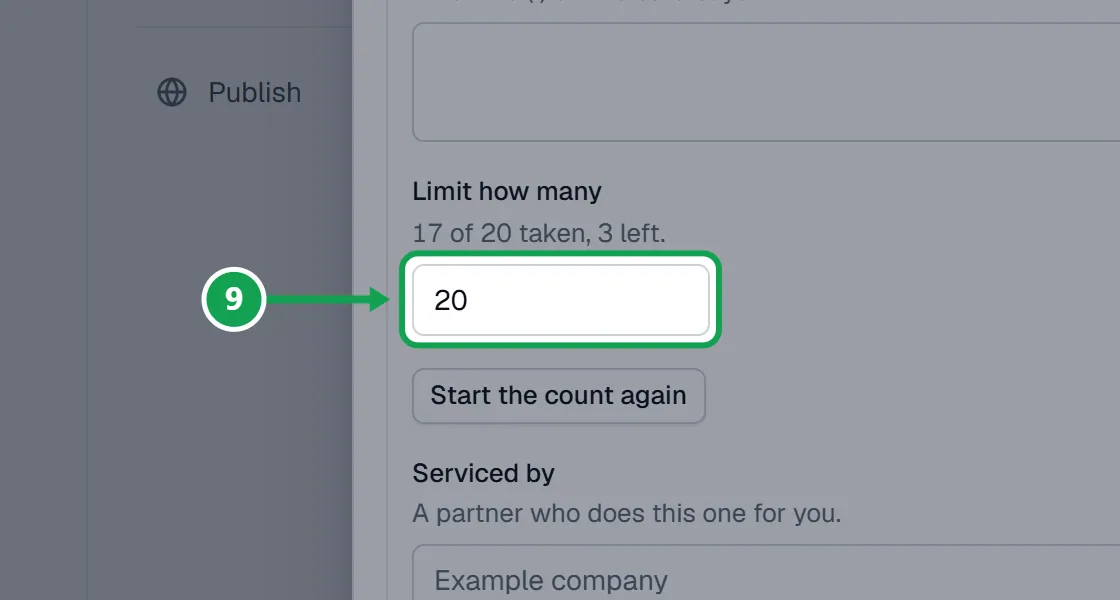
Step 2. Open Tooltip, limit and partner and type a number in Limit how many.
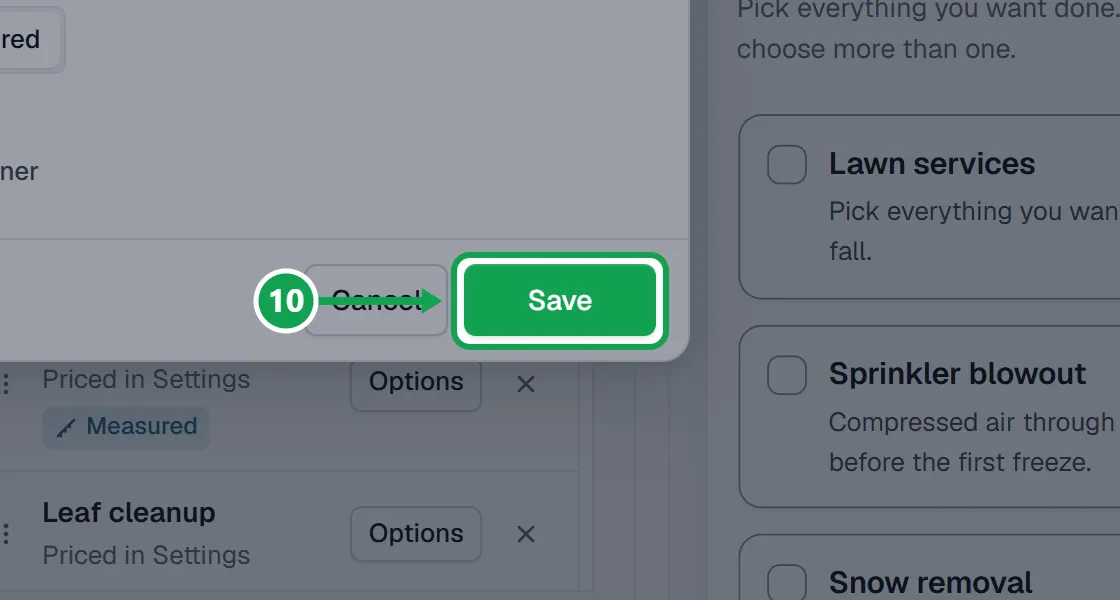
Step 3. Press Save.
Start a new season's count
Step 1. For the whole form, press Start the count again under The count on Review & checkout. It shows once a booking has come in, and every spot opens again.
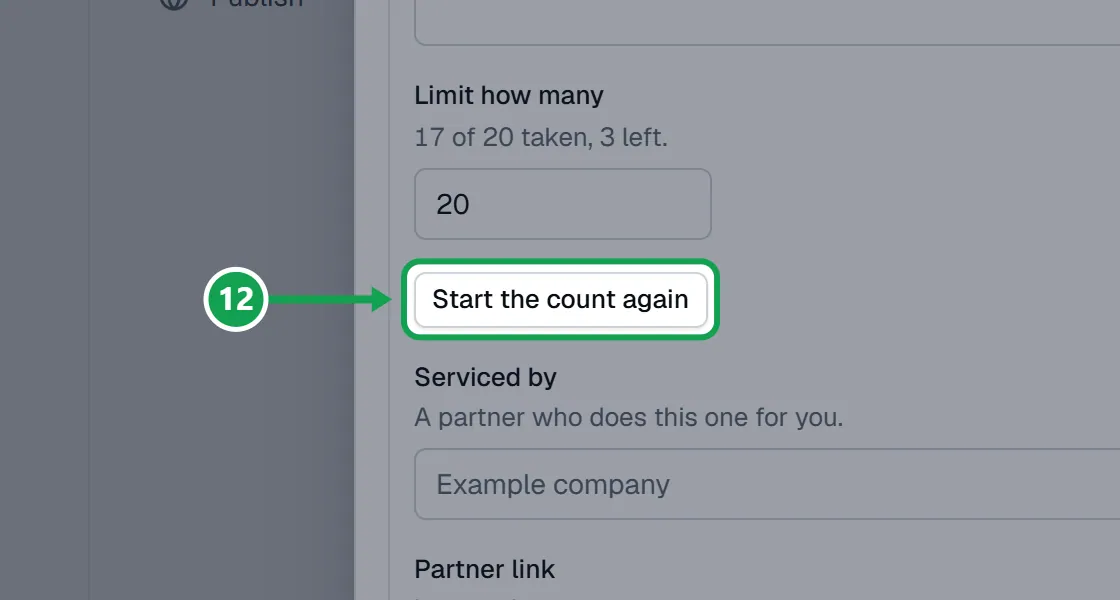
Step 2. For one service, open its Options, then Tooltip, limit and partner, and press Start the count again.
If this, then that
- If customers are not asked for photos
- Check Customers can add photos is on for the whole form, at the bottom of Services, and that the service's Photos from the customer is not Off.
- If you see No area drawn yet under the outside-area choice
- Draw your service area on Customers. Until then every address is taken as covered.
- If Say no politely says the form stops with no way to reach you
- Add a Phone or email for customers in Settings, under Branding, so turned-away homeowners can call you.
- If the form says it is full
- Your Stop after or a service's Limit how many is reached. Raise it, clear it, or press Start the count again for a new season.
- If referral codes will not turn on
- Type a Discount per referral above 0 dollars, then press Save changes.
- If you see Only the owner can change these
- You are signed in as staff. Ask the owner to change the switch.
Good to know
- The referral discount comes off the estimate afterwards. The form never shows an amount.
- The outside-area choice does nothing until you draw a service area on Customers. Outside addresses come in marked by default, and nothing is refused.
- Say no politely shows your phone or email for customers, when you have added one in Settings, under Branding.
- Allowing the form on other websites is on the Publish page.
- Only the owner can change these.