Set up your booking form
Build the form homeowners use to ask for work: services, contact details, questions, checkout, then switch it on under Publish.
Steps
Step 1. Open Form. The list on the left shows every page, in the order homeowners see them.
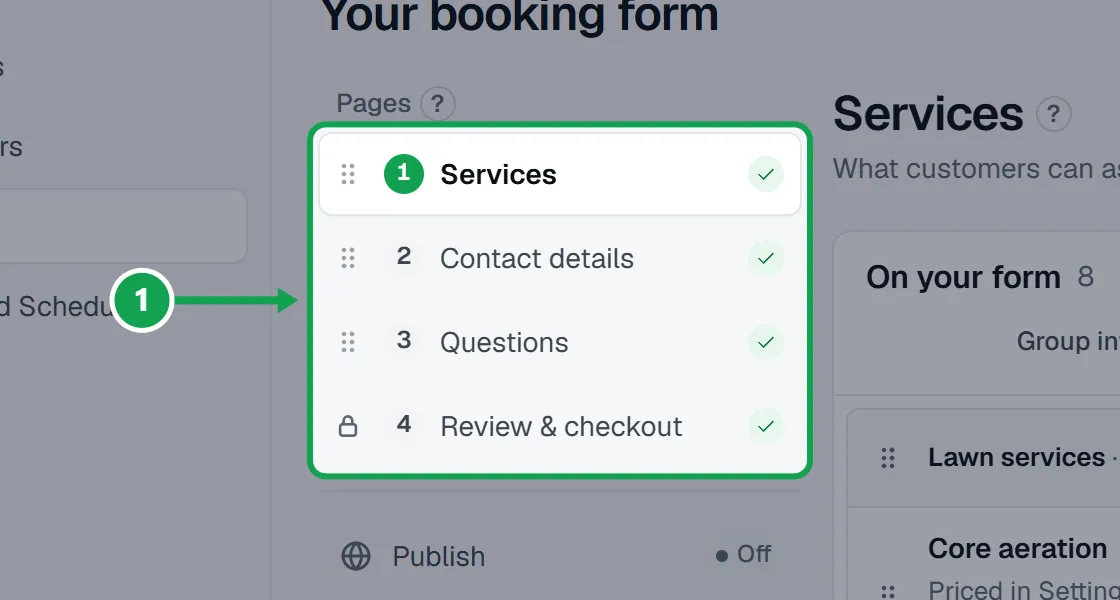
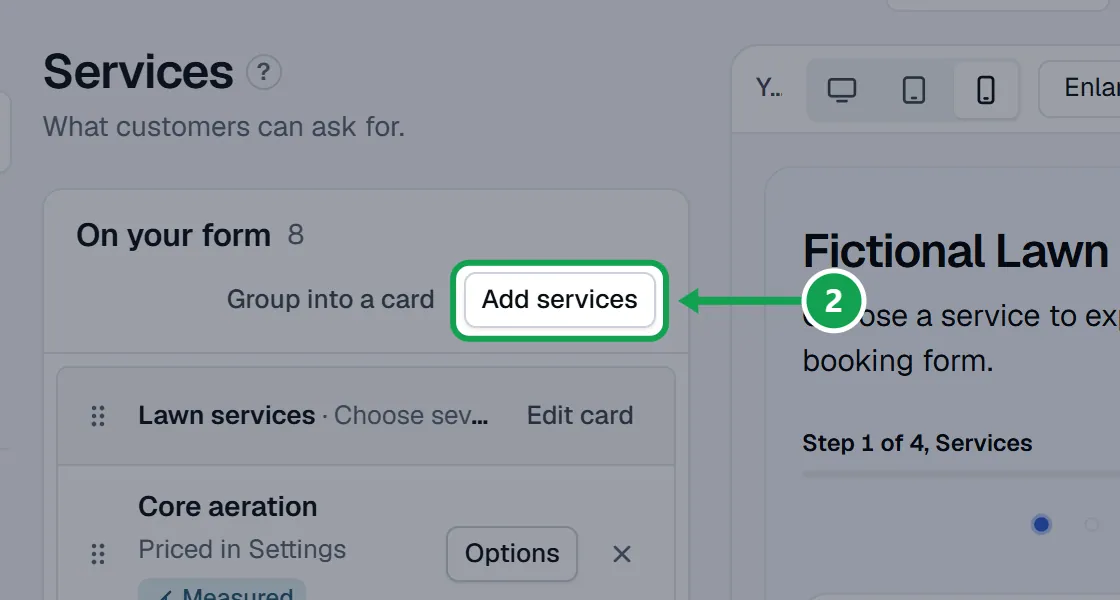
Step 2. On Services, press Add services, press Add beside each service customers can ask for, then Done.
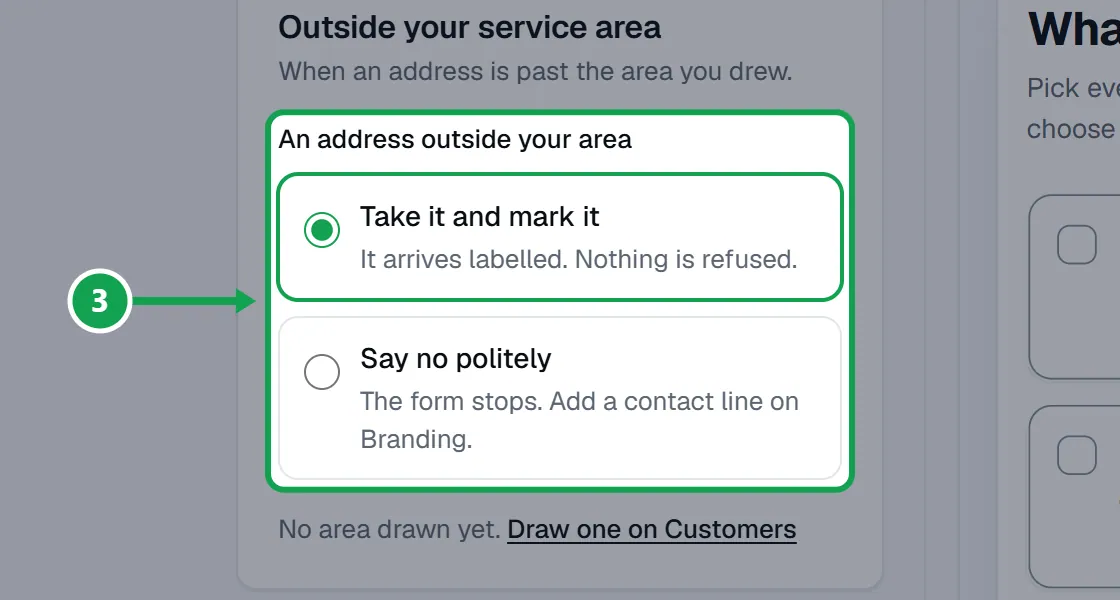
Step 3. On Contact details, check the four fields every form asks, and choose what happens to an address outside your area.
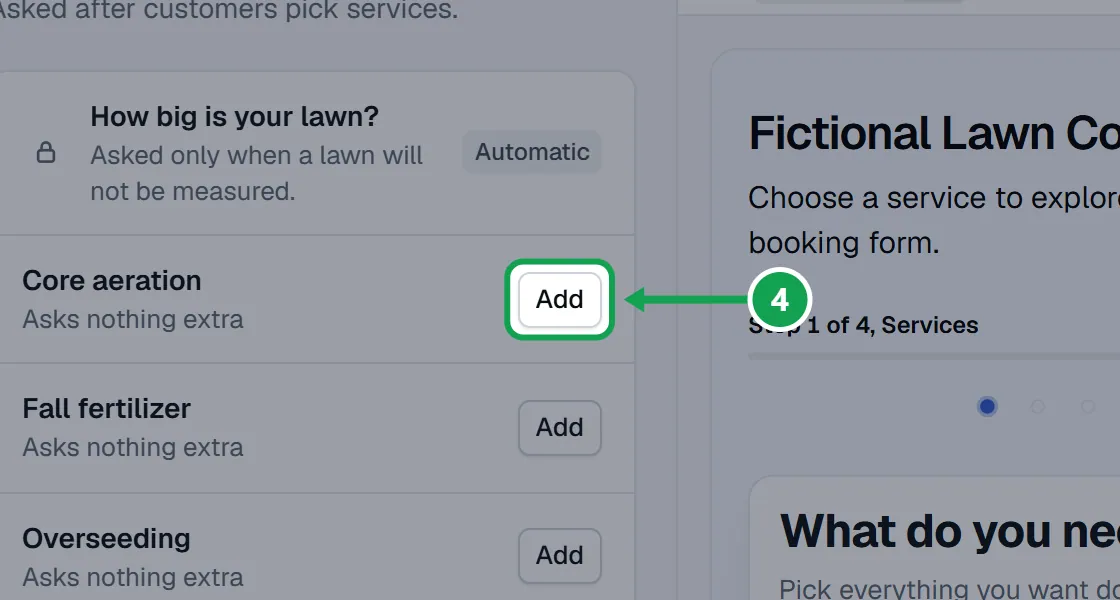
Step 4. On Questions, press Add beside a service to ask what you need to know about the job.
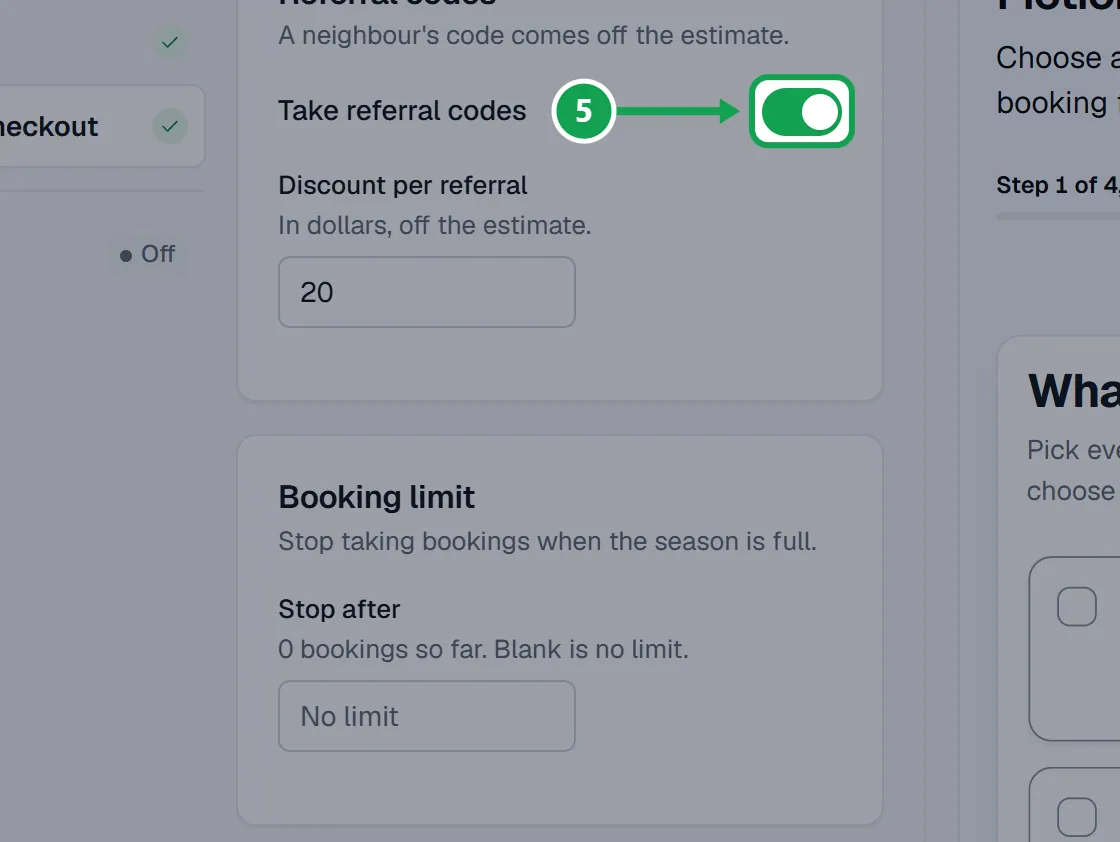
Step 5. On Review & checkout, set referral codes, a booking limit and your terms, and press Save changes.
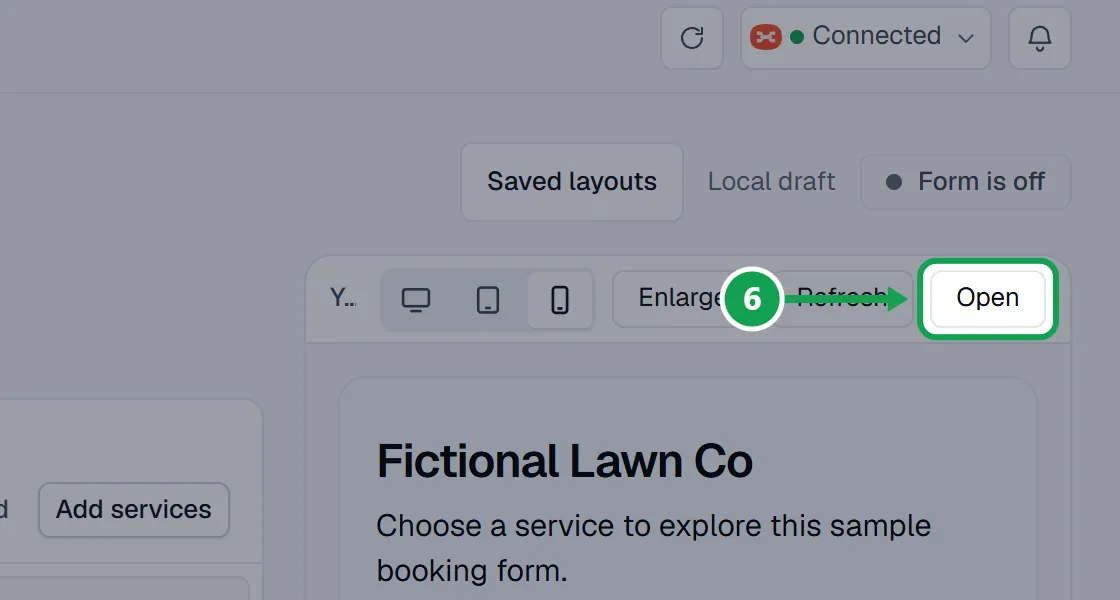
Step 6. Check the preview under Your form on the right. Press Open to try the form yourself in a new tab.
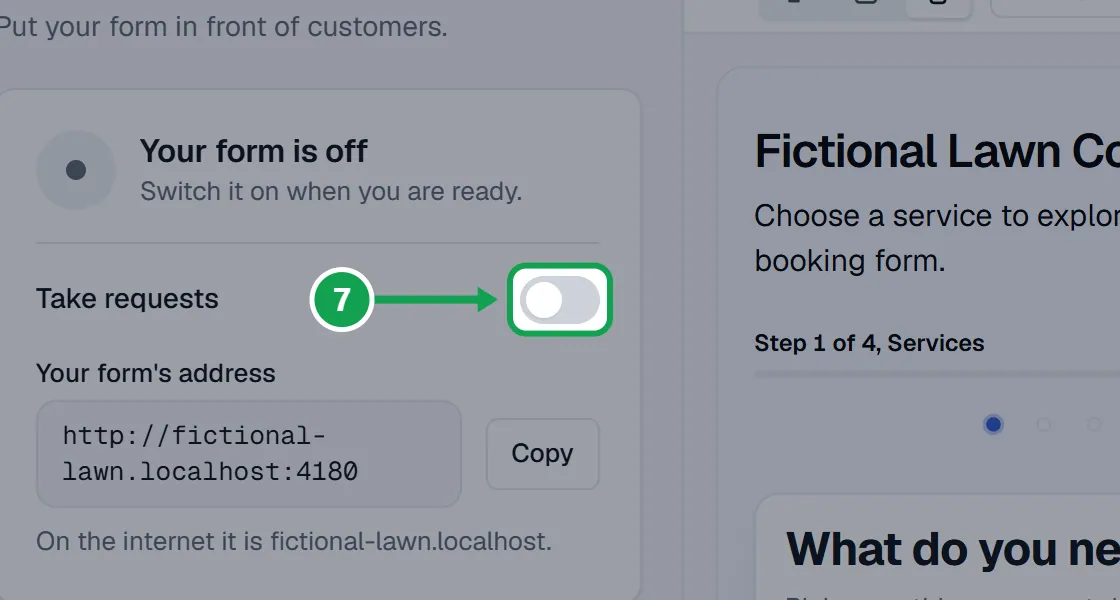
Step 7. On Publish, turn on Take requests and press Save changes. The pill at the top changes from Form is off to Form is live.
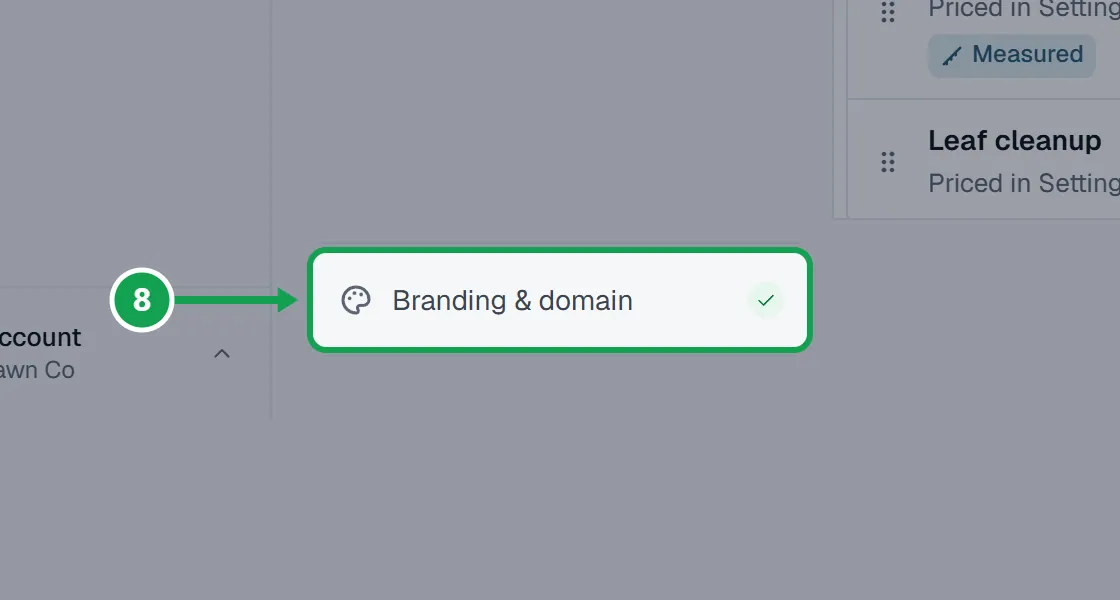
Step 8. Your logo, colours and words are in Settings, under Branding. The Branding & domain link at the bottom of the page list opens it.
Change the order of the pages
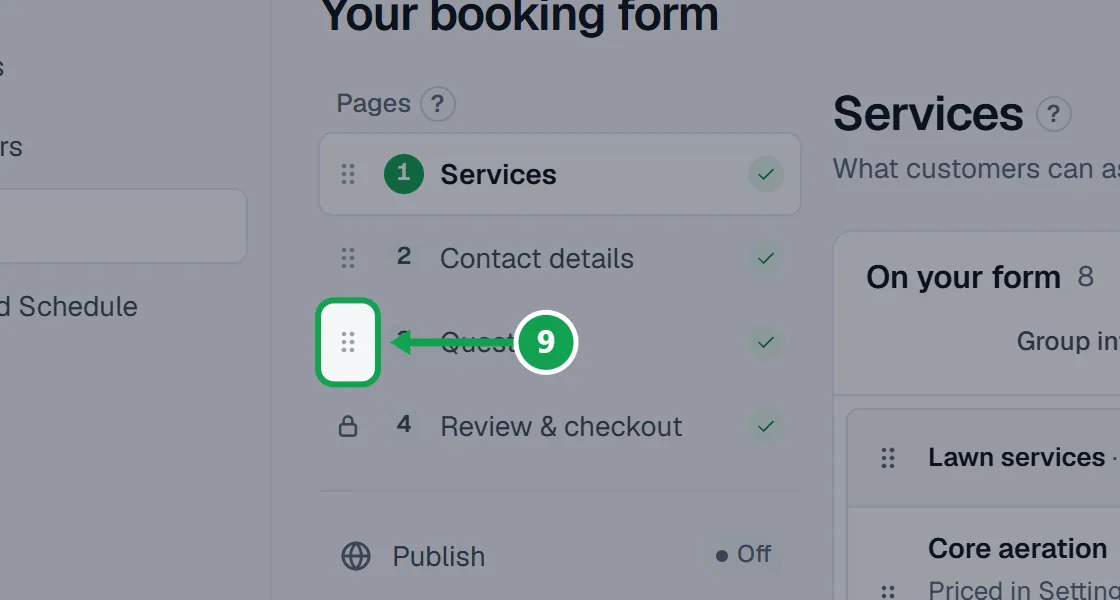
Homeowners see the pages in the order of the list on the left.
Step 1. Drag a page by the handle beside it in the list under Pages. It saves as soon as you drop it.
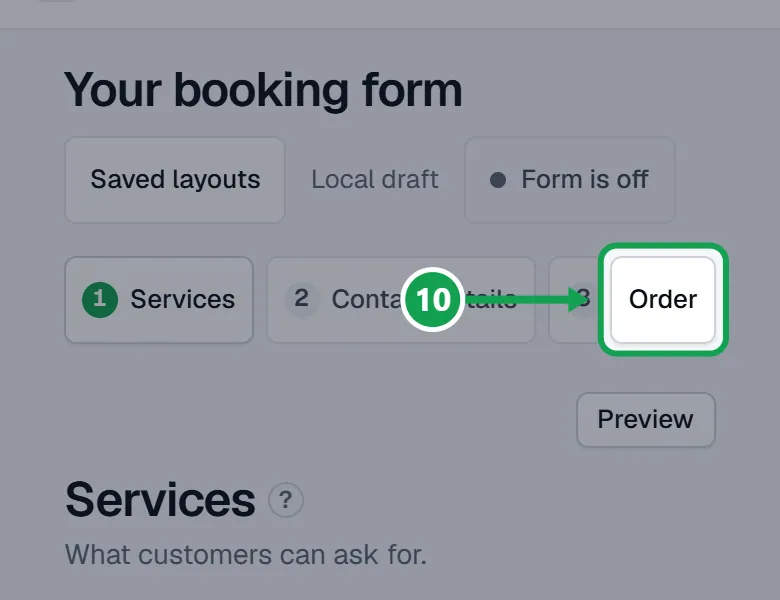
Step 2. On a phone, press Order, drag the pages, then press Done.
Step 3. Questions always come after Services, and Review & checkout always stays last.
If this, then that
- If a red line says Your form is not taking requests
- Something on the form cannot be priced, so customers are turned away whatever Publish says. Press the link at the end of the line to fix it.
- If Take requests says Add a service first
- Put at least one service on the form on Services, then come back to Publish.
- If the pill still reads Form is off
- Turn on Take requests on Publish and press Save changes.
- If a page will not move in the list
- Review & checkout is always last, and Questions cannot go above Services. Everything else can move.
- If you see Only the owner can change
- You are signed in as staff. You can look at every page, and the owner makes changes.
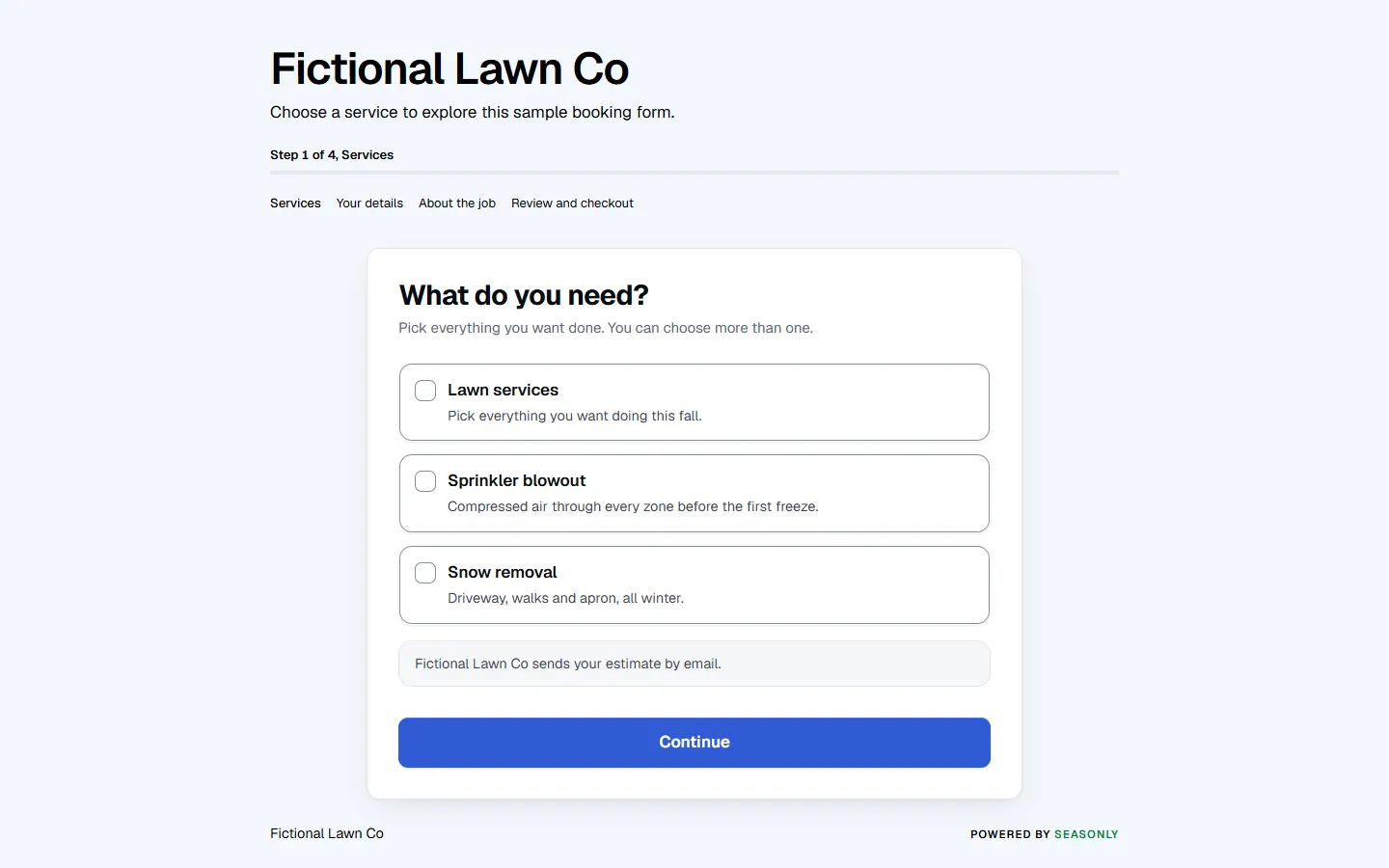
What it looks like
Good to know
- While the form is off it is a draft only you can see. Once it is live, every change you save shows to customers straight away.
- Homeowners never see a price on the form. Prices are set in Settings, under Services & pricing, and build the estimate after they send.
- The form needs at least one service before it can go live.
- Only the owner can change the form. Staff can look at every page.