Pick your services from Homeworks and set each one up
Choose which Homeworks services you sell through Seasonly, which ones need the lawn measured, and how each one is priced.
Steps
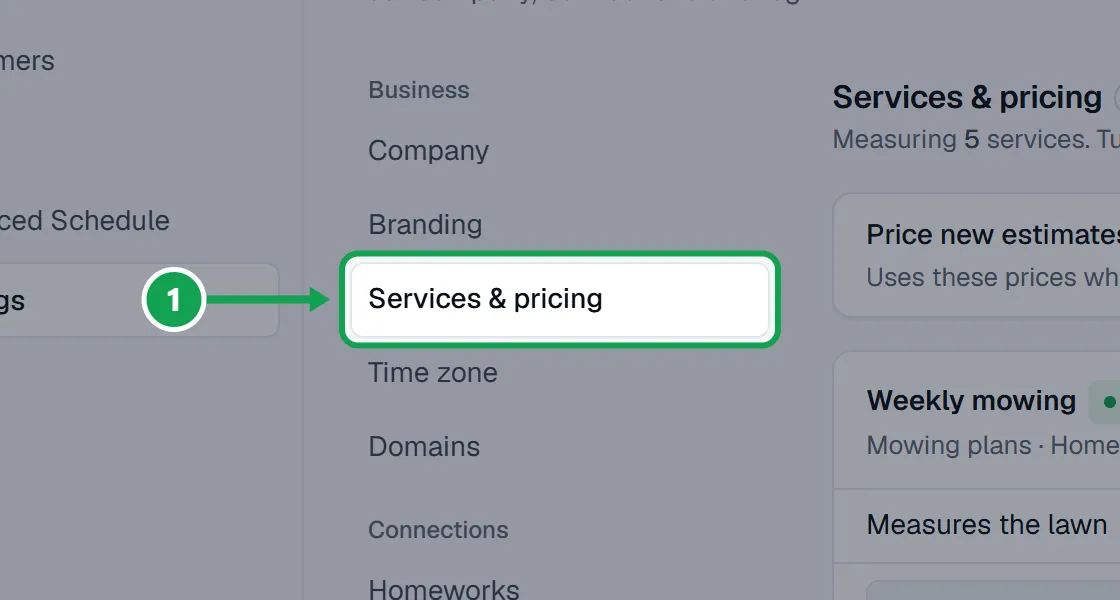
Step 1. Open Settings and choose Services & pricing.
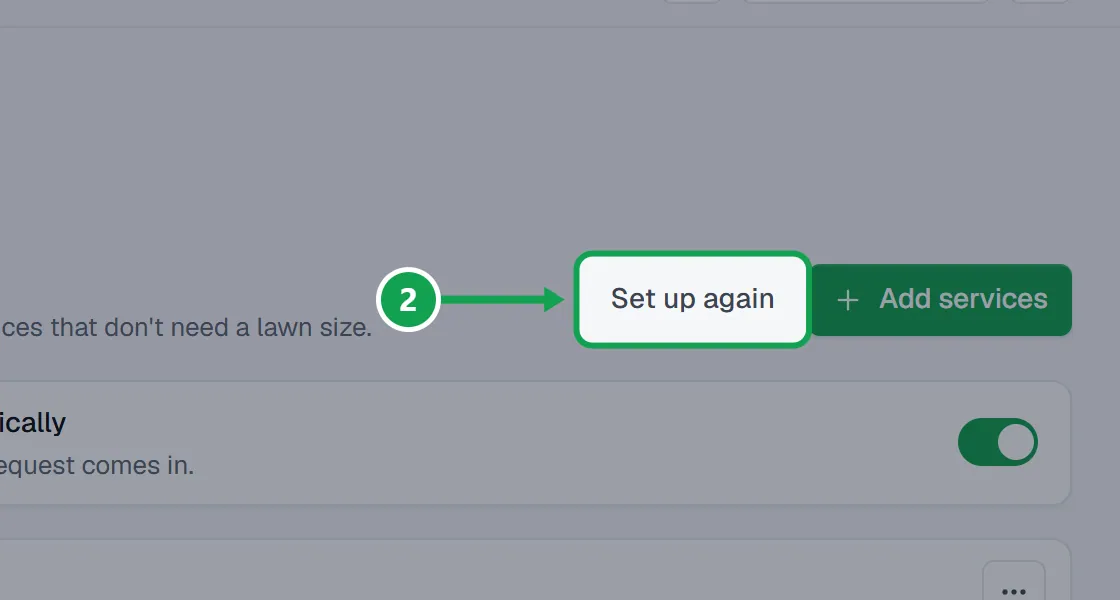
Step 2. The first time, the guided setup opens by itself. Later, press Set up again to run it over.
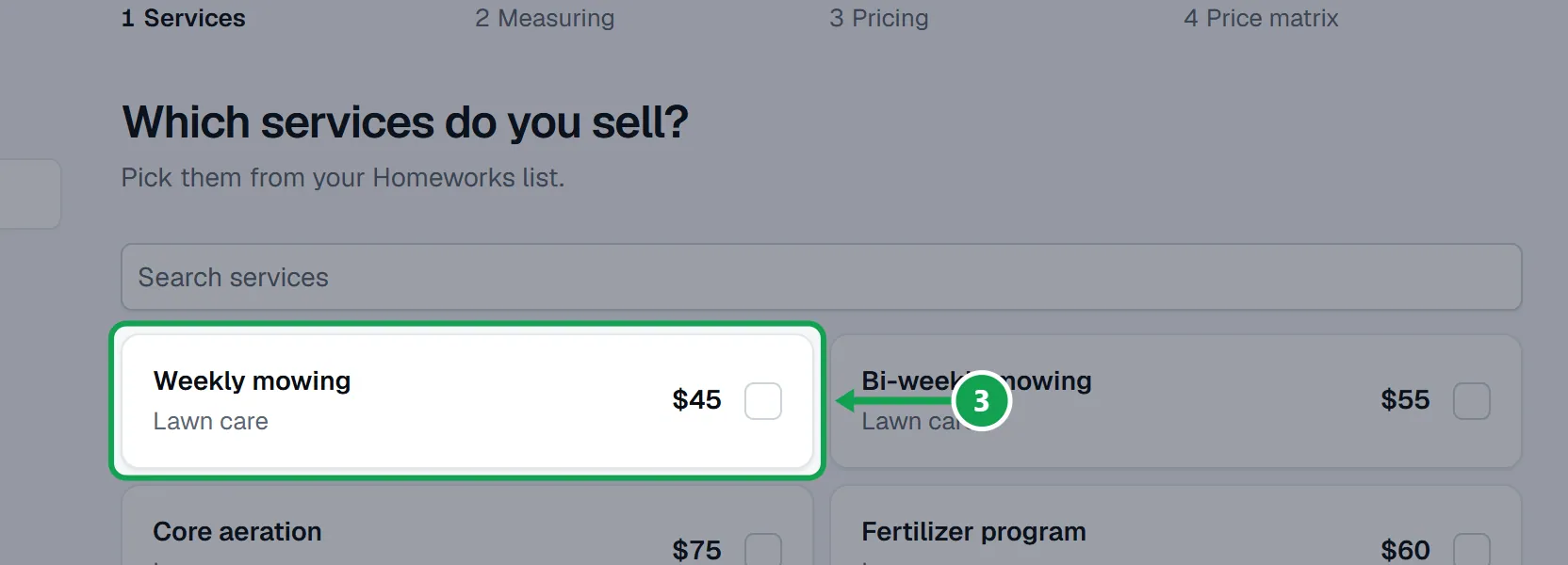
Step 3. Under Which services do you sell?, tick each Homeworks service you sell. Type in the search box to find one.
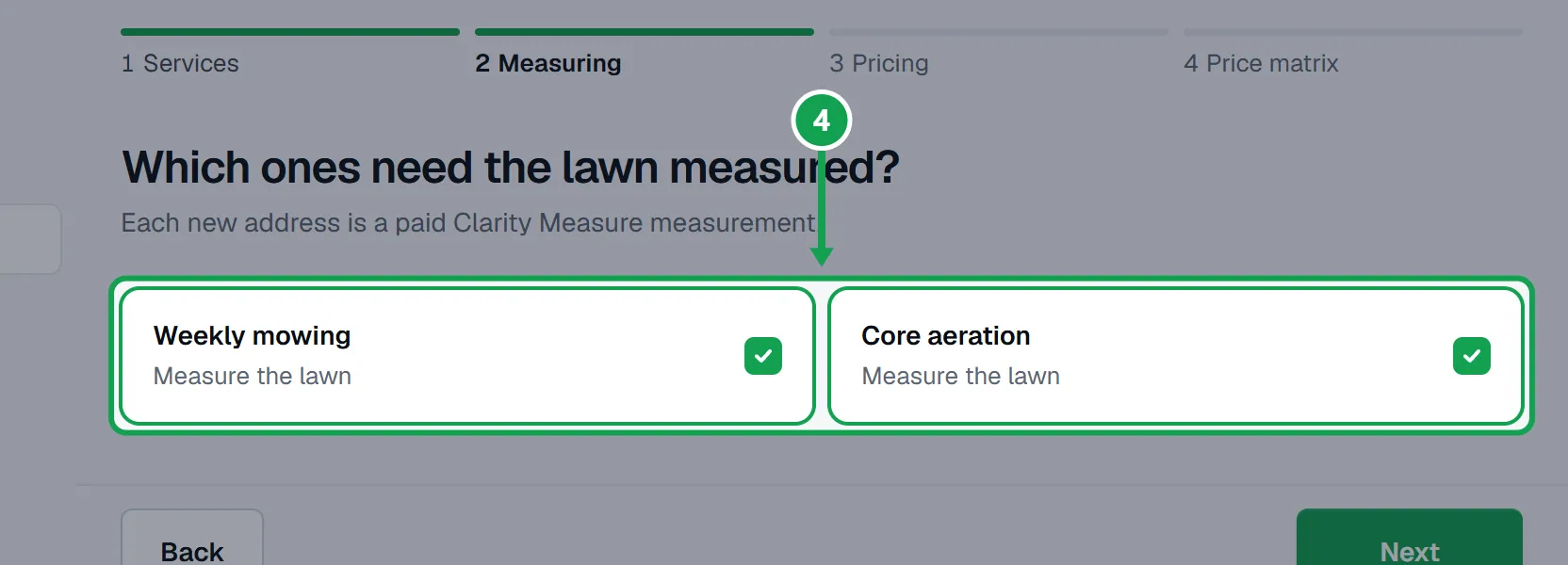
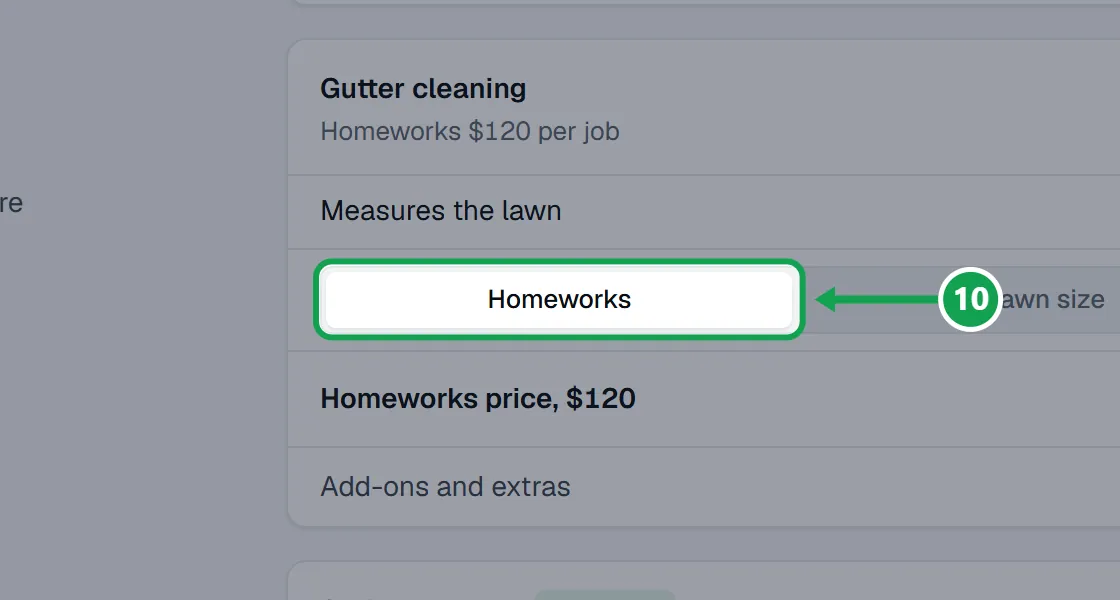
Step 4. Press Next. Under Which ones need the lawn measured?, untick any service that does not need a lawn size, like gutter cleaning.
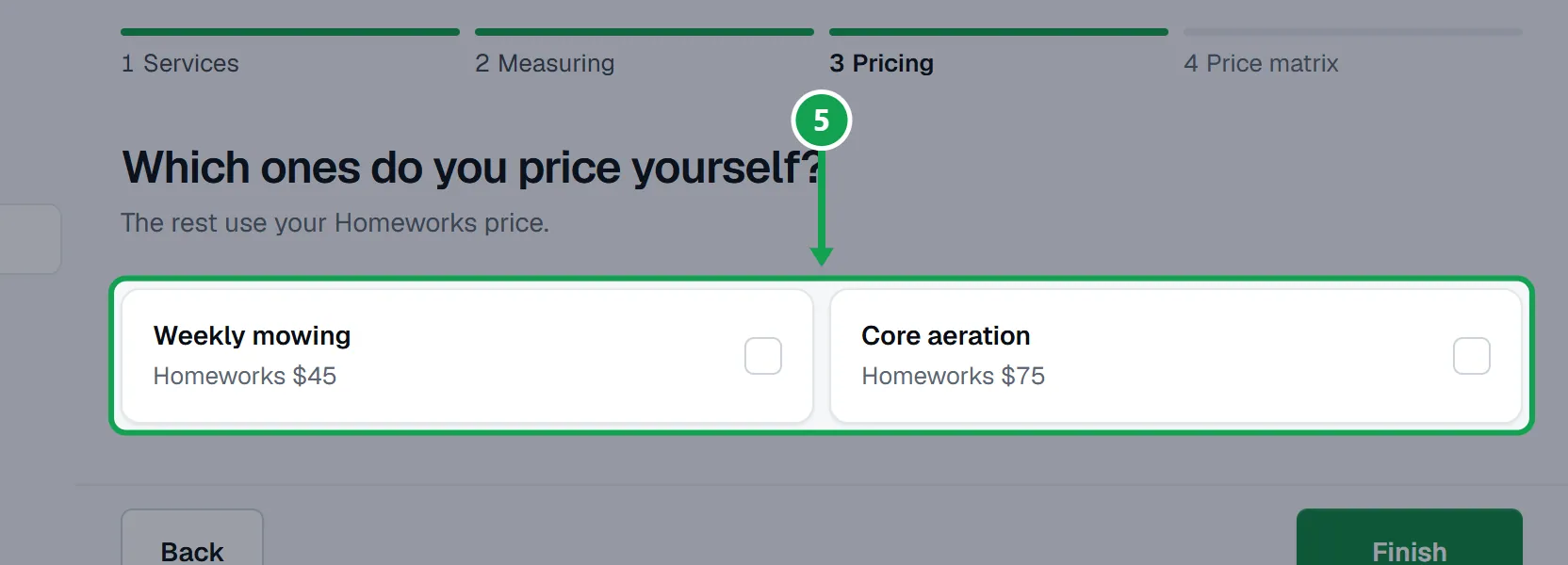
Step 5. Press Next. Under Which ones do you price yourself?, tick the ones you price by lawn size. The rest use your Homeworks price.
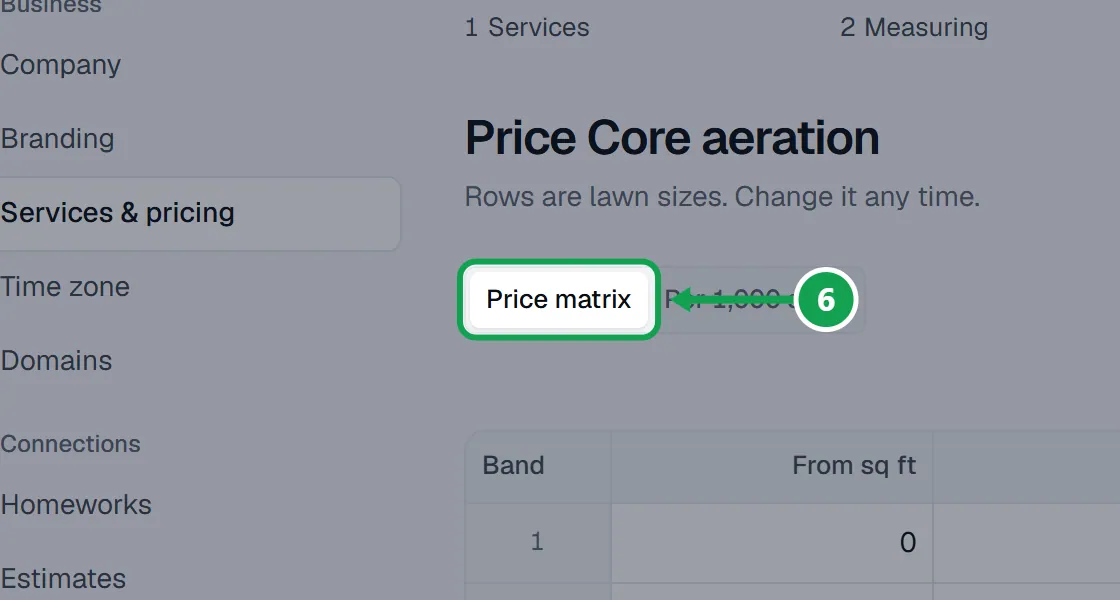
Step 6. Press Next. For each one you price yourself, choose Price matrix or Per 1,000 sq ft and fill in the prices.
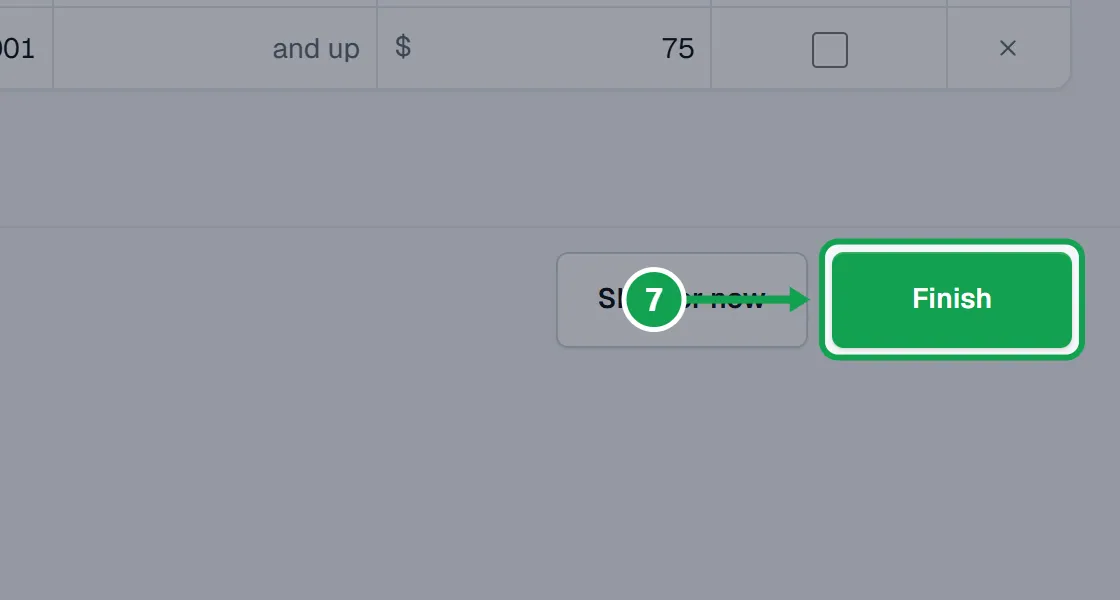
Step 7. Press Next between services and Finish at the end. Skip for now keeps a service as it is.
Add one more service later
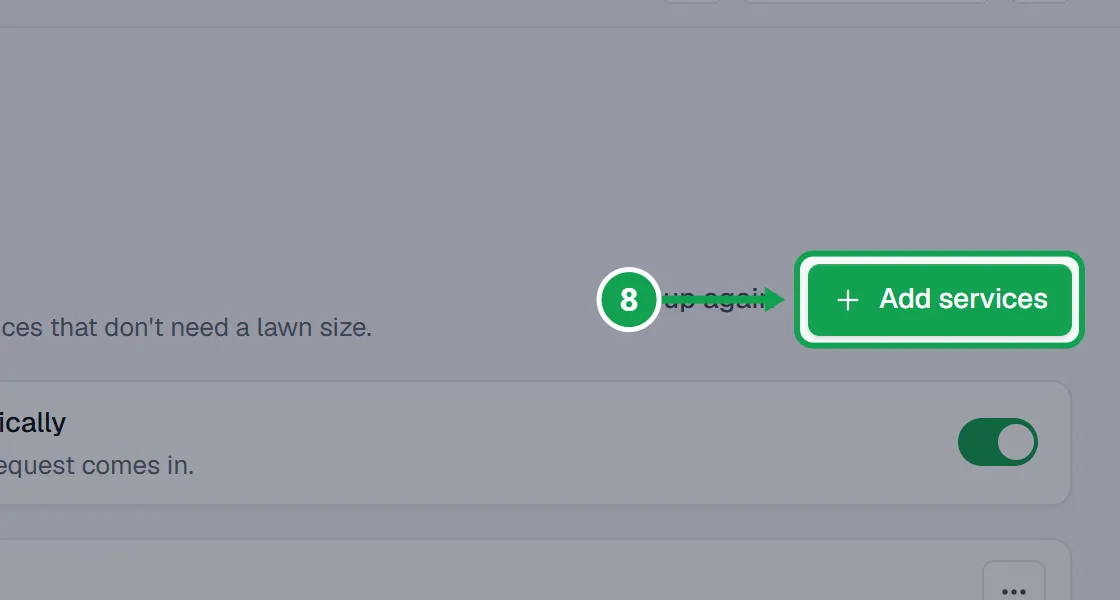
Step 1. On Services & pricing, press Add services.
Step 2. Tick the services to add, then press the Add button at the bottom. It counts how many you ticked.
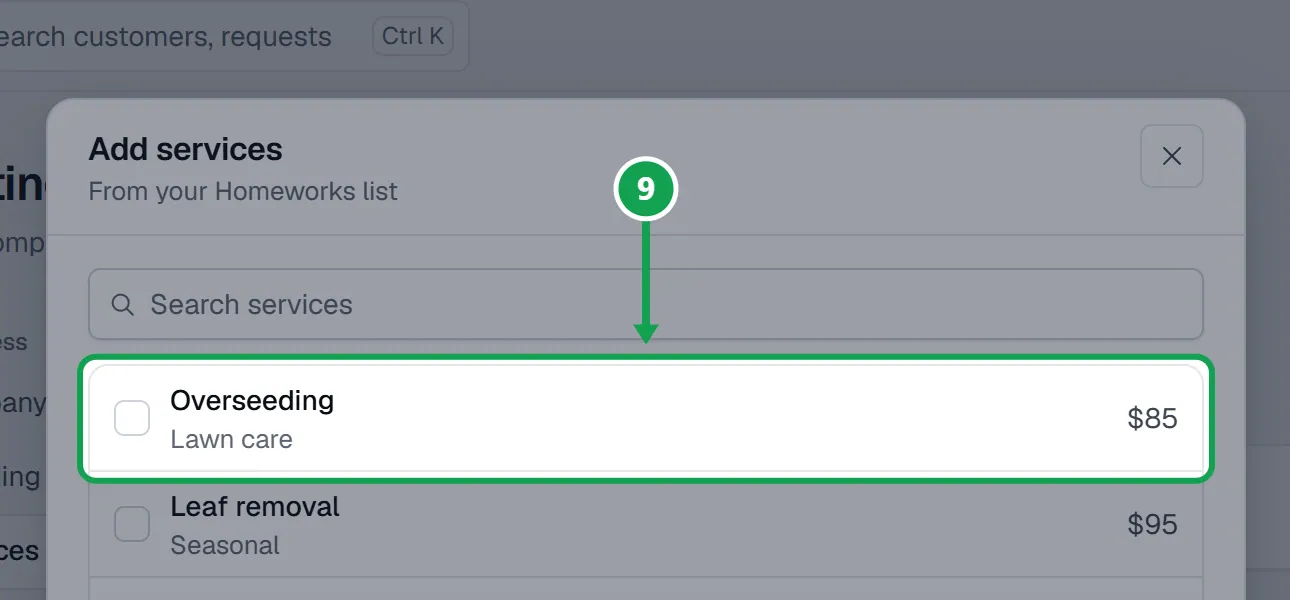
Step 3. A new service starts measured and priced by Homeworks. Change either on its card.
A service is missing from the list
Seasonly reads your services from Homeworks. Add the service in Homeworks first.
Step 1. Press Add services, then Refresh from Homeworks at the bottom.
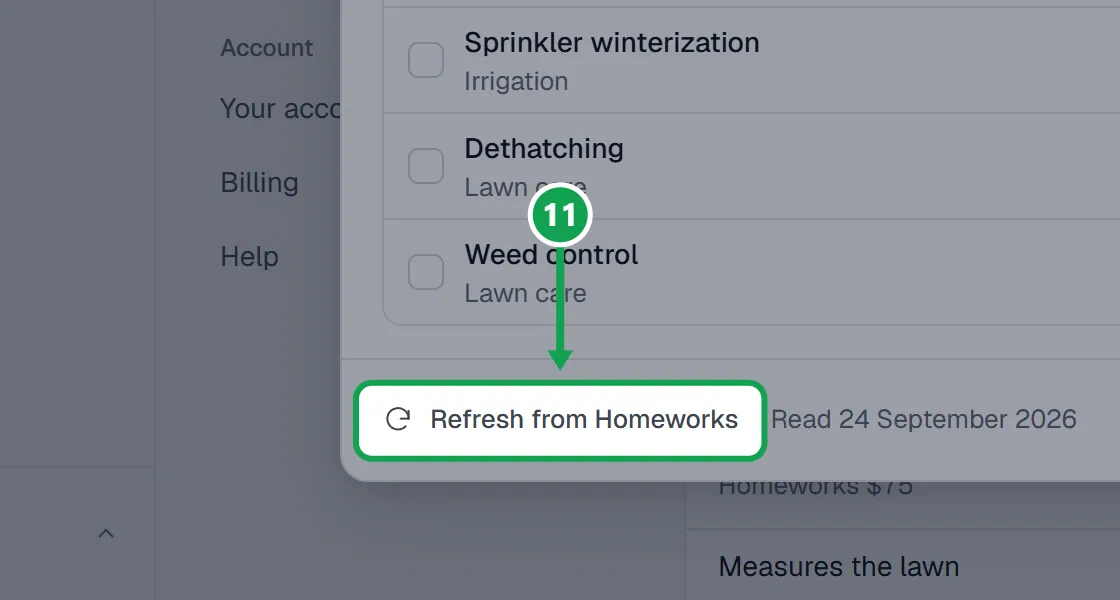
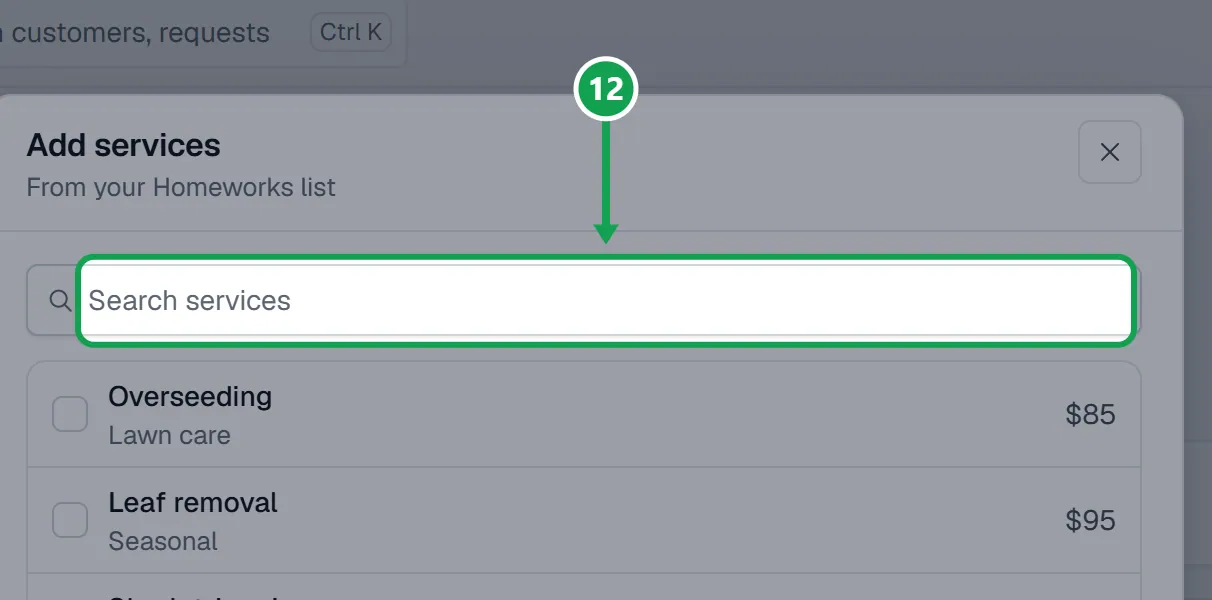
Step 2. Search for it again once the list has read Homeworks.
Put a service on your booking form
Services & pricing is what you sell. The form's Services page is what homeowners can ask for.
Step 1. Open Form and choose Services, then press Add services.
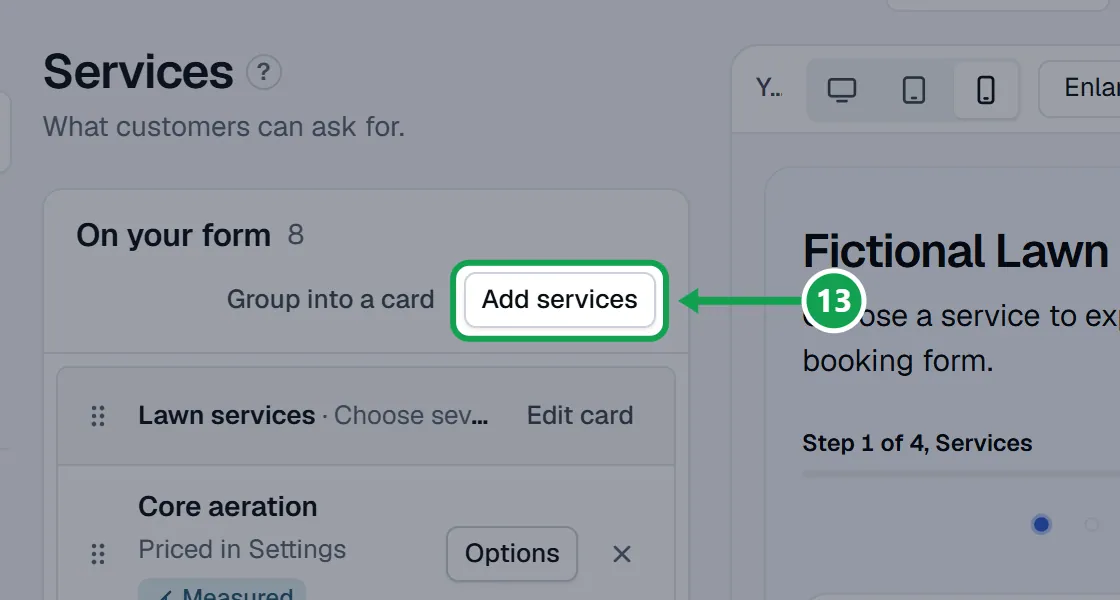
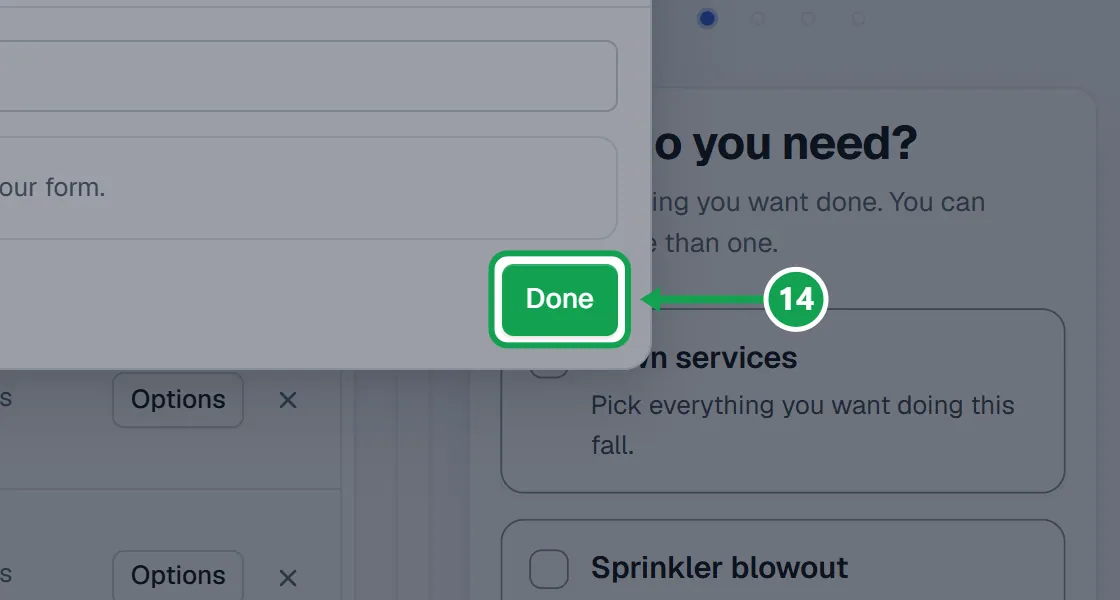
Step 2. Press Add beside each one. In your services marks the ones you already sell. Press Done.
Stop selling a service
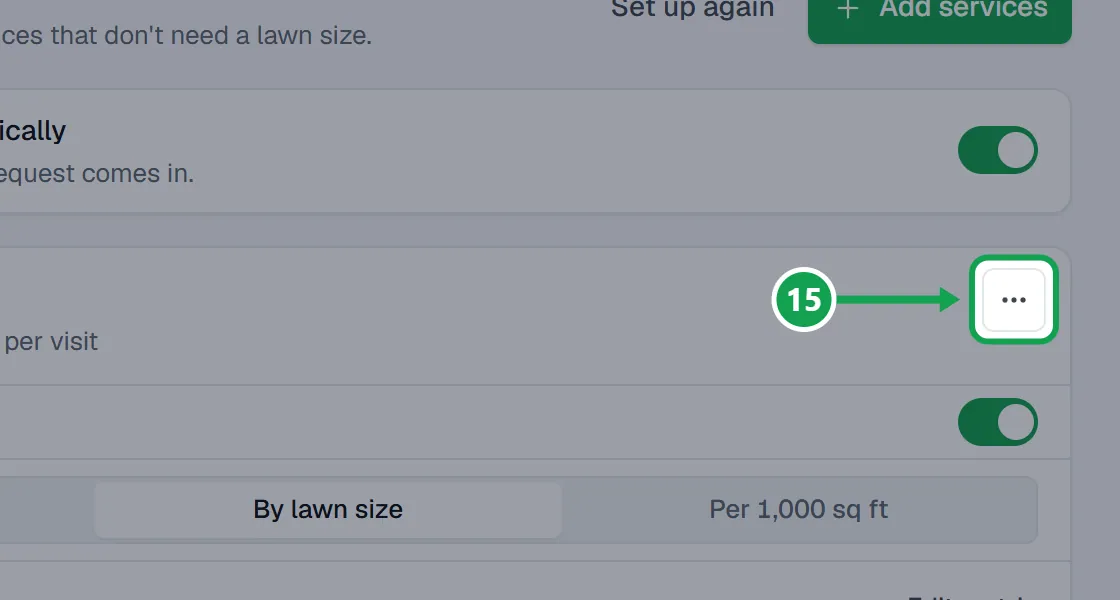
Step 1. Open the ... menu on the service's card and choose Stop offering.
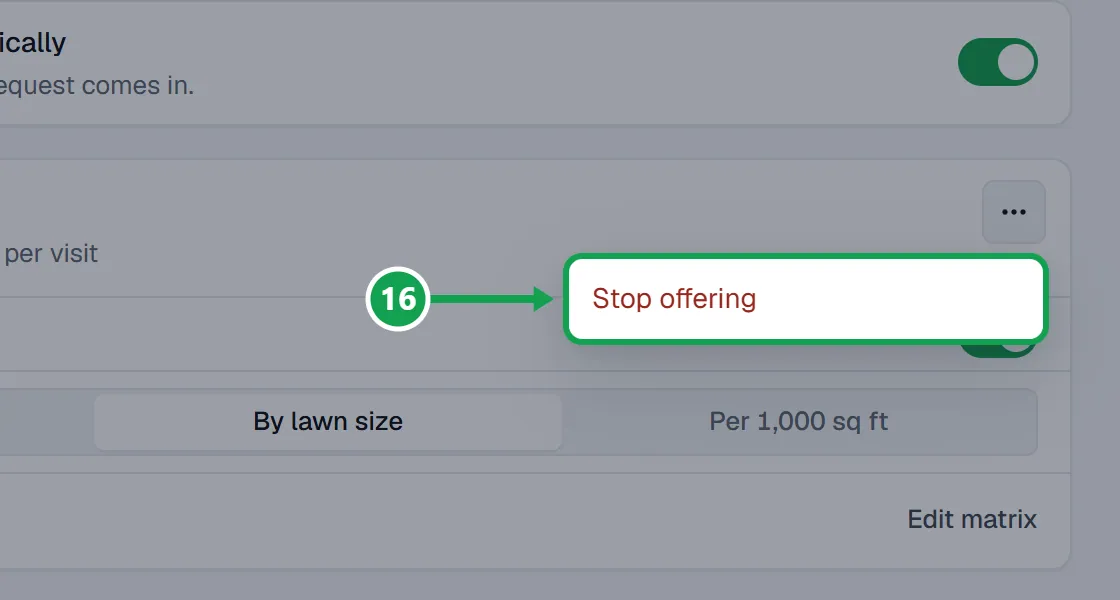
Step 2. Press Stop offering to confirm. It also comes off your booking form. You can add it back any time.
If this, then that
- If the list says No services from Homeworks yet
- Press Refresh from Homeworks. If it is still empty, check Homeworks is connected in Settings, under Homeworks.
- If a service shows No price
- Homeworks has no price for it. Tick it under Which ones do you price yourself?, or give it a price in Homeworks and refresh.
- If you see Clarity Measure is not connected, so no lawn is measured
- Press Connect it. Until then no lawn is measured, and services priced by lawn size ask the homeowner how big the lawn is.
- If you see Only the owner can change these
- You are signed in as staff. Ask the owner to pick the services.
- If a service you sell is not on your booking form
- Open Form, choose Services, press Add services and press Add beside it.
Good to know
- Seasonly never adds or changes services in Homeworks. It reads your list and prices there.
- Each measured service costs a paid Clarity Measure measurement per new address, so turn measuring off for work that needs no lawn size.
- Measuring only runs once Clarity Measure is connected and on.
- Homeowners never see a price. These prices build the estimate after a request comes in.
- Only the owner can change services. Staff can look.