Ask questions about each job
Add questions to a service in six kinds, set a default answer, make an answer required, or have one answer turn on another.
Steps
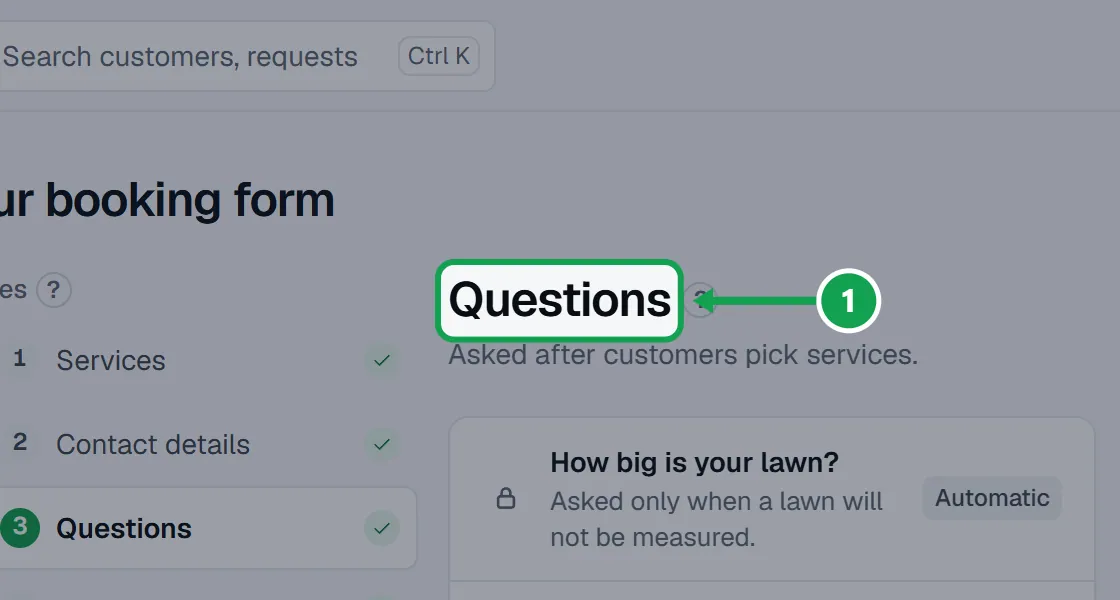
Step 1. Open Form and choose Questions. Each service on your form has its own row.
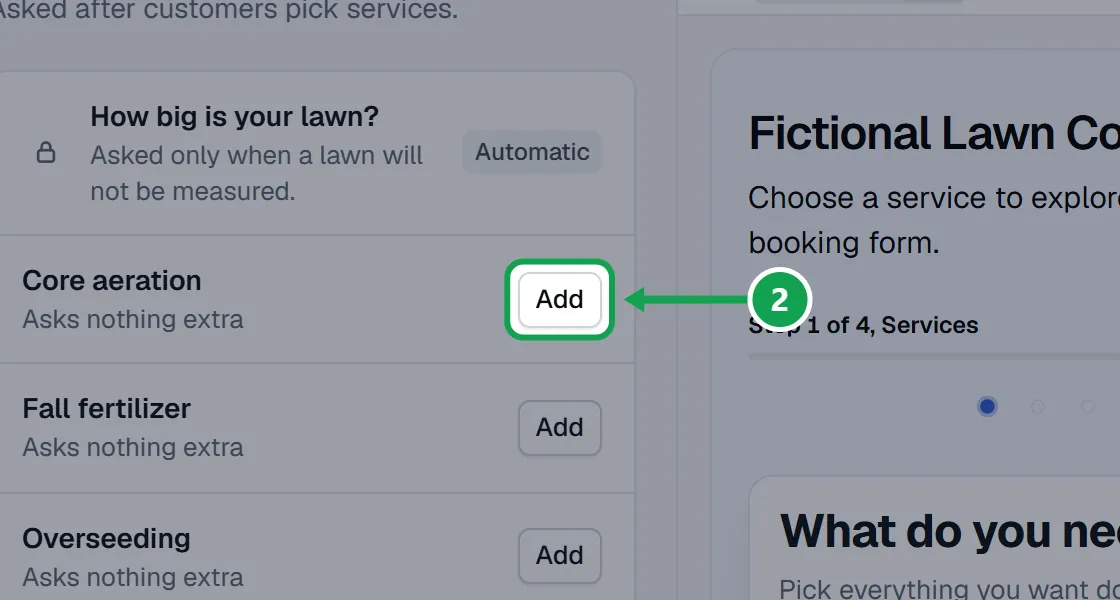
Step 2. Press Add beside a service, or Edit if it already asks something.
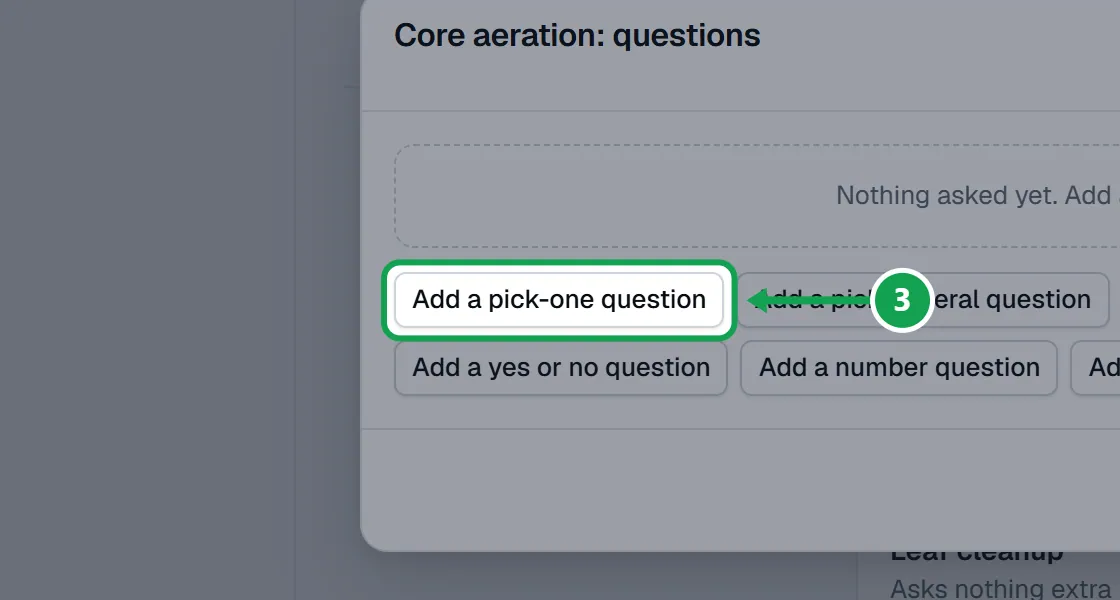
Step 3. Press the button for the kind you want. Pick one takes one answer, Pick several takes any number, A counter counts with plus and minus, Yes or no is just that, A number is typed in, and Short text is one line of words.
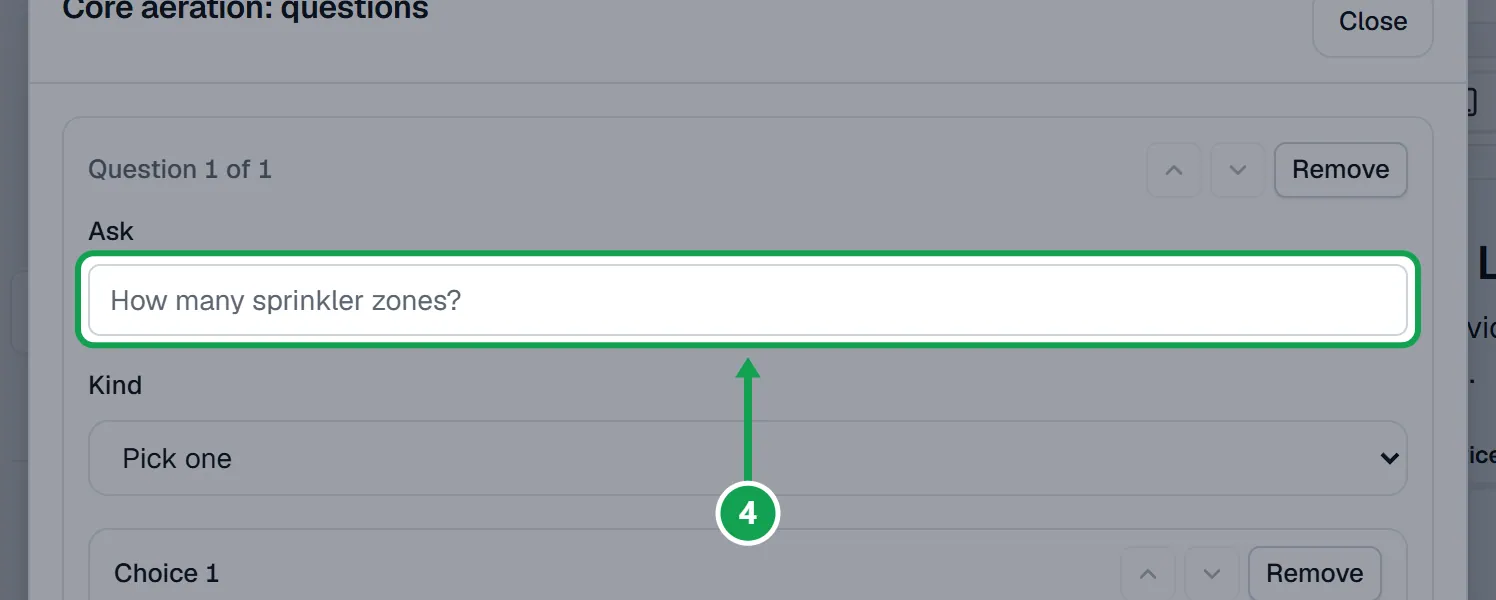
Step 4. Type the question in Ask. You can change it to another kind later in Kind.
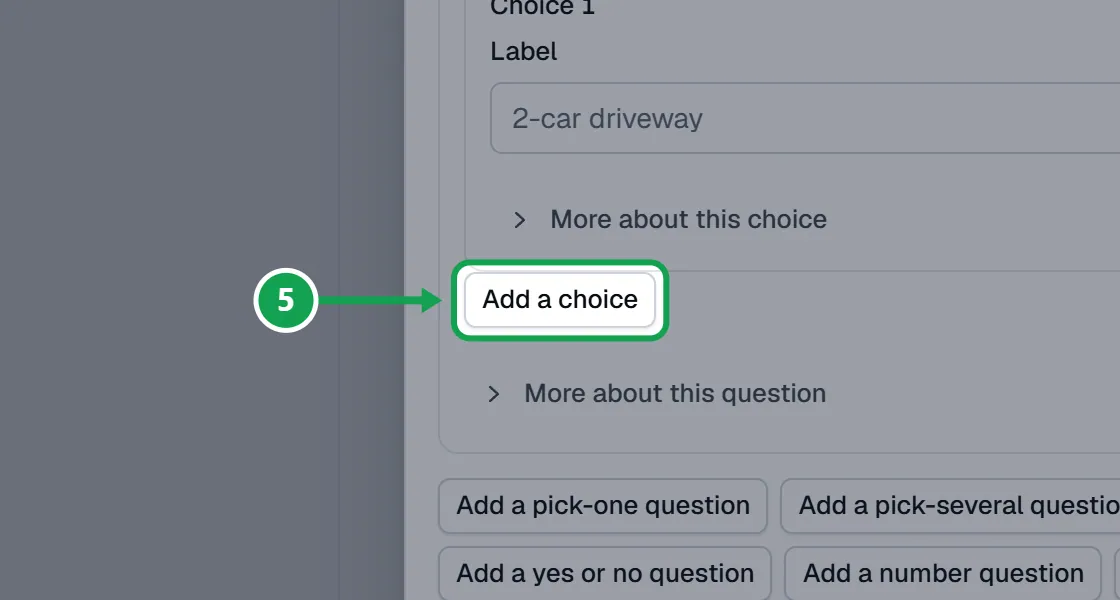
Step 5. For Pick one or Pick several, type each answer in Label and press Add a choice for the next one. Yes or no always has Yes and No.
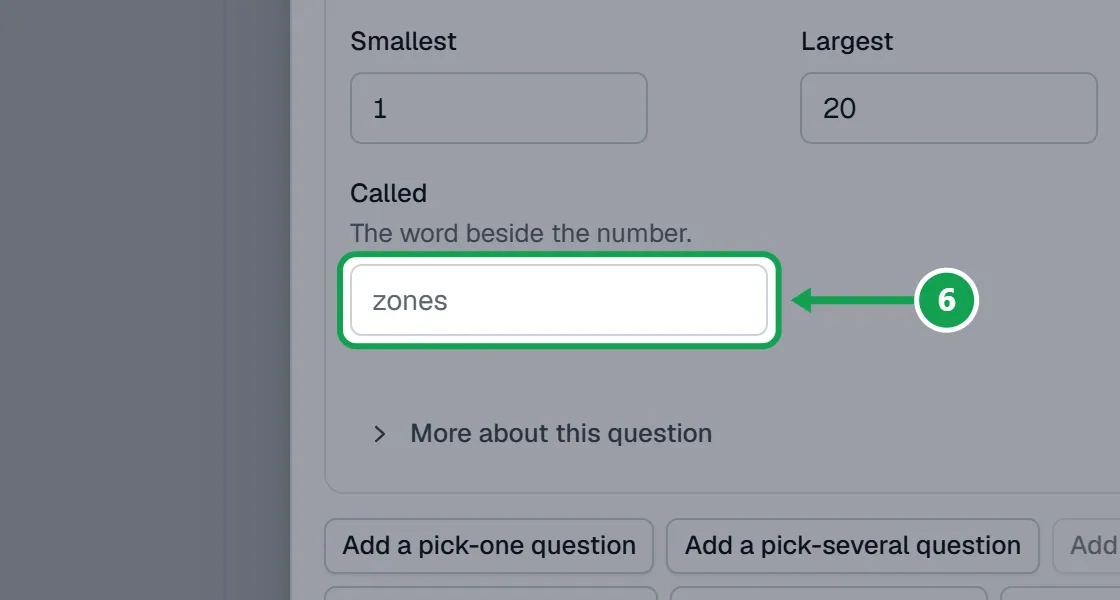
Step 6. For A counter, set Smallest, Largest and Starts at, and the word in Called, like zones. For A number, set Smallest, Largest and Unit, like inches.
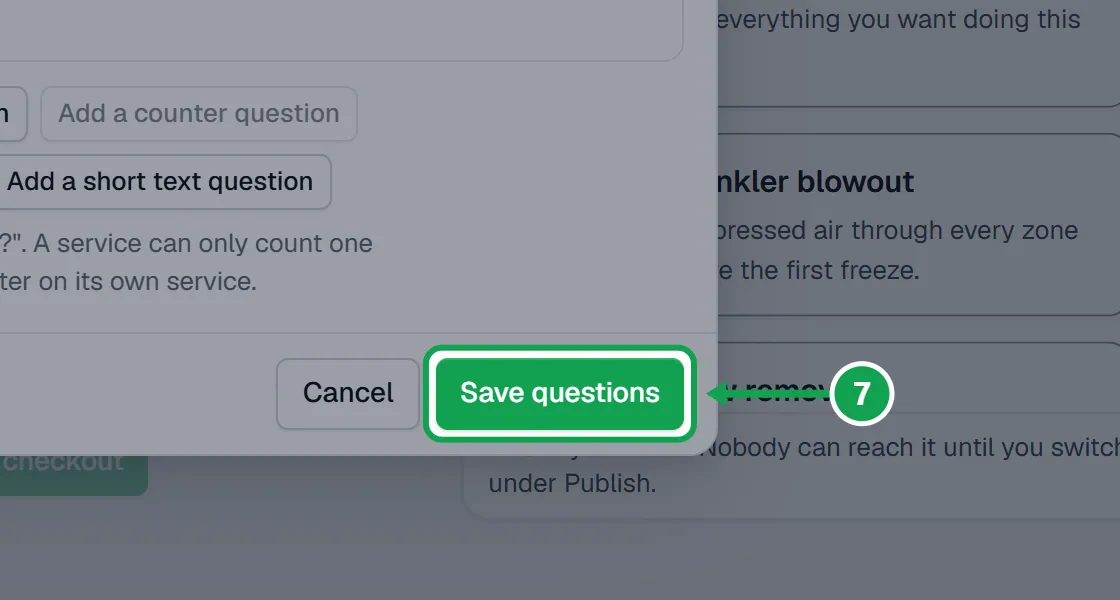
Step 7. Press Save questions. The preview on the right shows them when that service is picked.
Default answers, required answers and Also turn on
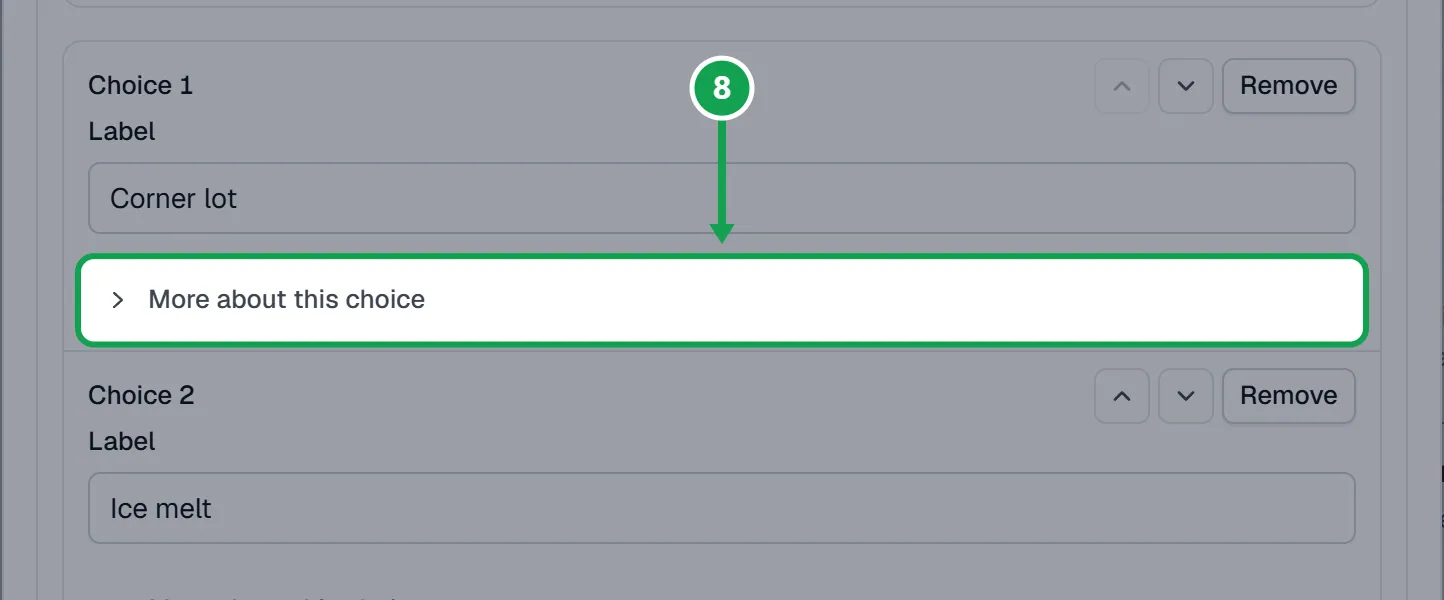
Step 1. Open More about this choice under an answer.
Step 2. Turn on Starts selected to pick it for the customer. A pick-one question needs exactly one answer with this on.
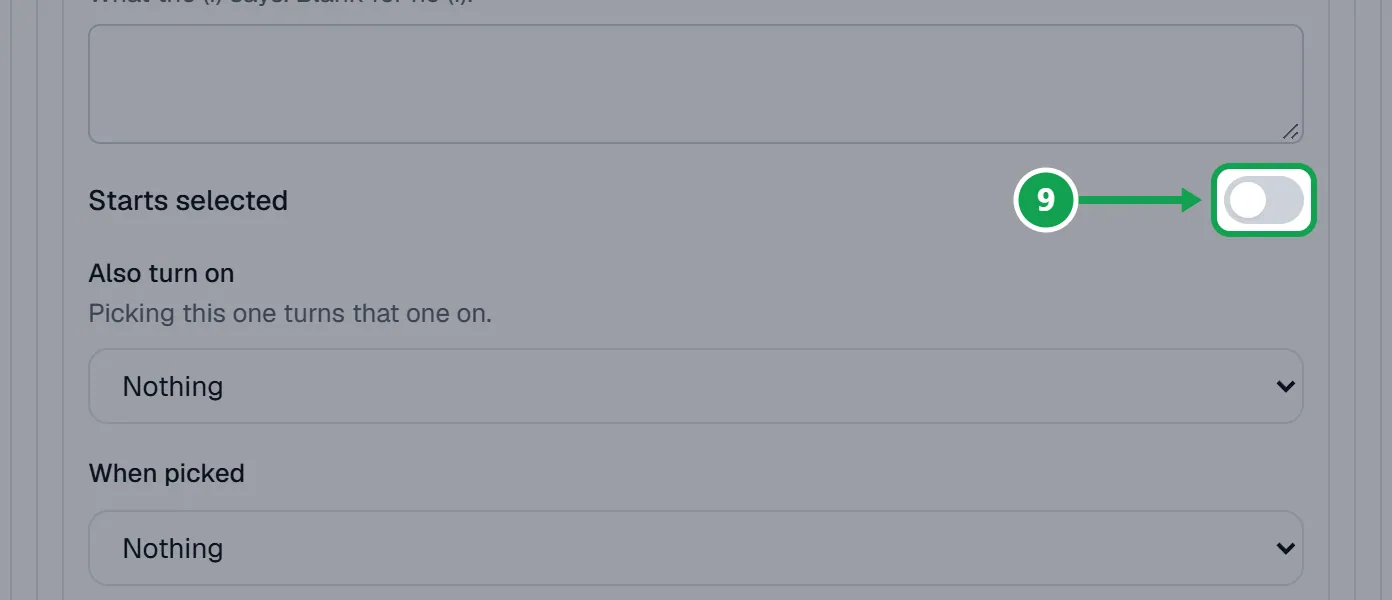
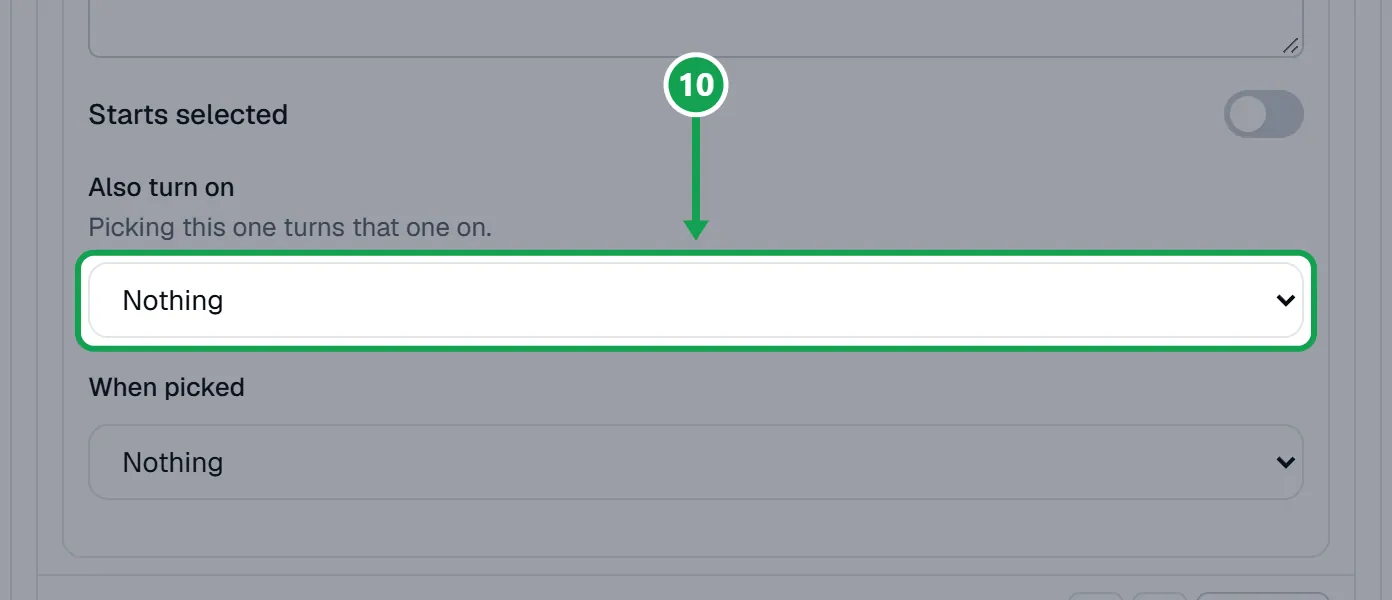
Step 3. In Also turn on, pick another answer on the same service. Picking this one then turns that one on too, like Zero tolerance turning on Ice melt.
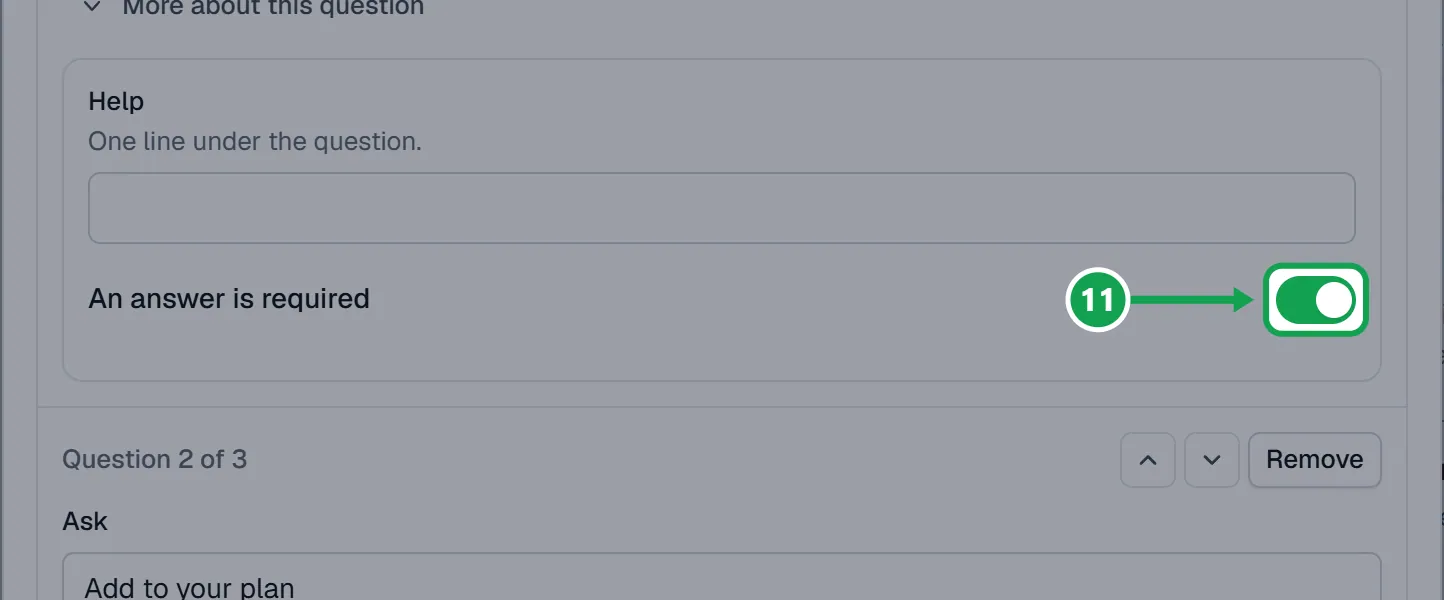
Step 4. Open More about this question and turn on An answer is required so they cannot skip it.
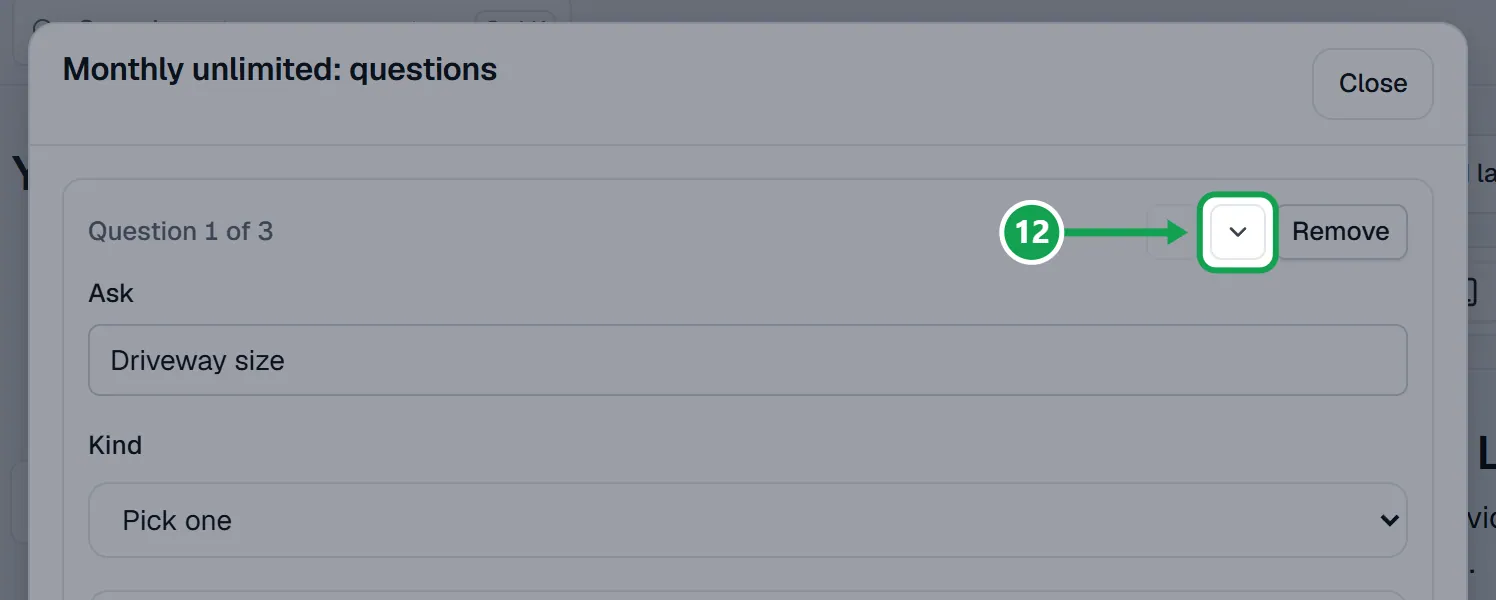
Step 5. Use the up and down arrows on a question or a choice to change its order, and Remove to take it off.
Charge extra for an answer
What an answer adds to the estimate is set with your other prices, not on the form.
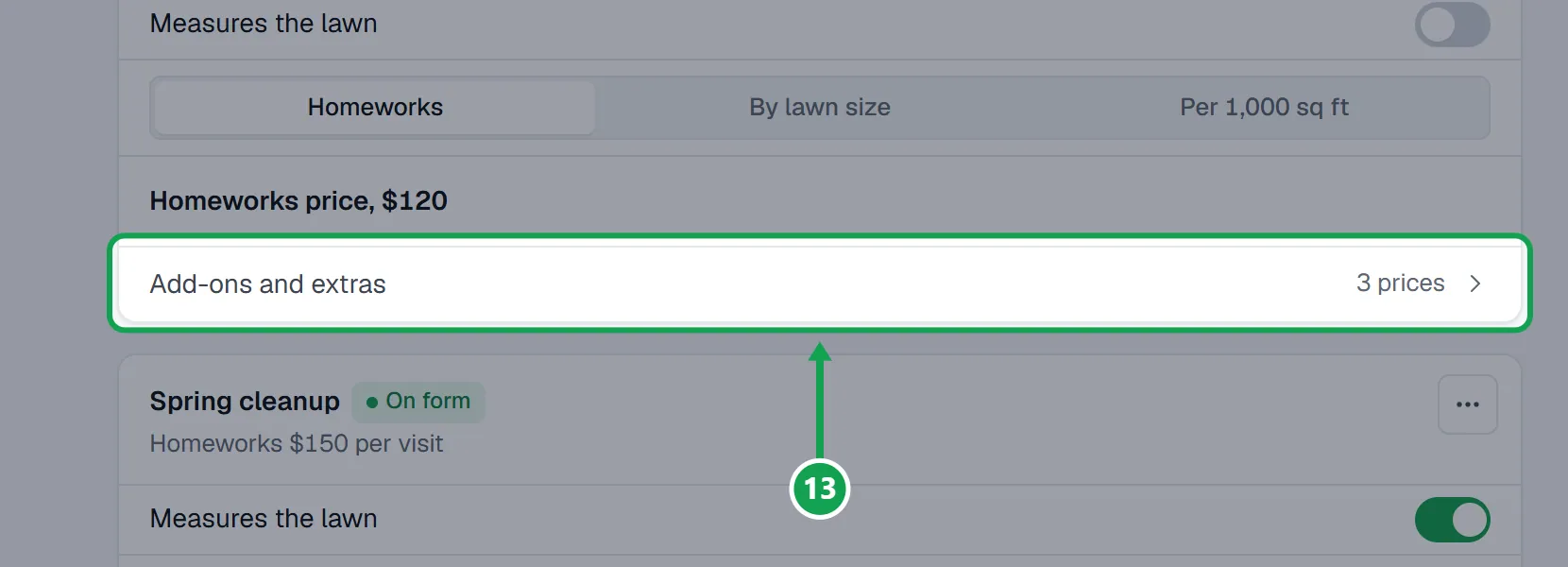
Step 1. Open Settings, choose Services & pricing, and press Add-ons and extras on the service.
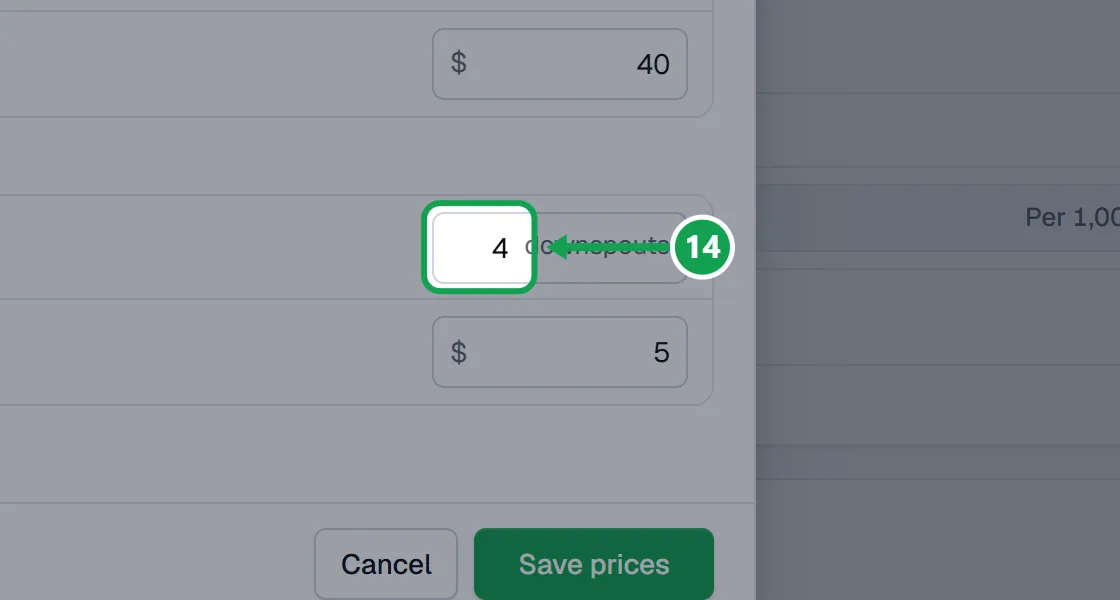
Step 2. Type a price beside each answer. For a counter, fill in Included and Each extra.
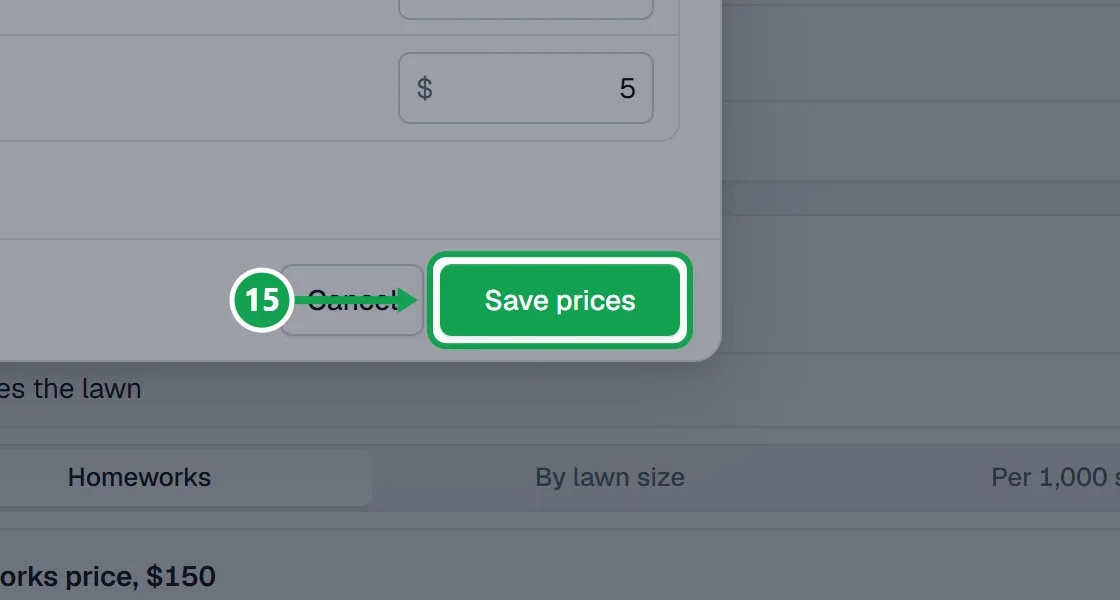
Step 3. Press Save prices.
If this, then that
- If Add a counter question is greyed out
- That service already counts something. A service can only count one thing, so put the second counter on its own service.
- If Save questions stays greyed out
- Read the red line beside it. It names the problem, like a question with nothing in Ask, a choice with no Label, or a pick-one with no answer set to Starts selected.
- If a service says No services on your form yet
- Questions belong to a service. Press Add services to put one on your form first.
- If Add-ons and extras is missing on a service in Services & pricing
- That service asks nothing that can carry a price yet. Add a choice or a counter question to it on Questions first.
- If you want a question to show only after a certain answer, or an answer to make it front yard only
- Use Show only when and When picked. The question rules article walks through both.
- If you see Only the owner can change the questions
- You are signed in as staff. You can read them, and the owner can change them.
Good to know
- A question only shows when the customer picks its service. It can also wait for an earlier answer: see the question rules article.
- Only counters are limited: one counter per service. Put a second count on its own service.
- Included and Each extra are for counters. Other answers each get their own price.
- How big is your lawn? is asked automatically, only when a service priced by lawn size will not be measured.
- Only the owner can change questions. Staff can read them.