Show a question only sometimes, or let an answer change the job
Show a question only after an earlier answer, and let an answer measure the front yard only, the back yard only, or send the job to an in-person quote.
Steps
Step 1. Open Form and choose Questions, then press Add or Edit beside the service.
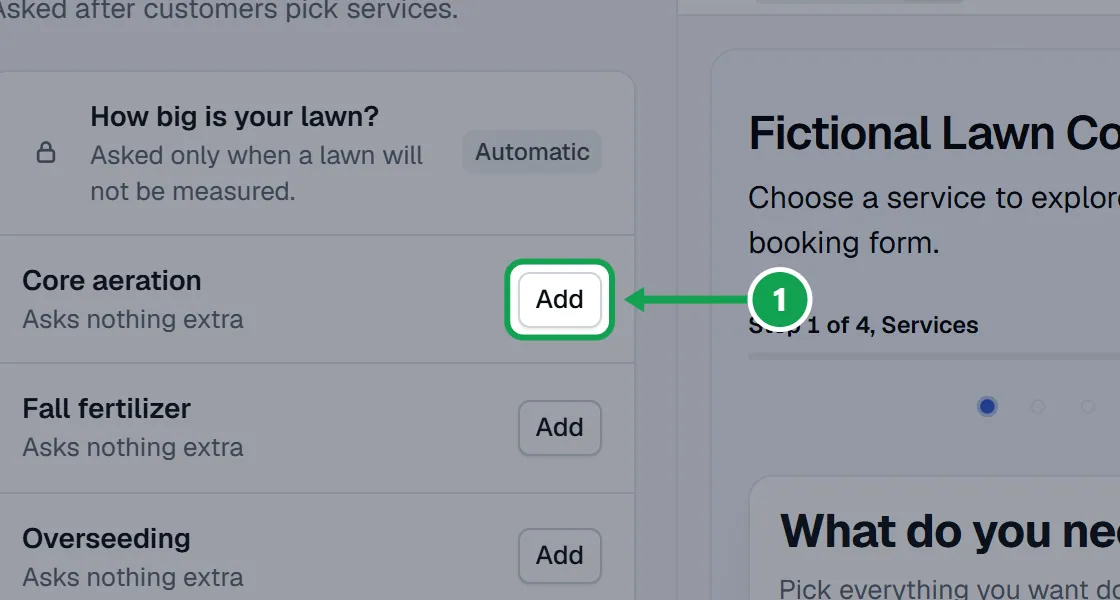
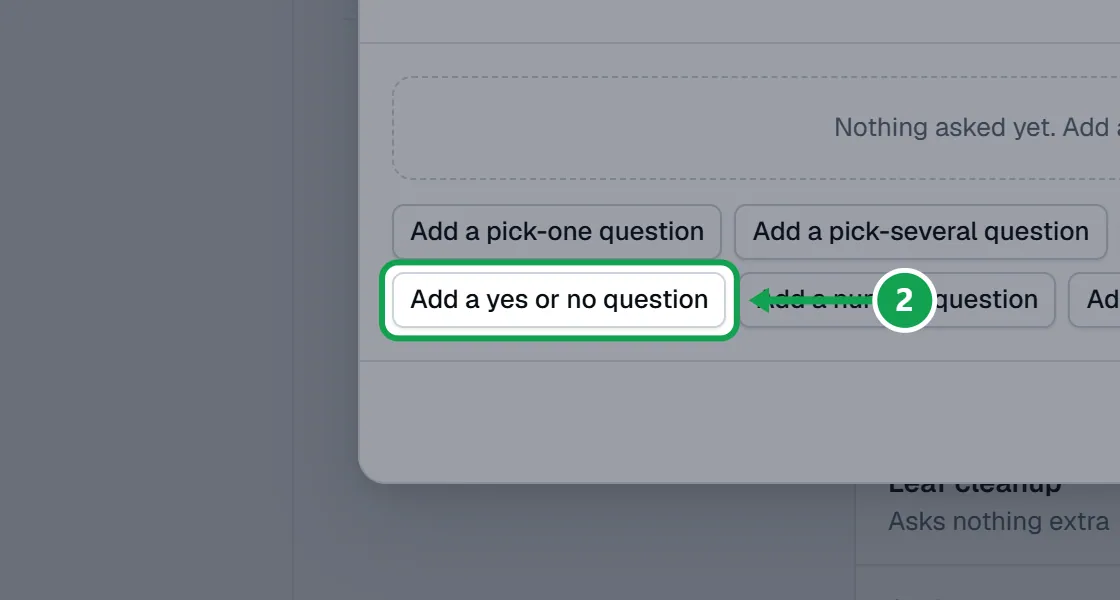
Step 2. Add the earlier question first, then the one that should wait for it. A question can only wait for a question above it on the same service.
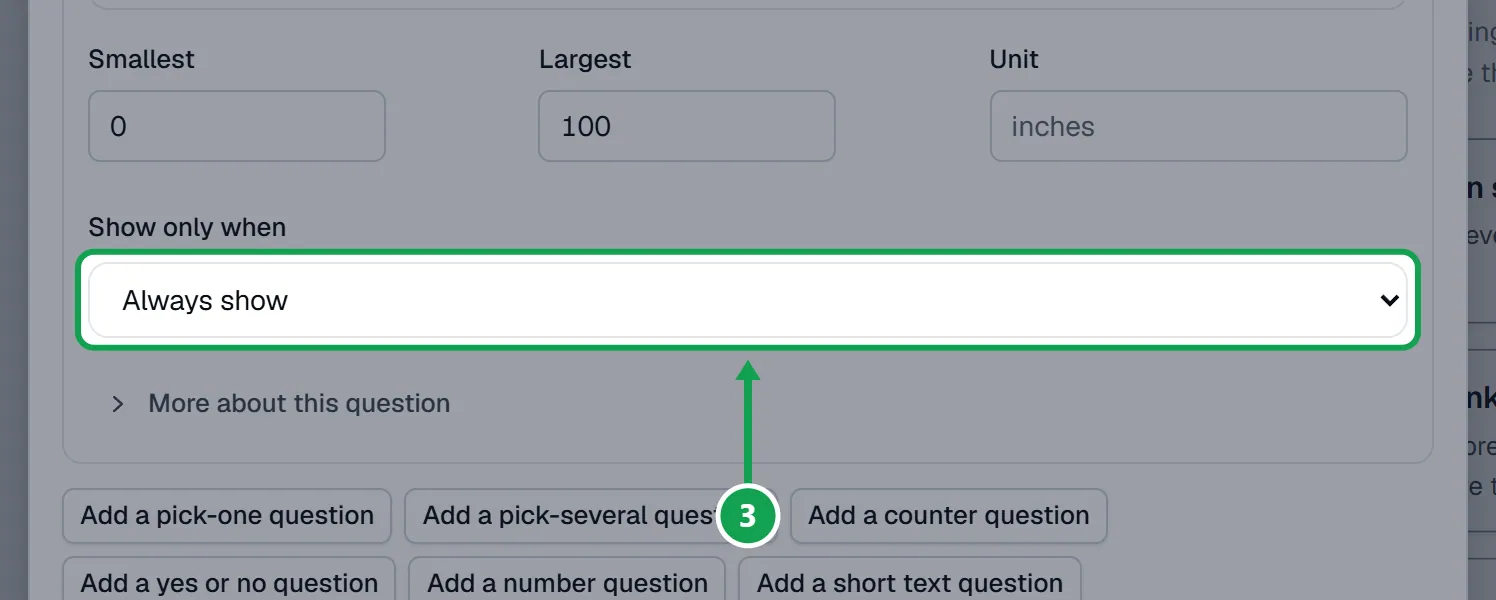
Step 3. On the later question, pick the earlier one in Show only when. Always show means no rule.
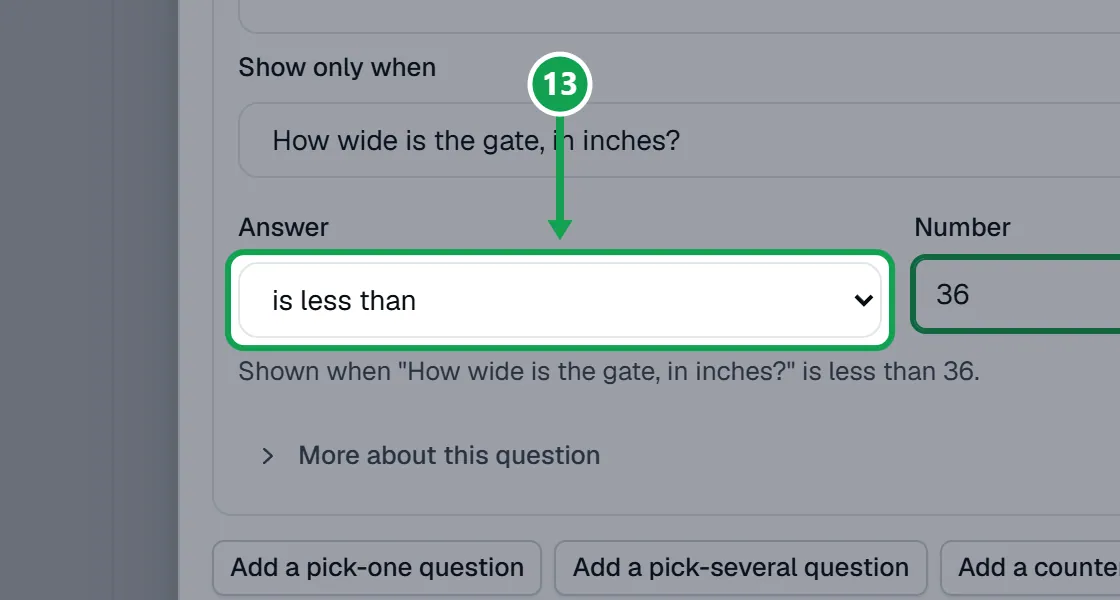
Step 4. For a choice or a yes or no, tick the answers under Answer is. For a number or a counter, pick a comparison in Answer, like is less than, and type the Number.
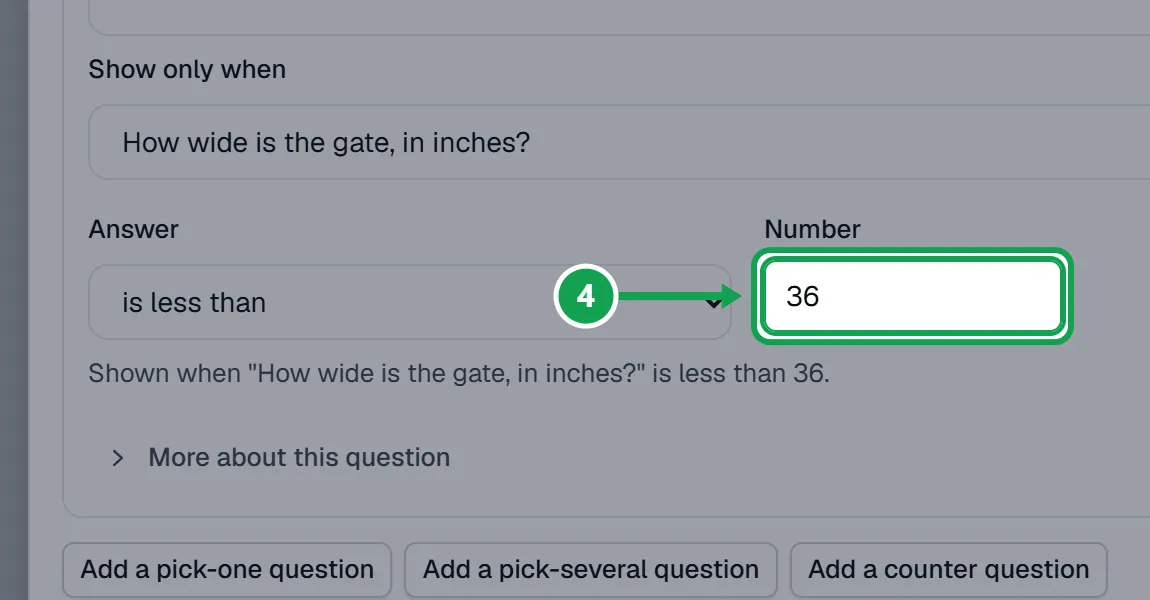
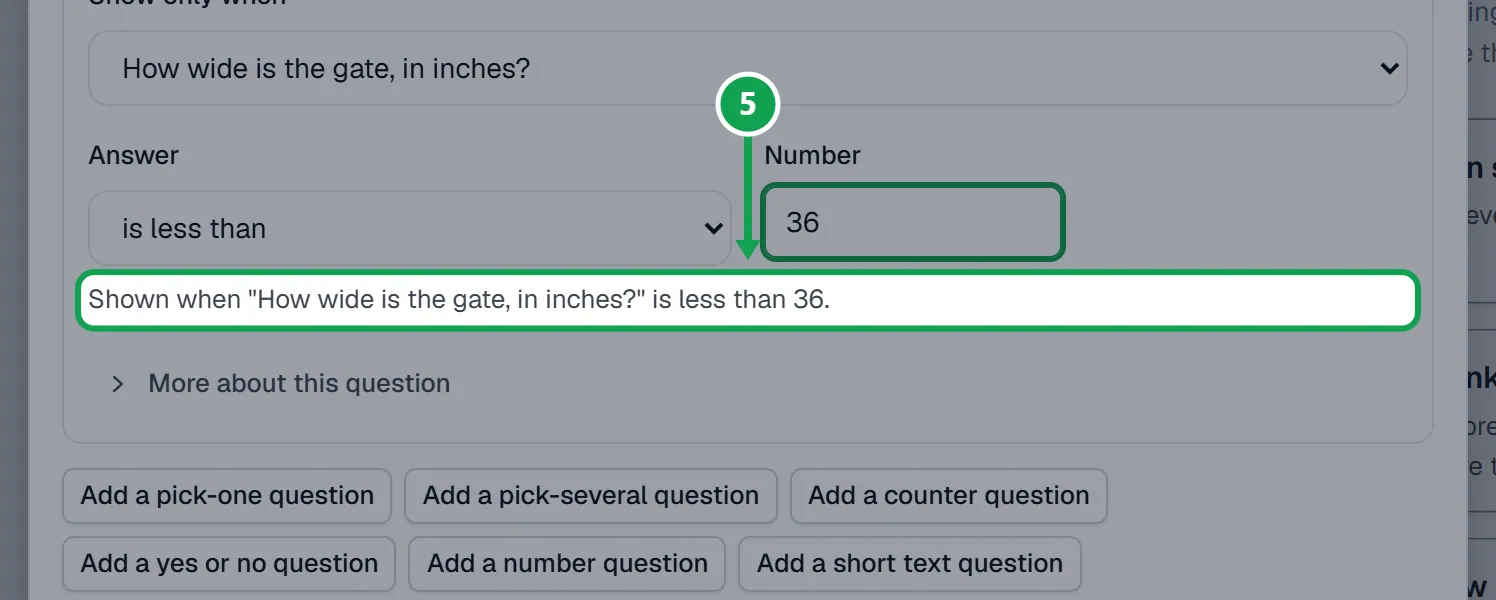
Step 5. Read the line under it. It says the rule in words, like Shown when the gate width is less than 36.
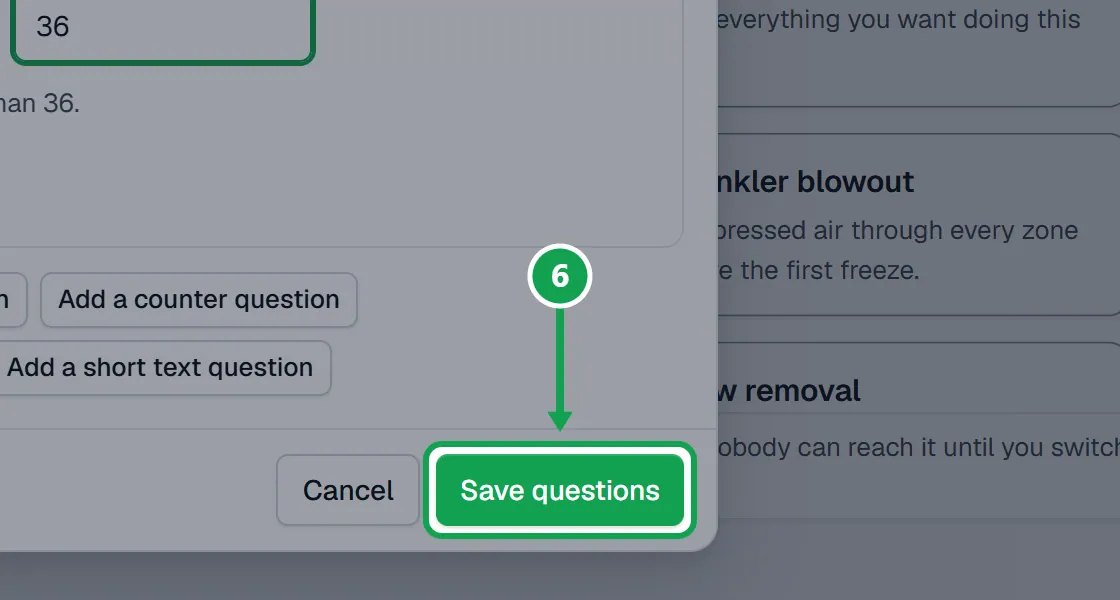
Step 6. Press Save questions. The preview on the right shows the question only when the rule holds.
Make an answer change what is measured or quoted
An answer to a pick-one, pick-several or yes or no question can make its service front yard only, back yard only, or quoted in person.
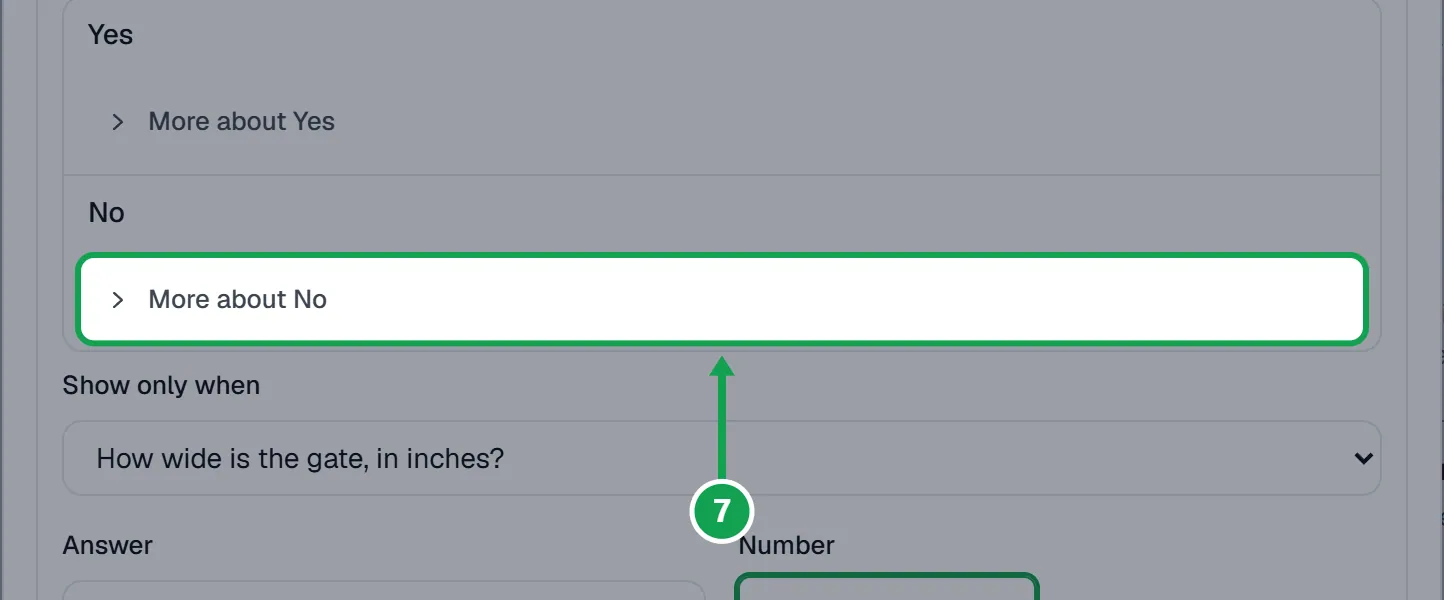
Step 1. Open More about this choice under the answer. On a yes or no, it is the More about line under Yes or under No.
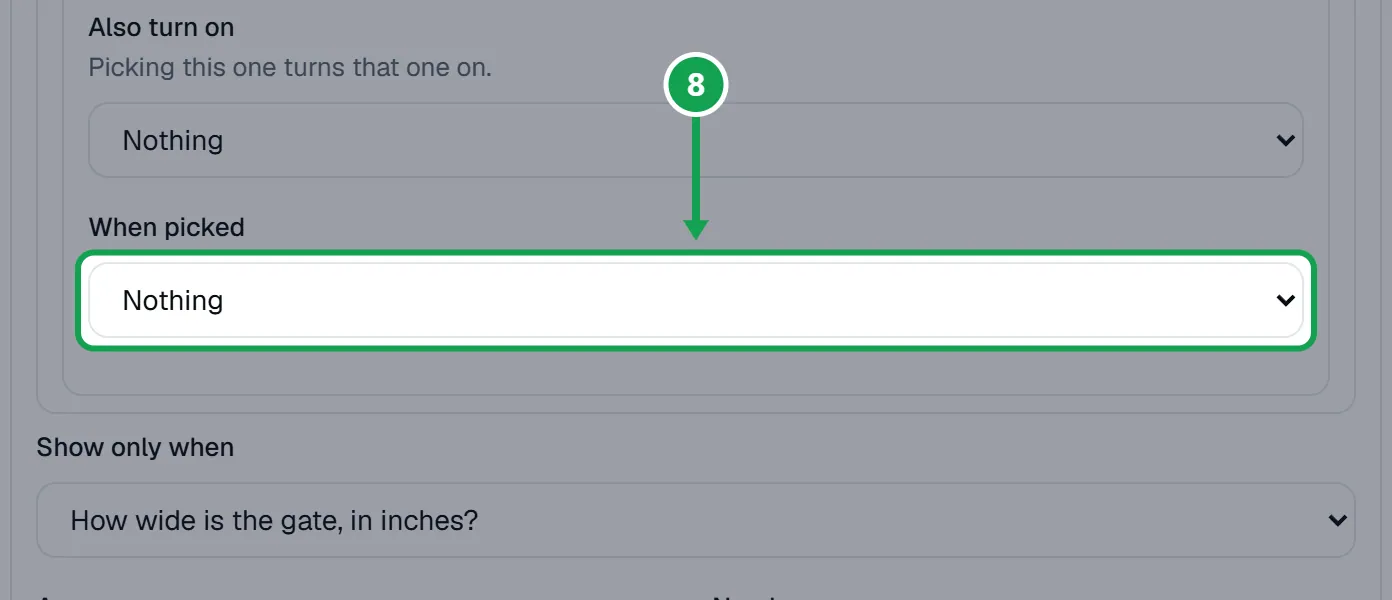
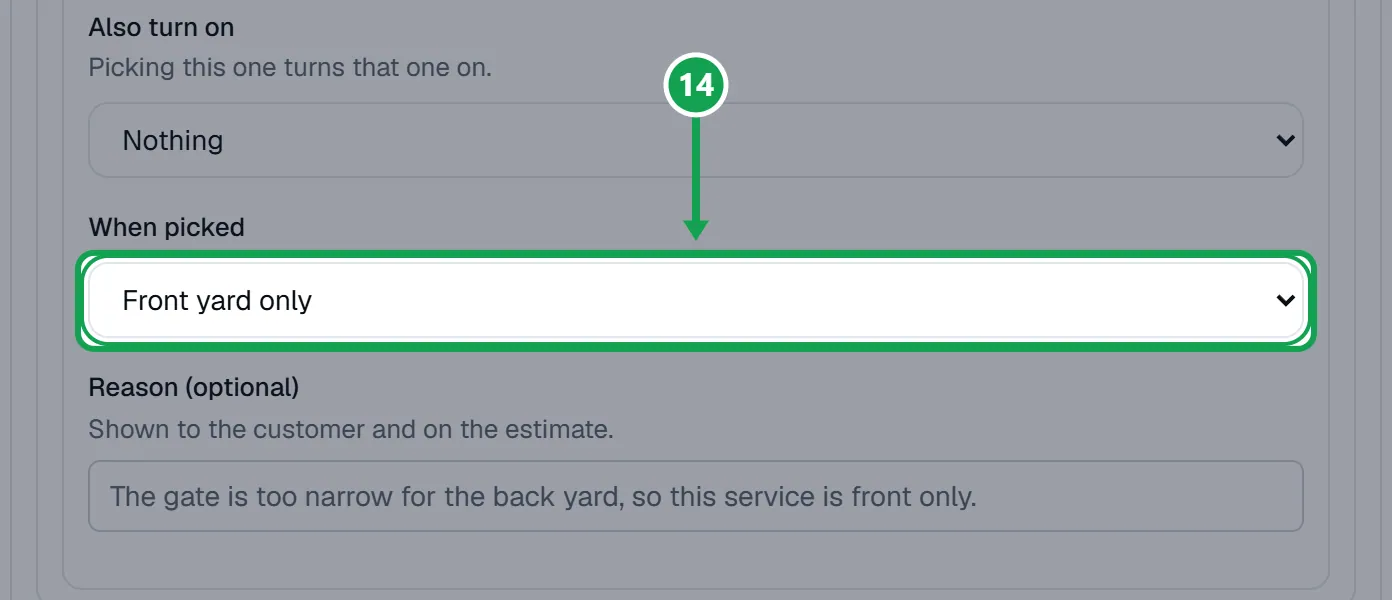
Step 2. In When picked, choose Front yard only, Back yard only or Quote in person. Nothing takes it off.
Step 3. Type a Reason (optional), like The gate is too narrow for the back yard. The homeowner sees it, and so does the estimate.
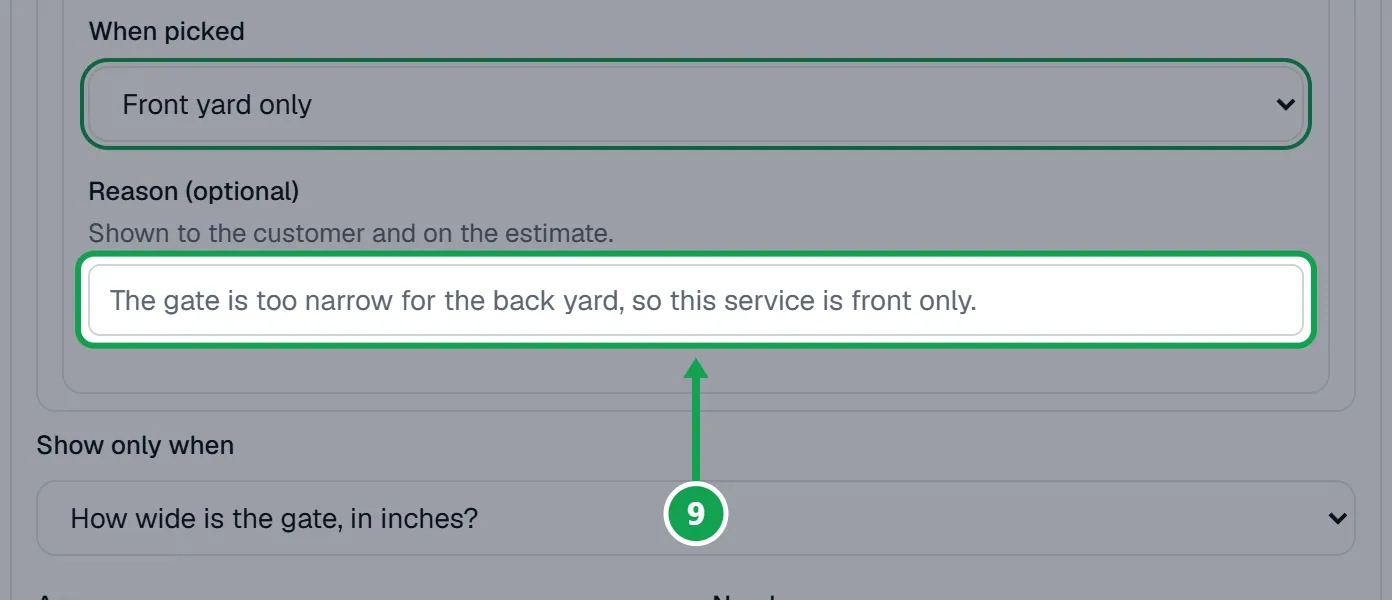
Step 4. Press Save questions.
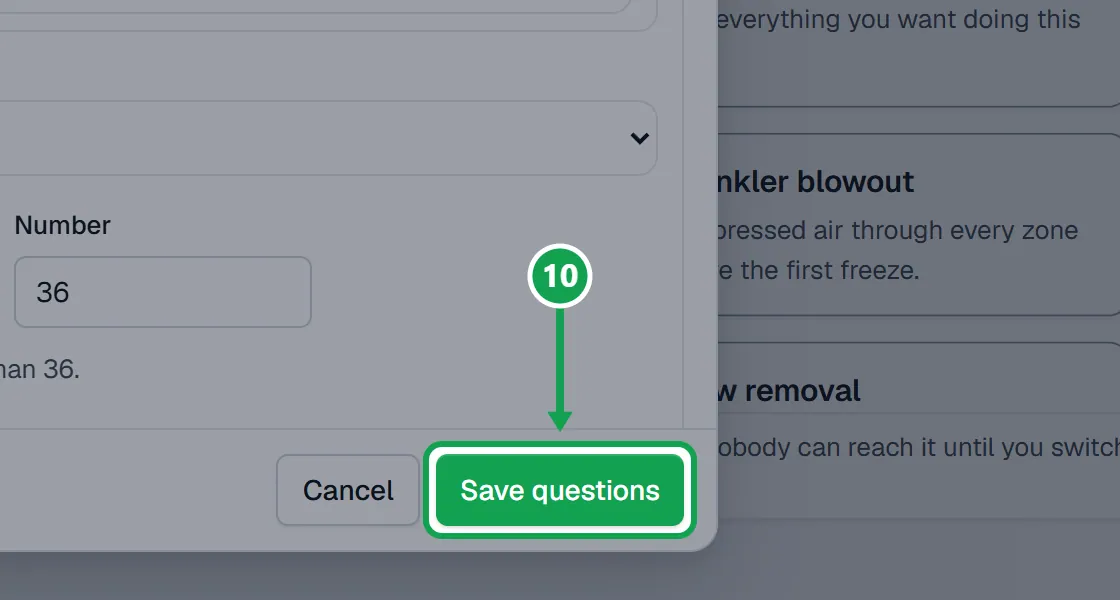
The narrow gate: front yard only when the gate is under 36 inches
A typed number cannot make a service front yard only by itself. Only a picked answer can. So ask the width, then a yes or no that shows only when the width is under 36.
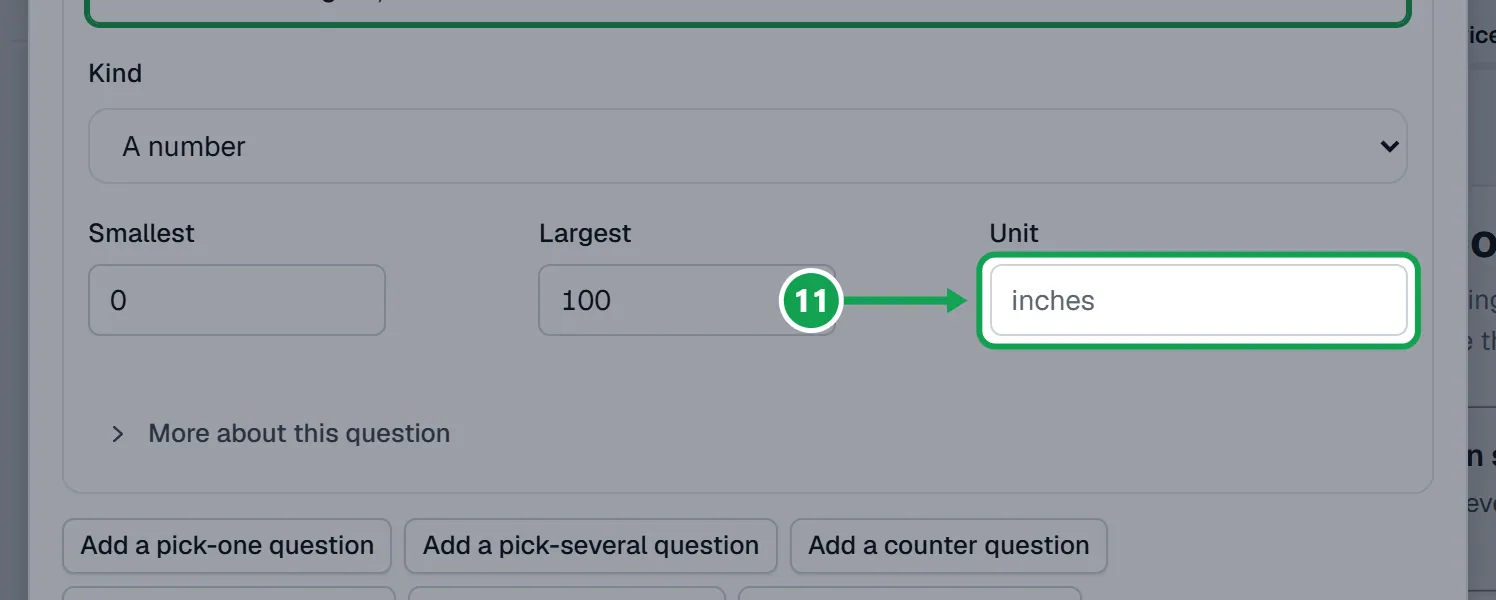
Step 1. Press Add a number question and type How wide is the gate, in inches? in Ask. Put inches in Unit.
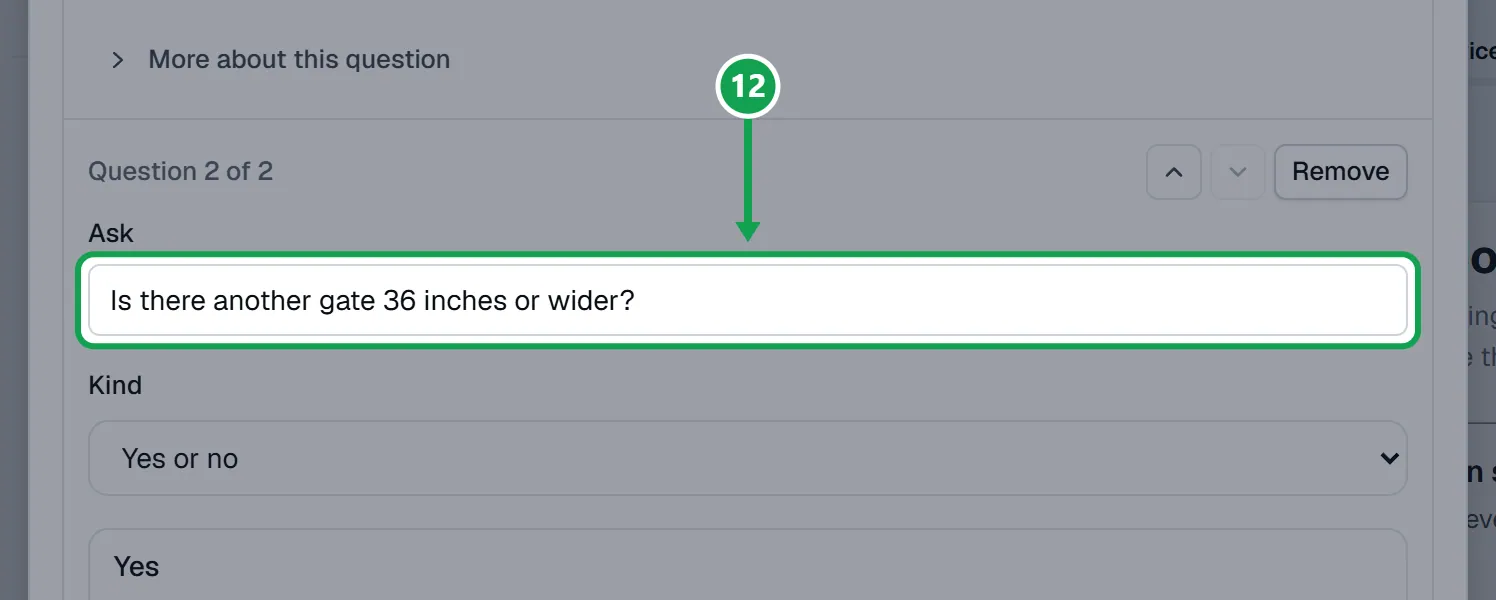
Step 2. Press Add a yes or no question and ask Is there another gate 36 inches or wider?
Step 3. On the yes or no, set Show only when to the width question, Answer to is less than, and Number to 36.
Step 4. Open the More about line under No, set When picked to Front yard only, and press Save questions.
If this, then that
- If there is no Show only when on a question
- It is the first question on that service, so there is nothing earlier to wait for. Move it down with the arrows, or add the earlier question above it.
- If the earlier question is missing from the Show only when list
- It is below this one, it has a rule of its own, or it is Short text. Move it above, set it to Always show, or change its kind.
- If a line says the question would never show
- The number you compare to is outside the earlier answer's range, like more than 50 on a counter that stops at 20. Pick a number it can reach, or change Smallest and Largest.
- If a front or back yard answer says it does nothing
- Clarity Measure does not measure this service. Turn on Measures the lawn for it in Settings, under Services & pricing, and make sure Clarity Measure is connected and on.
- If you want the typed width itself to decide front only
- It cannot. Add a Yes or no question shown when the width is less than 36, and set its No answer to Front yard only.
- If you see Only the owner can change the questions
- You are signed in as staff. Ask the owner to set the rule.
Good to know
- One level only: a question with its own rule cannot be the one another waits for, and a short text answer cannot be waited on.
- A hidden question is never priced, and its answers do nothing.
- Front yard only and back yard only work only on a service Clarity Measure measures. One measurement covers the whole booking, so other measured services on it are priced on the same part of the lawn, and the estimate note says so.
- If answers make a service front only and back only at once, it is quoted in person.
- Only the owner can change rules. Staff can read them.