Trust a connection so it asks less
Let one app or API key you trust skip the Approvals step for form and price changes or lawn sizes, for 1, 7 or 30 days.
Steps
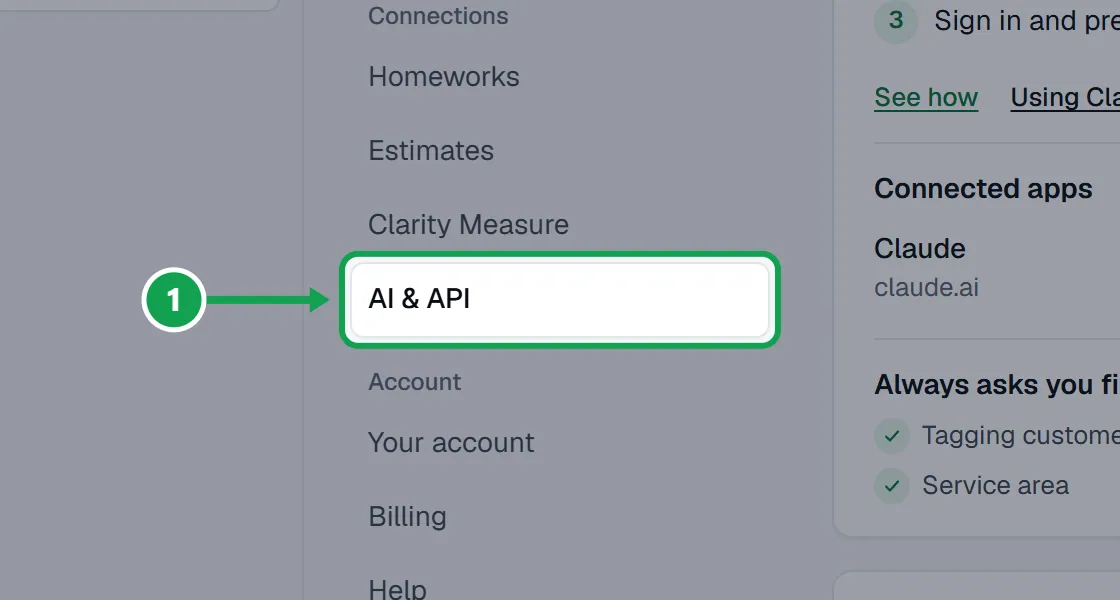
Step 1. Open Settings and choose AI & API.
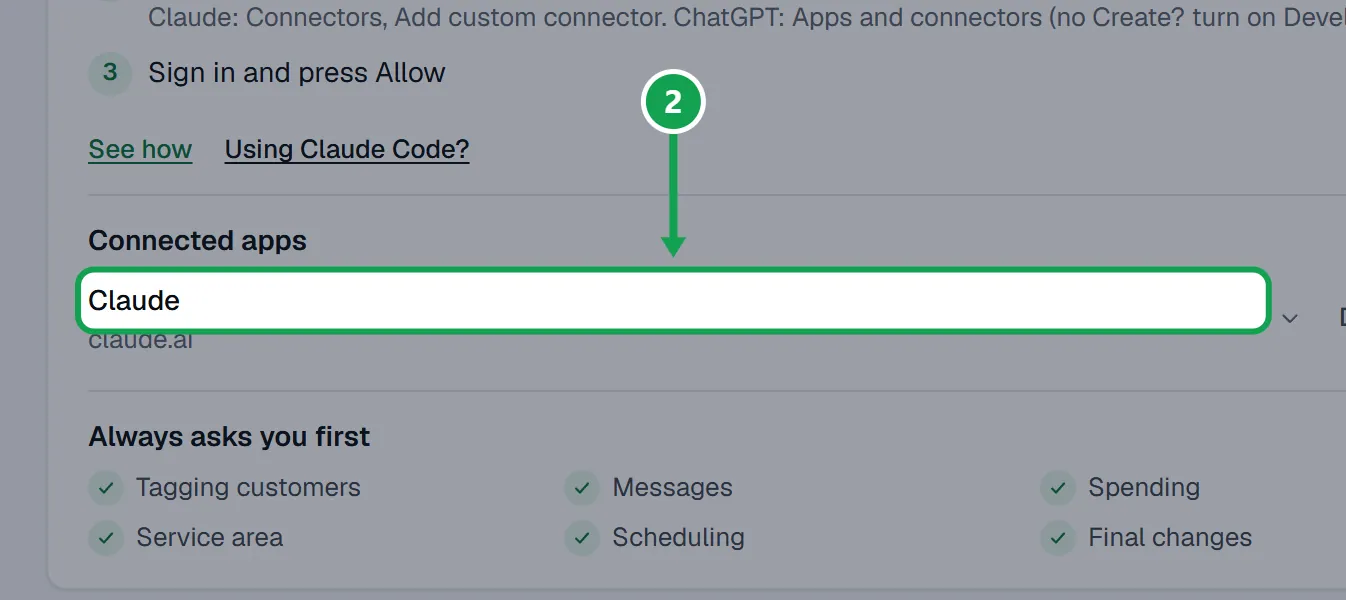
Step 2. Under Connected apps, tap the app to open its details. For a key, tap it under API keys.
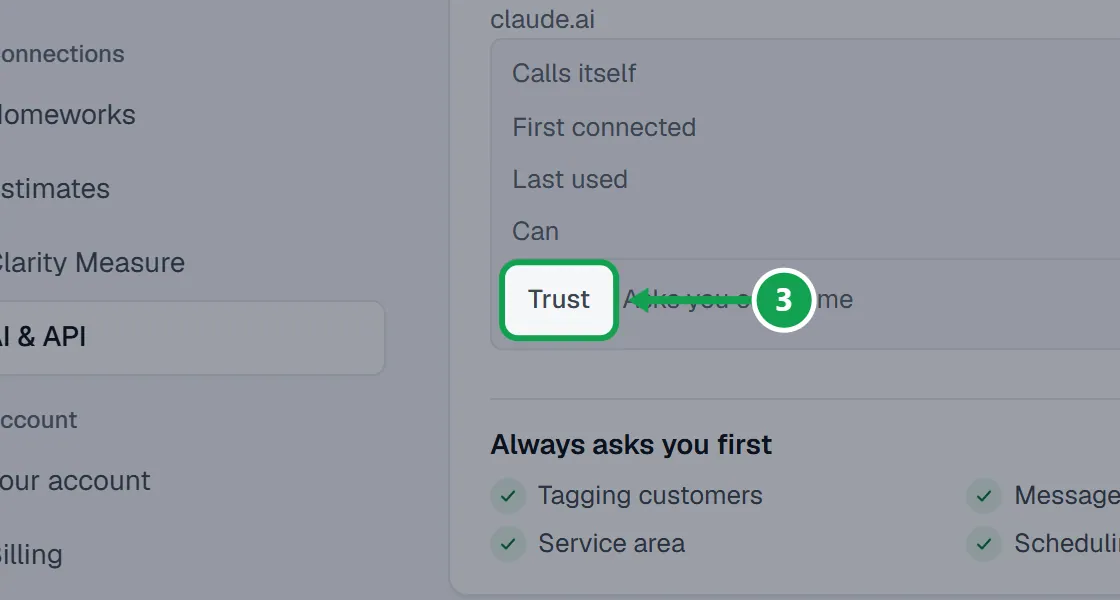
Step 3. Press Trust.
Step 4. Under Skip my approval for, tick Change my live booking form and prices, Enter lawn sizes and price draft estimates in Homeworks, or both.
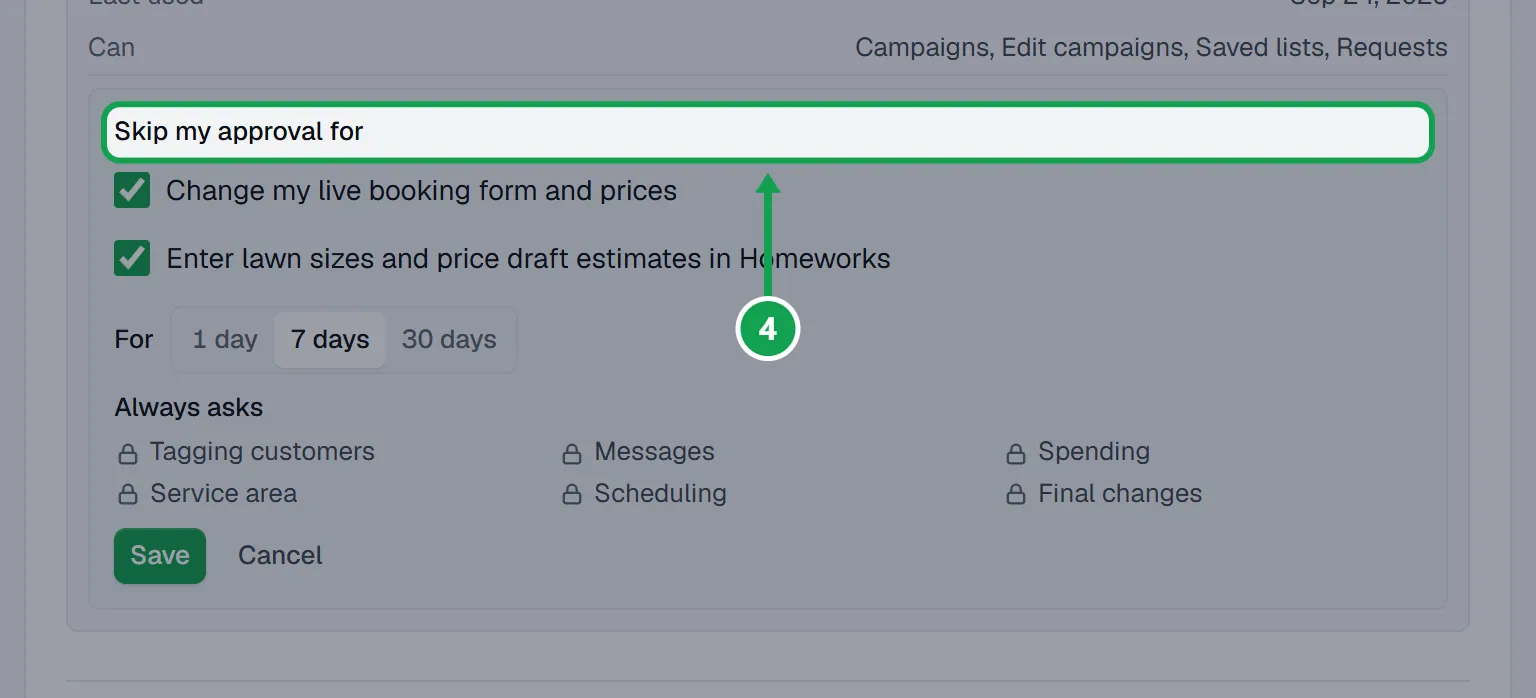
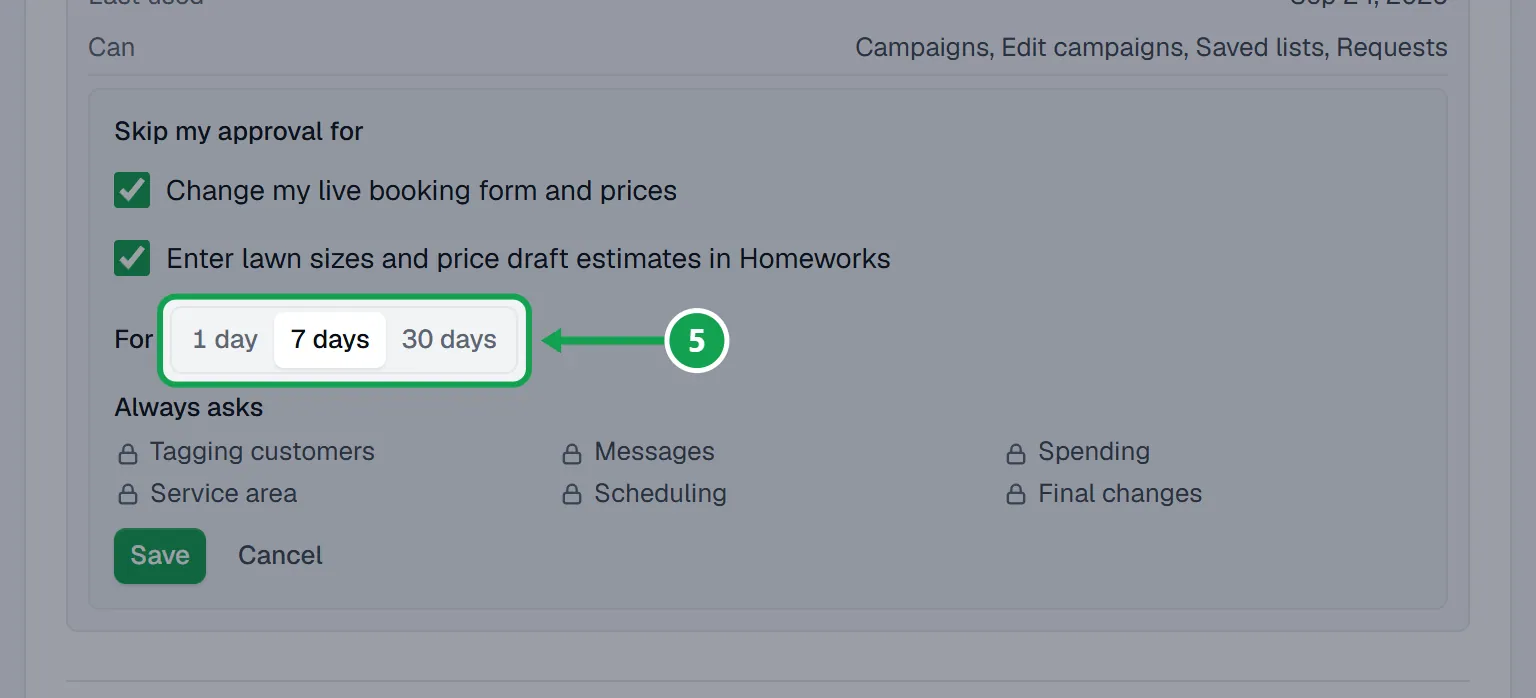
Step 5. Next to For, pick 1 day, 7 days or 30 days.
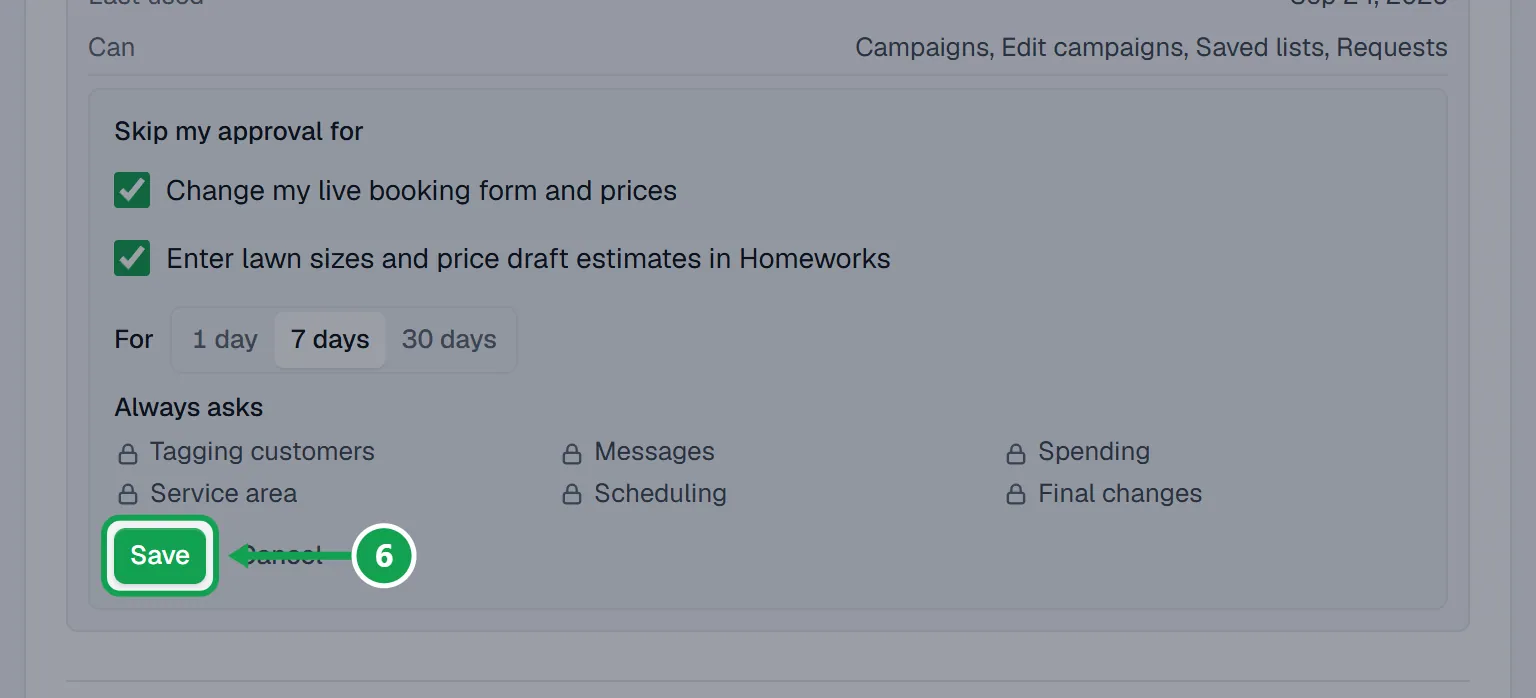
Step 6. Check the Always asks list, then press Save. The app now shows Trusted until a date and time.
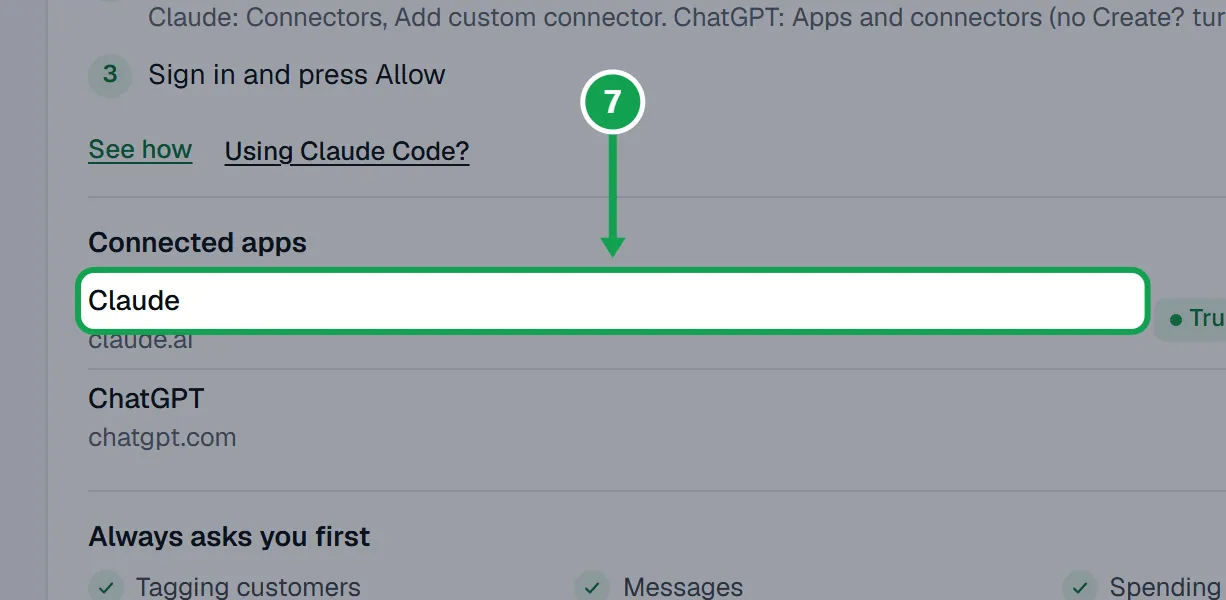
Stop trusting, or change it
Step 1. On AI & API, open the trusted app or key.
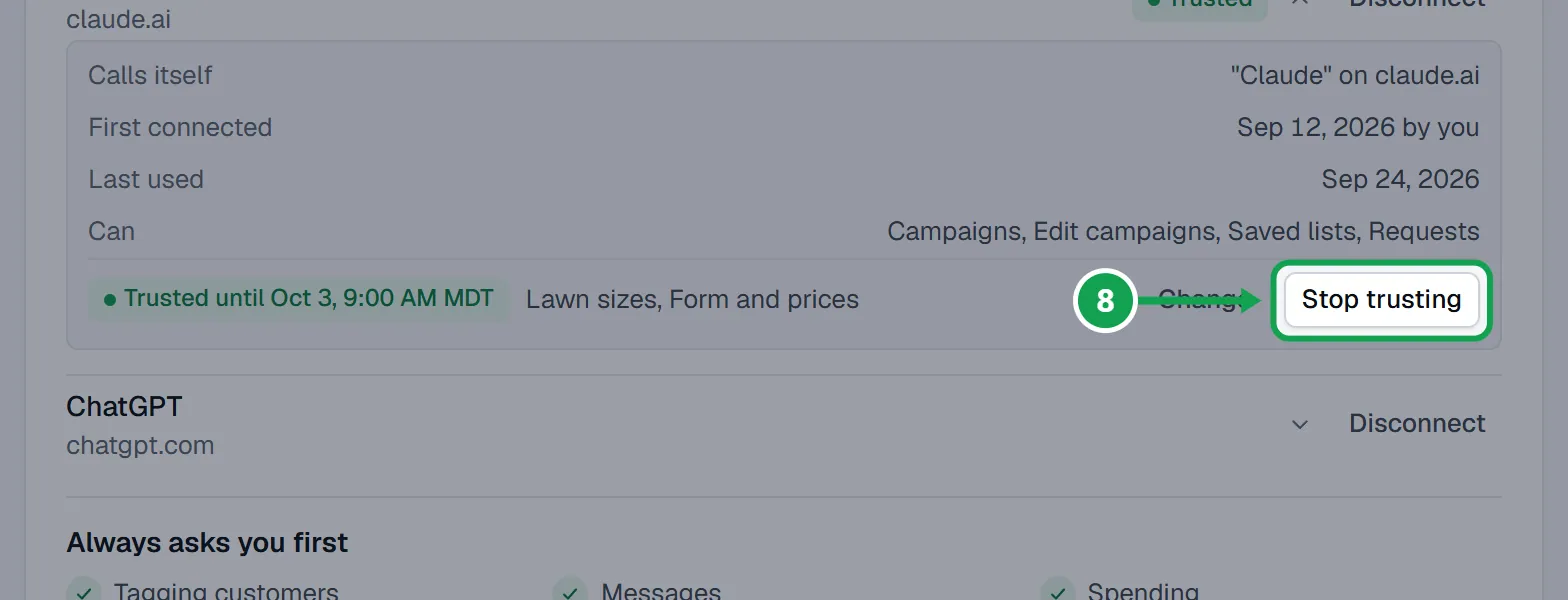
Step 2. Press Stop trusting. It takes effect at once and says Trust revoked. Changes need your approval again.
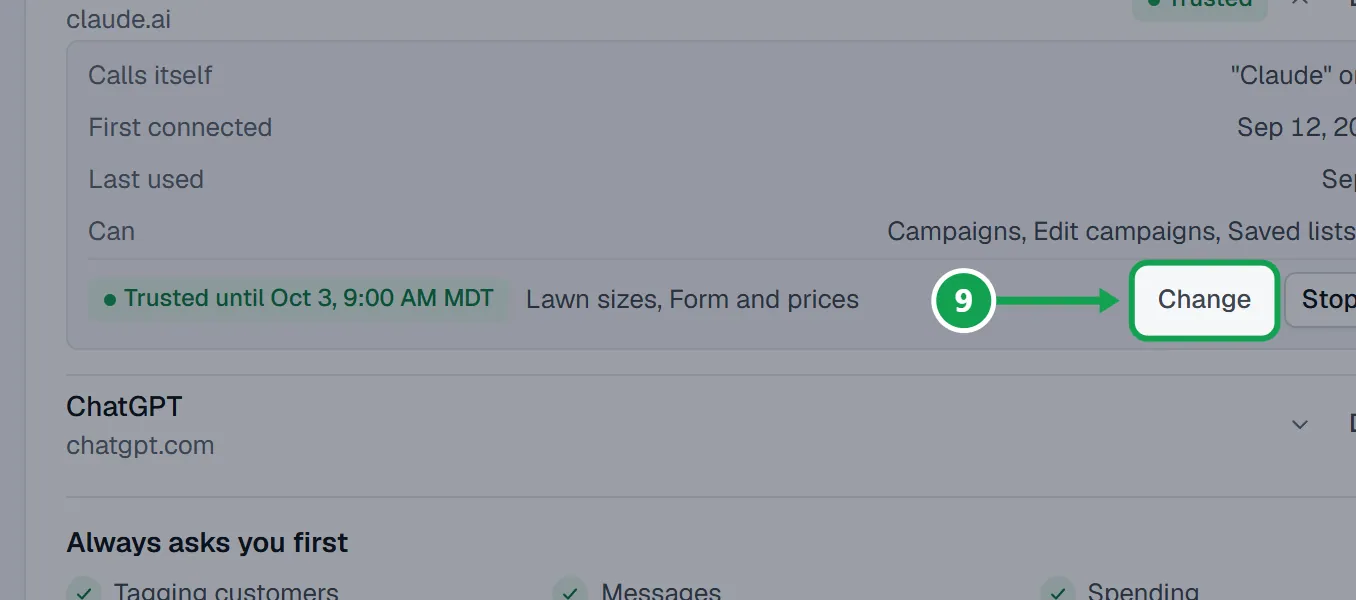
Step 3. Or press Change to pick different boxes or a different length, then Save.
If this, then that
- If there is no Trust button under an app
- That app was connected by a team member, or it is disconnected. Only an app the owner connected can be trusted. Connect it again signed in as the owner.
- If Claude still asks you to approve
- The change is on the Always asks list, the trust ended, or it came from a different app or key. Connecting an app again makes a new connection, so trust the new one.
- If you clicked Always allow in Claude
- That only stops Claude asking before it calls Seasonly. Seasonly still asks you to approve risky changes unless you trust the connection here.
- If Claude says it can trust itself or asks you for a code to do it
- It cannot. Only the owner, signed in to Seasonly, can trust a connection. Nothing said in a chat can switch it on.
- If you see Tick at least one, or press Cancel.
- Tick at least one box under Skip my approval for, or press Cancel.
- If you want to see what it did under trust
- Open Approvals. Those changes show under Recent as Done under trust.
Good to know
- Always asks, whatever you trust: Tagging customers, Messages, Spending, Service area, Scheduling and Final changes (anything that cannot be undone).
- Tagging always asks because a Homeworks automation on the tag may text or email the people tagged.
- Trust ends on its own after 1, 7 or 30 days. It starts on 7 days with both boxes ticked.
- Trust is per connection: trusting Claude does not trust ChatGPT or your API keys.
- Only the owner can trust a connection or stop trusting it.