Set up your scheduling rules
Tell Seasonly your hours, neighborhoods, services, crews and daily limits so it can book accepted estimates into Homeworks for you.
Steps
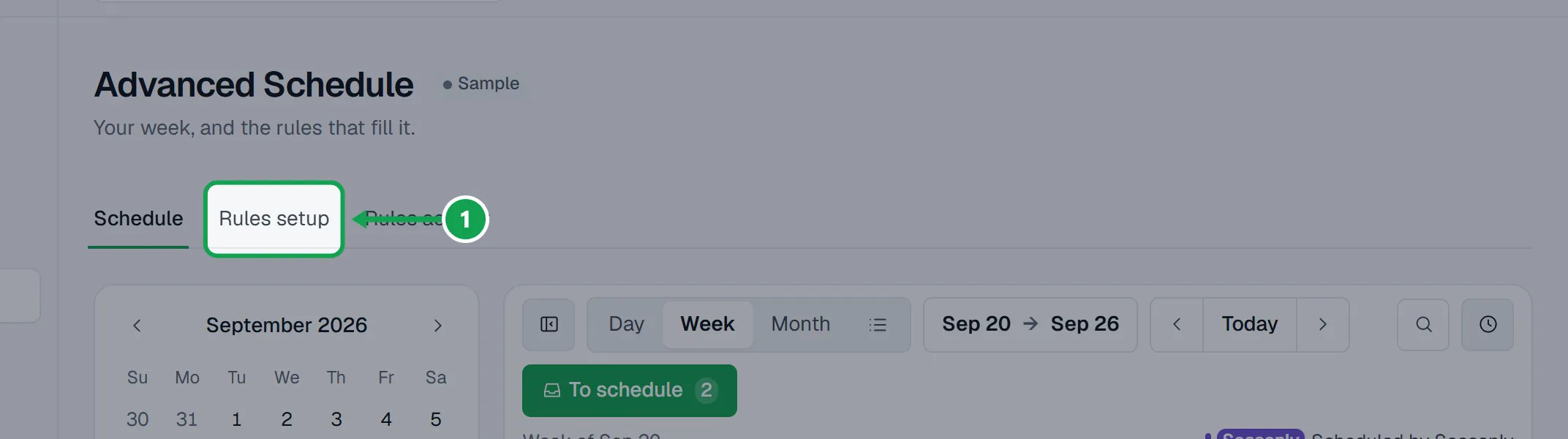
Step 1. Open Advanced Schedule and press Rules setup.
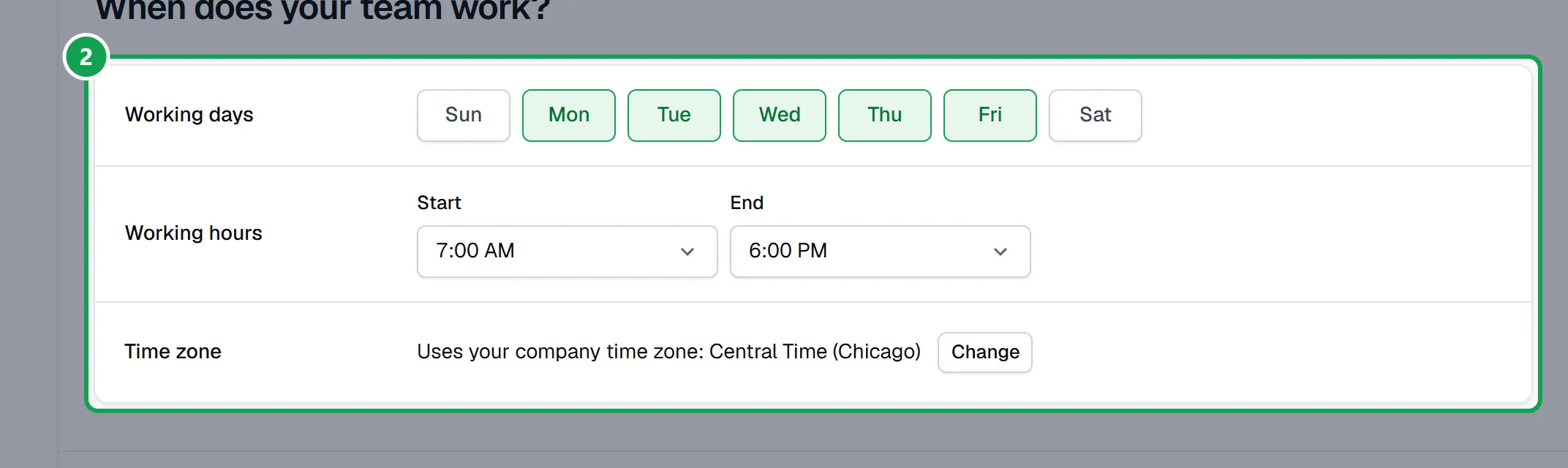
Step 2. On Hours, pick your Working days and Working hours. The time zone line shows your company clock; Change picks another. Press Next.
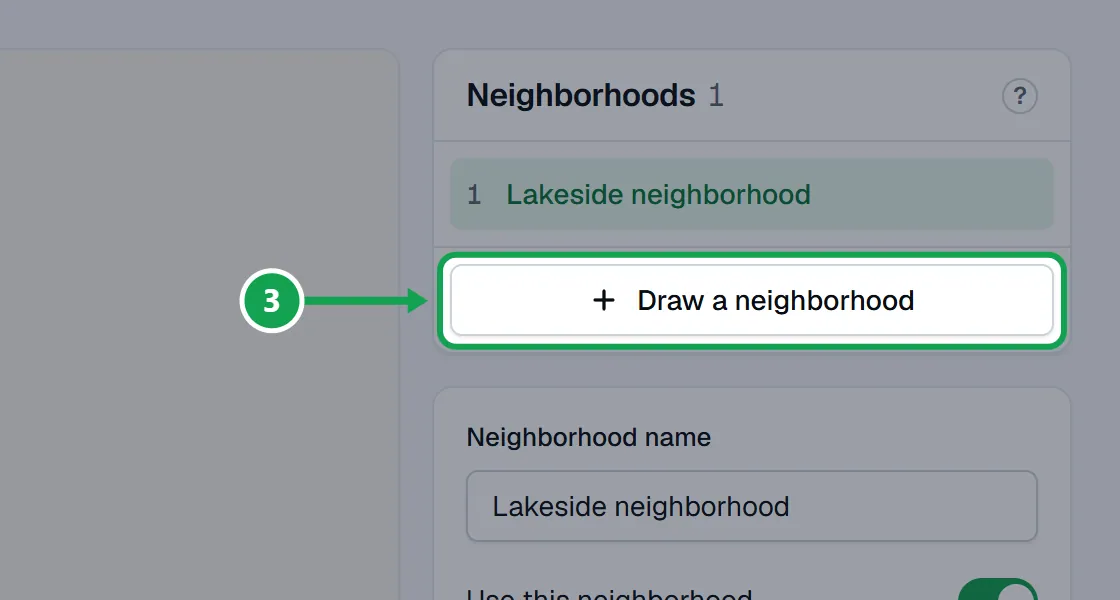
Step 3. On Neighborhoods, press Draw a neighborhood, tap the map to add corners and press Finish area. Type its Neighborhood name, then press Next.
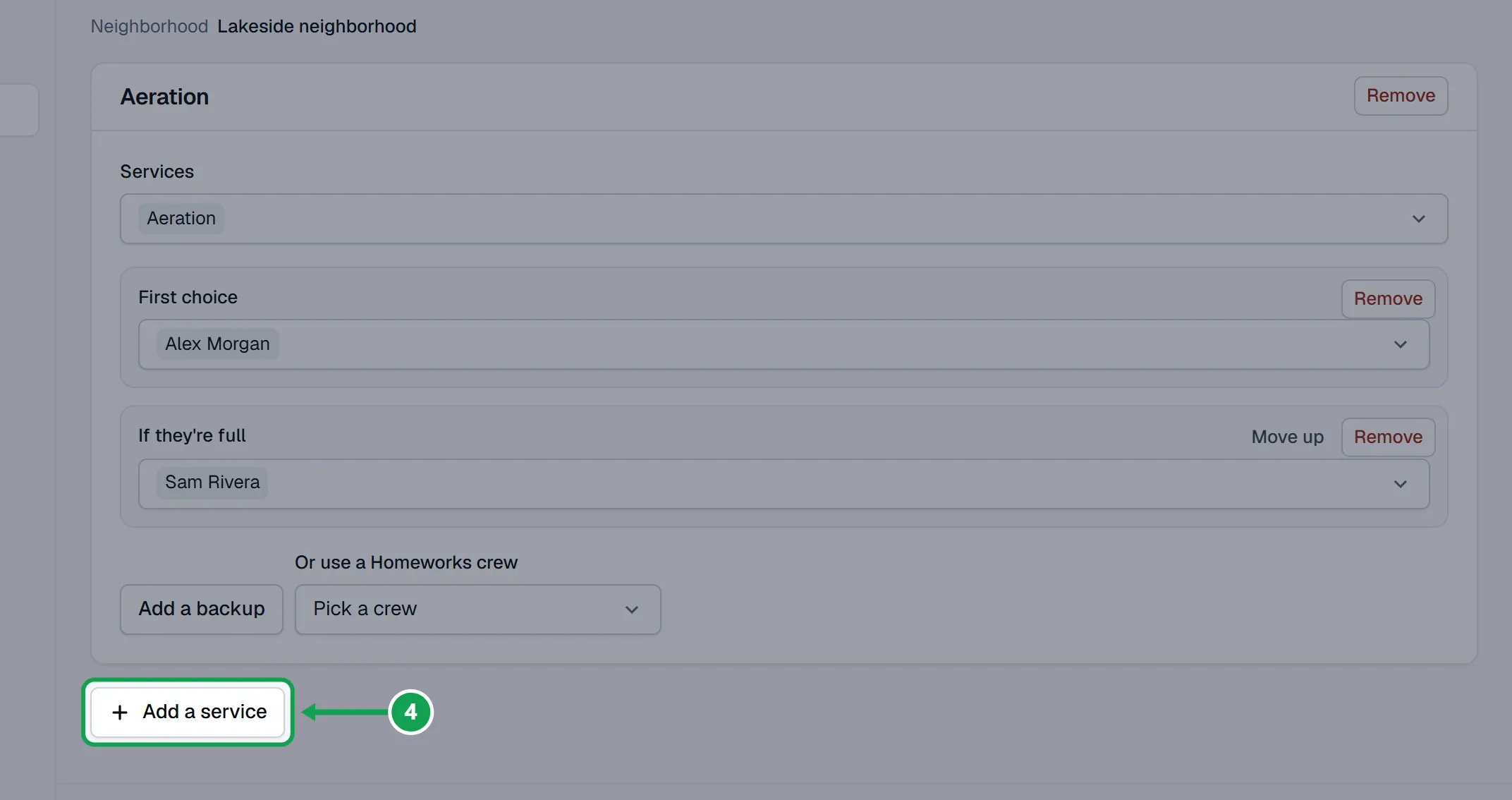
Step 4. On Services & team, press Add a service and pick the Services. Choose who does it under First choice, or pick one under Or use a Homeworks crew. Add a backup covers the days they are full.
Step 5. On Days & limits, set Preferred days, Earliest start, Budgeted time per visit (minutes) and Daily limit per employee (optional). More options holds backup days, season dates and notice.
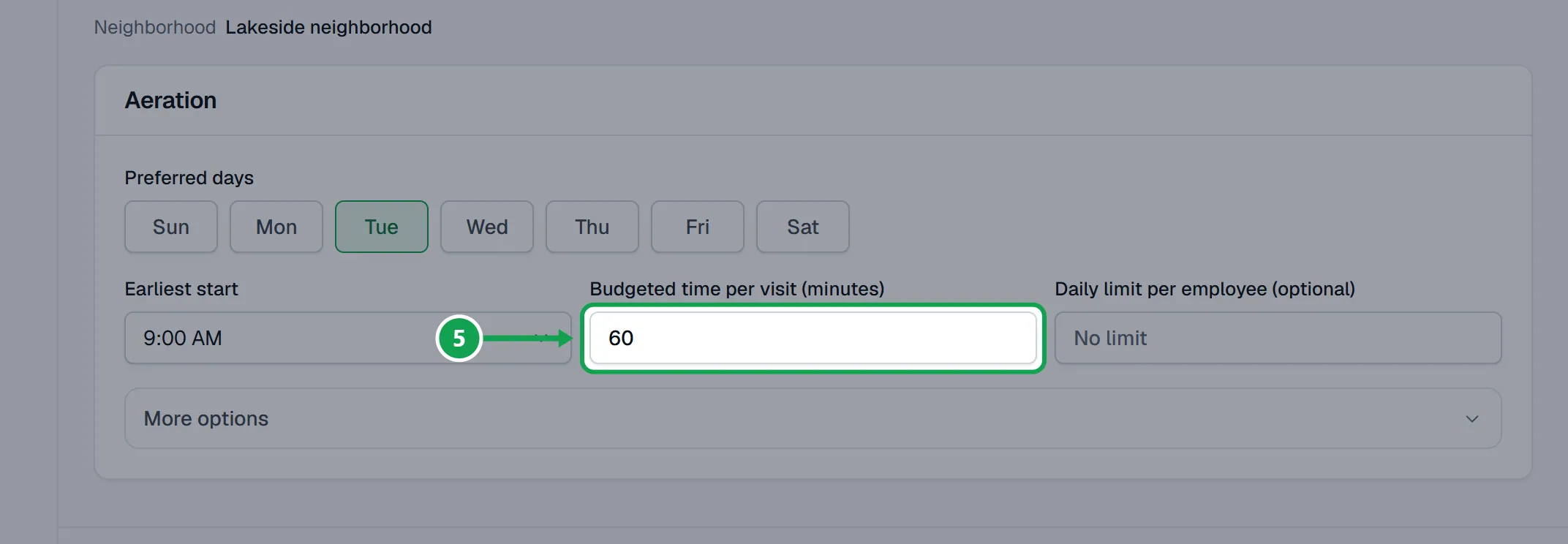
Step 6. On Review, check Your week, try a street under Try a sample address, and turn on Schedule accepted estimates automatically. Press Turn on when Seasonly asks to add visits to your Homeworks calendar.
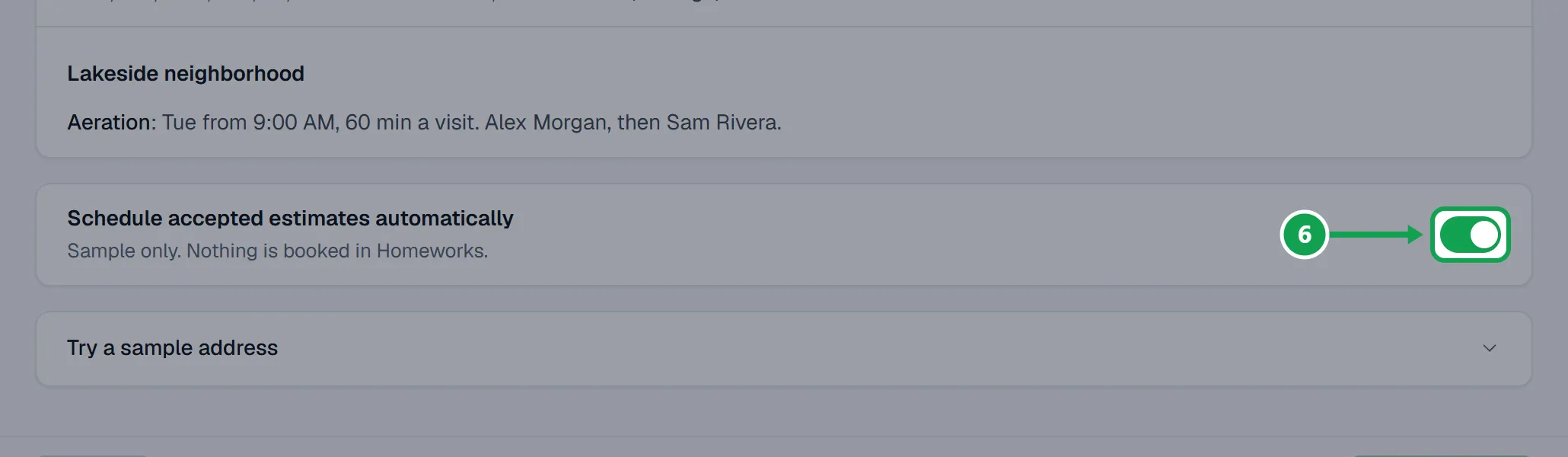
Step 7. Press Save rules. The button says Saved when it is done, and the header shows Rules on with Add visits to Homeworks switched on.
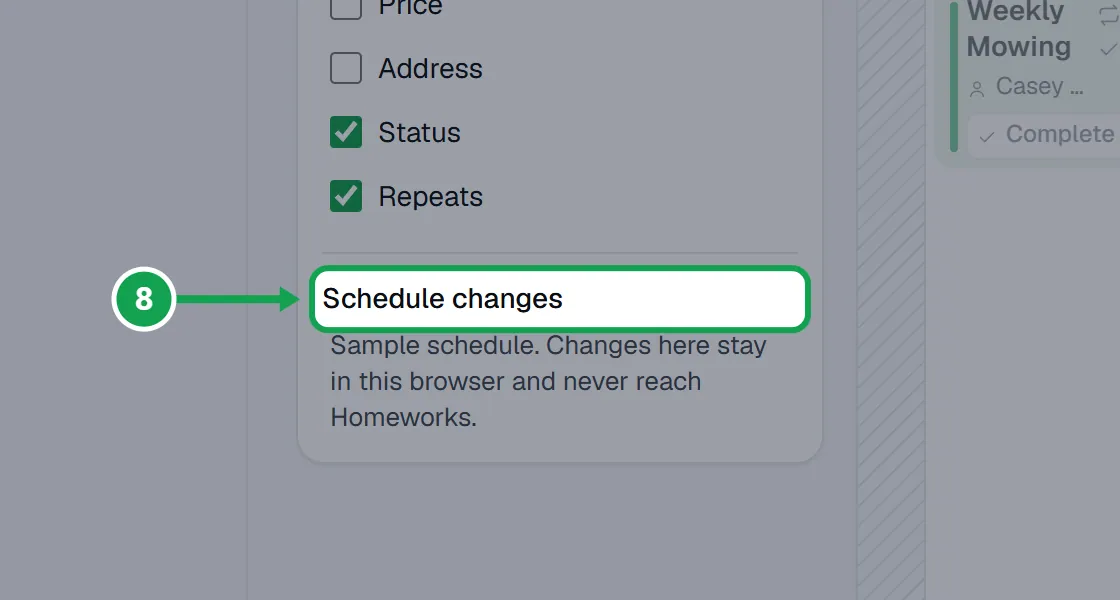
Step 8. The same permission is Let Seasonly change my schedule under Schedule changes on the Schedule tab. If a yellow bar says Rules are on, but nothing is booking., press Turn on.
See what the rules did
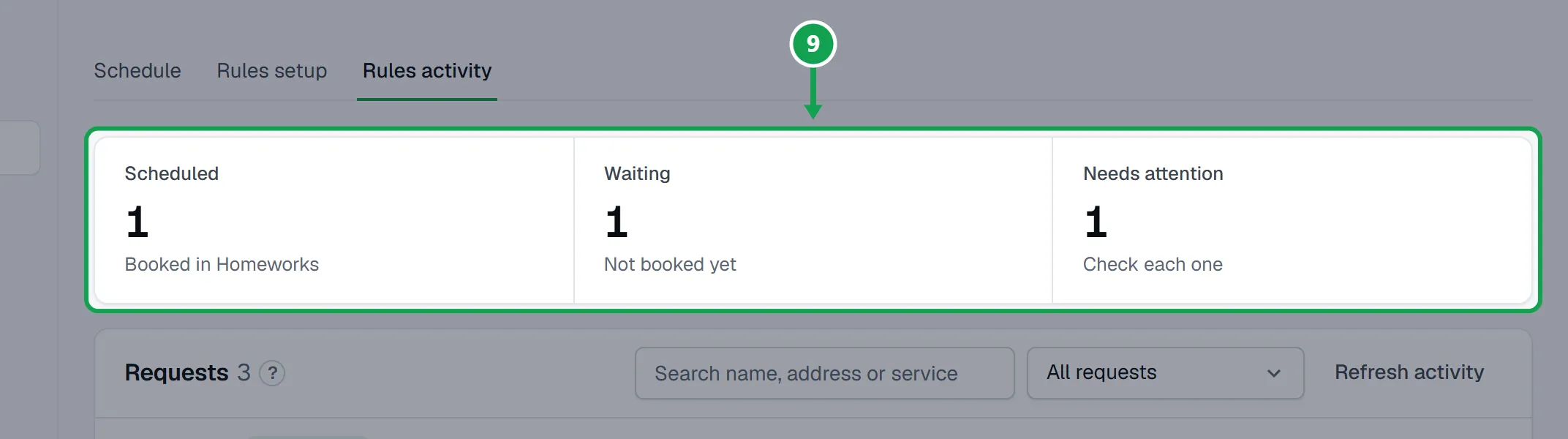
Step 1. Press Rules activity. The tiles count Scheduled, Waiting and Needs attention; press one to show only those.
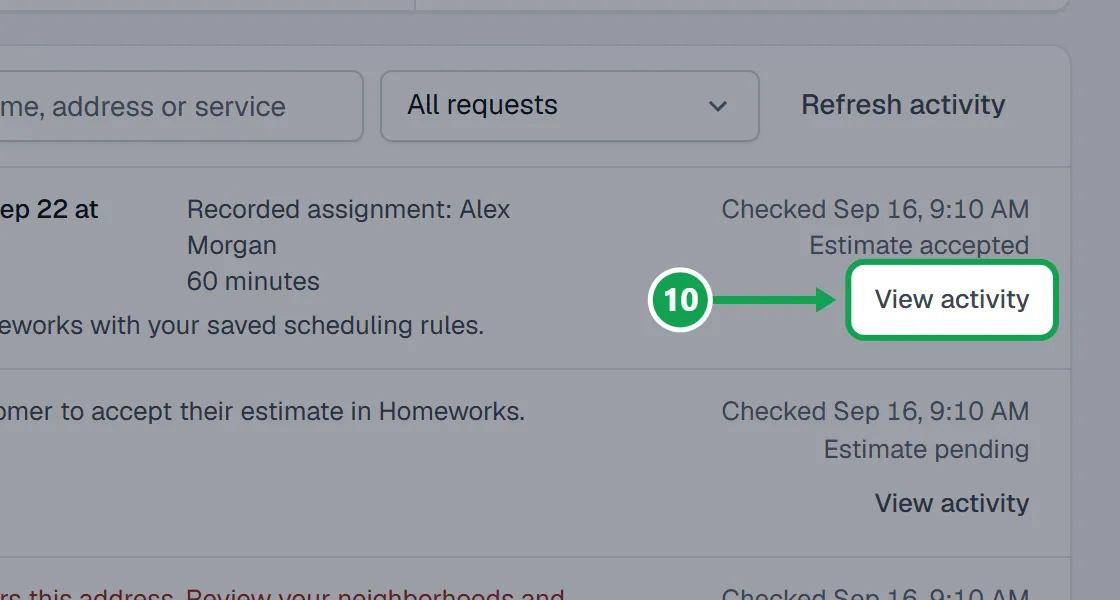
Step 2. Press View activity on a request to see its latest check and the visit it booked or would book.
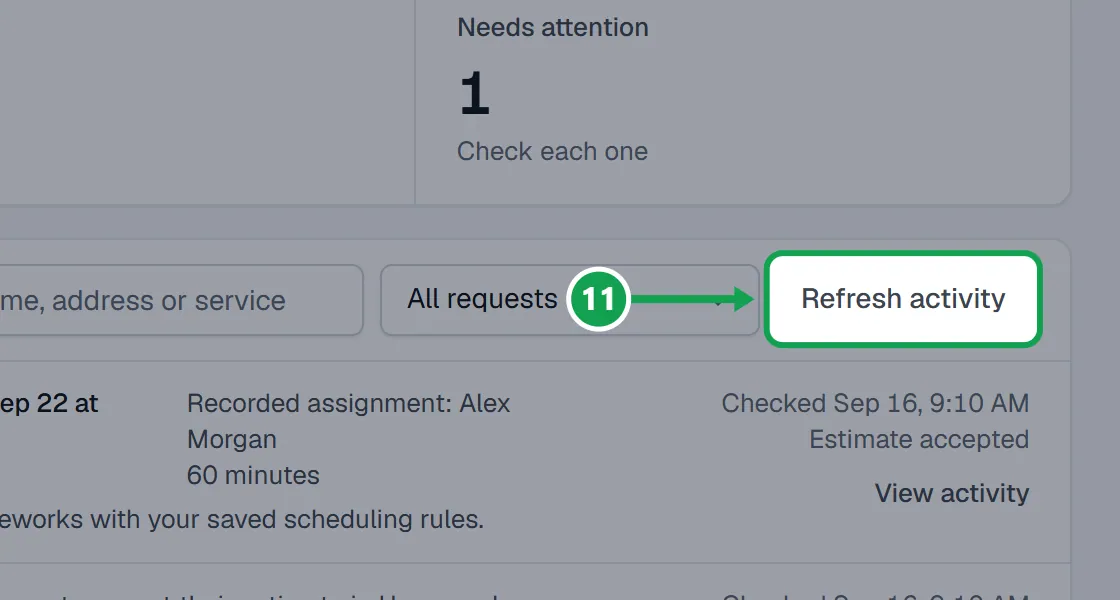
Step 3. Press Refresh activity to check again now.
Draw a neighborhood with Claude
If you set up rules from Claude or ChatGPT, it sends you a map link instead of guessing a shape.
Step 1. Open the link Claude gives you. It opens in Seasonly.
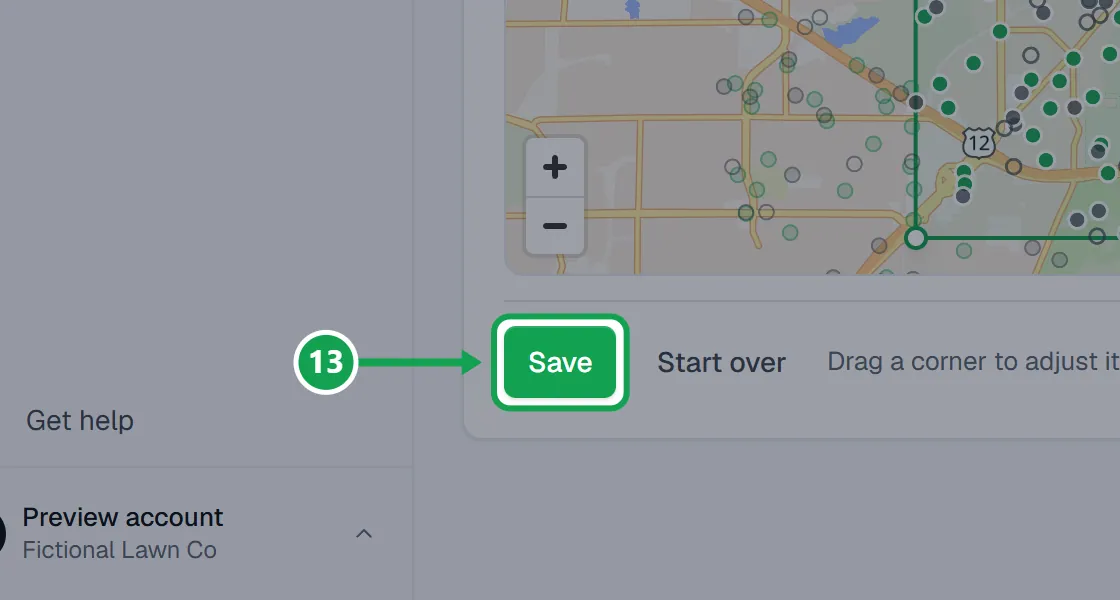
Step 2. Tap the map to add corners, drag a corner to adjust it, then press Save.
Step 3. Go back to your chat. Claude reads the shape and adds it to the rules you agree to.
If this, then that
- If you see Advanced Schedule is part of Premium.
- Your company is on Free. The owner presses Upgrade to turn it on. Your rules are kept.
- If it says Automatic scheduling is off. Contact support to turn it on.
- Automatic scheduling is not switched on for your account yet. Your rules still save. Press Get help to ask support.
- If Rules activity says No enabled service rule matches this property.
- The address is outside every neighborhood, or no service rule covers what they booked. Draw or widen a neighborhood, or add the service on Services & team.
- If accepted estimates are not being booked
- Check the header says Rules on and Add visits to Homeworks is switched on (it is the same as Let Seasonly change my schedule). Press Turn it on on any Rules activity row that says it is off.
- If Seasonly says your time zone does not match Homeworks
- Automatic scheduling needs the two clocks to match. Open Settings, choose Time zone and press Use Homeworks' time zone.
- If you cannot change anything on Rules setup
- You are signed in as staff. Only the owner can change scheduling rules.
Good to know
- Advanced Schedule, including scheduling from the Requests map, is part of Premium.
- Seasonly books only accepted estimates from your Seasonly form, for addresses inside a neighborhood, and never twice for one estimate.
- With Let Seasonly change my schedule off, it only suggests the best day and books nothing.
- Finished steps save as you go. While scheduling is on, changes wait for Save rules.
- Rule changes from Claude always wait for your approval, even on a trusted connection.
- Only the owner can change rules. While scheduling is on, your time zone must match Homeworks.