Change your company name and logo
Rename your company in Settings and upload your logo in Settings, Branding. Homeowners see both on your booking form.
Steps
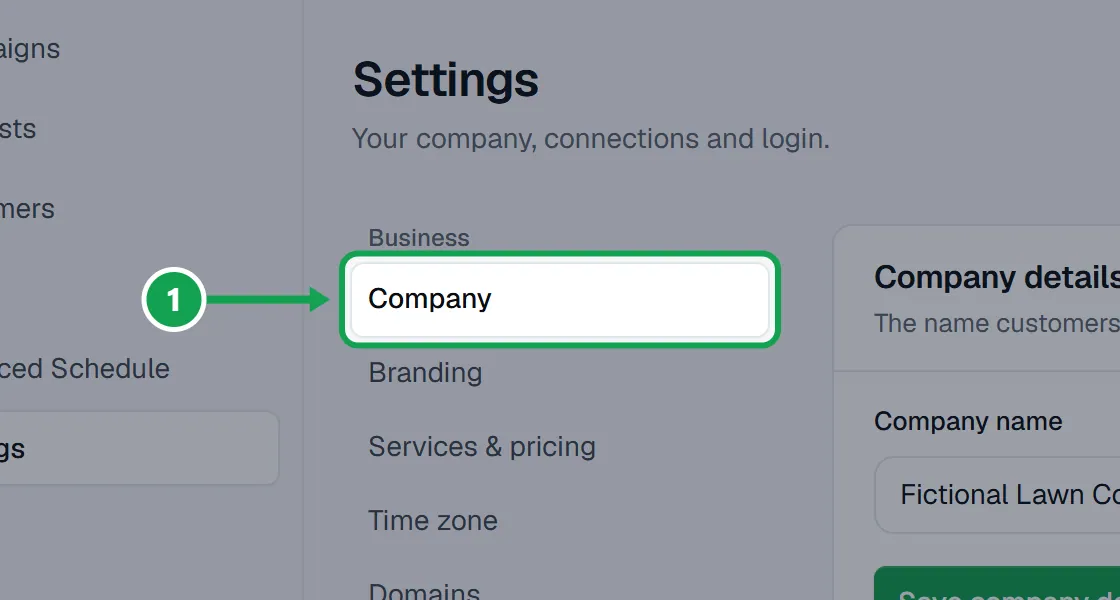
Step 1. Open Settings. It opens on Company.
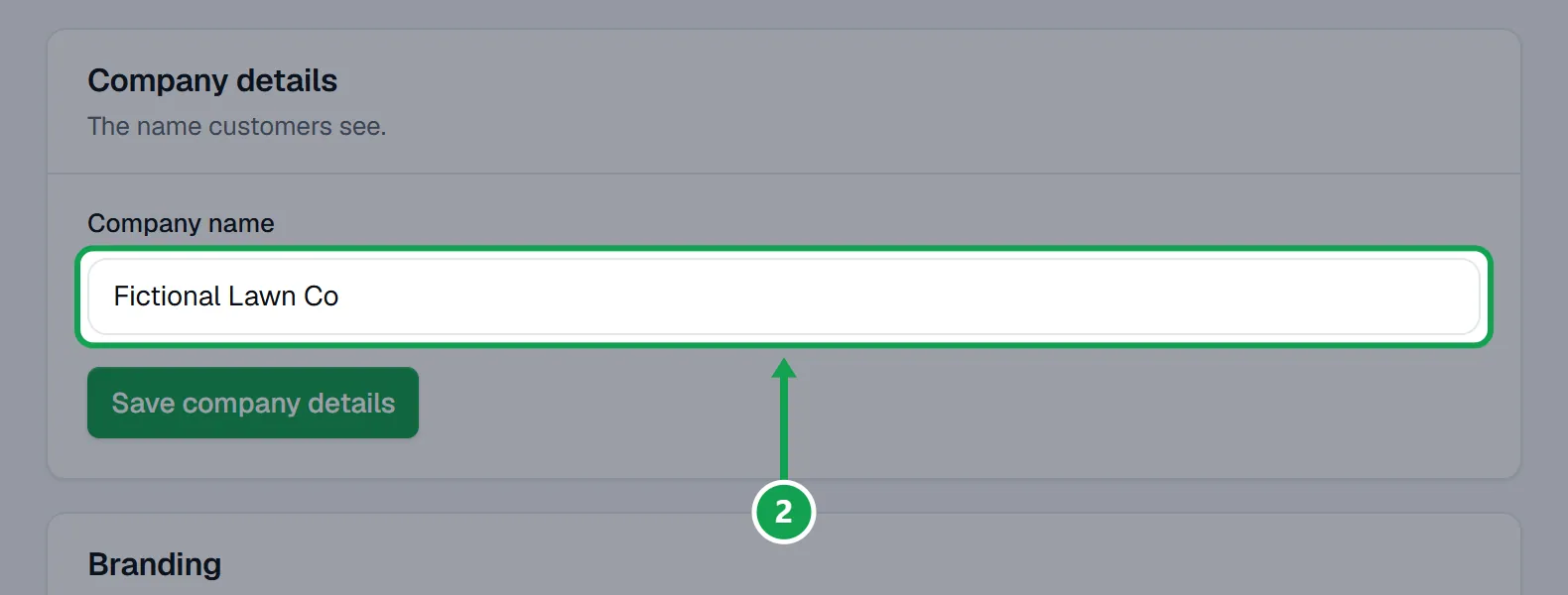
Step 2. Type the new name in Company name. It can be up to 80 characters.
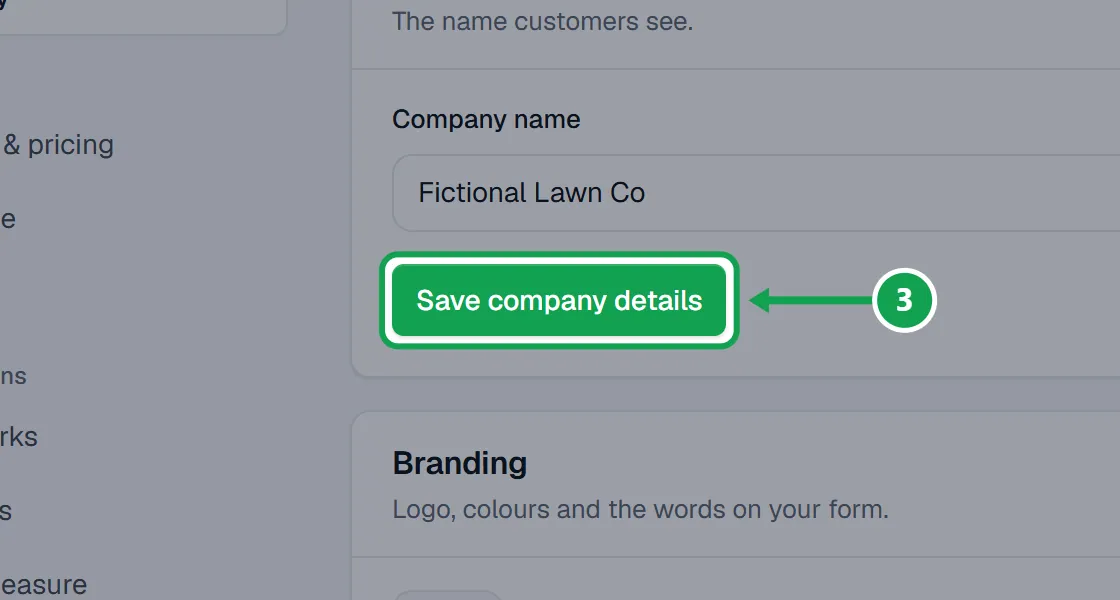
Step 3. Press Save company details. The name changes in Seasonly and on your booking form.
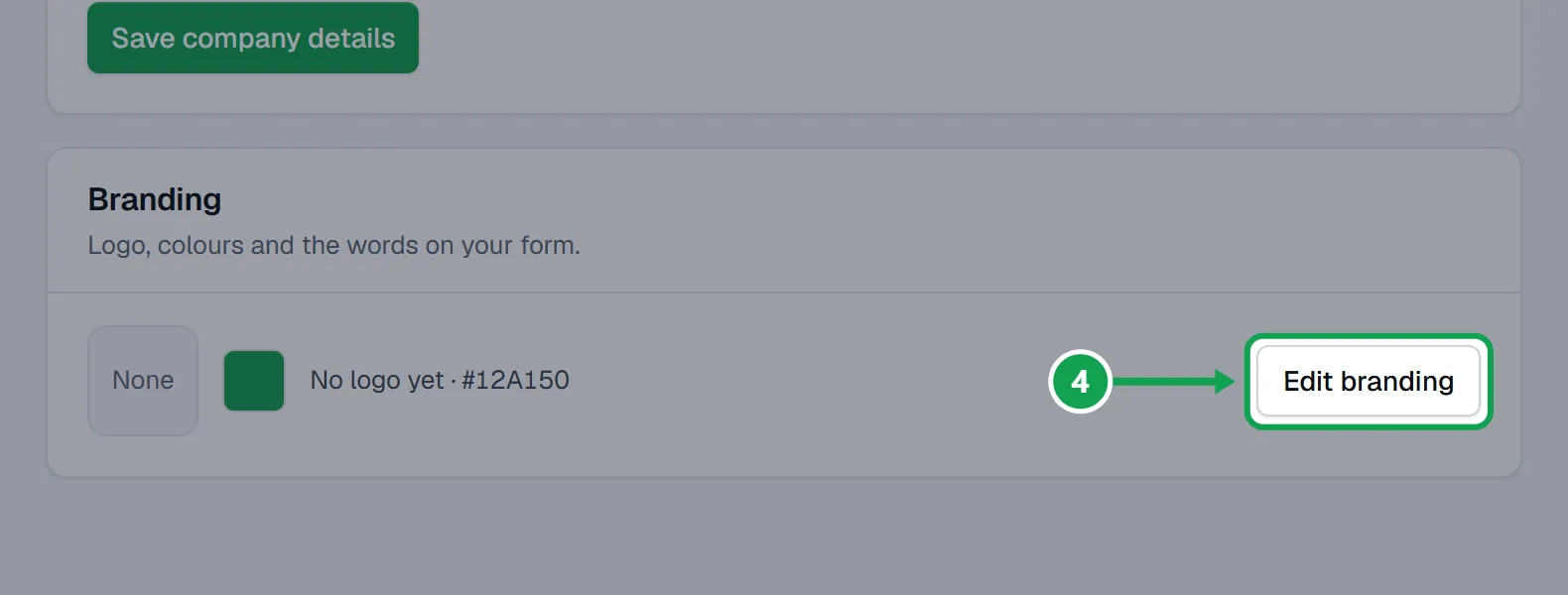
Step 4. For the logo, press Edit branding on the Branding card.
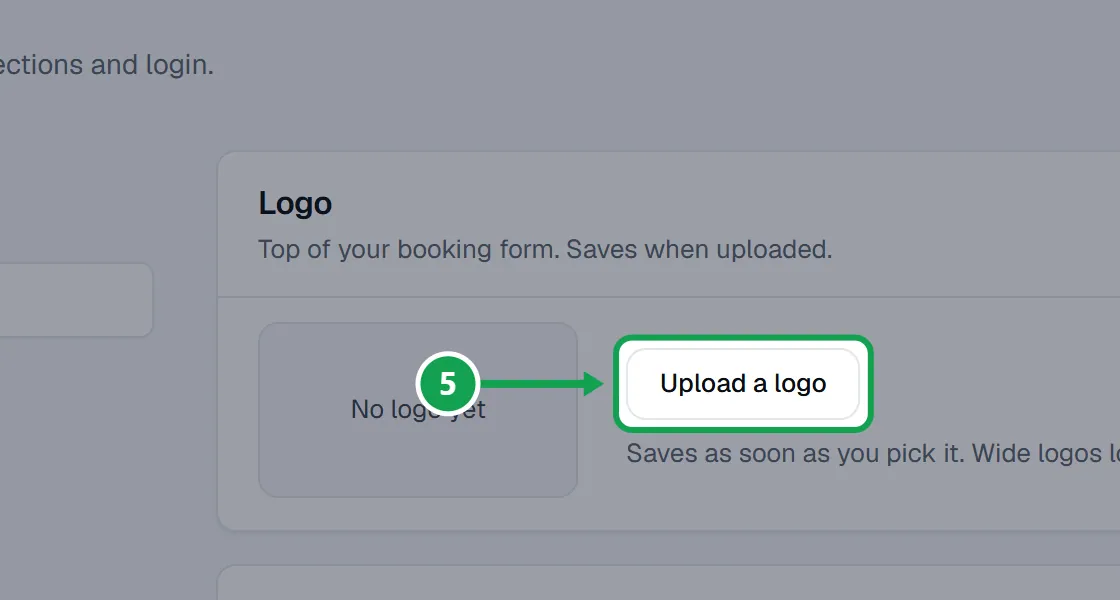
Step 5. Press Upload a logo and pick a PNG, JPEG or WebP file up to 2 MB. It saves as soon as you pick it. Wide logos look best.
Go back to the Homeworks logo, or remove yours
With no upload, your form uses the logo from your Homeworks profile. These show only after you have uploaded a logo.
Step 1. On the Branding page, tick Use the logo from Homeworks. If Homeworks has no logo, the box says Remove my logo.
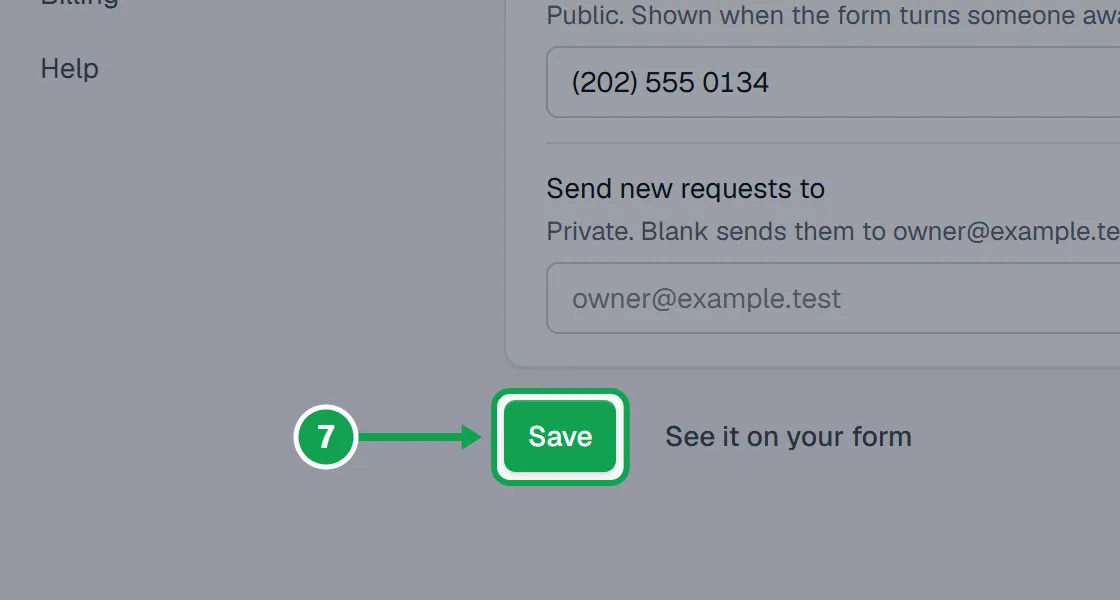
Step 2. Press Save at the bottom of the page. Your uploaded logo is dropped.
Sign homeowners' emails with your own name
Your name goes only on emails to homeowners, never on your booking form.
Step 1. In Settings, Company, type your name in Owner name. It is optional, up to 80 characters.
Step 2. Under Sign emails as, pick Owner name. It can be picked once a name is typed.
Step 3. Press Save company details. The receipt a homeowner gets now ends with your name.
If this, then that
- If it says That logo is over 2 MB
- Save a smaller copy of the image and press Upload a logo again.
- If your logo is an SVG or another file type
- Save it as PNG, JPEG or WebP first. Those are the three the upload takes.
- If you do not see Use the logo from Homeworks
- It shows only after you uploaded a logo of your own. Without one, the form already uses the Homeworks logo.
- If the name box is grey and there is no Save company details
- You are signed in as staff. Only the owner can rename the company.
Good to know
- Changing the name does not move your booking form's web address. That is in Settings, Domains.
- Colours, the opening line and the footer name are on the same Branding page.
- Only the owner can change these. Staff see them read-only.
- In Footer name on the Branding page, {{owner_name}} and {{company_name}} are filled in on emails. Your booking form shows the company name instead of your name.
- Clear Owner name and your emails are signed with the company name again.