Get help and let support look at your account
Press the Get help button for answers, a person, bug reports and your tickets. Replies show in the chat and by email. You decide if support can look.
Steps
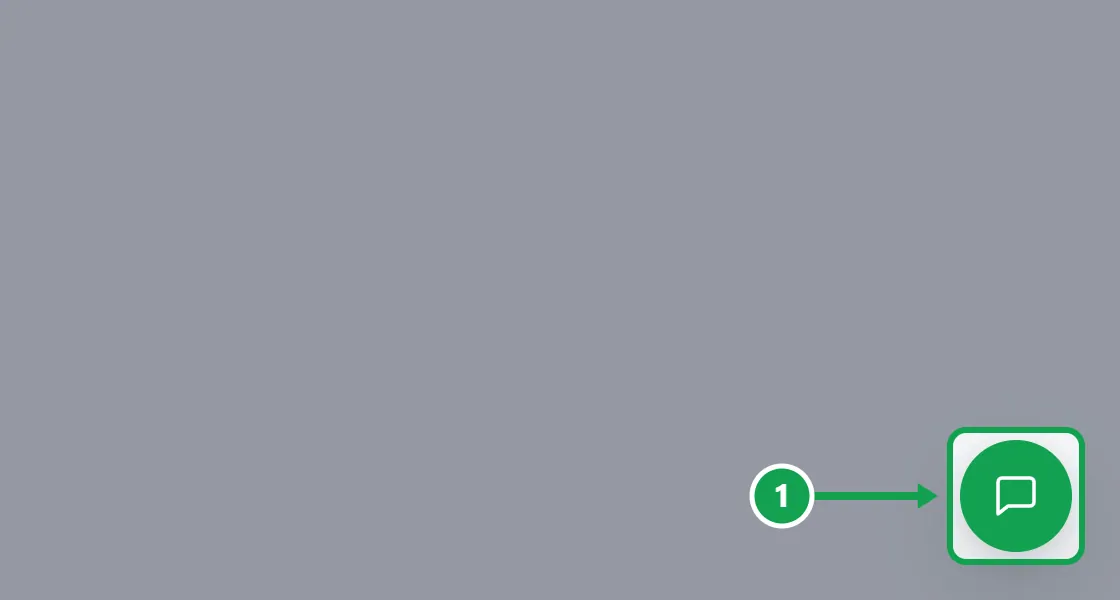
Step 1. Press the round Get help button in the bottom-right corner. It is on every page and stays open while you move around. Press it again to hide it; nothing is lost.
Step 2. Home has your latest conversation, Send us a message, Report a bug and the newest News from Seasonly.
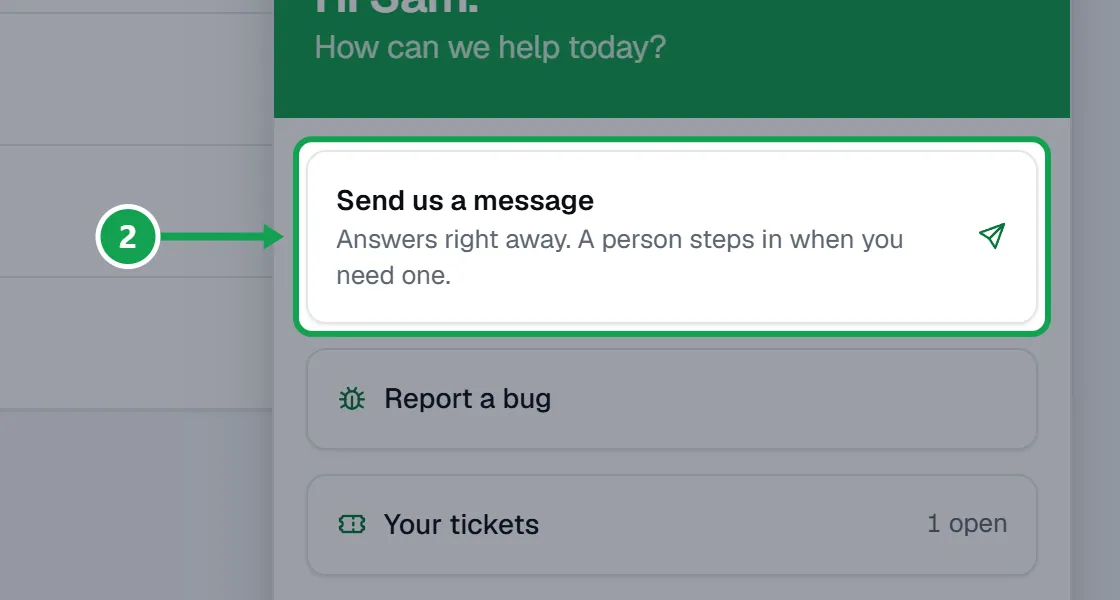
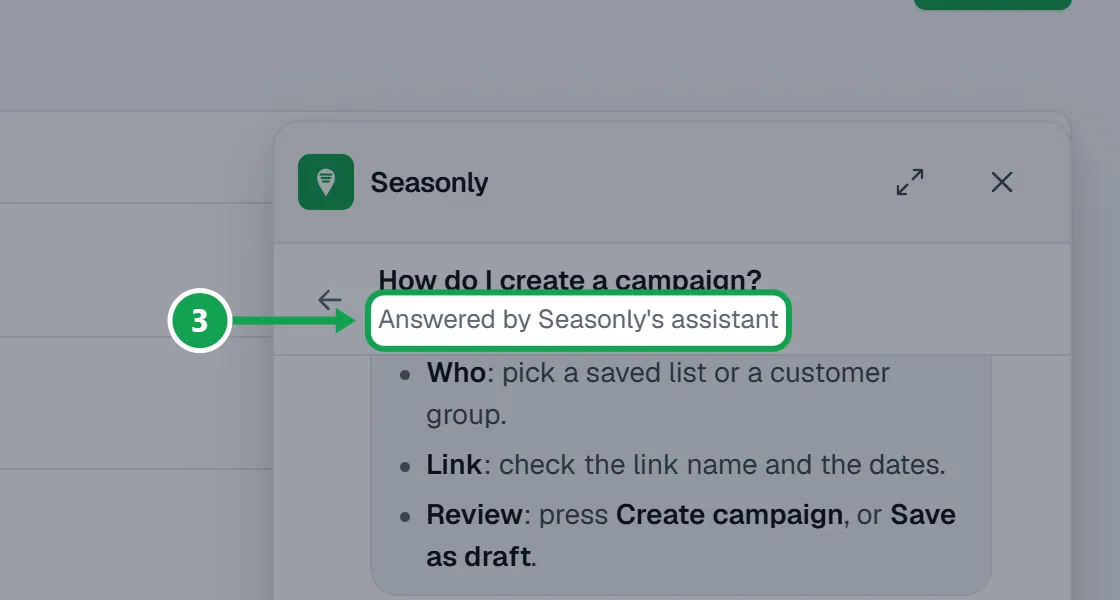
Step 3. Press Send us a message and ask in your own words. The assistant answers from this help center, with a picture of each click and a button to open the page.
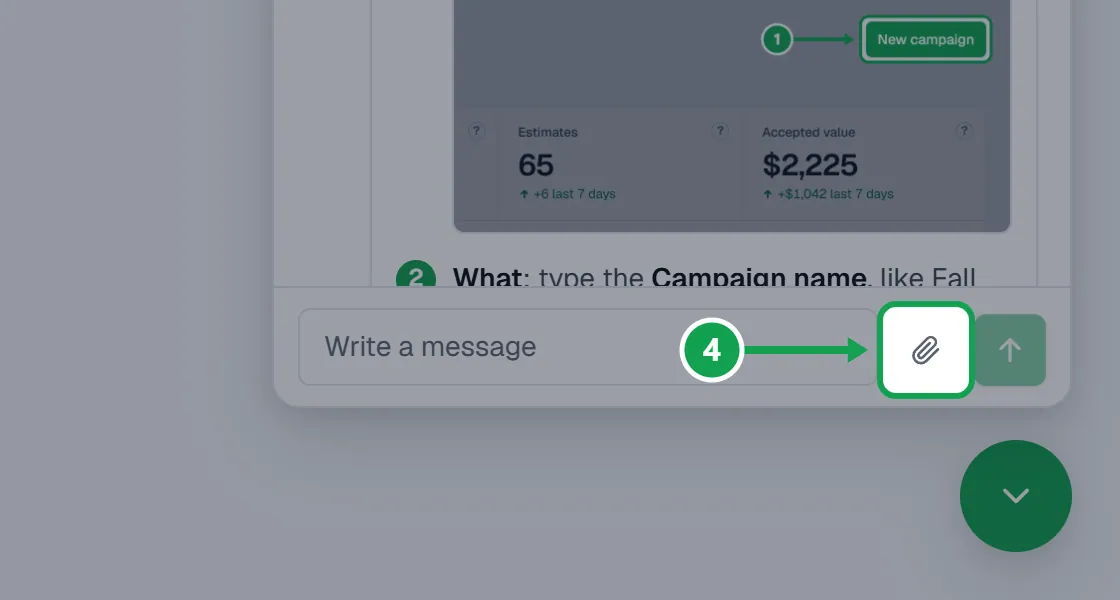
Step 4. To show what you see, press the paperclip beside the message box. Up to three screenshots go with your ticket, never to the assistant.
Step 5. Need a person? Press Talk to a person, then Send to the team. Your chat goes to the Seasonly team as a ticket.
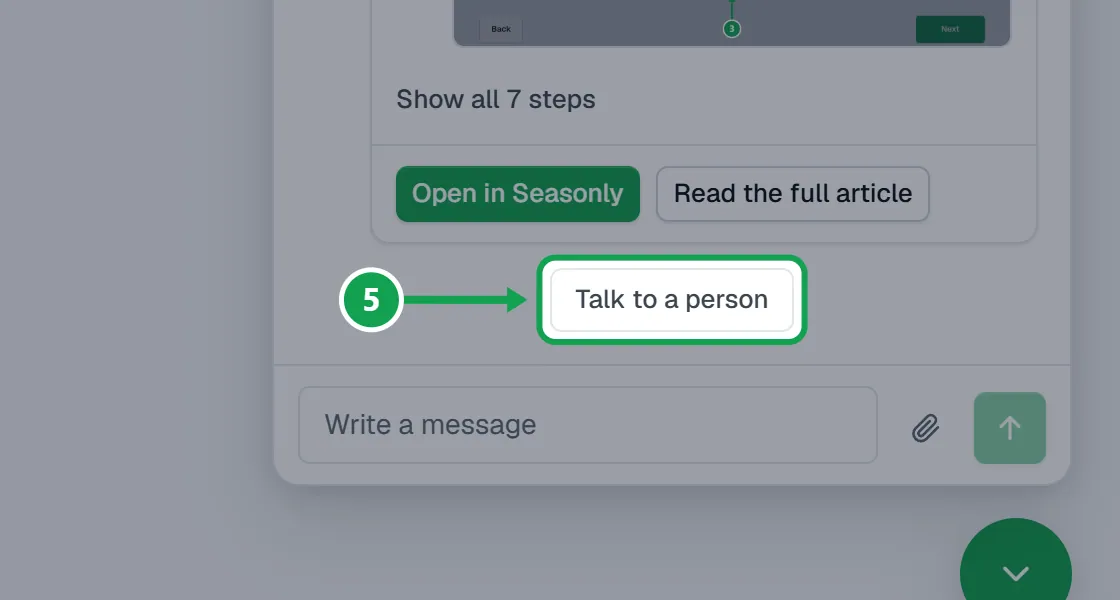
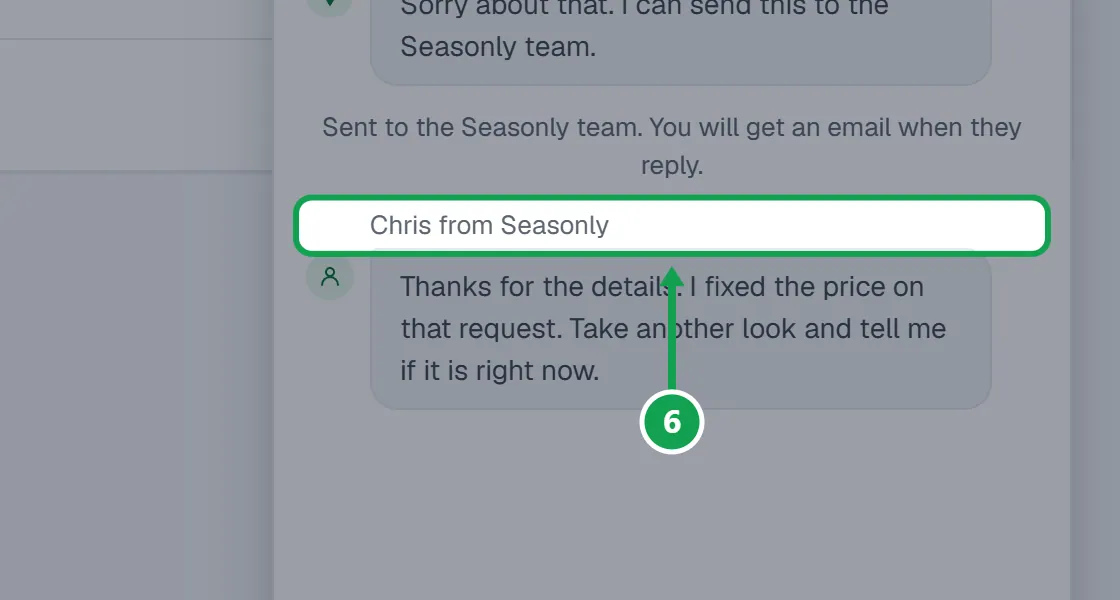
Step 6. The reply shows in the same chat and by email. Until you read it, a number shows on the Get help button and a dot on the conversation in Messages.
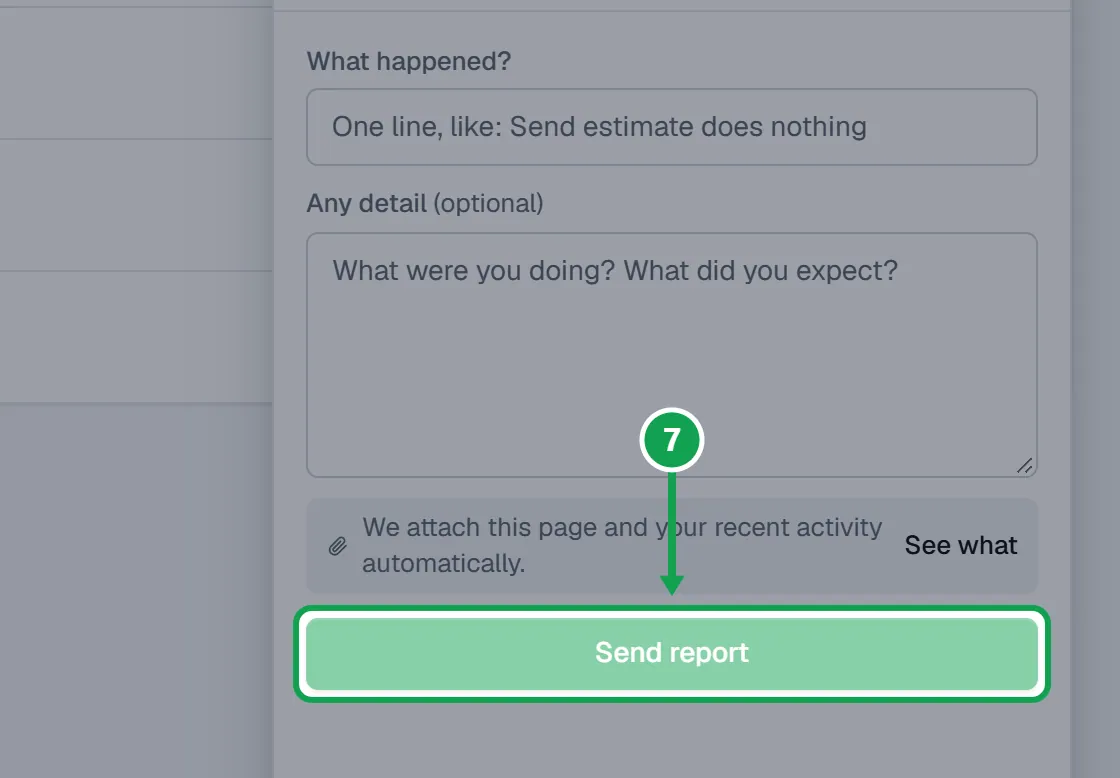
Step 7. Hit something broken? Press Report a bug, write What happened? in one line and press Send report. The page and your recent activity go with it; See what shows exactly what.
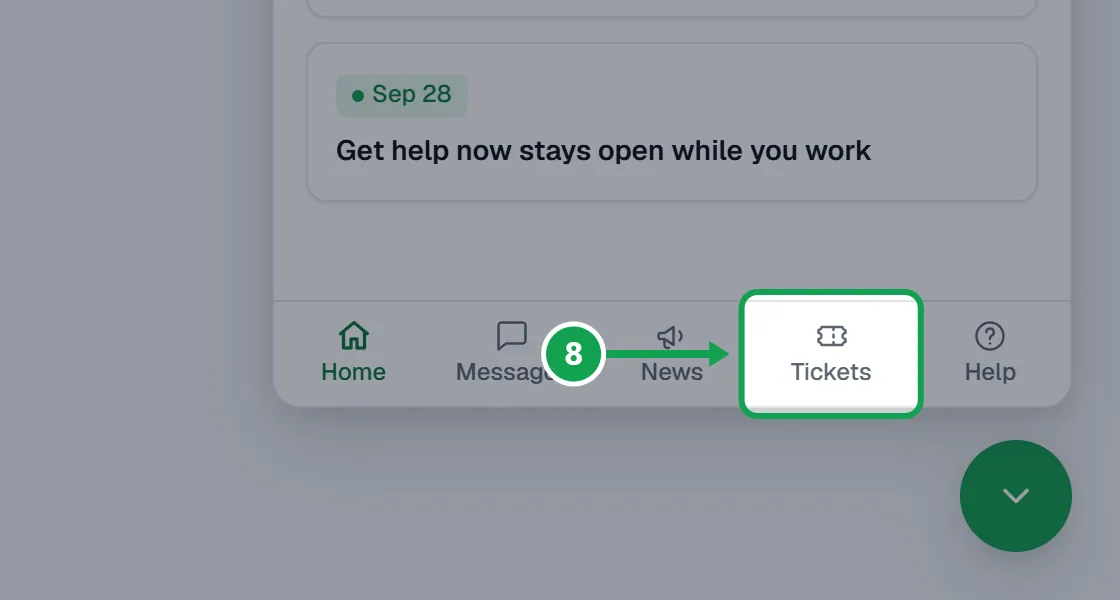
Step 8. Open Tickets to see every ticket from your company, where each one stands and how it was resolved. Everyone on your team can see them. Open one to reply.
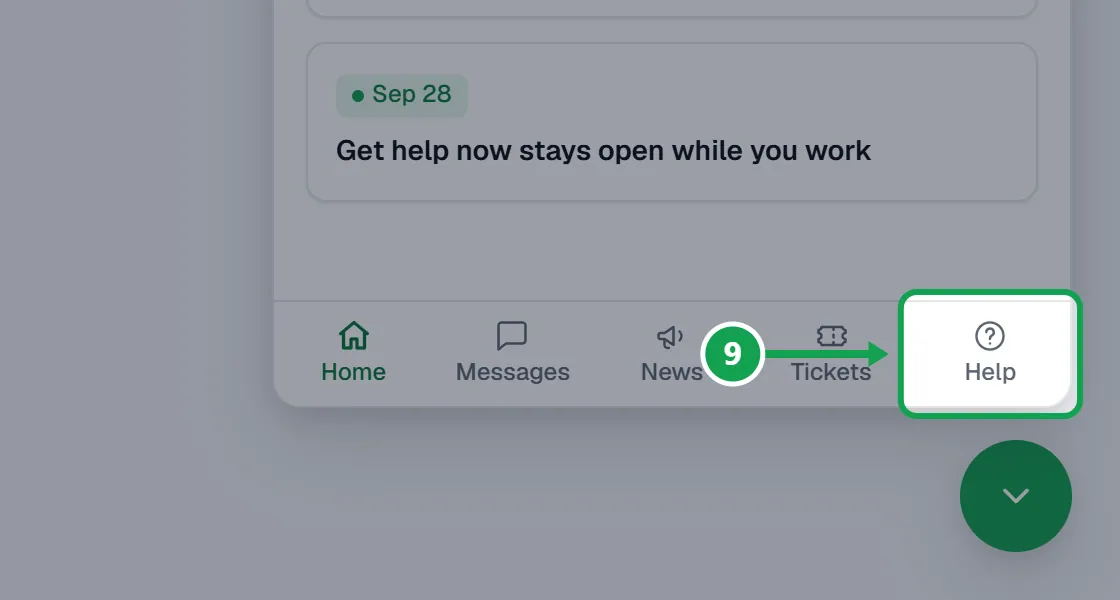
Step 9. Open Help to search every help article, with the same pictures as the help center.
Let support look at your account
Read-only, and it ends on its own. Only the owner can turn it on.
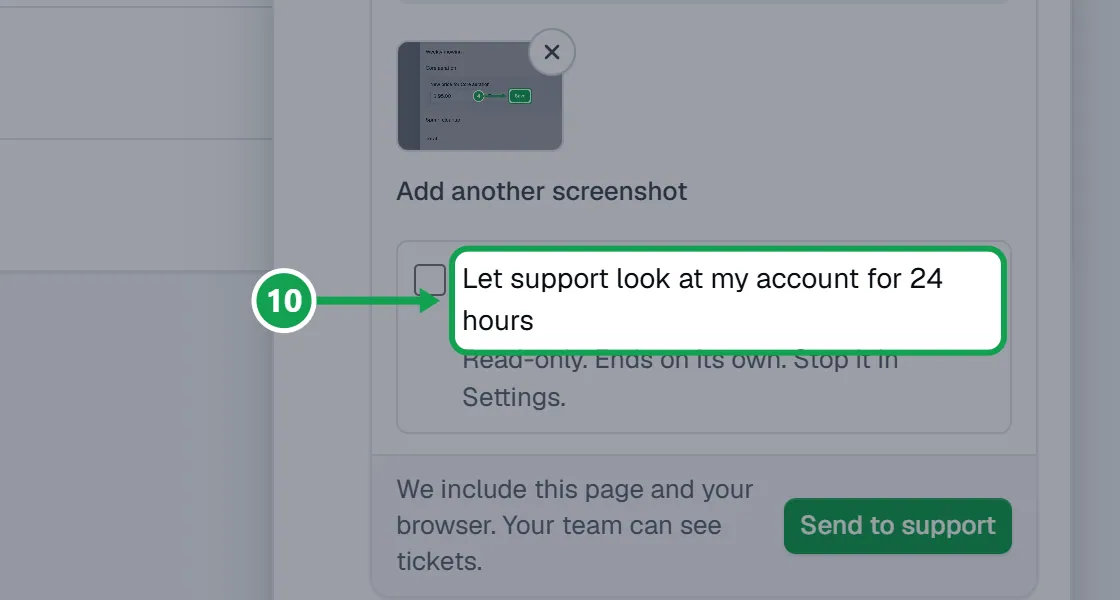
Step 1. When the chat makes you a ticket, tick Let support look at my account for 24 hours before you press Send to support.
Step 2. Or open Settings and choose Your account. On Support access, pick 1 hour, 24 hours or 7 days and press Allow support access.
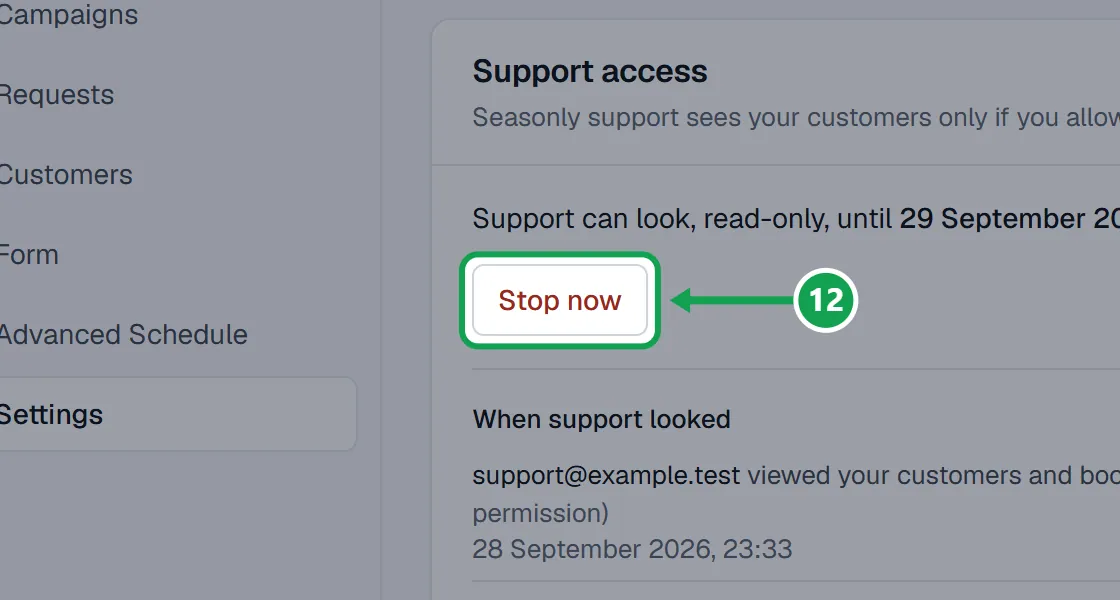
Step 3. To end it early, press Stop now.
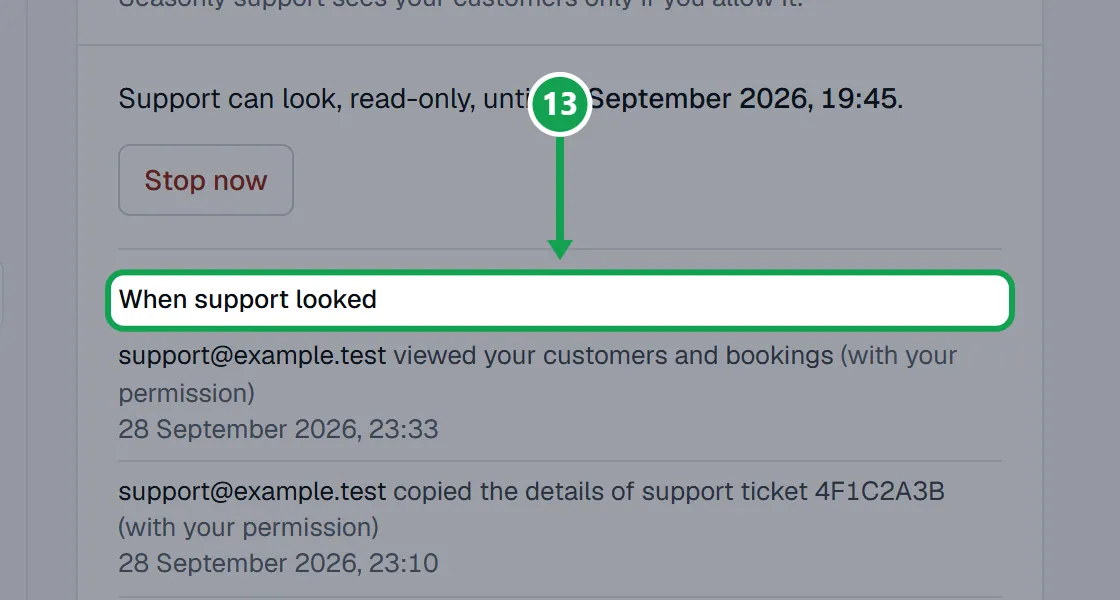
Step 4. When support looked lists every time support opened your account.
See your tickets on the Support page
Step 1. Open Support from the account menu. Each ticket says Open, Answered or Resolved.
Step 2. Open a ticket, type under Reply to support and press Send reply. Replying opens it again.
Read the Help page in Settings
The same help articles, inside Seasonly.
Step 1. Open Settings.
Step 2. Under Account, choose Help, and search or pick a topic.
If this, then that
- If you do not see the round button
- Press Get help in the left-hand menu, or in the menu on a phone. It opens the same panel.
- If the assistant cannot answer
- Press Talk to a person. A person reads every message and replies by email too.
- If you do not see the support access tick
- You are signed in as staff. You can still send the message; only the owner can let support look.
- If Support access says Your account owner decides when support can look.
- Ask the owner. Only they can turn it on or off.
- If you are not sure the message went
- Open Tickets in Get help, or Support from the account menu. Every message you sent is there.
- If you want support out now
- Press Stop now on Support access.
Good to know
- Get help keeps your place: hide it, move to another page, and your conversation is still there.
- The support chat is on every plan. Premium adds priority support.
- Support access is read-only and ends on its own. Only the owner can let support look.
- A bug report also sends the page you were on, your browser and your recent activity. Never passwords or anything typed into a form. See what shows exactly what goes.
- Tickets are your company's: everyone on your team sees them on Tickets and on the Support page.