Check, price and send an estimate
Open a request, check the lines Homeworks holds, change a price if you need to, and send it by text or email through Homeworks.
Steps
Step 1. Open Requests and press the request to open it. The Estimate section shows each line's price and the Total, read live from Homeworks.
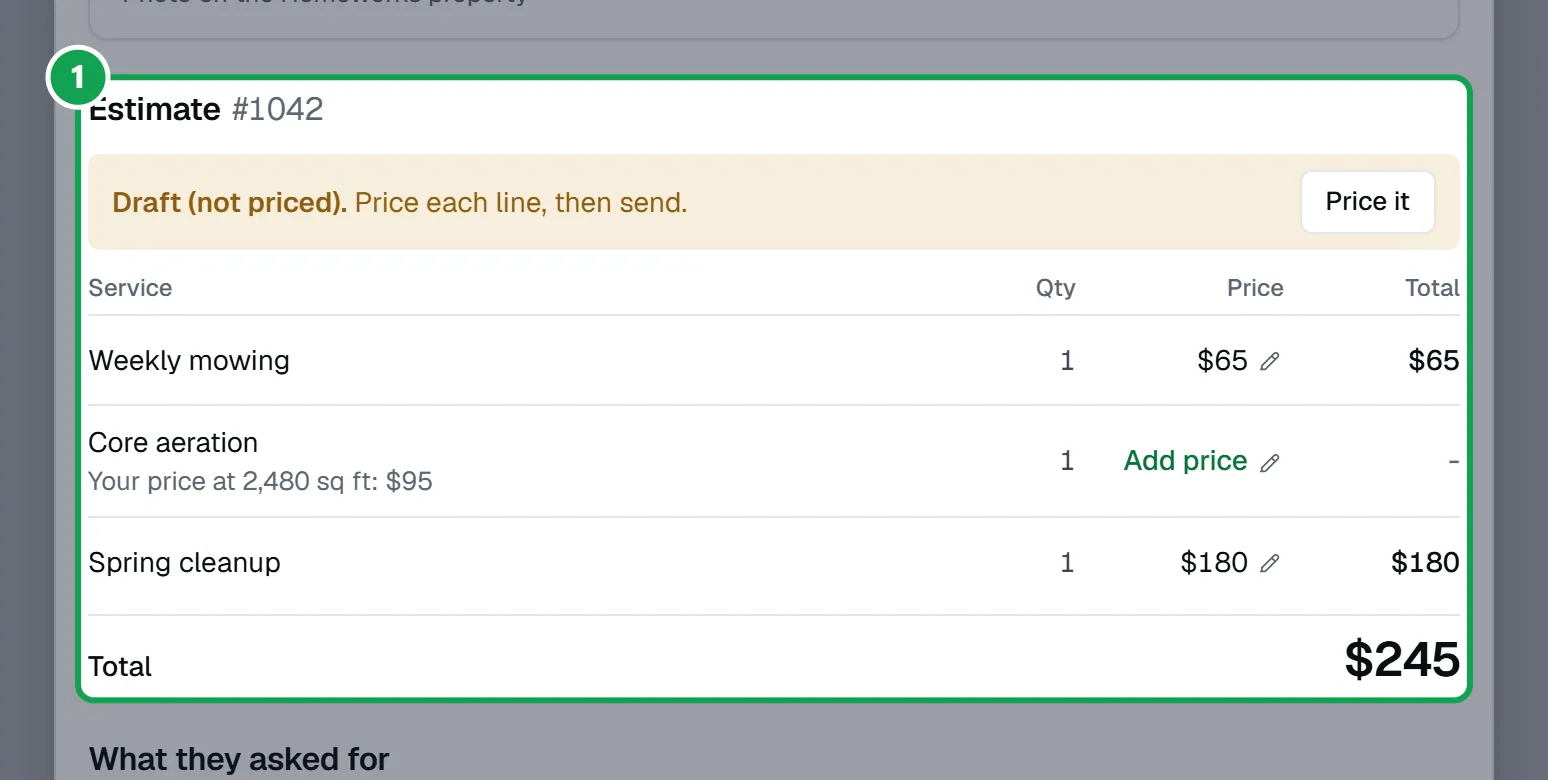
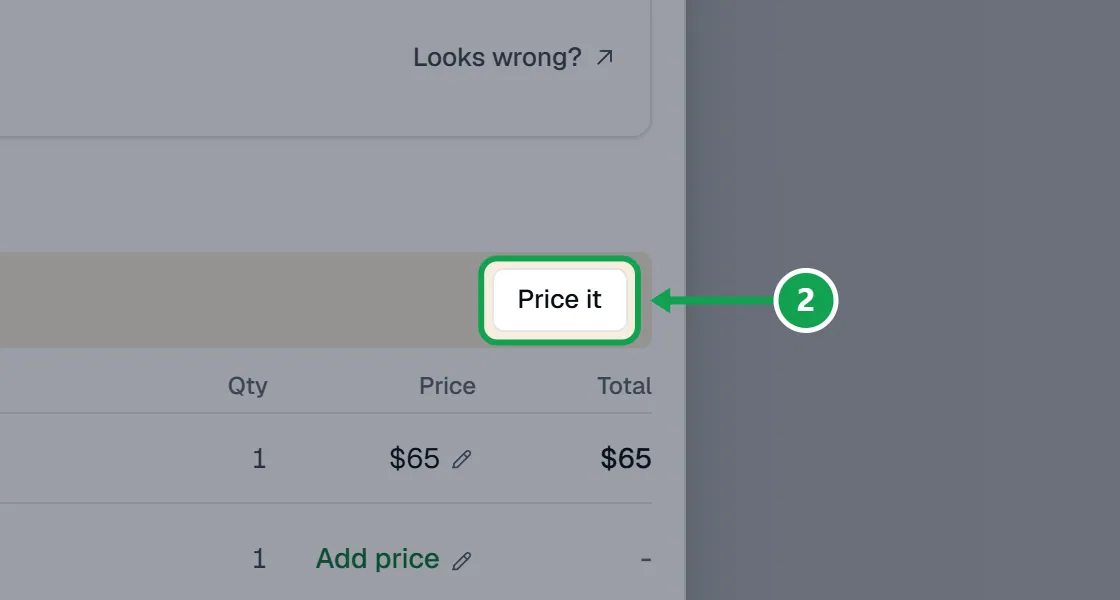
Step 2. If it says Draft (not priced)., a line has no price yet. Press Price it, or press Add price on that line.
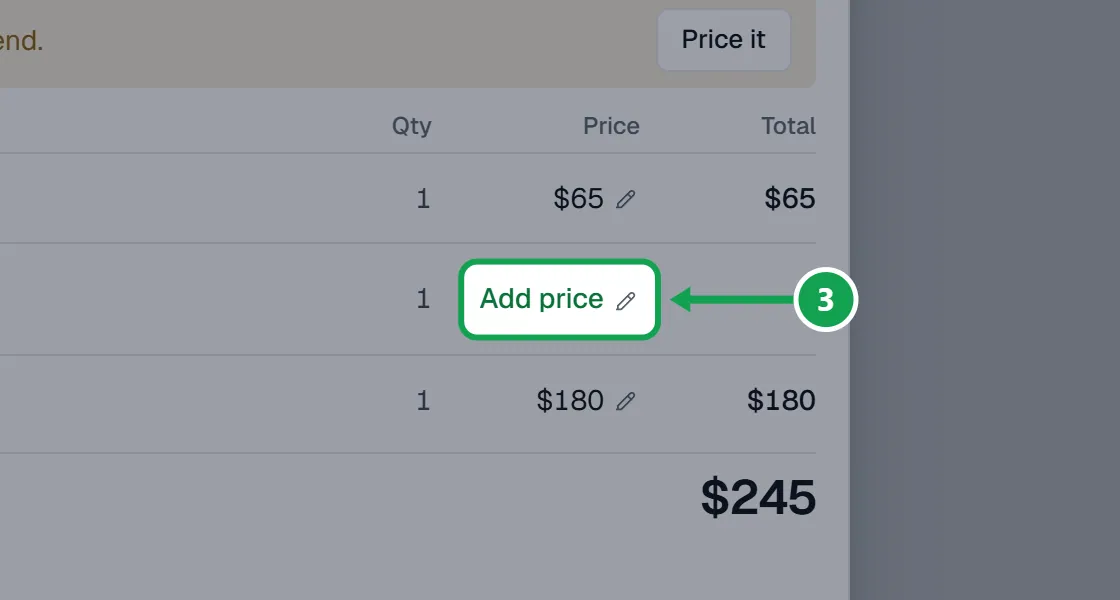
Step 3. To change any price, press the price on its line.
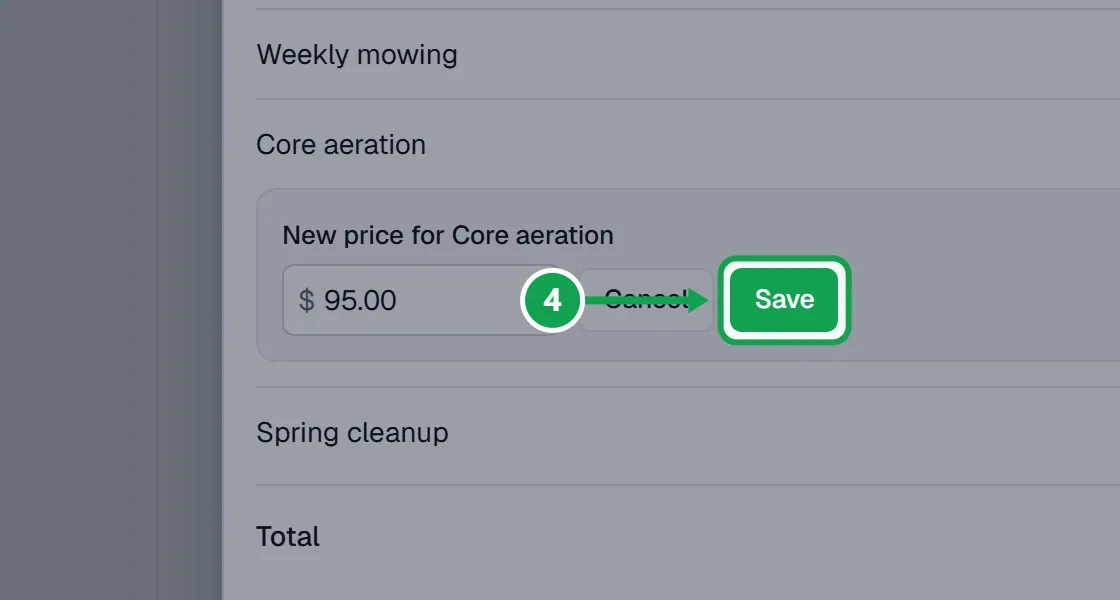
Step 4. Type the new price and press Save. If Seasonly knows your price for this lawn size, a Use your price link under the box fills it in for you.
Step 5. Read the change and press Change price to save it in Homeworks.
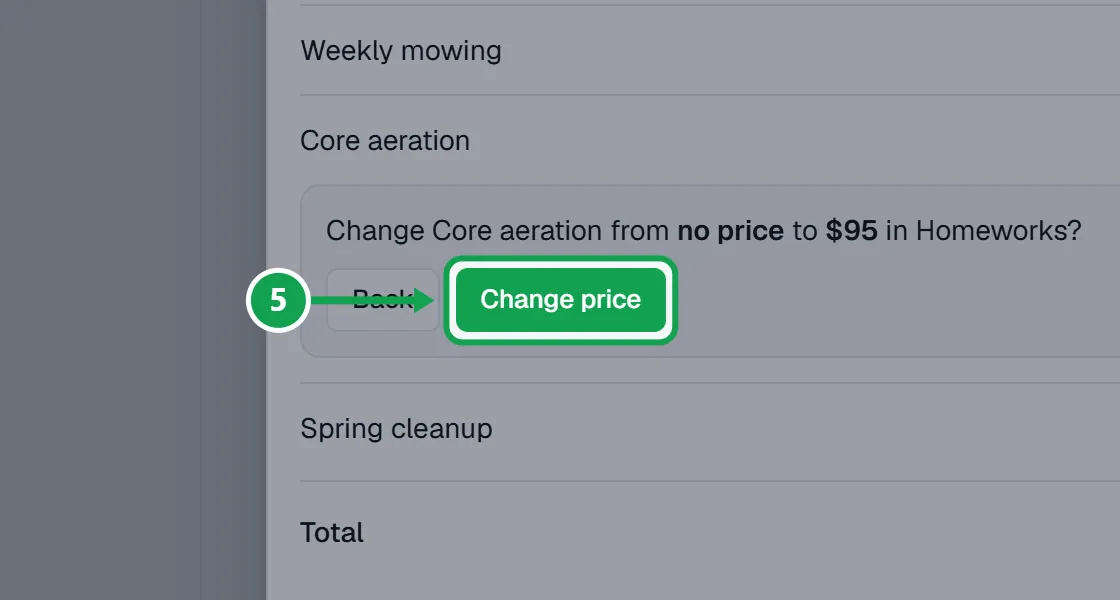
Step 6. When every line has a price, press Send estimate at the top of the request.
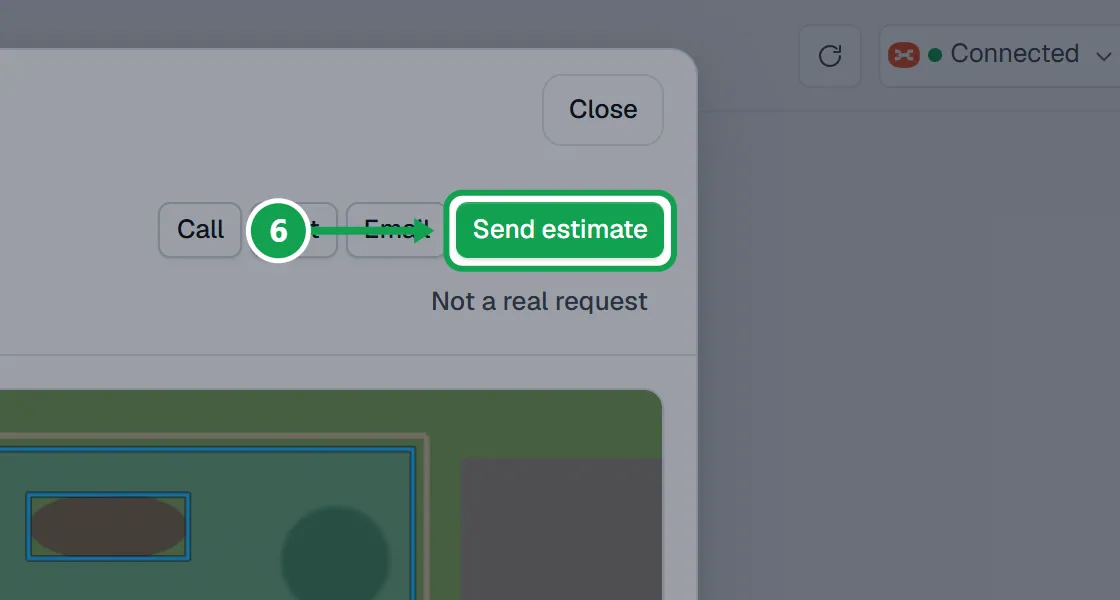
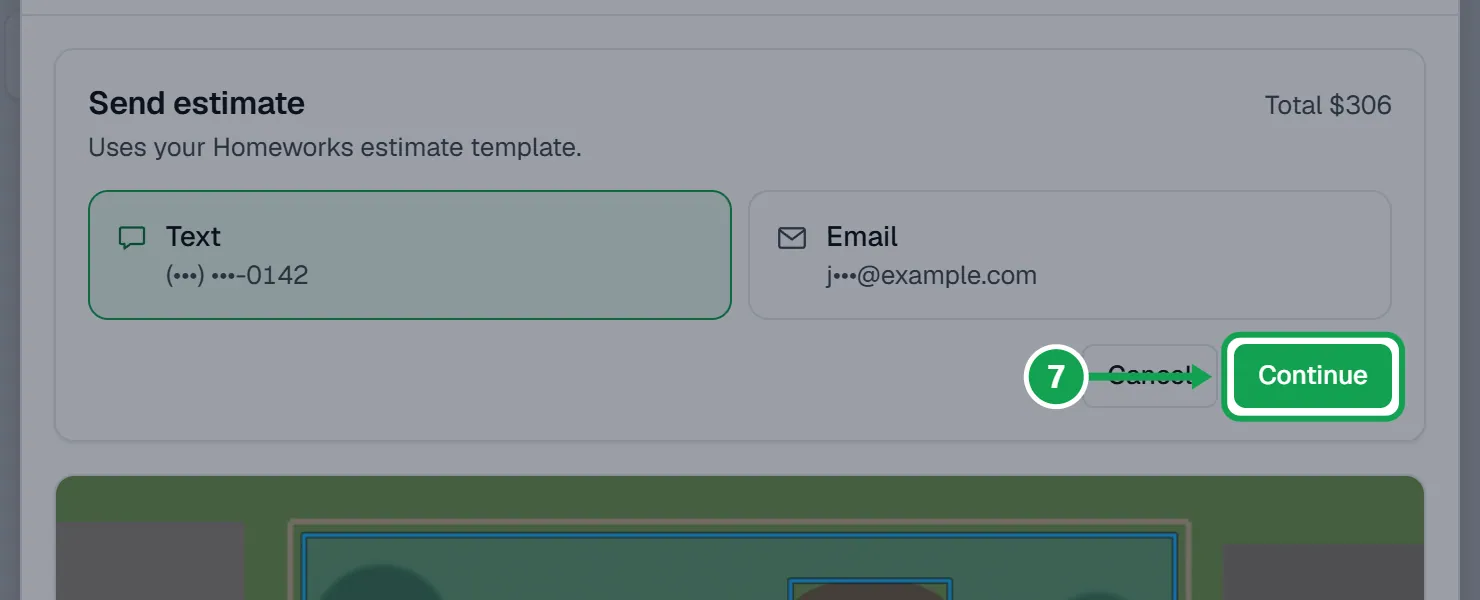
Step 7. Pick Text or Email. Each shows where it will go. Press Continue.
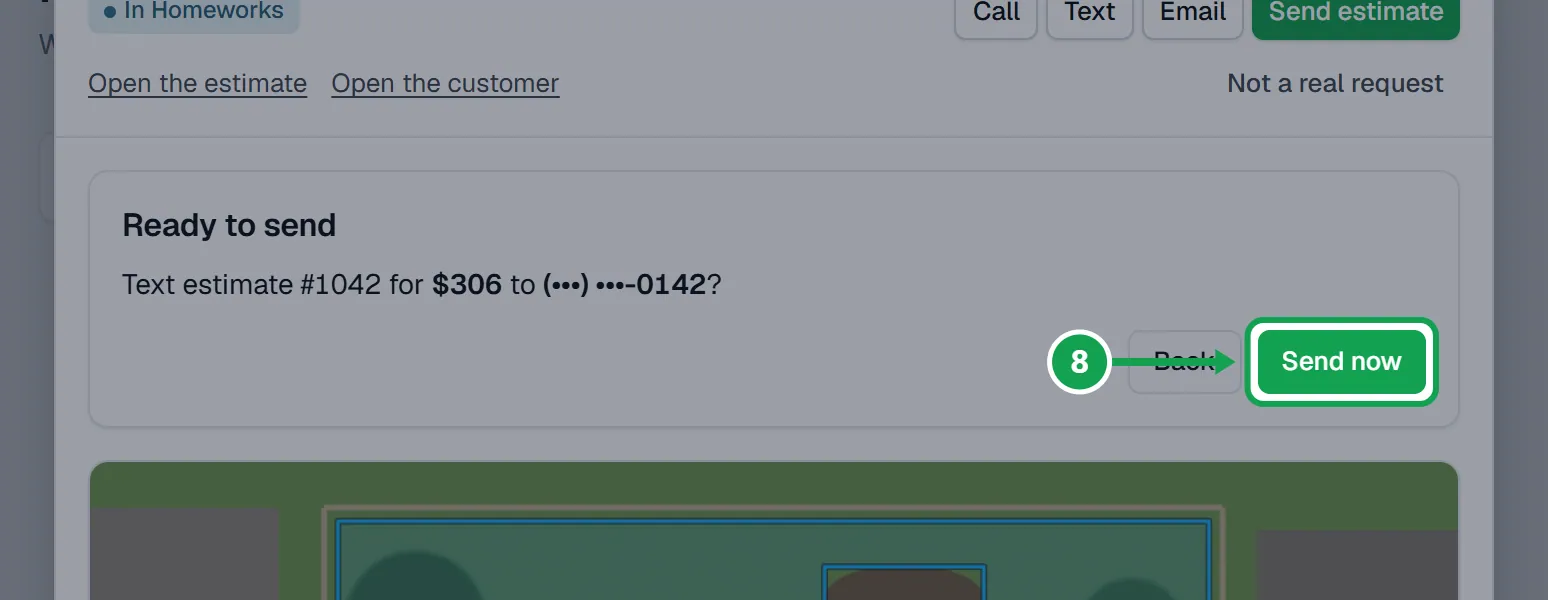
Step 8. Read the sentence with the total and who it goes to, then press Send now. The estimate shows Sent and the request moves to the Sent stage.
Turn on sending first
Price changes and sends from Seasonly stay off until you turn them on.
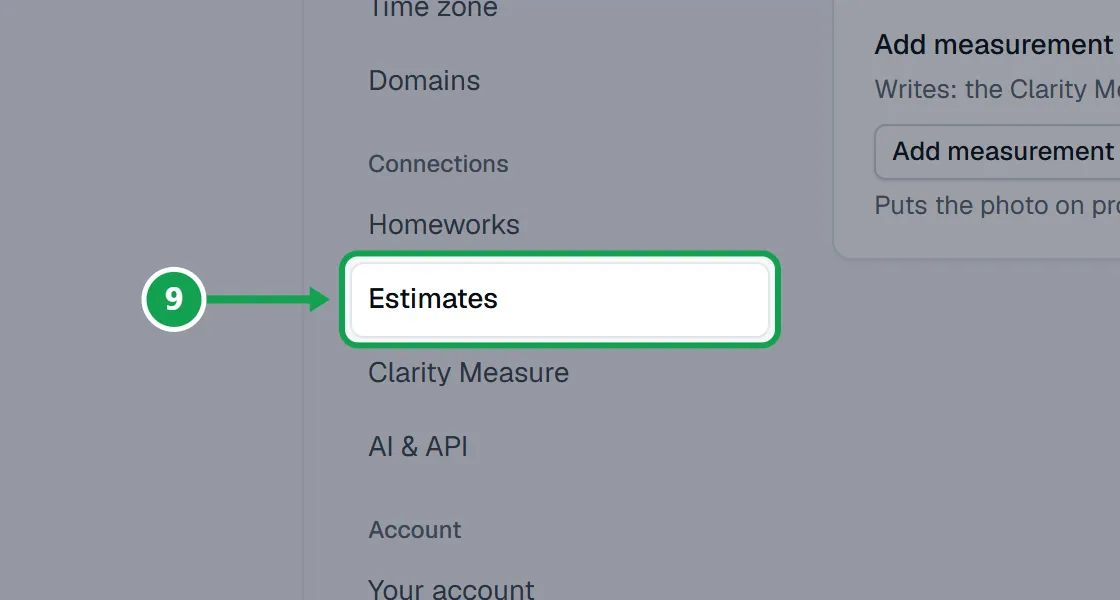
Step 1. Open Settings and choose Estimates.
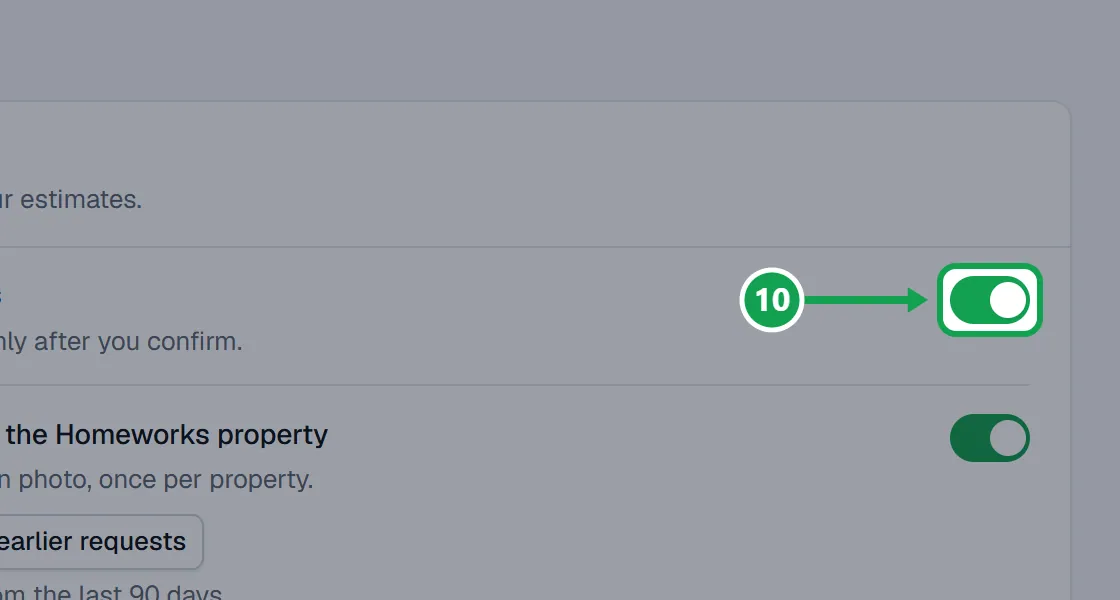
Step 2. Turn on Let Seasonly send estimates. Every price change and send still asks you to confirm.
Send it again
Step 1. Open the request. The button now says Send again.
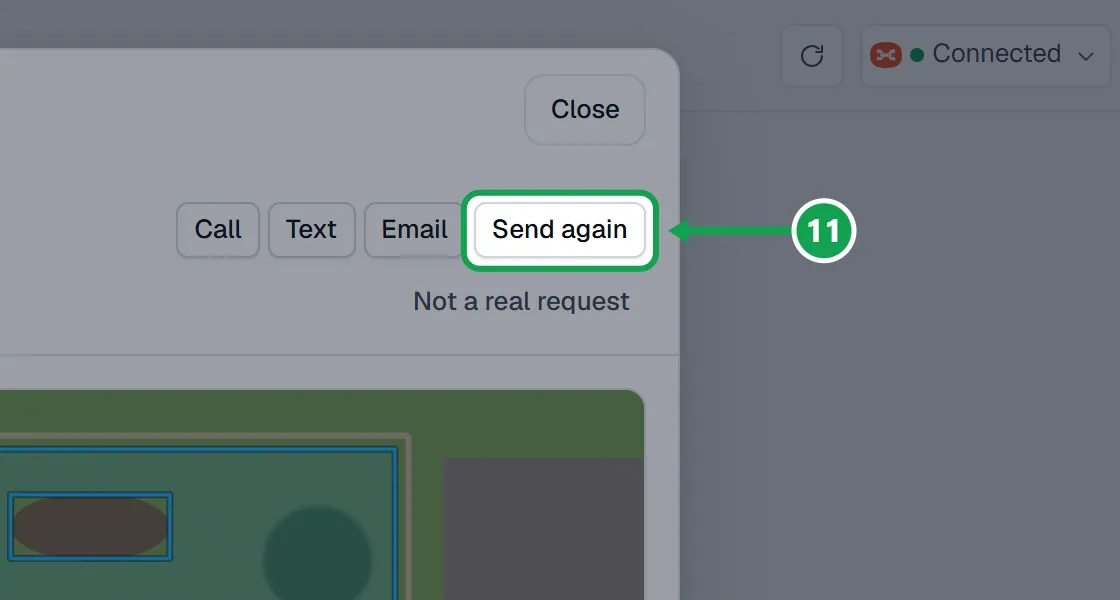
Step 2. Pick Text or Email, press Continue, read the line that says it was sent before, then press Send again.
When the button says Send anyway
Seasonly asks once more when the lawn size needs a look before the estimate goes.
Step 1. The last step says why: Clarity Measure flagged the outline, the size is the customer's own answer, or a measurement is still running.
Step 2. Check the size and the prices first. Then press Send anyway, or press Back and fix it.
If this, then that
- If Send estimate is greyed out and says Price each line first.
- A line has no price. Press Price it or Add price, save the price, then send.
- If it says Turn on "Let Seasonly send estimates" in Settings.
- Press Open Settings and turn on Let Seasonly send estimates.
- If you do not see Send estimate at all
- You are signed in as staff. Only the owner can price and send.
- If Text is greyed out
- The customer did not agree to texts, or the mobile in Homeworks is not the number that agreed. Send by Email, or fix the number in Homeworks.
- If the last button says Send anyway
- The size needs a look first. See Check a lawn outline Clarity Measure flagged, or check the prices yourself before you press it.
- If a line says Priced by your Homeworks rate matrix.
- That price comes from Homeworks. Change it in Homeworks, not here.
Good to know
- Homeworks does the sending, with your own Homeworks estimate template. Seasonly never sends an estimate by itself.
- Text goes only to the number that agreed to texts on the form. Email goes only to the address the customer typed.
- Sending again is limited to 3 times an hour for one estimate and 20 a day for your company.
- Price changes and sends always wait for your approval when Claude asks, even on a trusted connection.
- Only the owner can change prices or send. Staff see the estimate without the buttons.