See what came in on Requests
Every booking your form took in, sorted by stage: New, In Homeworks, Sent, Accepted, Scheduled or Needs attention.
Steps
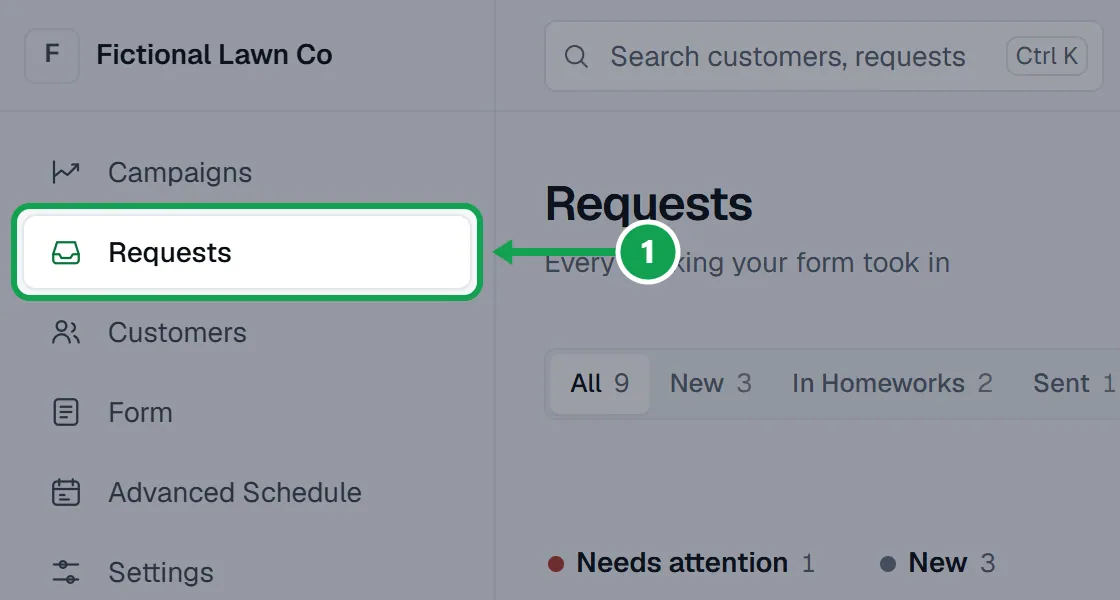
Step 1. Open Requests in the menu.
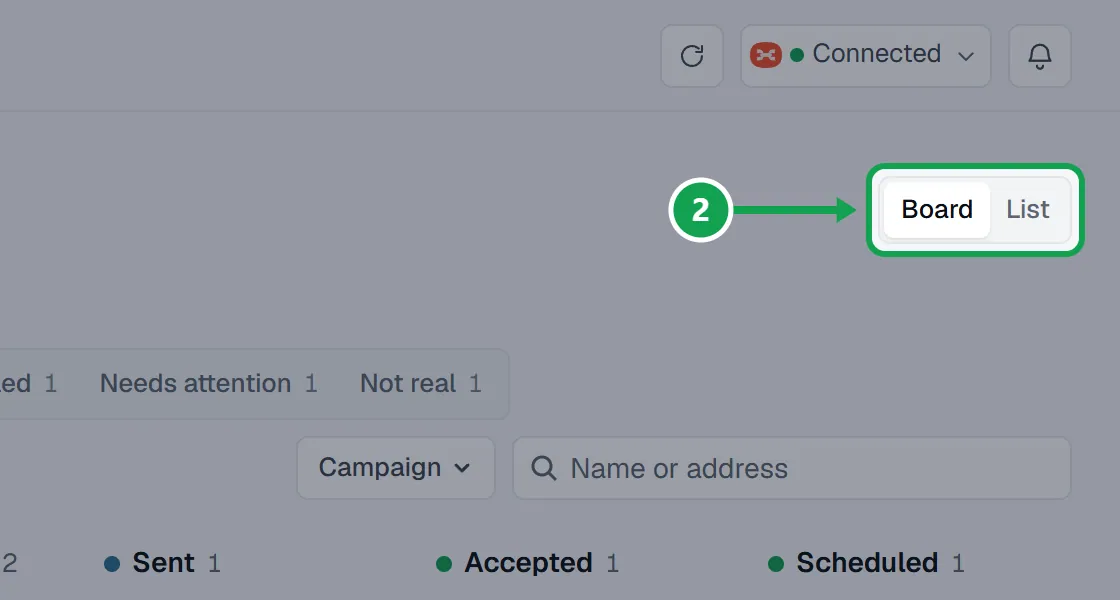
Step 2. Pick Board to see columns by stage, or List to see rows.
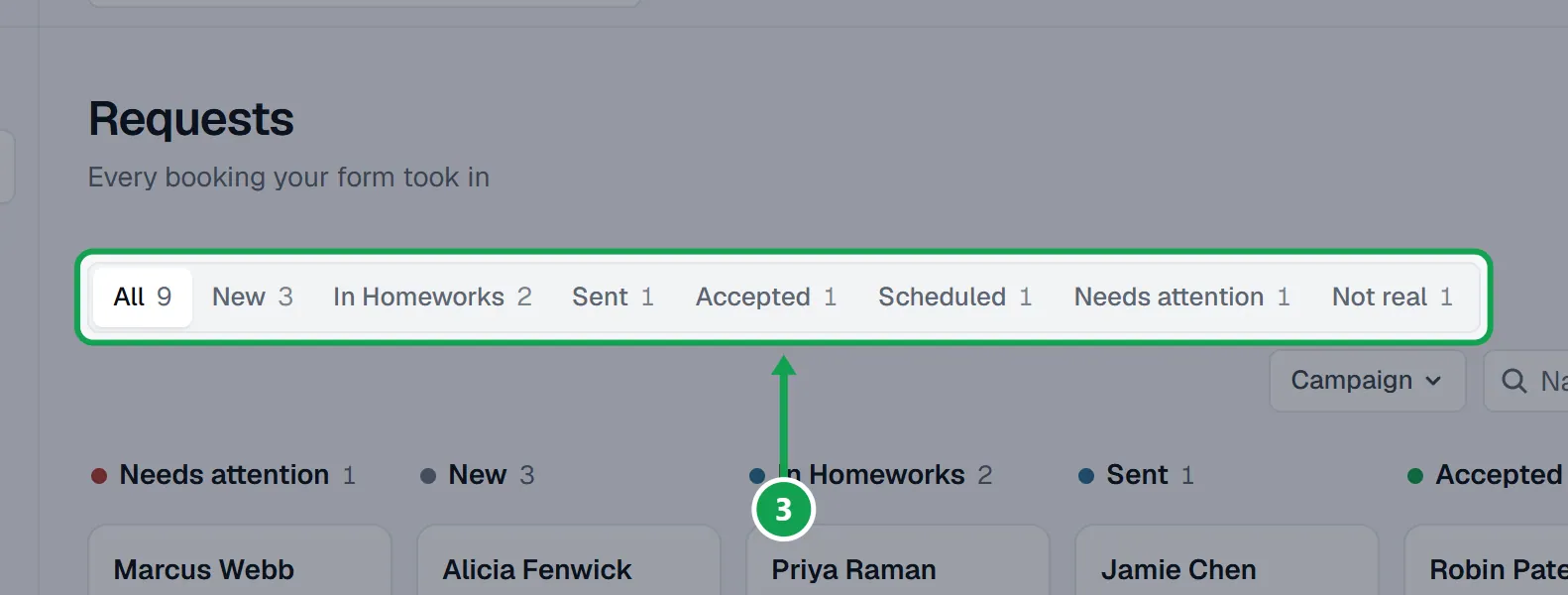
Step 3. Press a stage tab to see only those requests: All, New, In Homeworks, Sent, Accepted, Scheduled, Needs attention or Not real. Each tab shows its count.
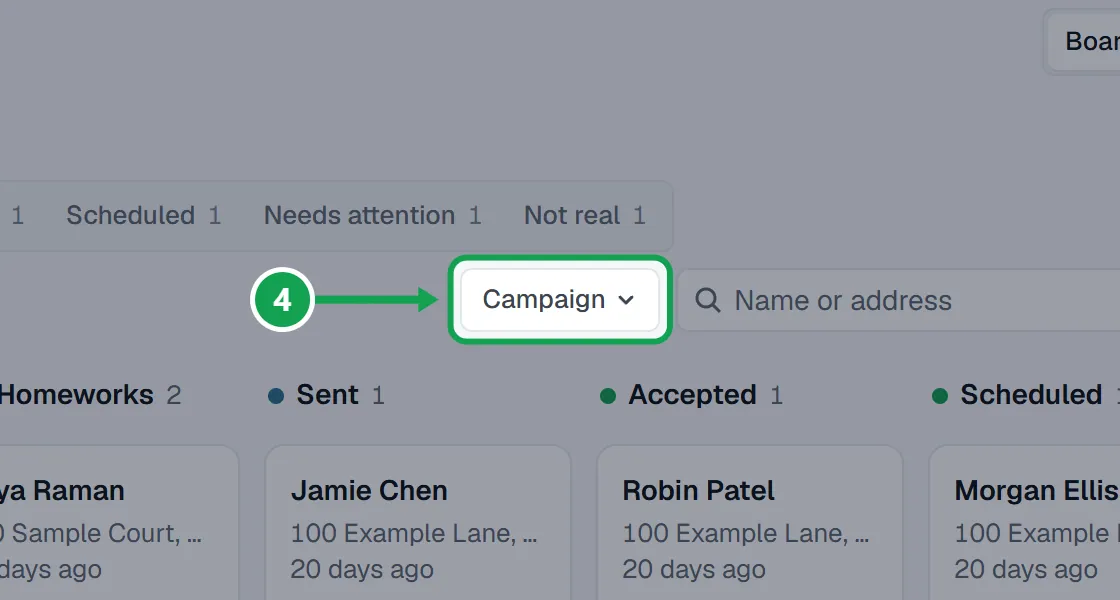
Step 4. To see one campaign's bookings, press Campaign and pick it. All campaigns clears it.
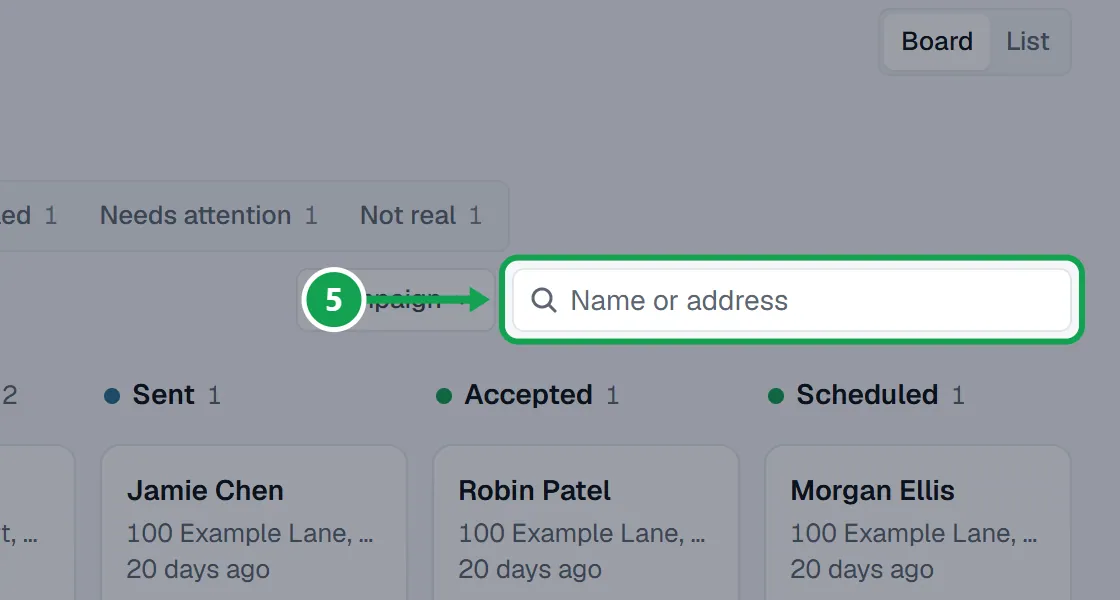
Step 5. To find someone, type a name or address in the search box and press Enter.
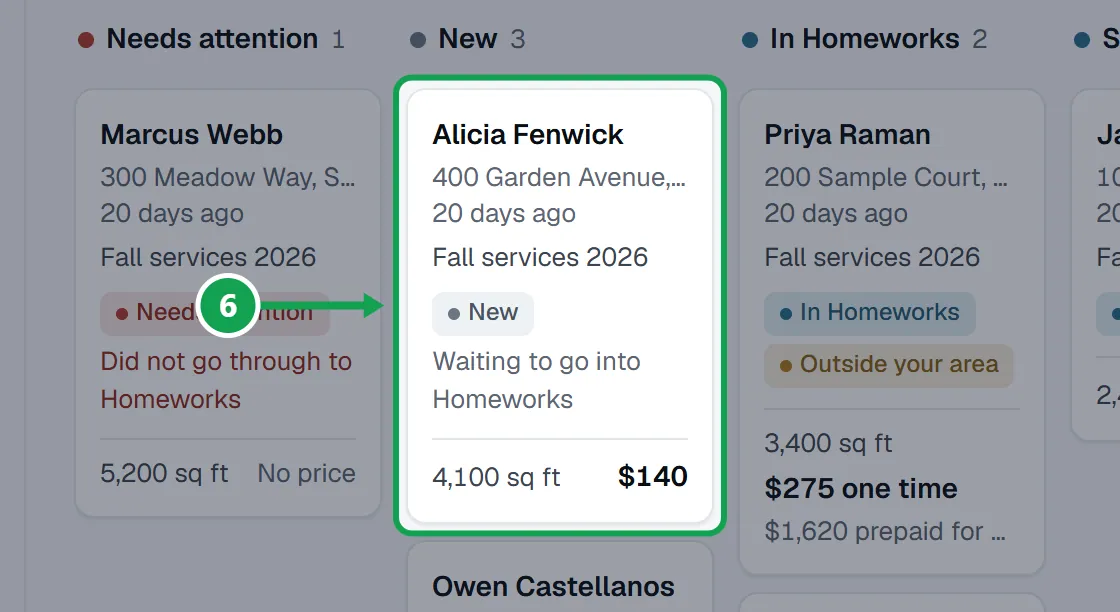
Step 6. Press a card to open the request. You see the address, the lawn size, the estimate, What they asked for, the campaign and when it came in.
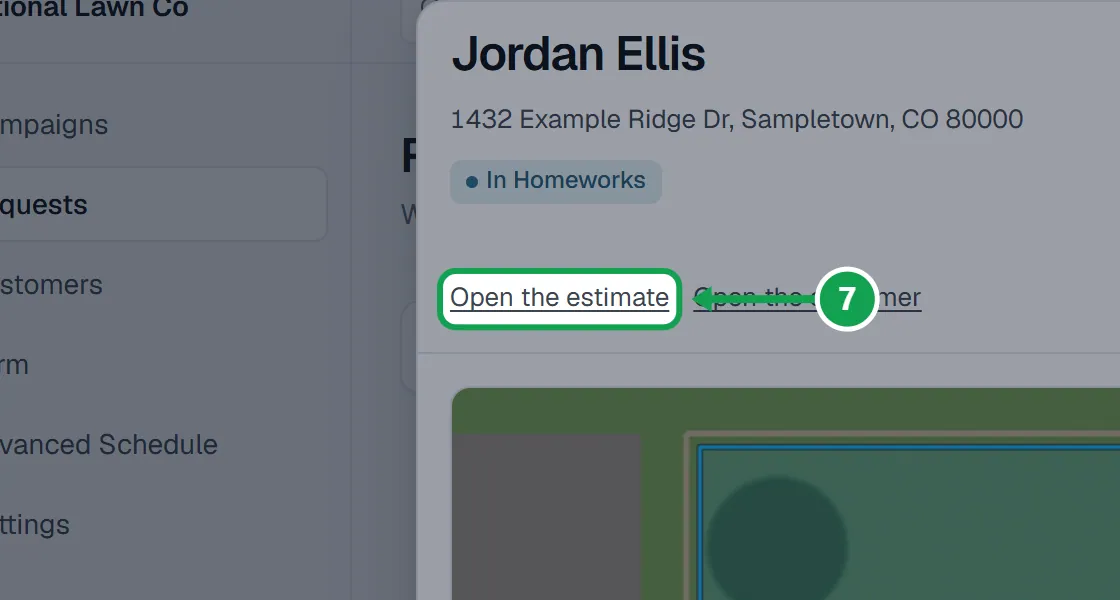
Step 7. At the top of the open request, Open the estimate and Open the customer open them in Homeworks. Call, Text and Email open your phone or email.
Fix a request that needs attention
A request lands under Needs attention when it did not reach Homeworks, or Homeworks shows the estimate declined, changed or removed.
Step 1. Press the Needs attention tab and open the request.
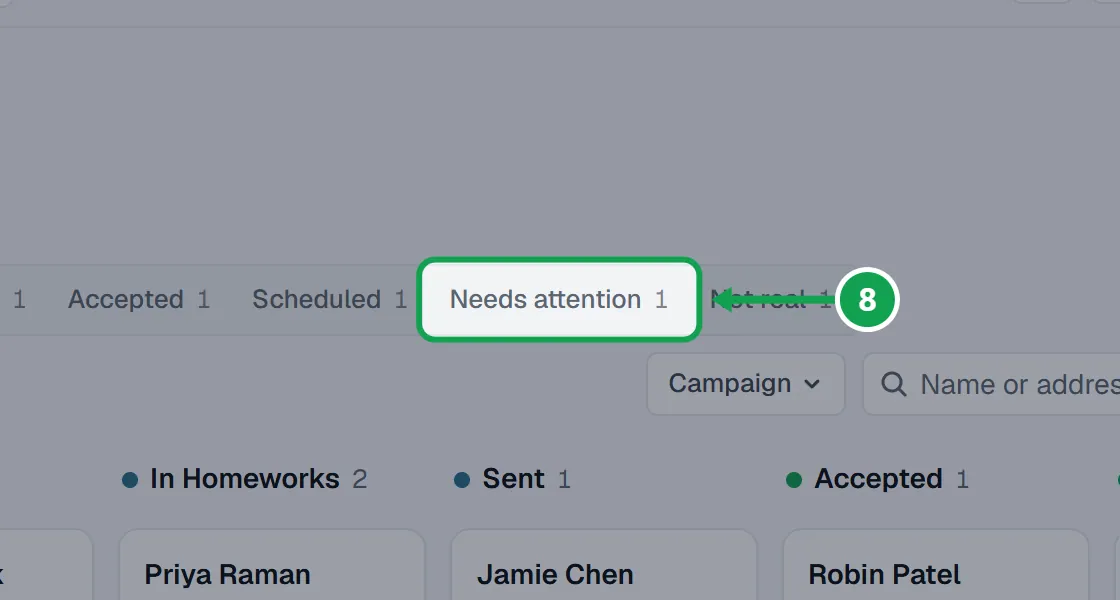
Step 2. If it did not go through to Homeworks, read the sentence in the red box, fix what it says (often reconnecting Homeworks) and press Retry.
Step 3. If Homeworks shows the estimate declined, changed, deleted or archived, press Open the estimate and deal with it in Homeworks.
What each stage means
A request moves along by itself as Seasonly checks Homeworks.
Step 1. New: it just arrived and Seasonly is putting it into Homeworks.
Step 2. In Homeworks: the estimate is in Homeworks and has not been sent yet.
Step 3. Sent: the estimate was sent from Homeworks.
Step 4. Accepted: the customer accepted the estimate.
Step 5. Scheduled: a visit or a repeating schedule is booked for it.
Step 6. Needs attention: it did not go through, or it was declined, changed or removed in Homeworks. Not real holds the requests you marked as not real.
If this, then that
- If a request sits under Needs attention and says it did not go through to Homeworks
- Read the sentence on it, fix what it says (often Reconnect on the Homeworks card in Settings), then press Retry.
- If the Retry button is greyed out
- You are signed in as staff, or Seasonly is already trying. Ask the owner, or wait a minute and refresh.
- If a campaign's bookings are missing
- Check the Campaign filter and the stage tab. Press All and pick All campaigns to see everything.
- If a request you hid is missing
- It is under the Not real tab. Open it and press Undo to bring it back.
- If the stage looks out of date
- Leave Requests open for a minute. It checks Homeworks in the background and moves the request by itself.
Good to know
- The page checks Homeworks in the background and refreshes itself about once a minute while it is open.
- A tab's count is every request at that stage, not only the ones on this page.
- Outside your area on a card means the address is outside your service area. The request still comes in.
- Text shows only when the customer agreed to texts on the form.
- Staff can read requests. Only the owner can press Retry, send estimates or mark a request not real.